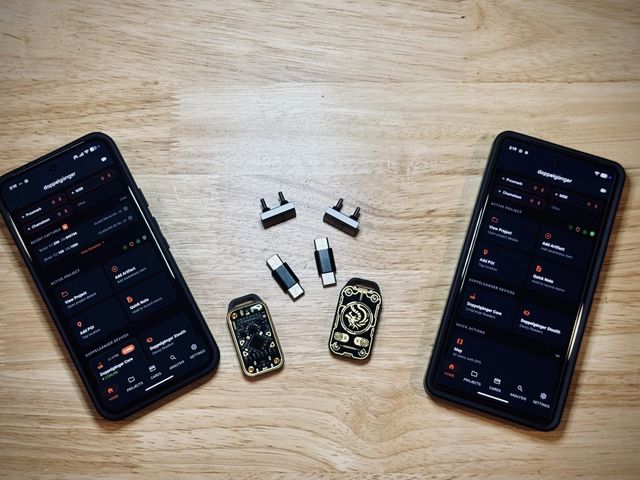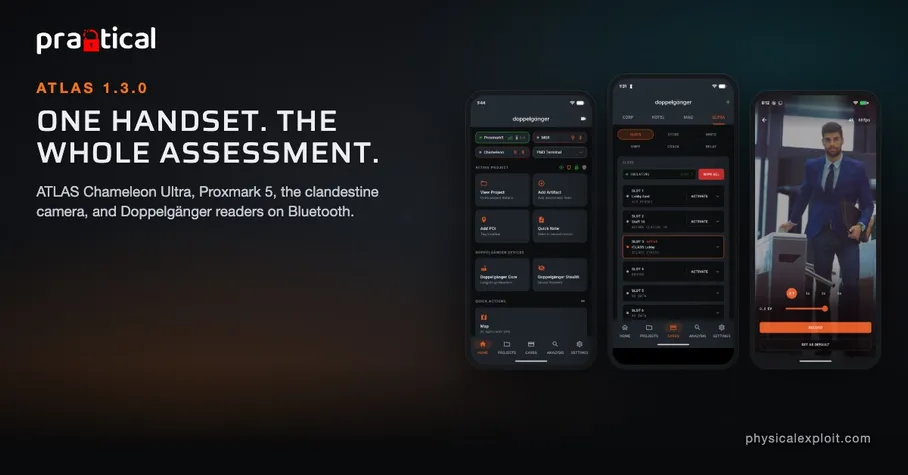
A physical security assessment is card work, reader work, evidence and a site record, and each of those tends to bring its own device. ATLAS 1.3.0 puts them on one handset. This post goes through the release in eleven parts. Nine of them each come with one situation they change on a job, and two shorter sections cover the rest of the card work and the app itself. The complete list is in the release notes.
Everything here is a professional audit tool for authorized work, performed under contract or employment with the site owner’s authorization.
The ATLAS Chameleon Ultra
The ATLAS Chameleon Ultra is a Chameleon Ultra running ATLAS CU firmware, a ground up rewrite that takes it from a development device to a professional security tool. It does the card work of a penetration test or facility assessment in a fraction of a Proxmark’s size, run from Cards, ULTRA, through six chips: SLOTS, STORE, WRITE, SNIFF, CRACK and RELAY.
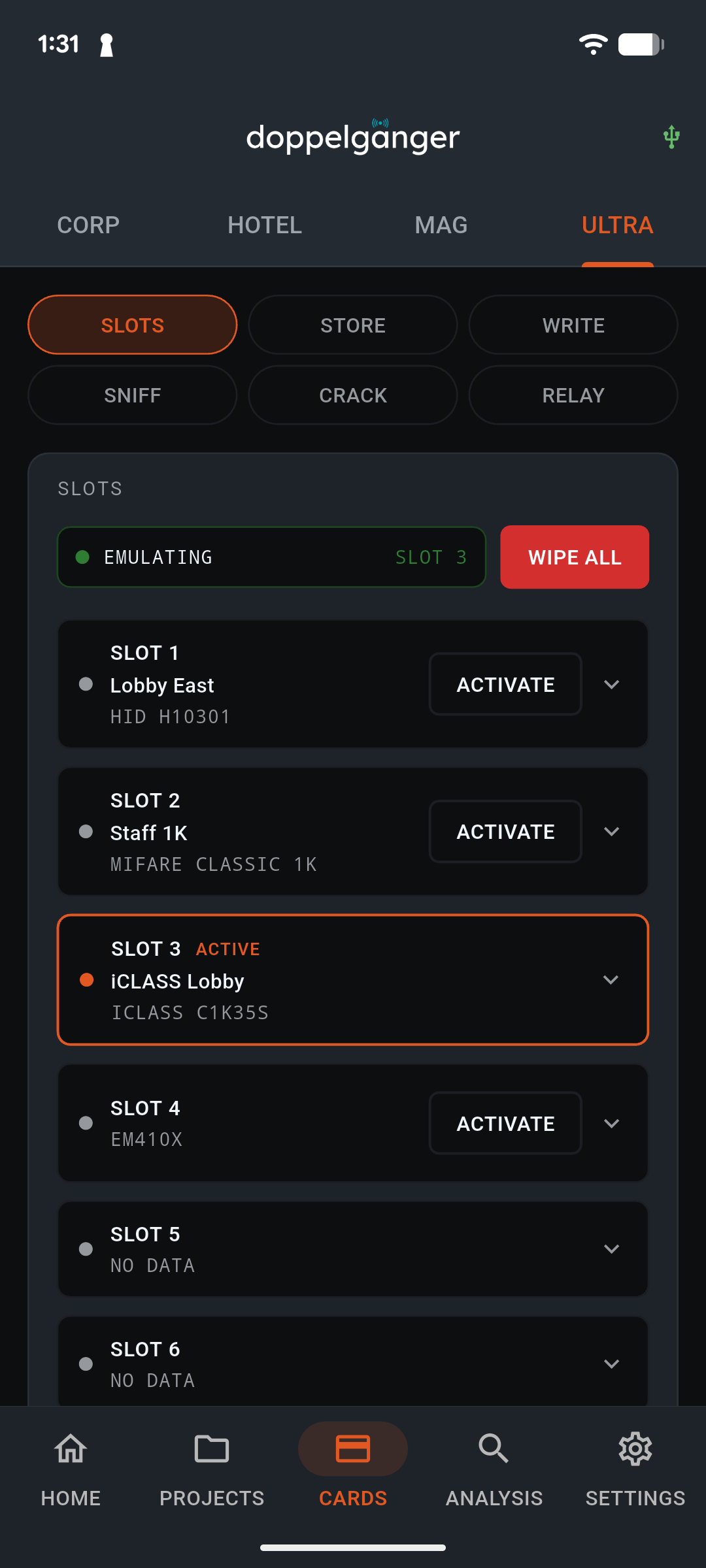
- EMULATING, SLOT 3, the slot the unit answers a reader with.
- SLOT 3, ACTIVE, an iCLASS credential.
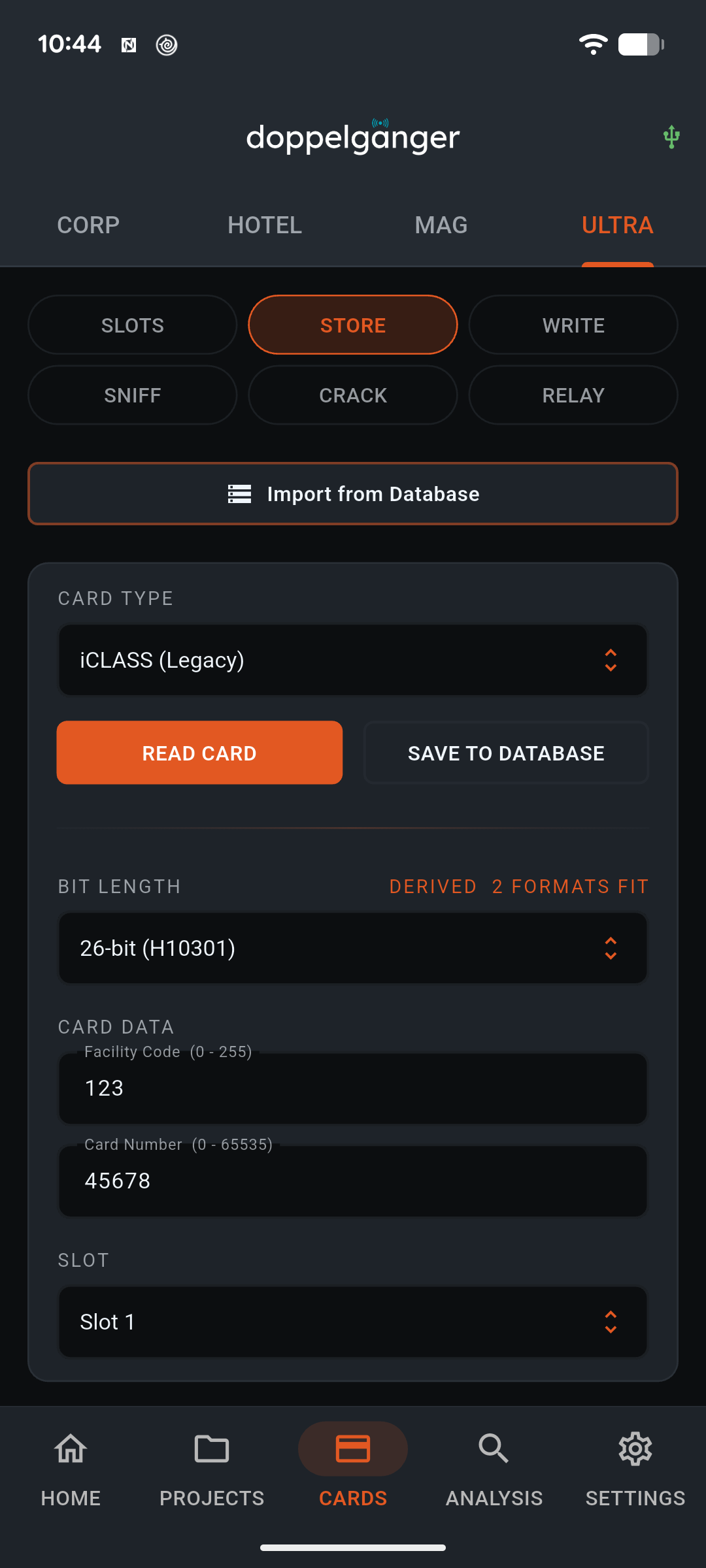
- READ CARD fills the form from the card in hand.
- Facility Code and Card Number, as read.
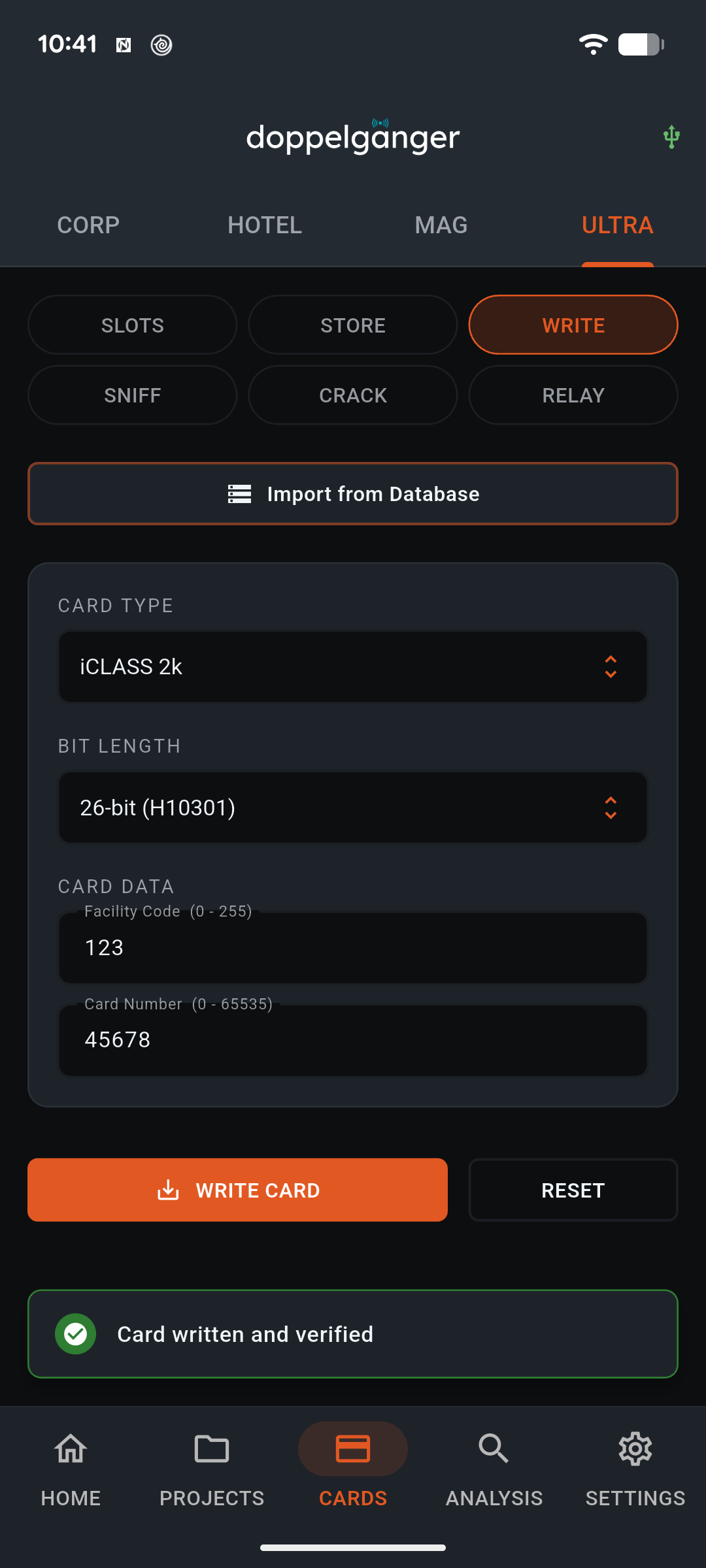
- Card written and verified, after the read back.
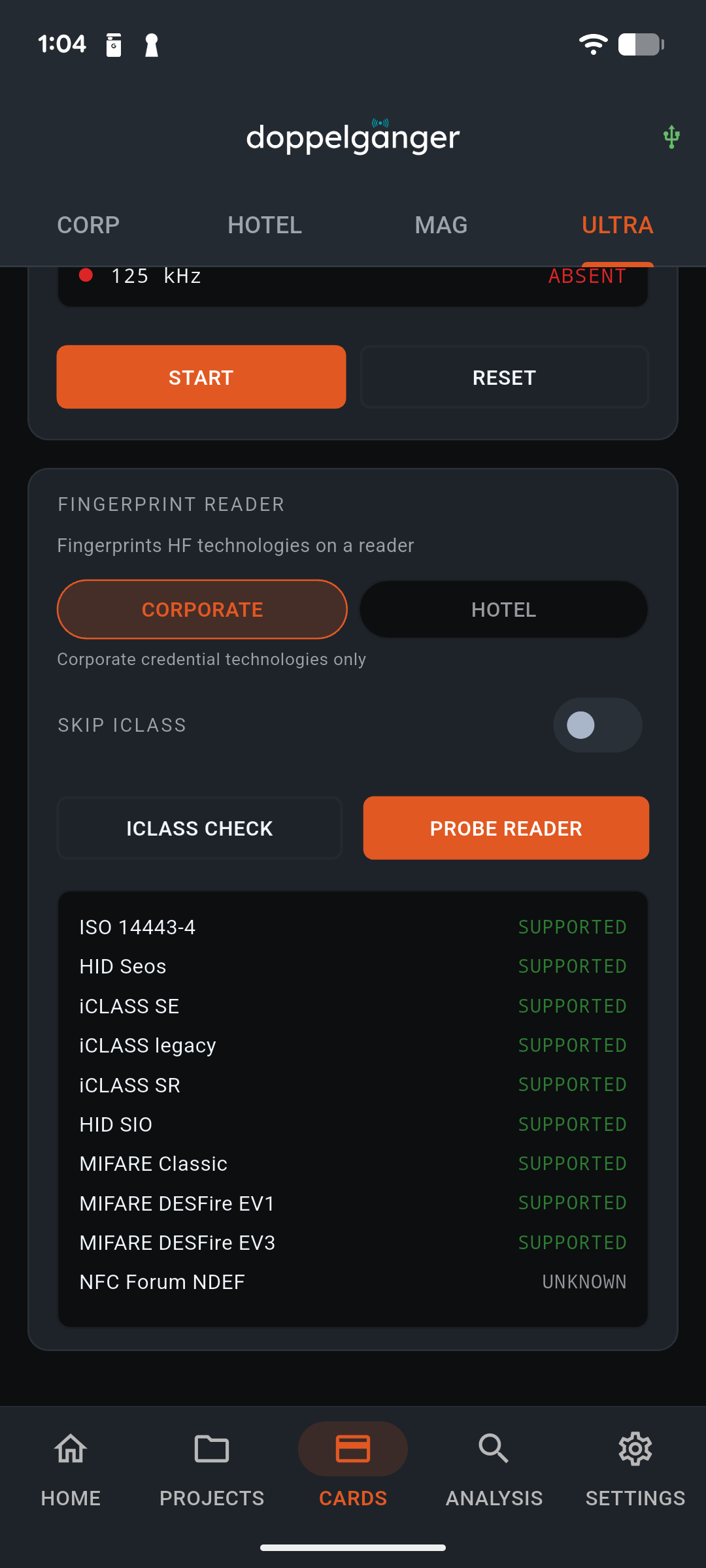
- ICLASS CHECK and PROBE READER.
- NFC Forum NDEF, UNKNOWN, which is not established.
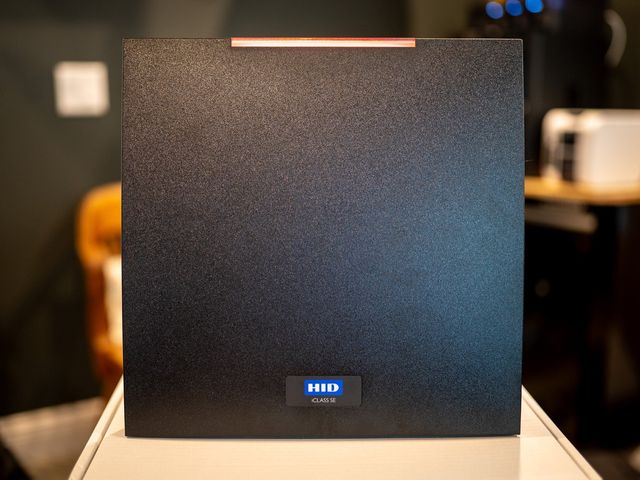
iCLASS Legacy and iCLASS SR are read, emulated and written, and iCLASS SE is identified. A slot also holds HID Prox, AWID, Indala, Avigilon, EM410x / Net2, Paradox, Pyramid, Securakey and IO Prox credentials, along with MIFARE Classic, NTAG, the Ultralight family and ISO 14443-4 identities. WRITE writes a T5577 or rewrites an iCLASS card from the unit alone.
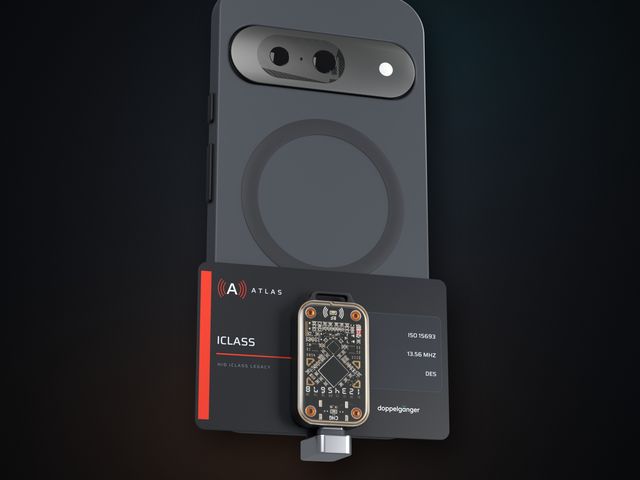
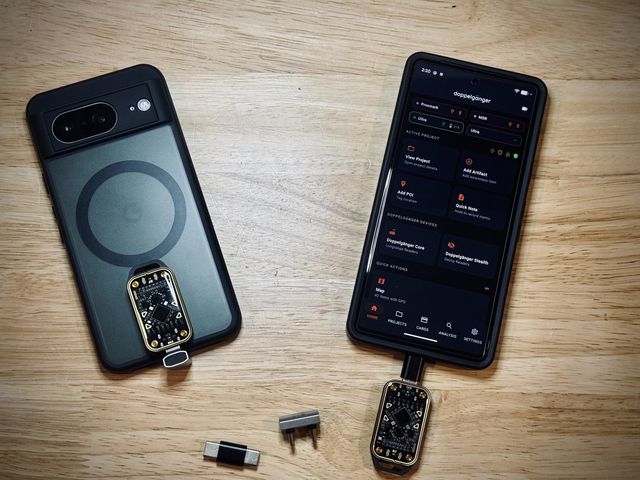
The unit mounts on the back of the handset, and the card lies between the two for a read or a write.
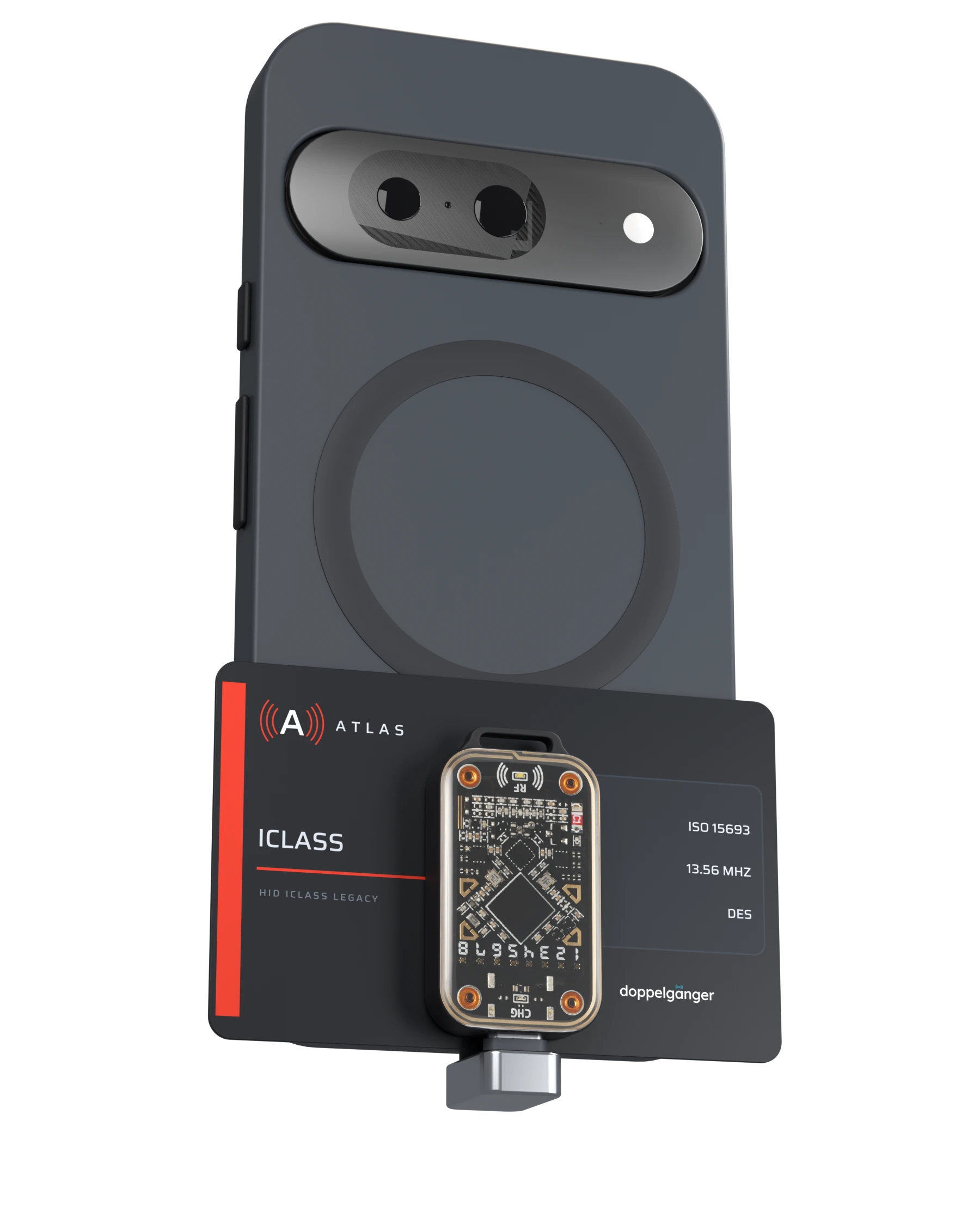
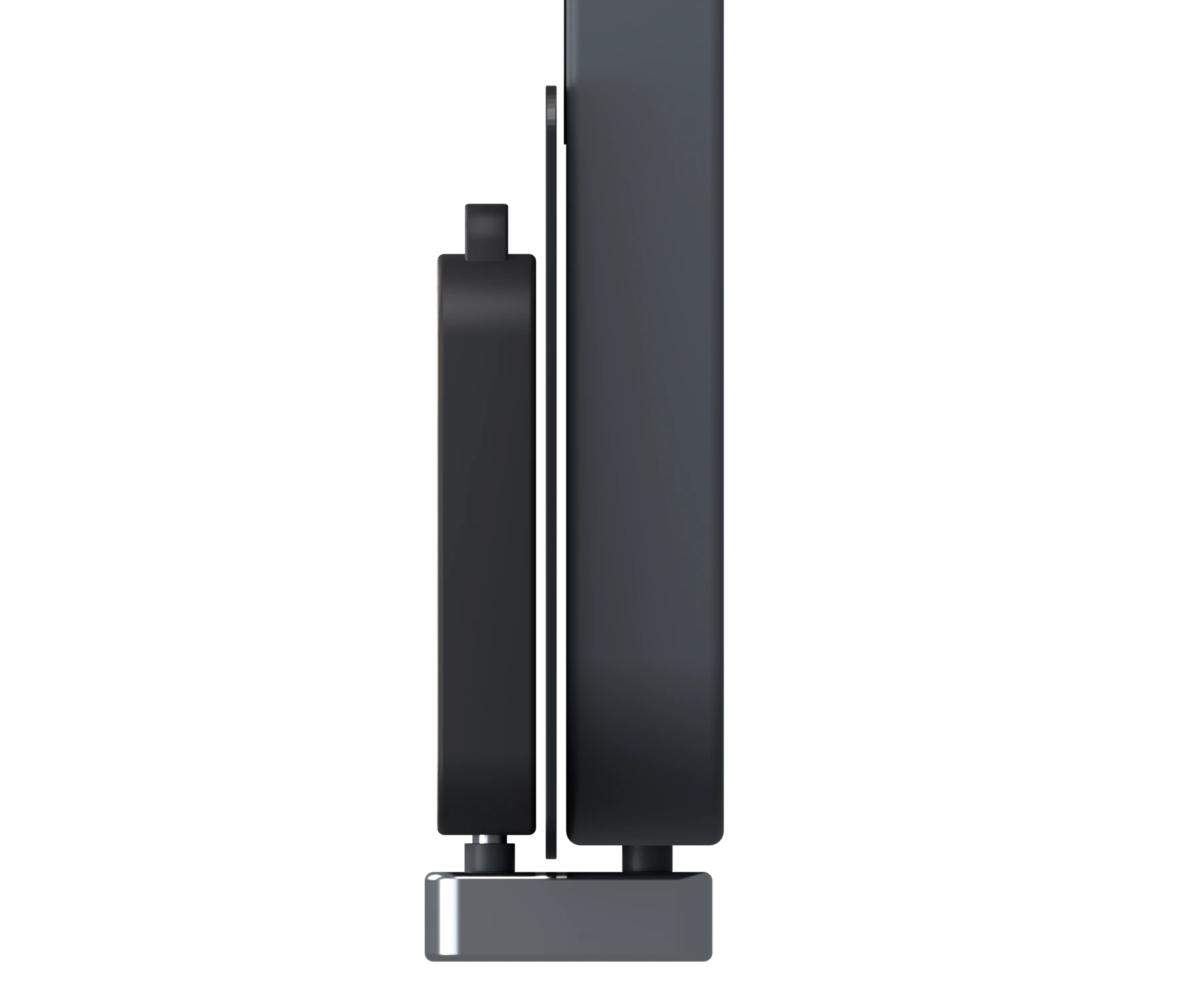
Card placement, from the back and from the edge. The card sits between the handset and the unit.
Use case: knowing what a door accepts before presenting anything. An assessor is contracted to evaluate the perimeter doors of a corporate campus. The badge population is modern, but nobody at the site can say whether the readers still accept older technologies. FINGERPRINT READER, under SNIFF, names the technologies a reader supports before any card is presented. The result is a per door list for the report: which readers still accept a legacy technology, and so which ones need their configuration changed. That is a finding about the installation and a remediation the site owner can schedule.
Start with the ATLAS Chameleon Ultra overview. Its firmware is installed from Settings, Firmware, CHAMELEON, over the USB cable.
Relay
RELAY carries a live transaction between a reader and a card in another place, across two handsets and two ATLAS Chameleon Ultras. The door side checks every frame from the reader before carrying it on, for HID Seos, UniFi DESFire and HID DESFire EV3.
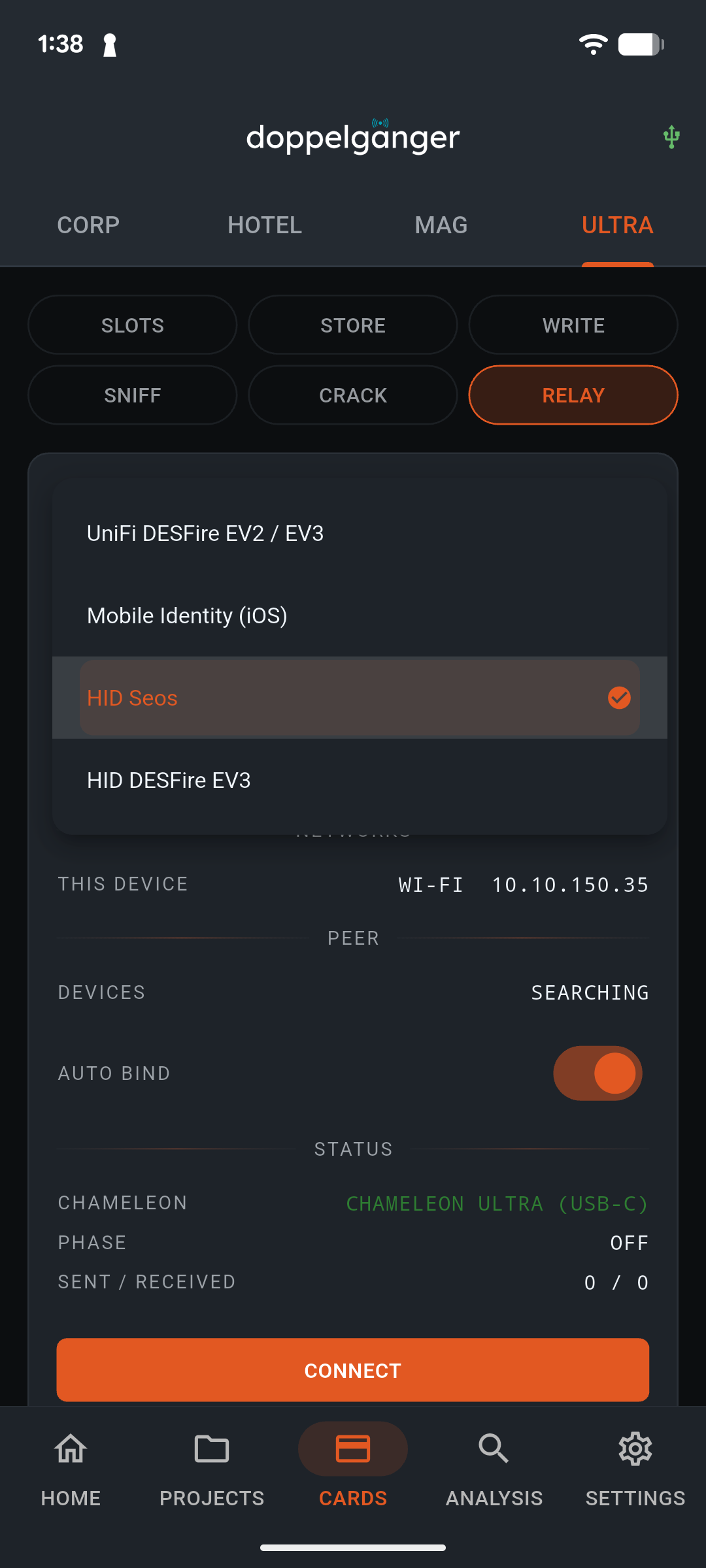
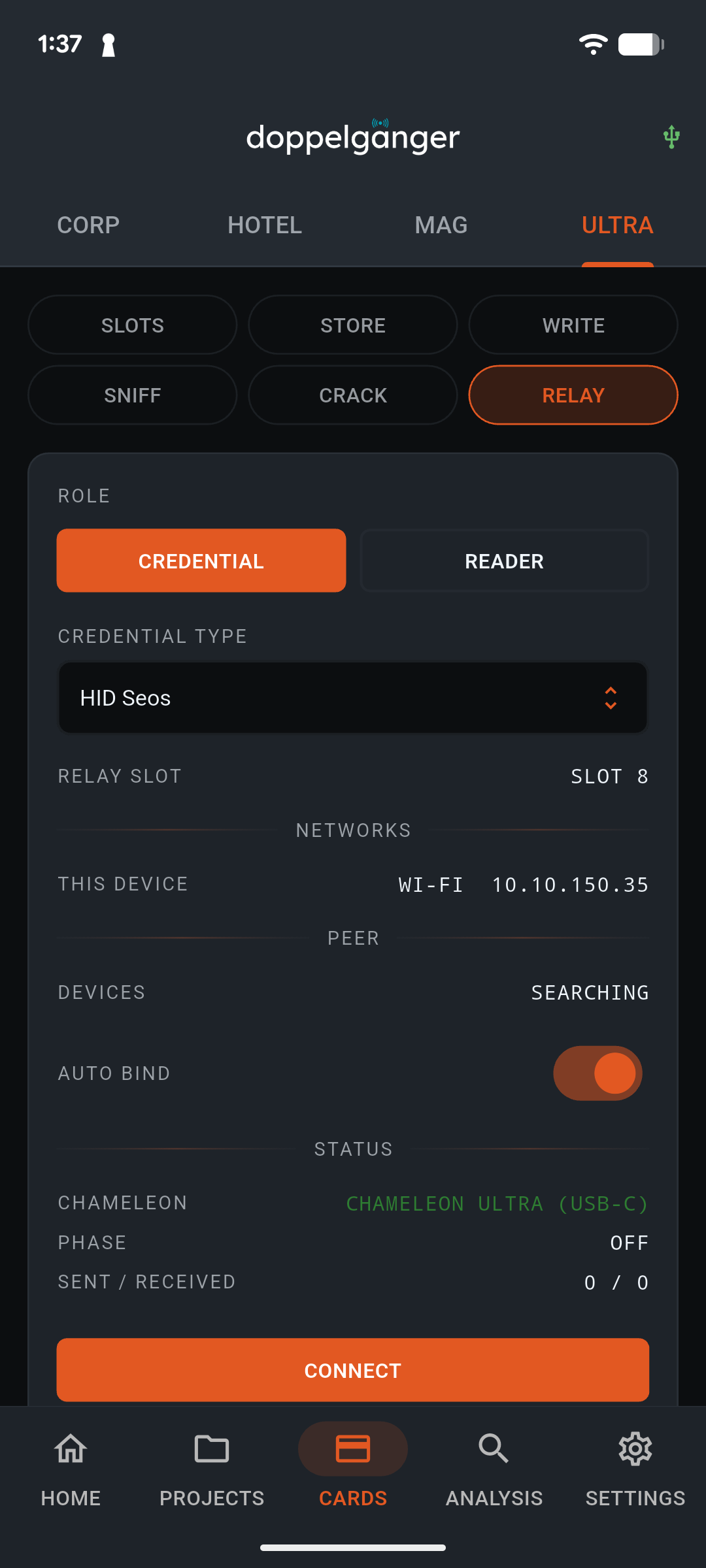
- UniFi DESFire EV2 / EV3, with Mobile Identity (iOS) under it.
- HID DESFire EV3, under HID Seos, ticked.
- ROLE, CREDENTIAL or READER.
- DEVICES, SEARCHING, until the other handset answers.
- PHASE, OFF, between CHAMELEON and SENT / RECEIVED.
Use case: a site that has already moved to a modern credential. A client has deployed DESFire EV3 or Seos and wants to know what is left to test. The credential cannot be copied, and the manufacturers make very secure products when they are implemented properly. The remaining question is about the installation: whether a reader accepts the genuine card answering from somewhere else. Whether the door opens is the measurement, and the report says so either way.
A relay run in real time, on video:
Watch it on YouTube, and read Credential Relay with the ATLAS Chameleon Ultra for what the test measures.
Proxmark 5
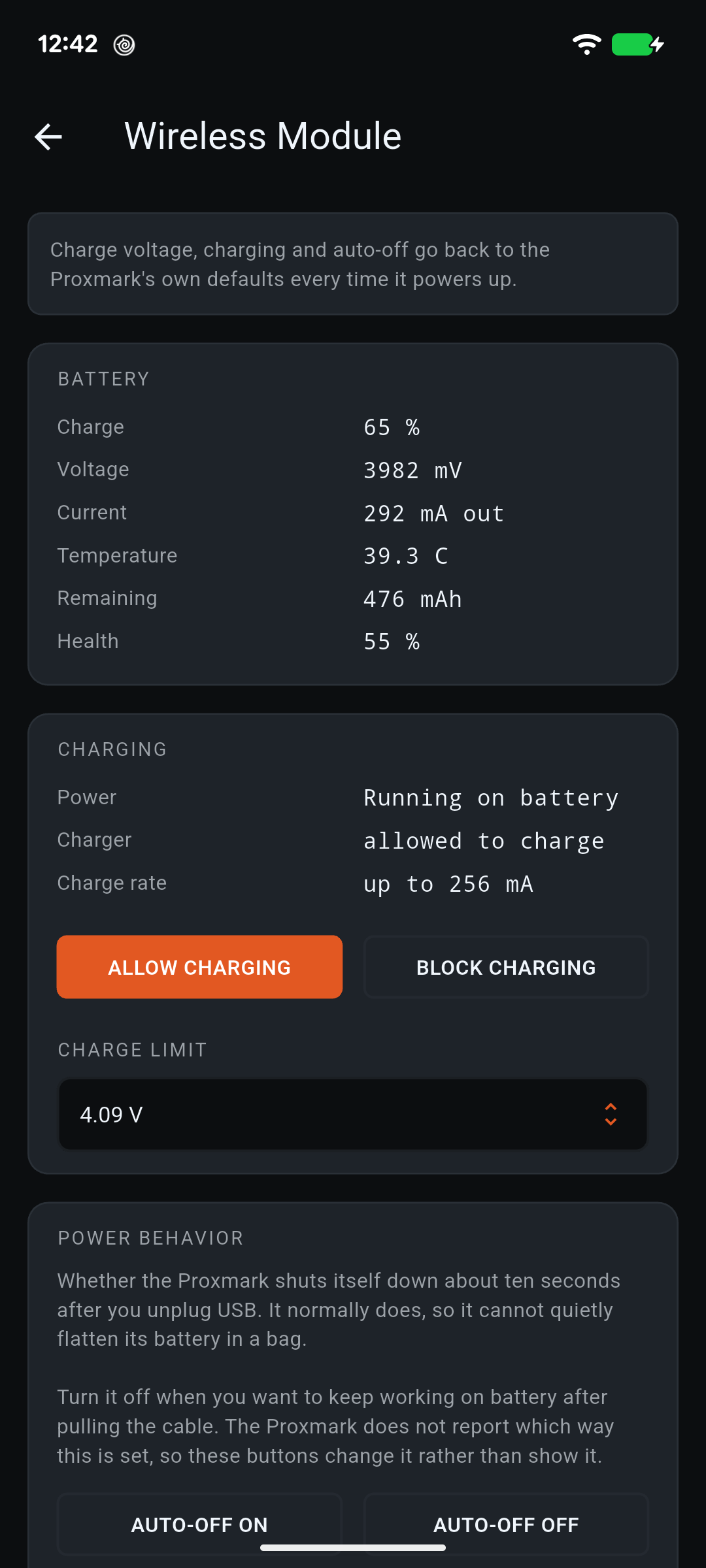
ATLAS detects a Proxmark 5 as PM5, carries its own firmware images for it, and connects through its wireless module over Bluetooth LE with nothing to pair.
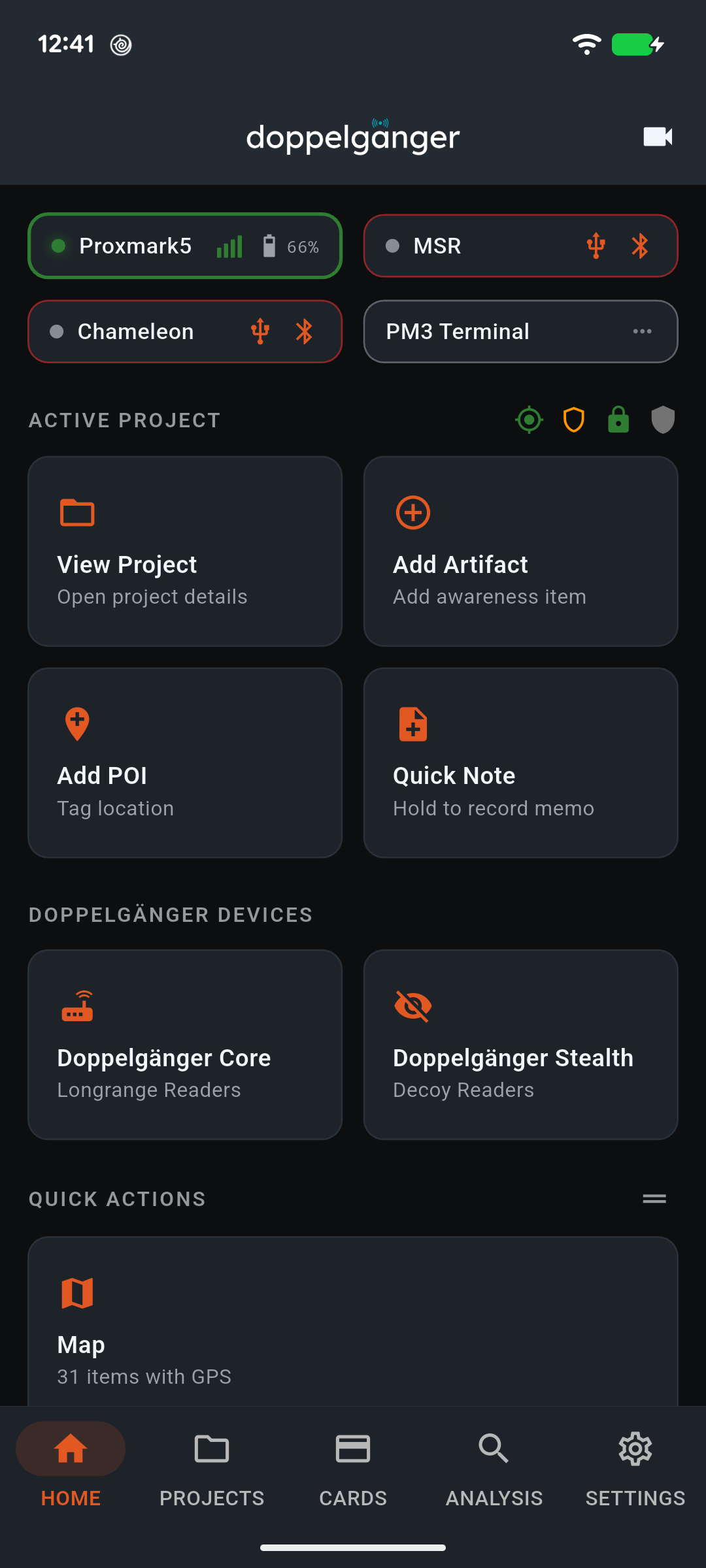
- Signal bars and the module's battery percent, on the tile.
- Charge, with Remaining four rows down.
- ALLOW CHARGING and BLOCK CHARGING, above CHARGE LIMIT.
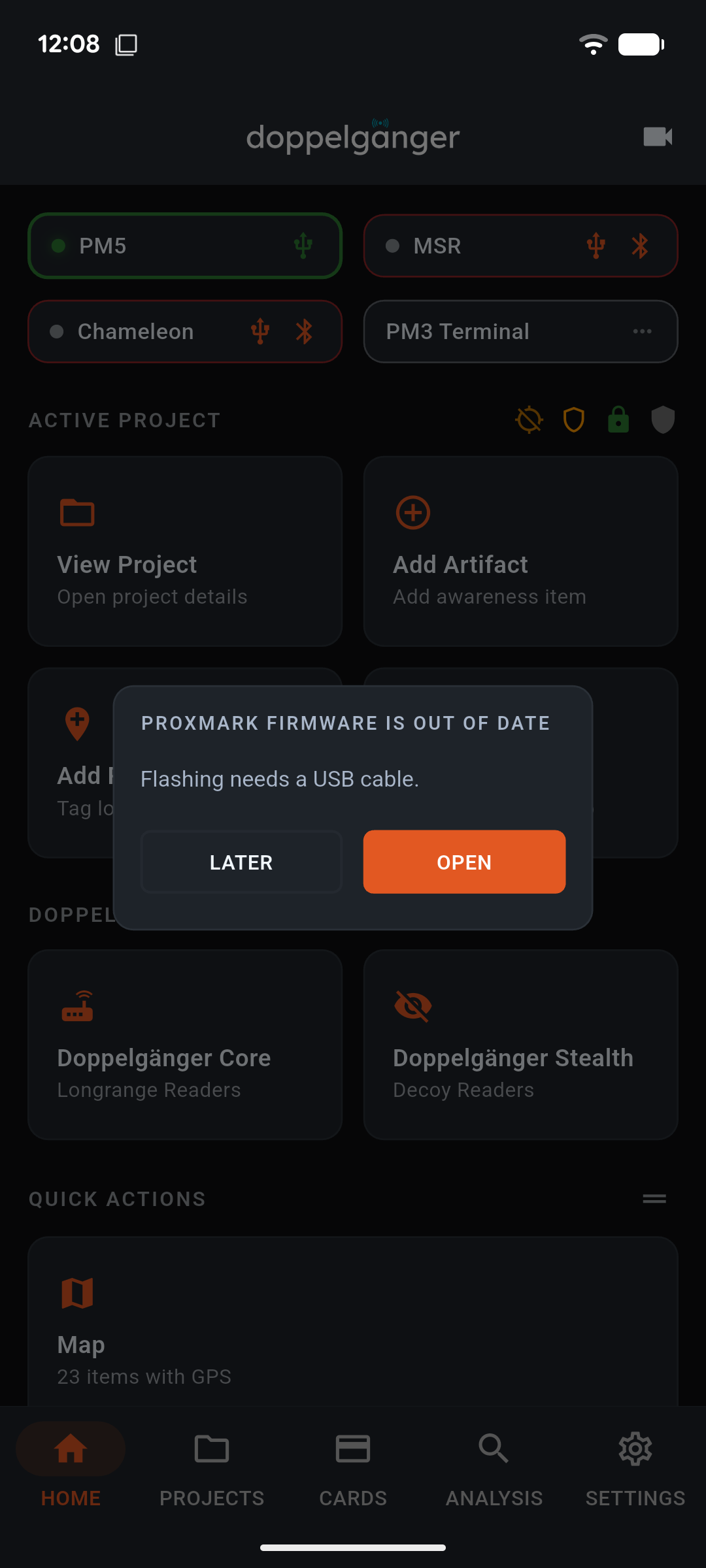
- PROXMARK FIRMWARE IS OUT OF DATE. OPEN goes straight to the Firmware page.
Firmware for every supported Proxmark is flashed from Settings, Firmware, PROXMARK, over USB. The page reads the device, rates its firmware, and flashes a bundled image. The bootrom is never written.
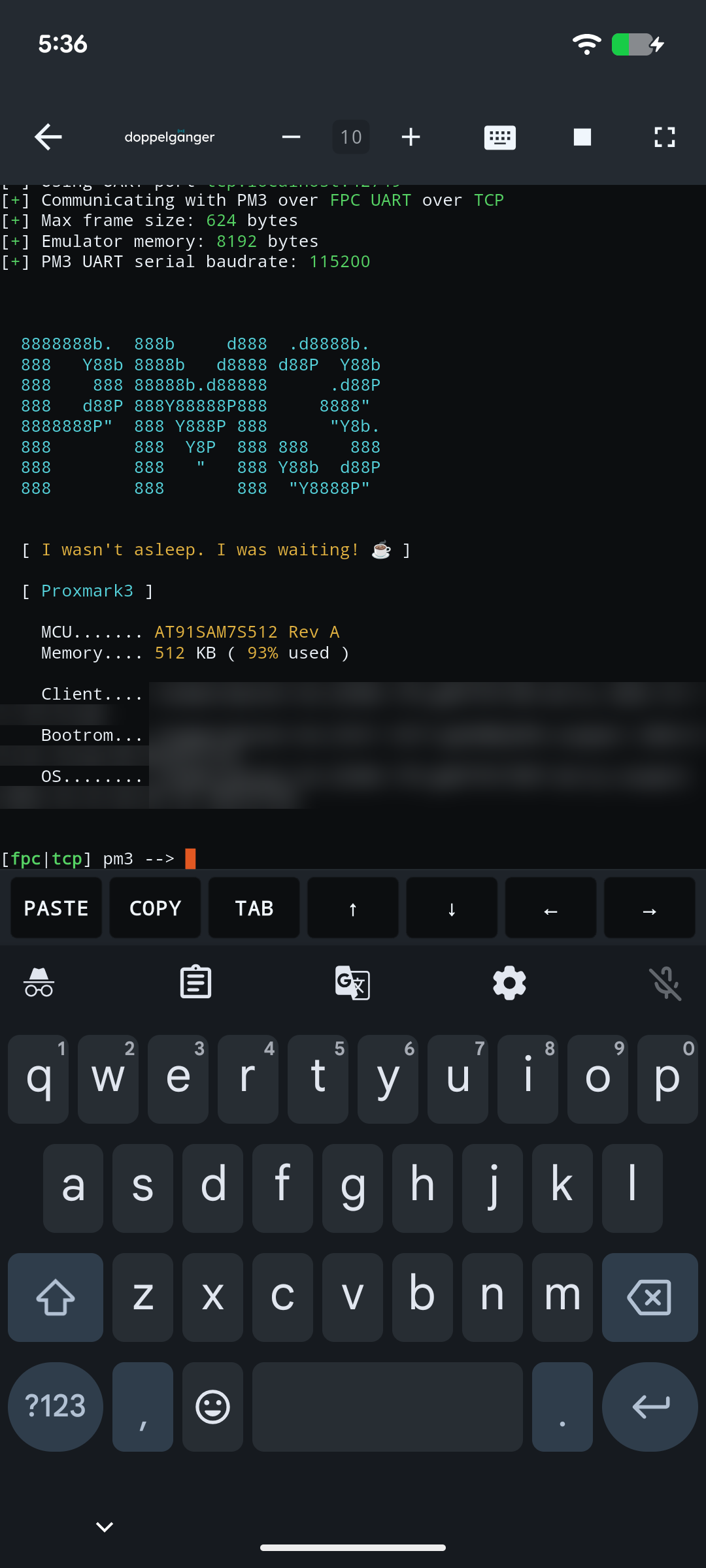
The same page serves a Proxmark3 RDV4, a Proxmark3 Easy and a Proxmark 5, and FLASH DEVICE writes the image over the USB cable. For the command the purpose-built screens do not carry, PM3 Terminal on Home runs the full Proxmark client against the connected device, on the phone.
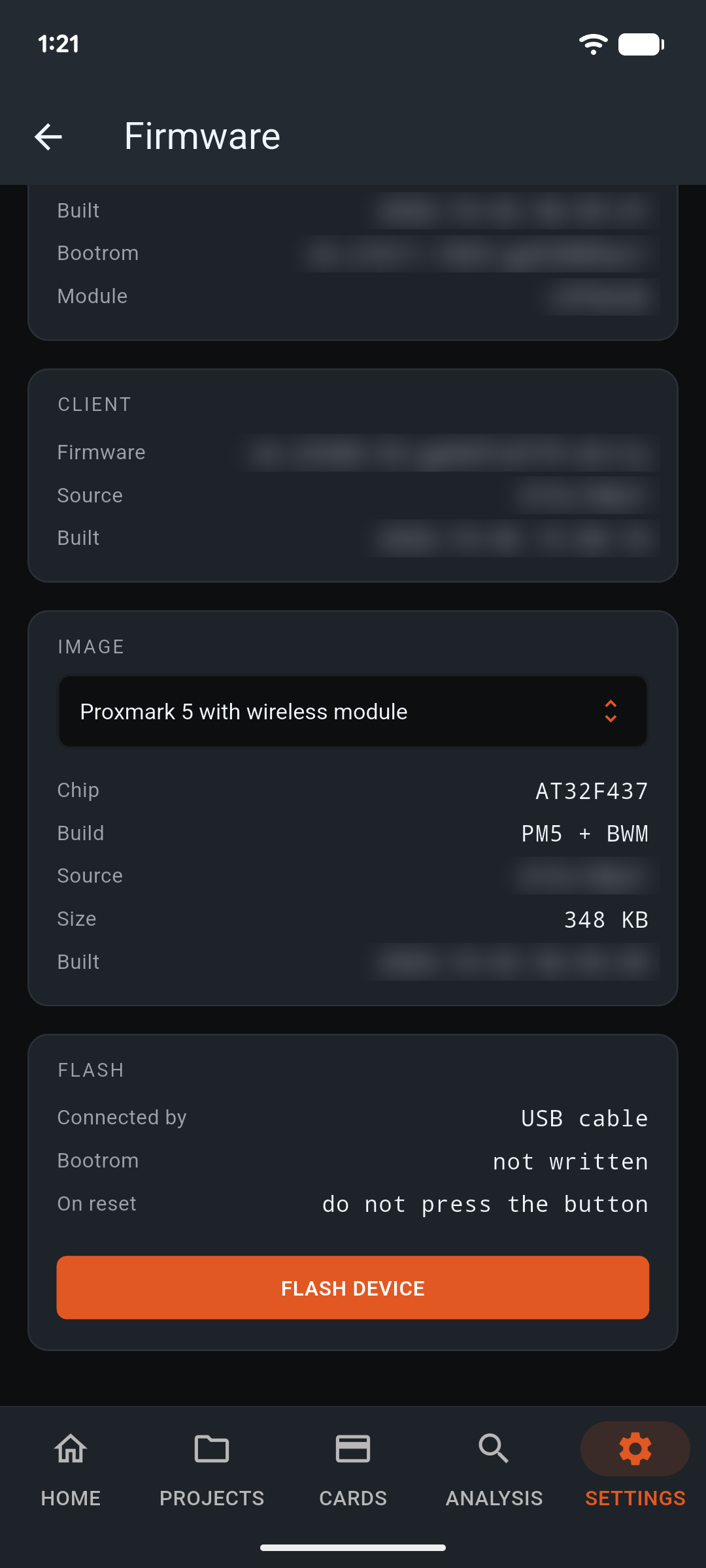
- The image, chosen from what the device answered.
- Connected by, USB cable, and Bootrom, not written.
- FLASH DEVICE.
- Text size, the toolbar toggle, stop and fullscreen.
- The prompt, over PASTE, COPY, TAB and the arrow keys.
Use case: the reader you cannot stand at with a cable. An assessor is evaluating lobby turnstiles, where a phone tethered to a device in the other hand gets a visitor challenged. On the module, the Proxmark 5 rides in a bag and the charge on the tile says whether it will last the walk. The full write up is Proxmark 5 in ATLAS.
Clandestine camera
The camera glyph in the Home header takes a tap for a viewfinder and a long press to record at once. The recording keeps running with the screen locked and saves to the active project.

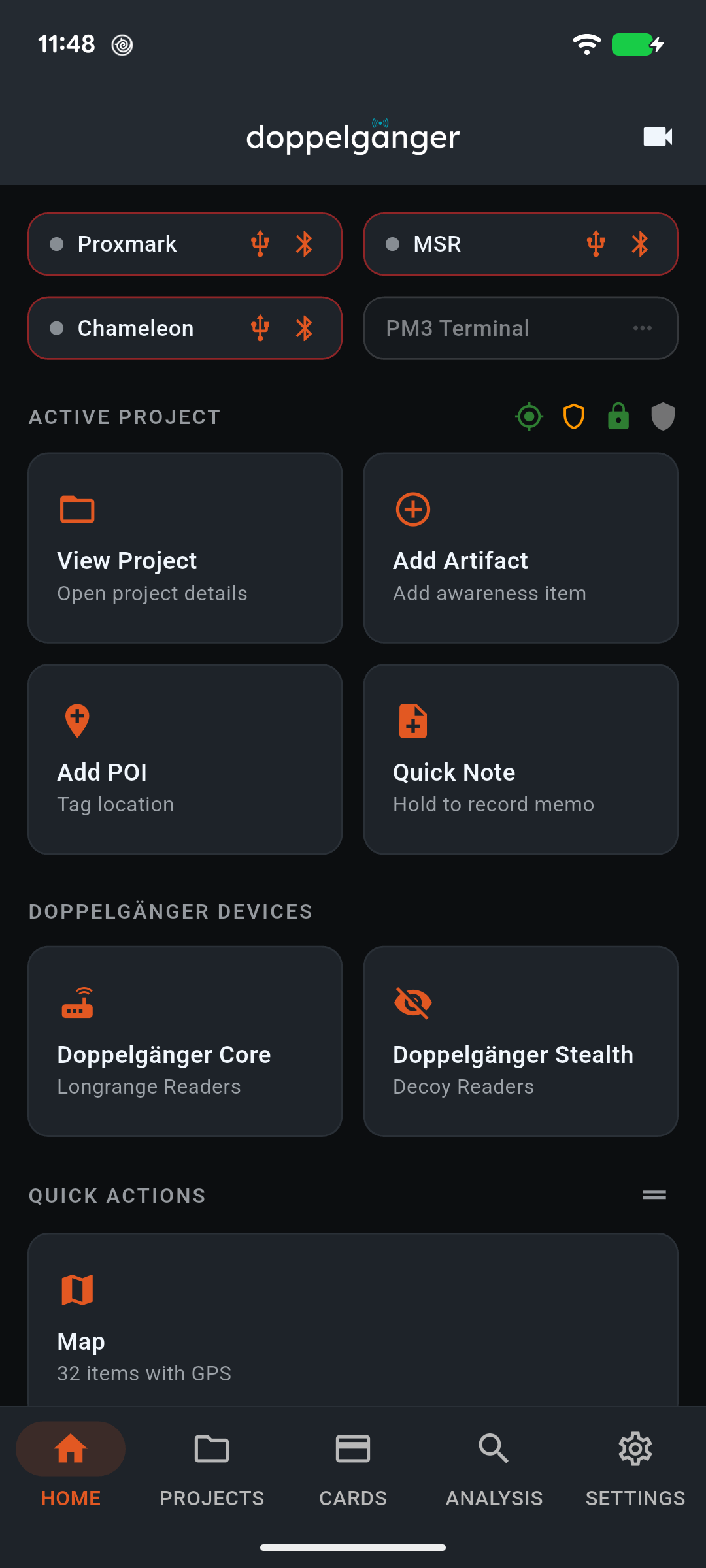
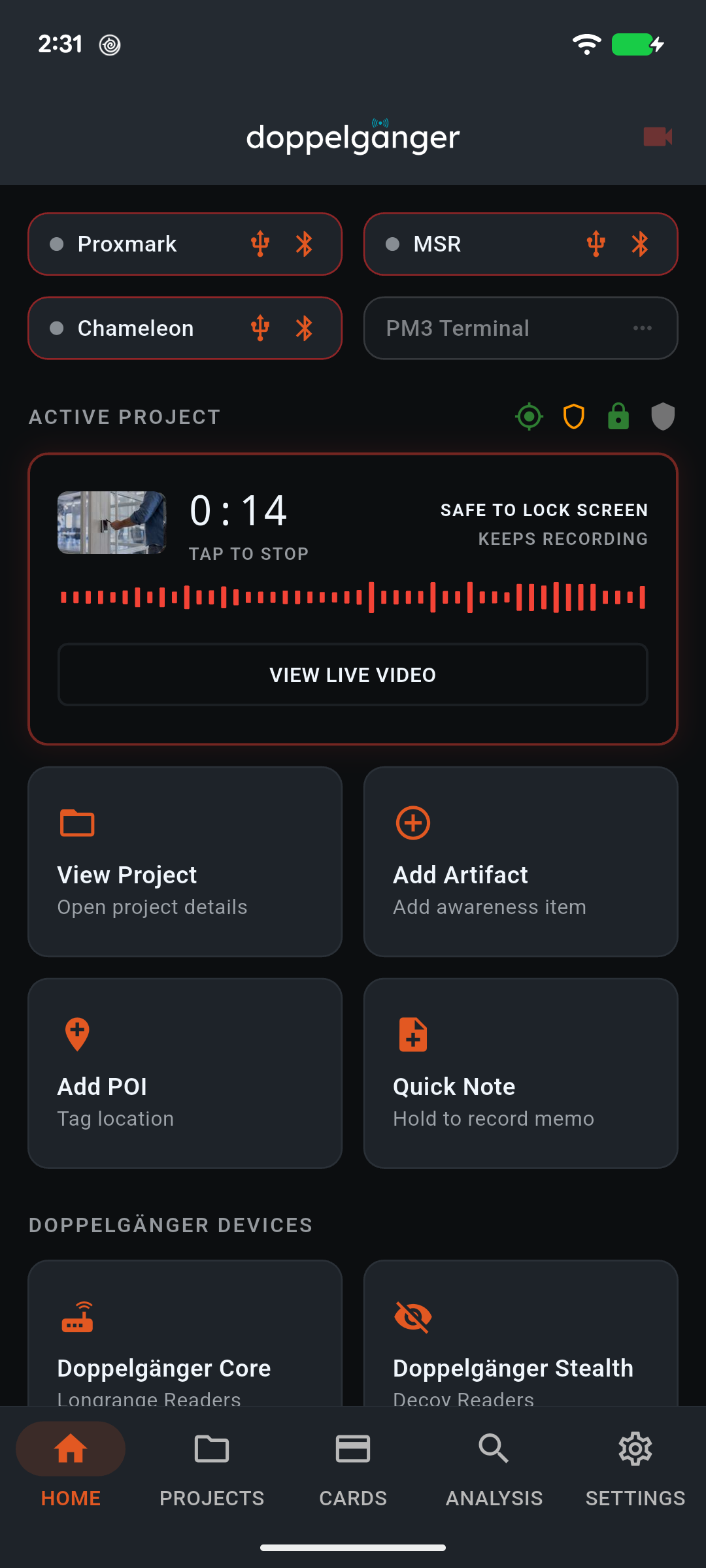
- The camera glyph. Tap for a viewfinder, long press to record at once.
- The glyph is red while a capture runs.
- A live thumbnail, the elapsed time, SAFE TO LOCK SCREEN and VIEW LIVE VIDEO.
- The ATLAS notification, collapsed to its icon. Android requires it.
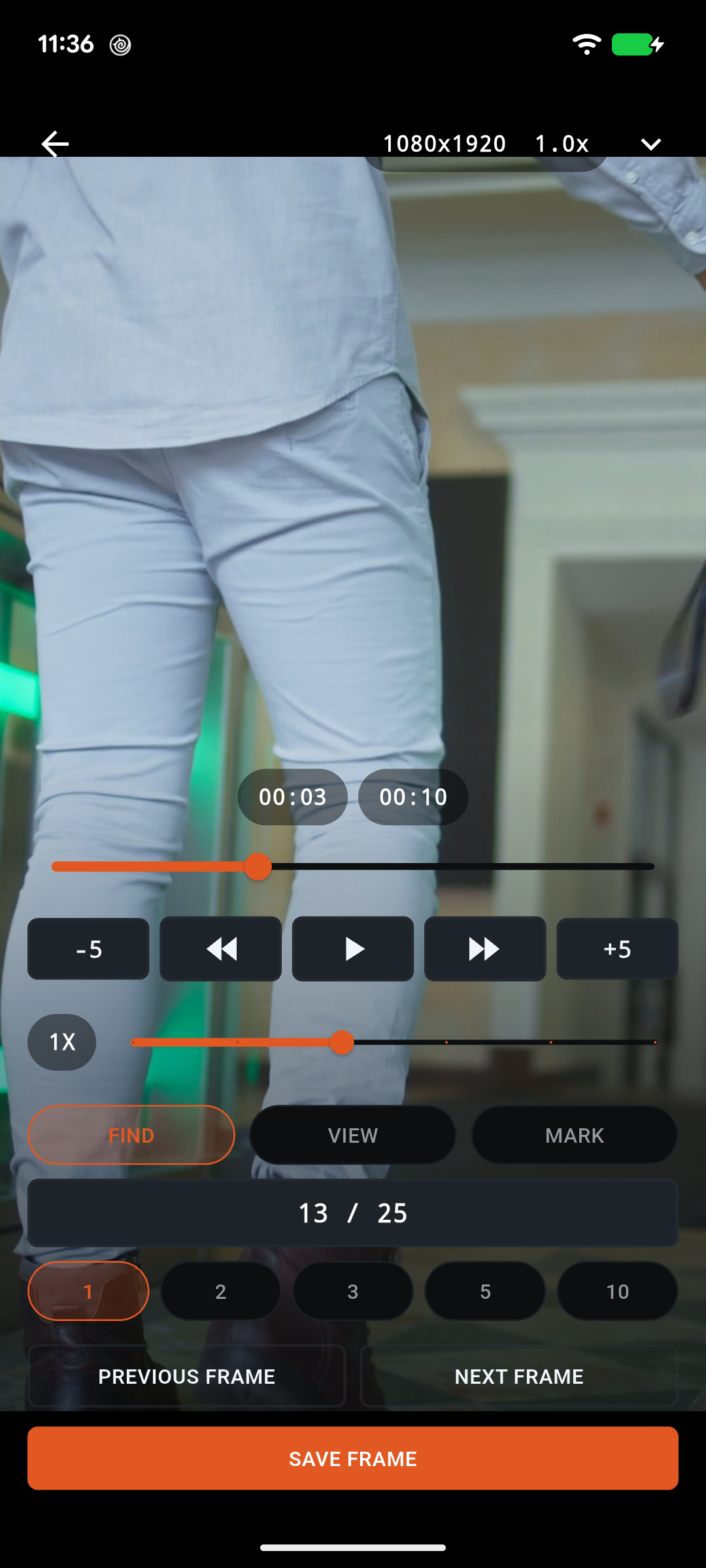
- FIND, VIEW and MARK.
- SAVE FRAME writes the still at full resolution.
Use case: a walk through with both hands busy. A two person team is assessing a distribution center during a shift change. One member starts a recording with a long press, locks the phone and pockets it, then walks the route from the visitor entrance to the dock office. The approach, the badge presentation ahead of them and the way the door behaves are on video, and their attention stays on the people. That evening, ANALYZE FRAMES saves the one frame that shows the door, or cuts a lossless clip of it, for the report.
Android draws its own indicators while the camera or microphone is live, and no app can suppress them, so the advantage is a capture that keeps running in a pocket, never an invisible one. More in The Clandestine Camera in ATLAS and the documentation.
Audio notes
Holding Quick Note records an audio note in place on Home. It is saved to the active project with its time and location.
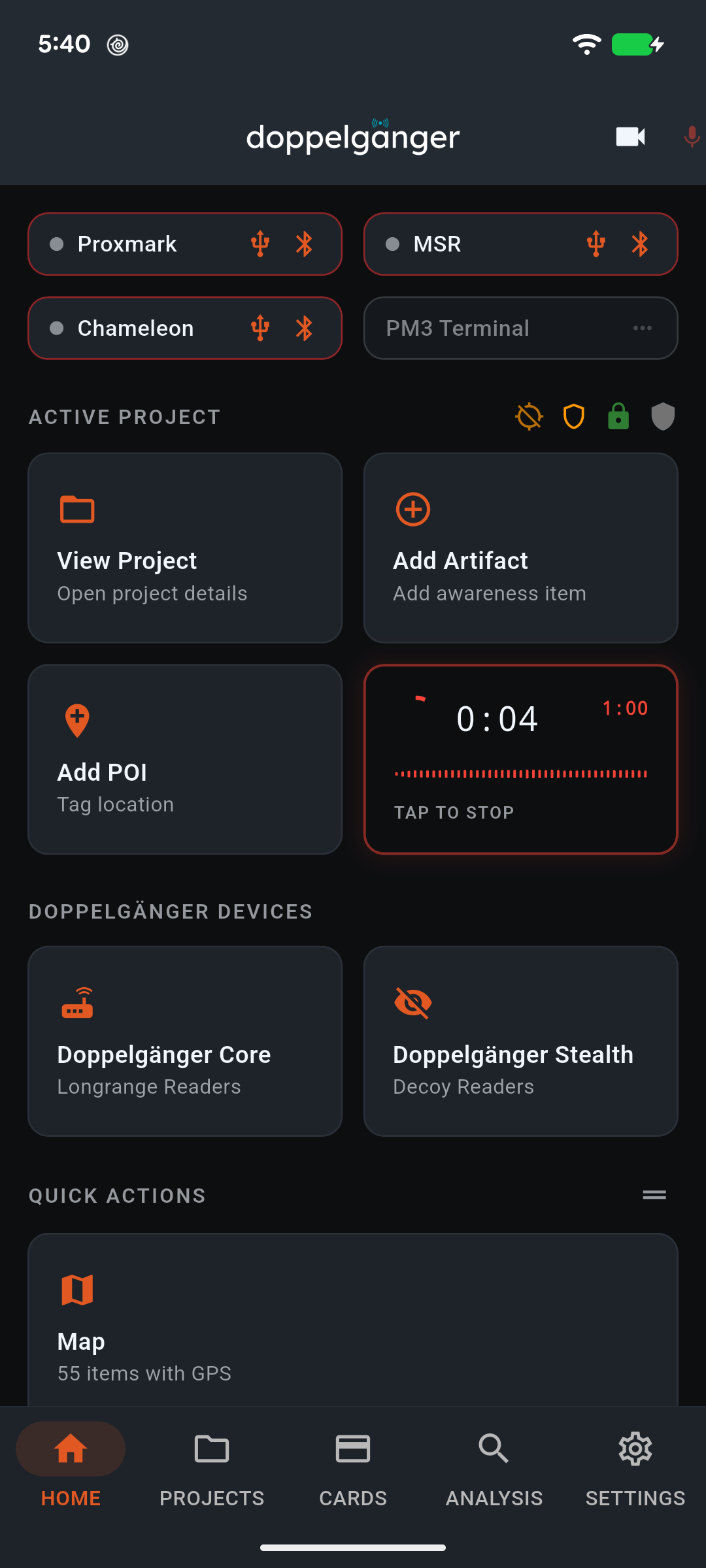
- Elapsed against the cap it stops at, a level meter and TAP TO STOP.
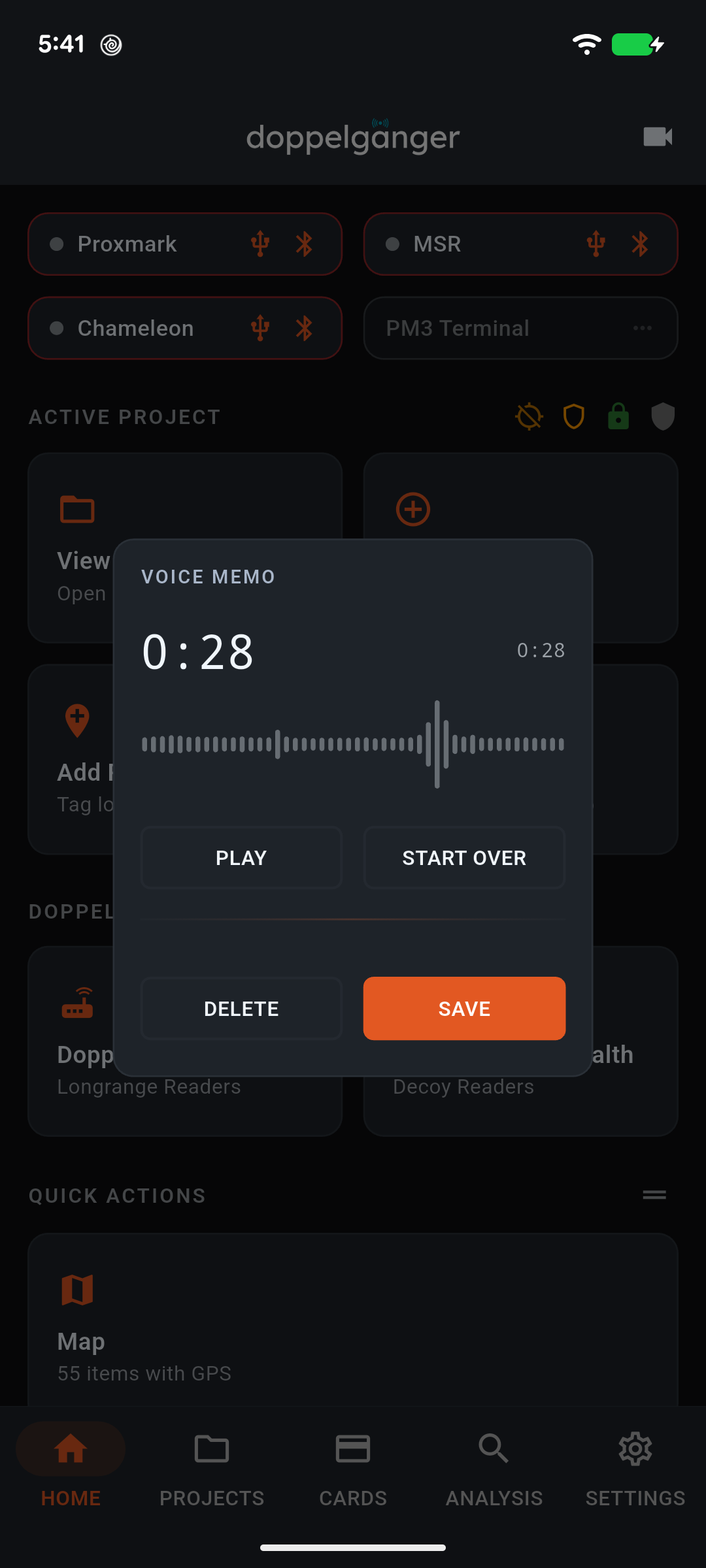
- VOICE MEMO, with the length under it.
- DELETE or SAVE, under PLAY and START OVER.
Use case: notes at each door. Back outside after that walk, the assessor holds Quick Note and says what they saw at each door. The note is stamped where they were standing, so it sits on the project map at the place it describes. Recording sound and recording people are governed by law and by the rules of engagement, so settle both before the first capture. See Audio memos.
Doppelgänger readers on Bluetooth
A reader on WiFi announces itself: a Core needs the phone’s hotspot up, and a Stealth serves its own access point. On Bluetooth there is no network at all. The reader advertises with no name, under an address that changes every 15 minutes, and answers only a phone it was paired with. The link is encrypted and authenticated from end to end.
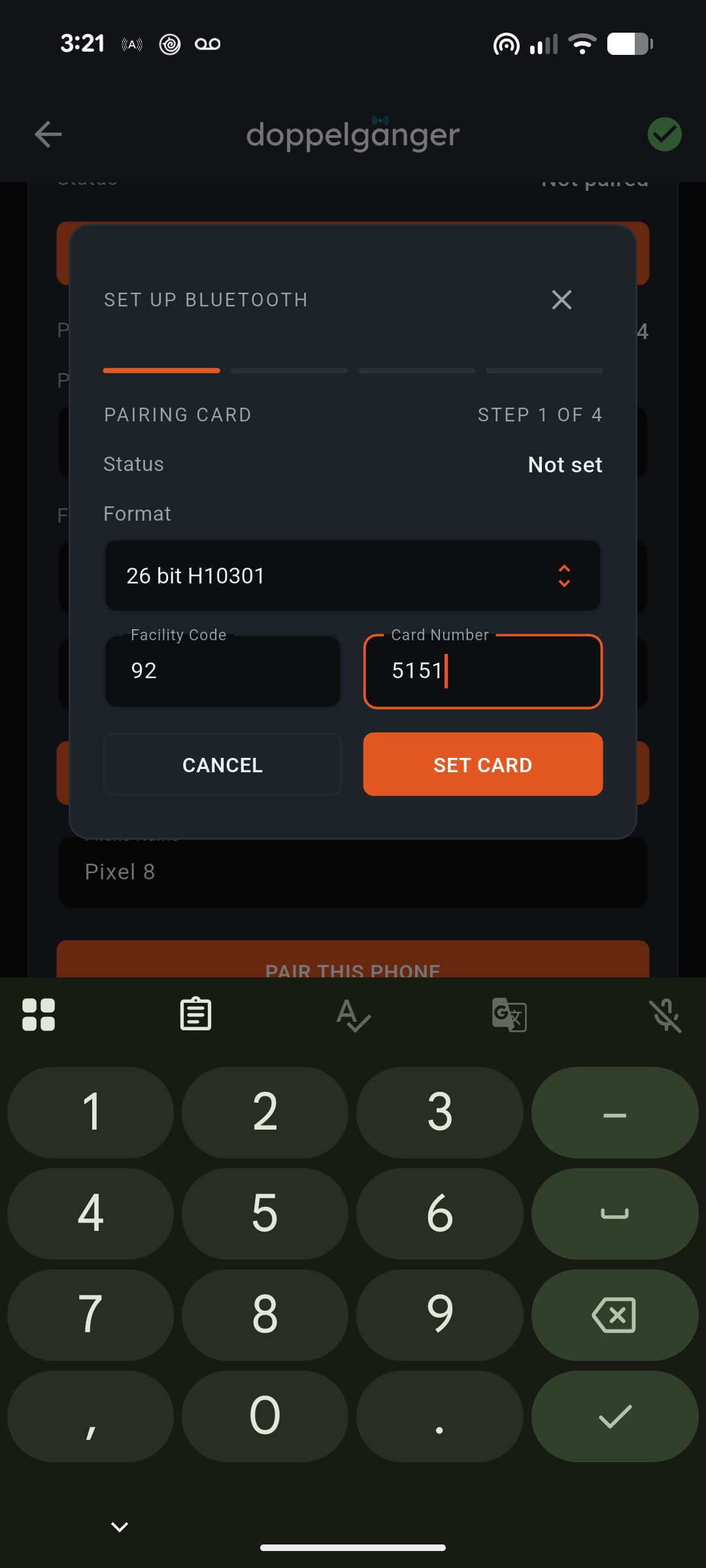
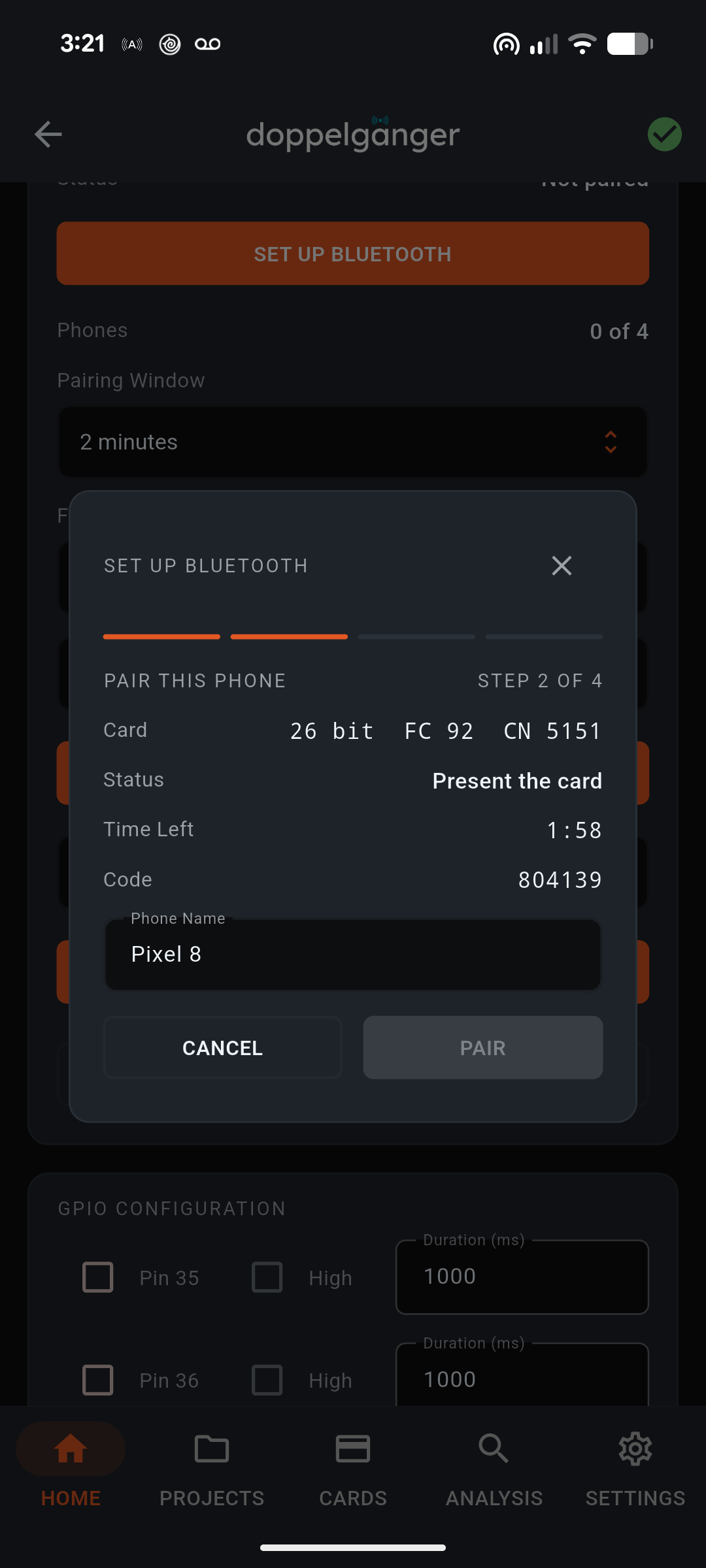
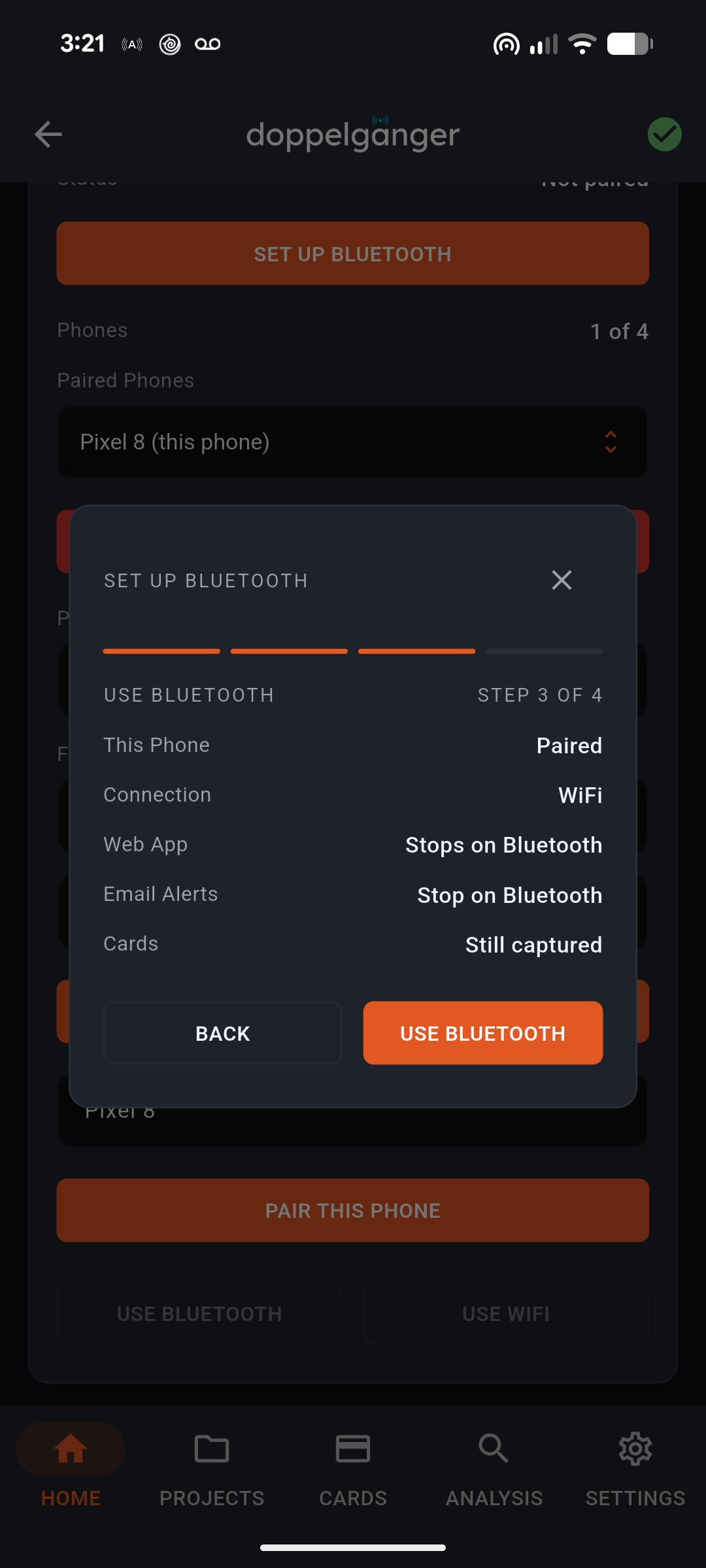
- PAIRING CARD, STEP 1 OF 4.
- SET CARD.
- Status, Present the card.
- Phone Name.
- This Phone, Paired.
- Cards, Still captured.
The reader pairs a phone only when the pairing card is presented, and it holds up to four phones. Once linked, cards arrive as they are read, settings open, and firmware updates, all over the one link.
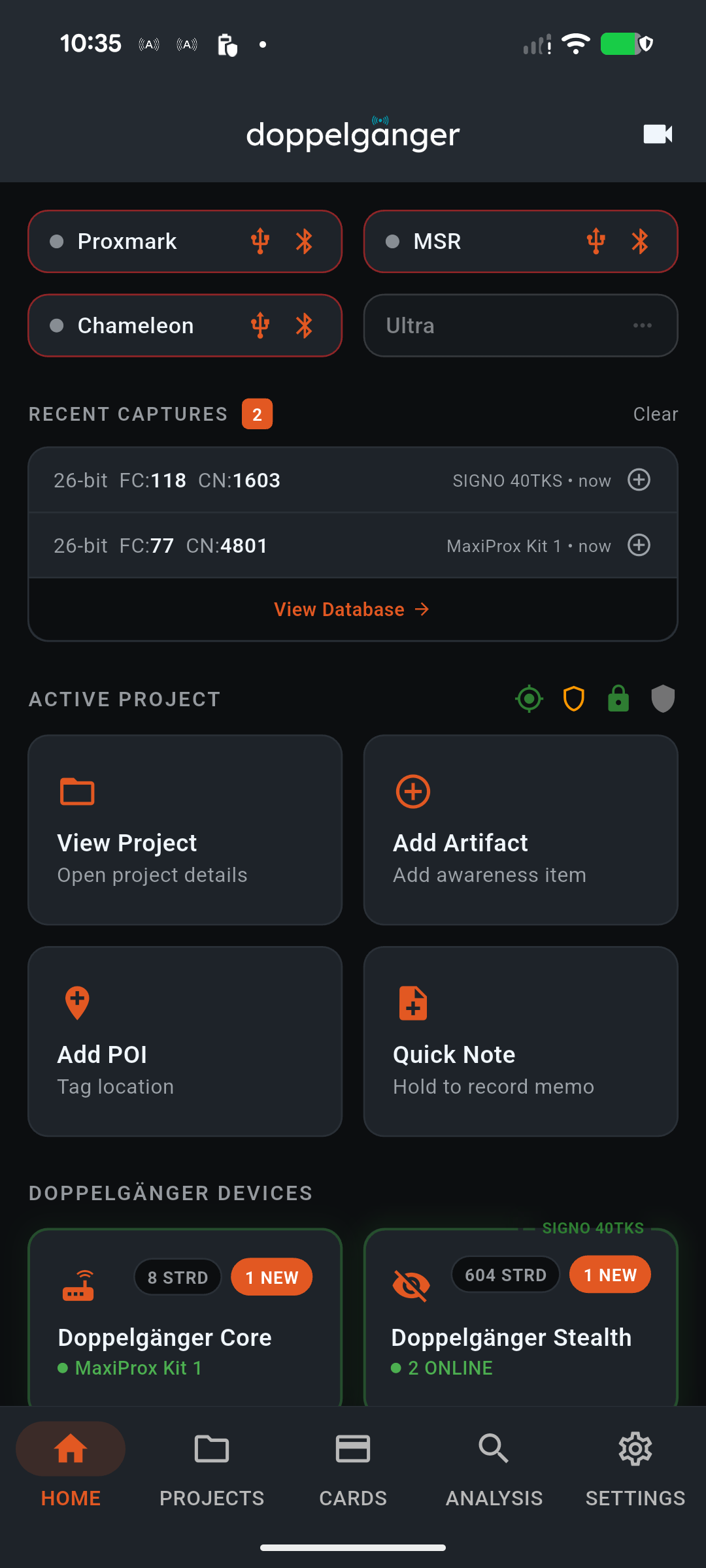
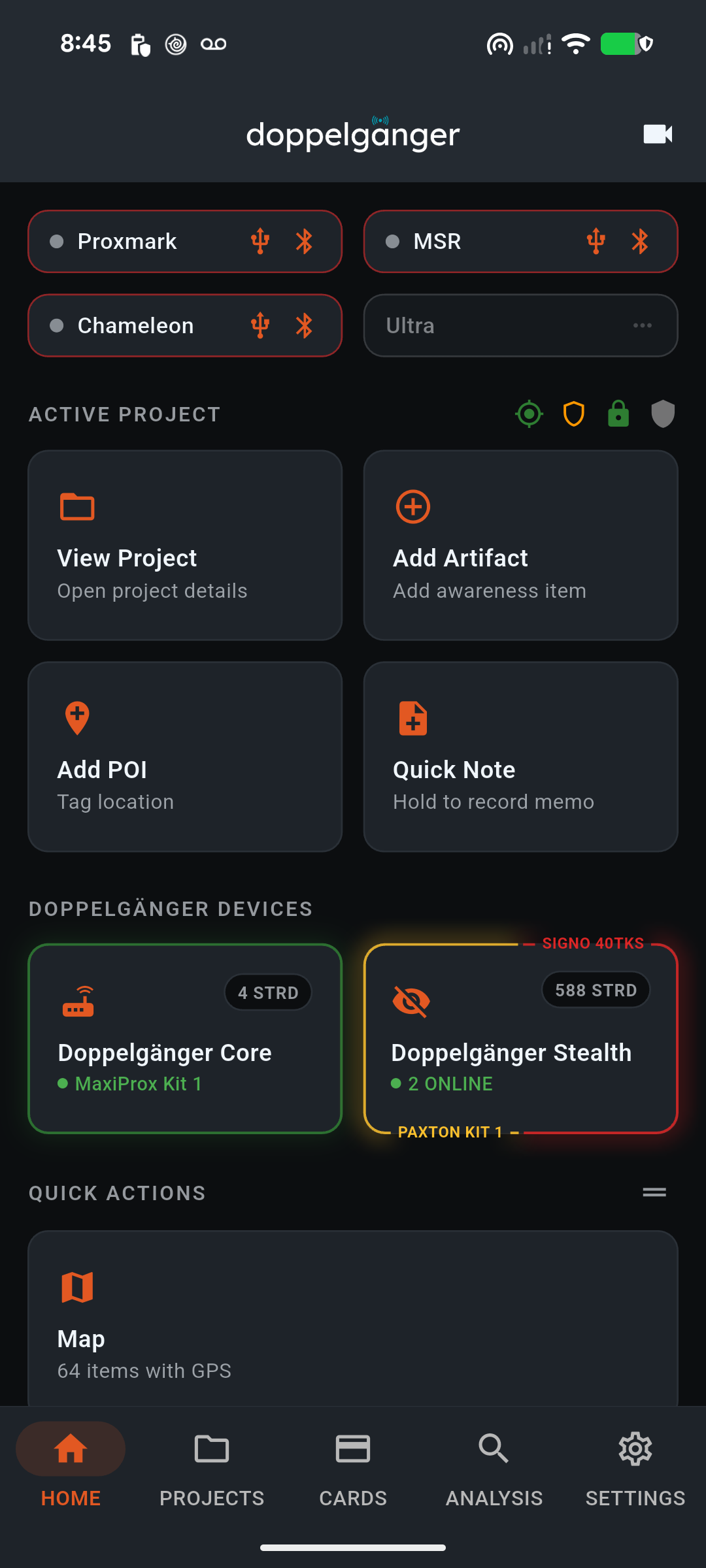
- RECENT CAPTURES, with the count.
- STRD and 1 NEW on each card.
- One reader's half of the edge, in red.
- The other reader's half, in yellow.
Use case: a decoy reader in a lobby for a week. A Stealth is placed, with the site owner’s authorization, to measure whether staff present a badge to a reader that was not there last week. On WiFi that device is a named access point for the whole engagement. On Bluetooth it is one more anonymous device, and cards read while no phone is linked are delivered when one reconnects, so the assessor can come and go. It is quieter, not silent: a Bluetooth scanner still sees that a device is there.
Details: Bluetooth, and the post Readers on Bluetooth.
The rebuilt Doppelgänger reader firmware
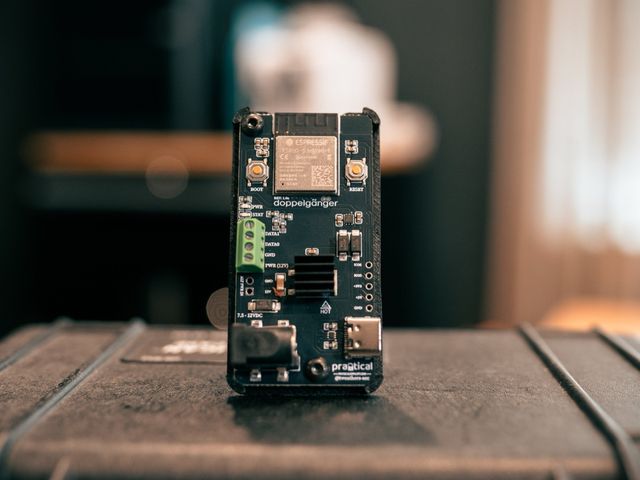
The firmware on the Core and Stealth readers was rebuilt together with the part of ATLAS that runs them. One thing is the same as ever: the reader captures and stores every card and PIN it reads, by itself. What changed is how a reader is updated, set up and controlled.
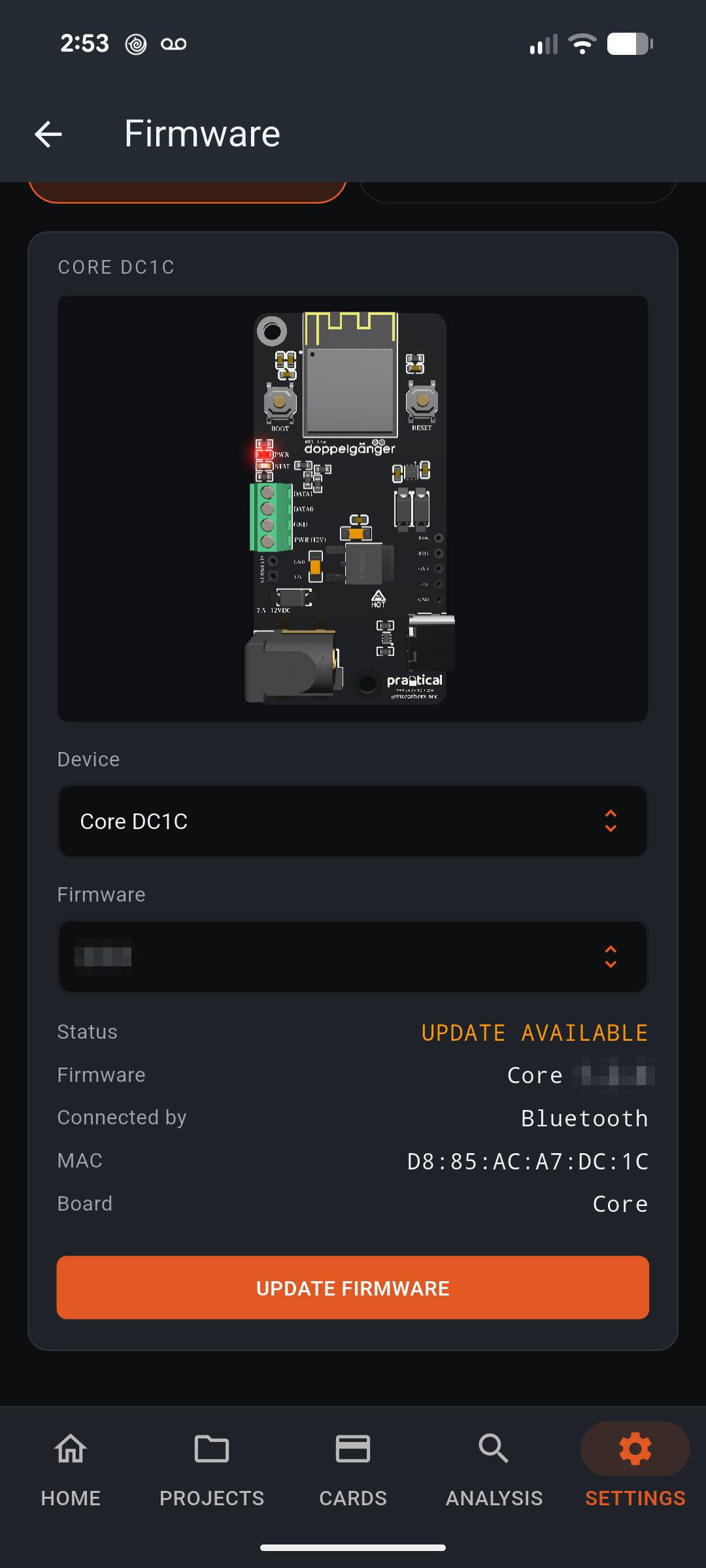
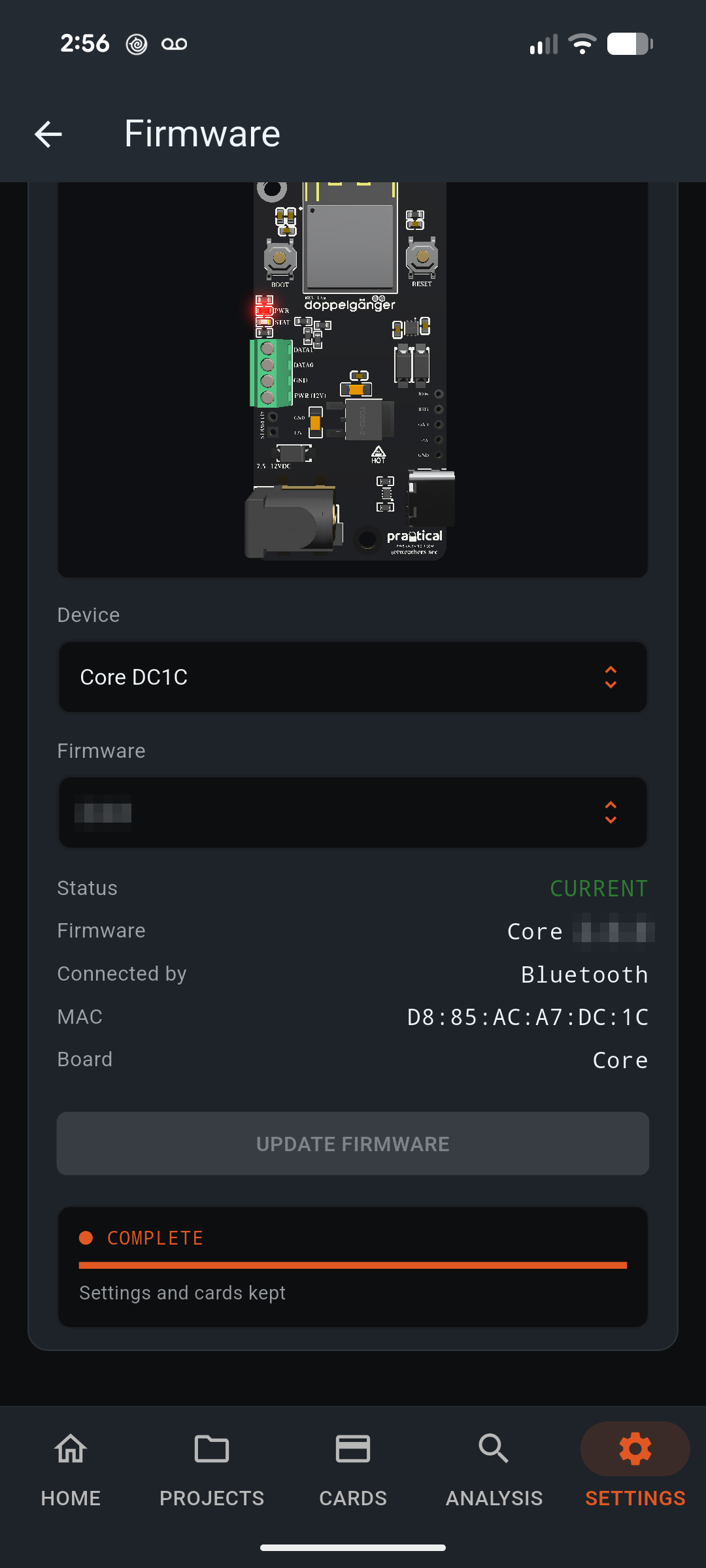
Settings, Firmware has a CORE and a STEALTH chip beside PROXMARK and CHAMELEON. Device lists every reader ATLAS can reach by name and connection, and with more than one, nothing is read or written until you pick. One button, UPDATE FIRMWARE, installs the release ATLAS carries over WiFi, over Bluetooth, or over a USB cable from the handset. Settings and captured cards are kept, and an update is complete only when the reader has come back on the release that was sent.
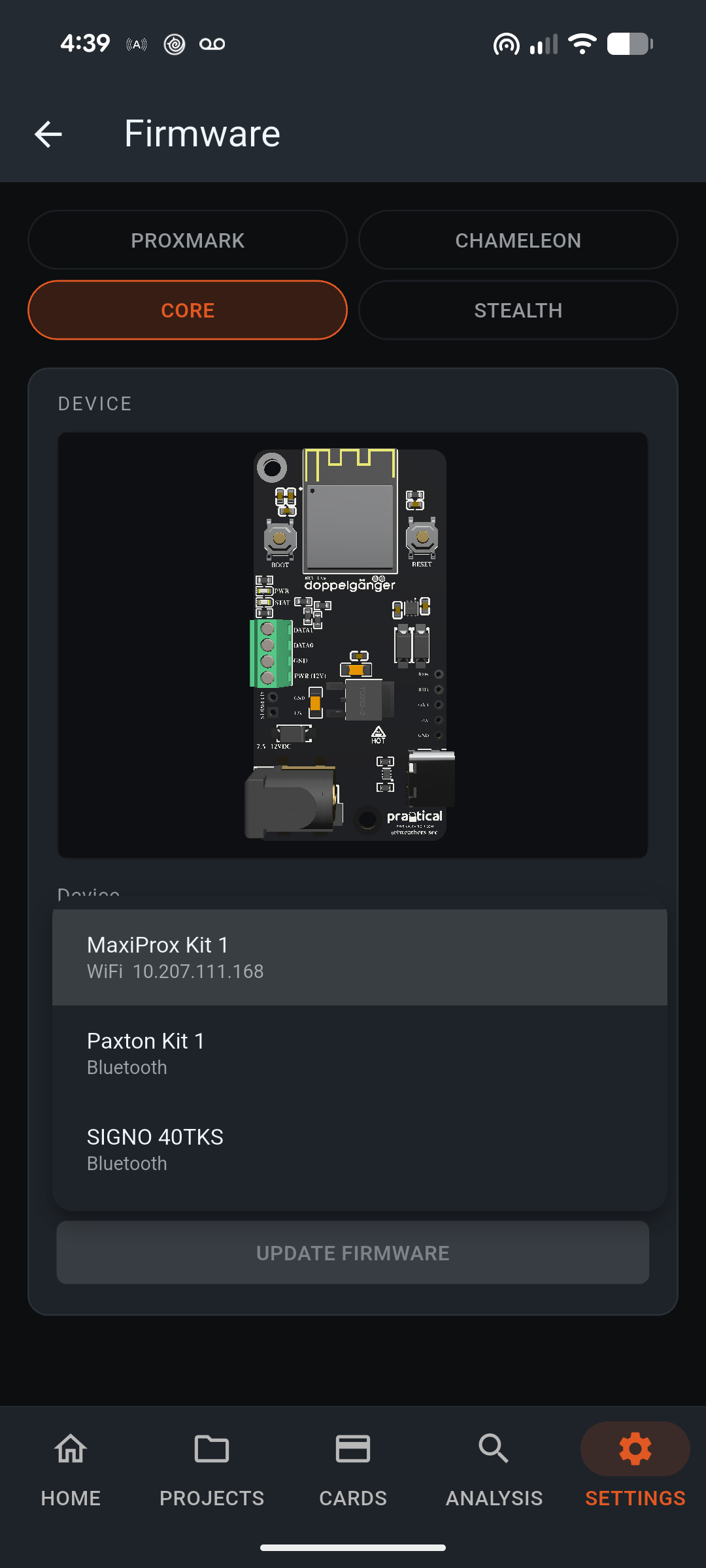
- CORE, selected, beside STEALTH.
- Device, every reader by name and connection.
- UPDATE FIRMWARE, gray until a reader is picked.
- Device, the reader being updated.
- Status, UPDATE AVAILABLE.
- UPDATE FIRMWARE.
- Status, CURRENT.
- COMPLETE, with Settings and cards kept under it.
Updates are signed. A reader refuses an image that does not verify, and one that fails to start is abandoned for the previous one. With no handset in reach, the browser flasher installs the same firmware from a computer in Chrome or Edge over a USB cable, with no installer, and keeps settings and cards. Either firmware runs on either board, so Core firmware can go on a Stealth board and the other way round.
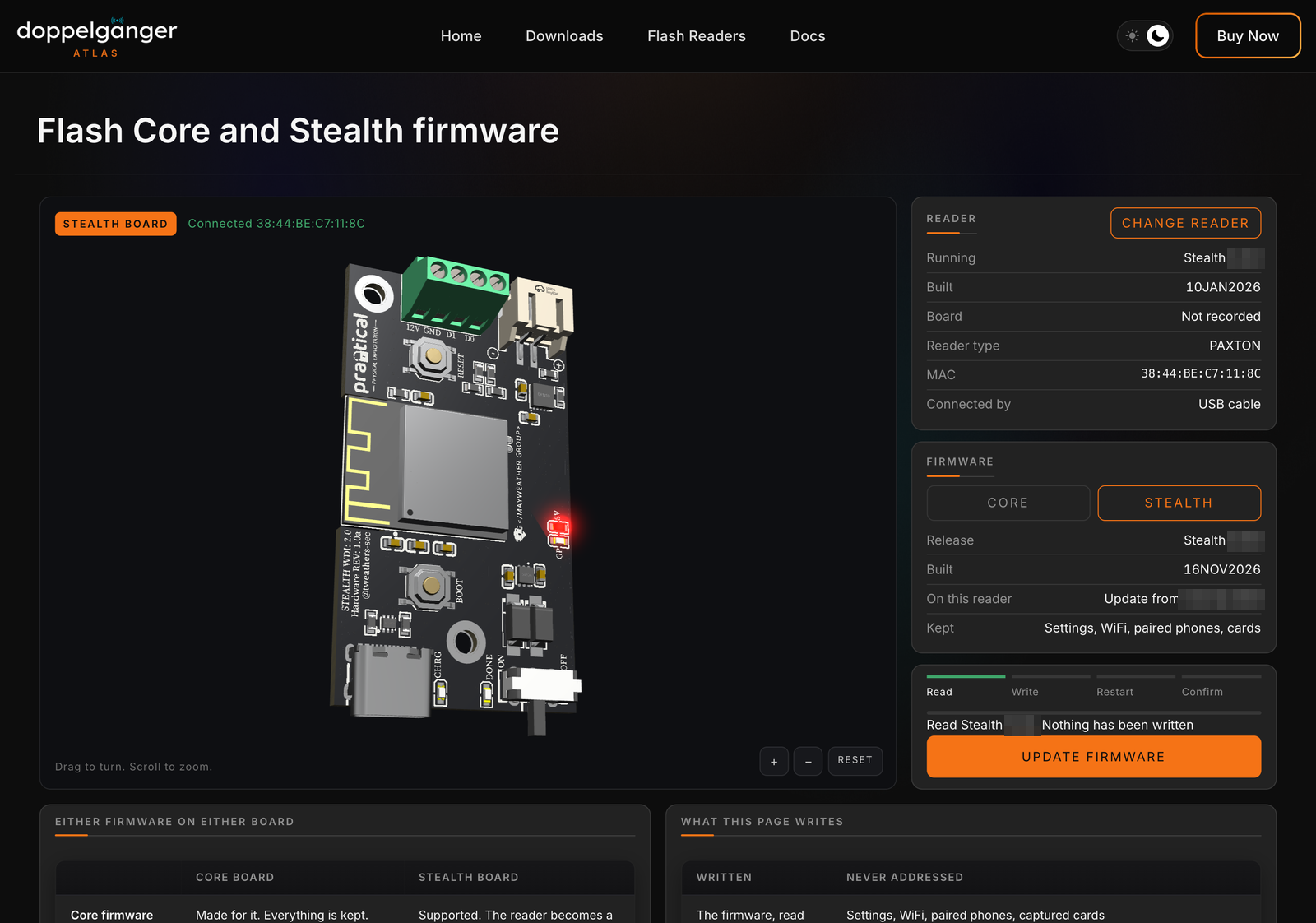
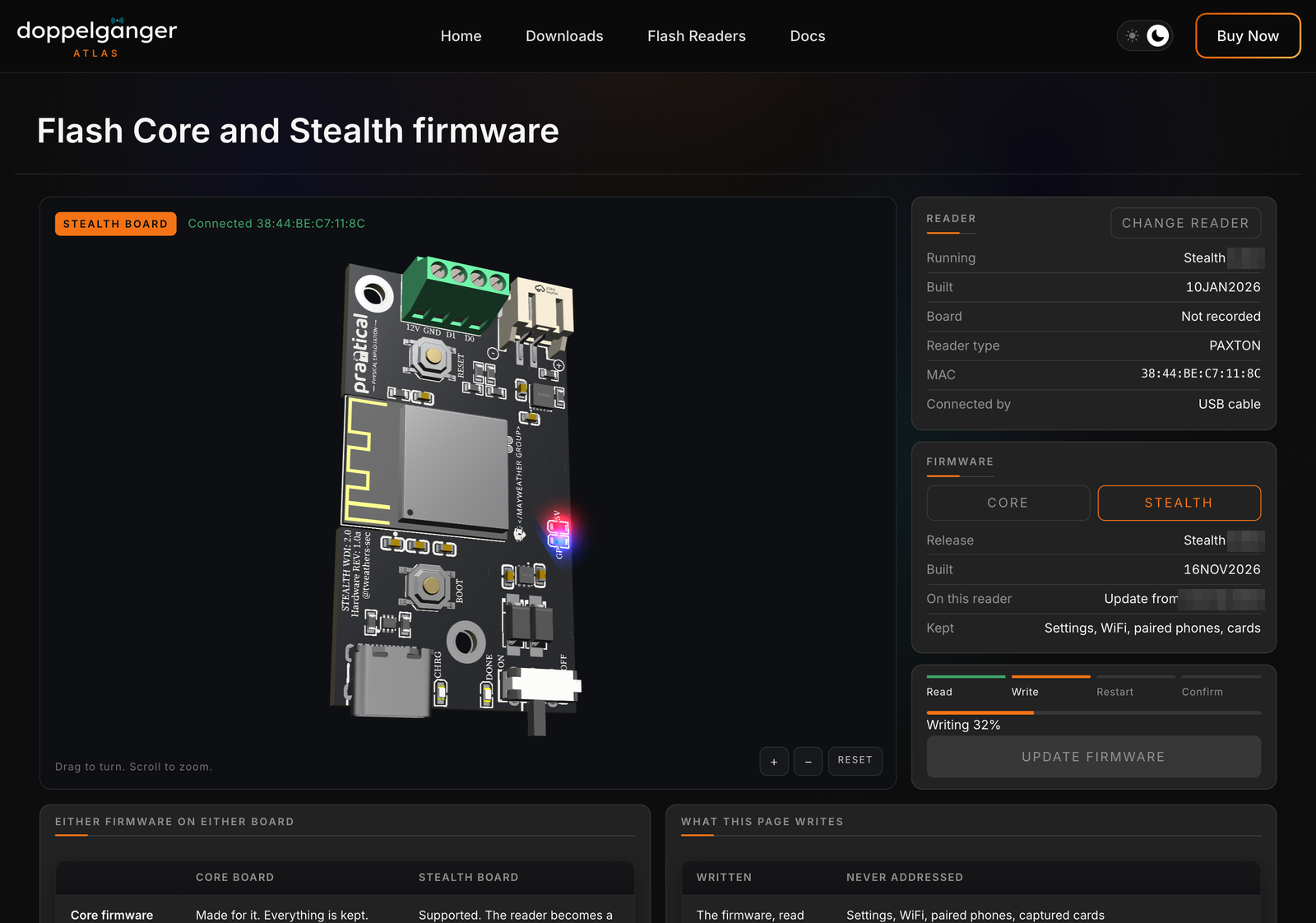
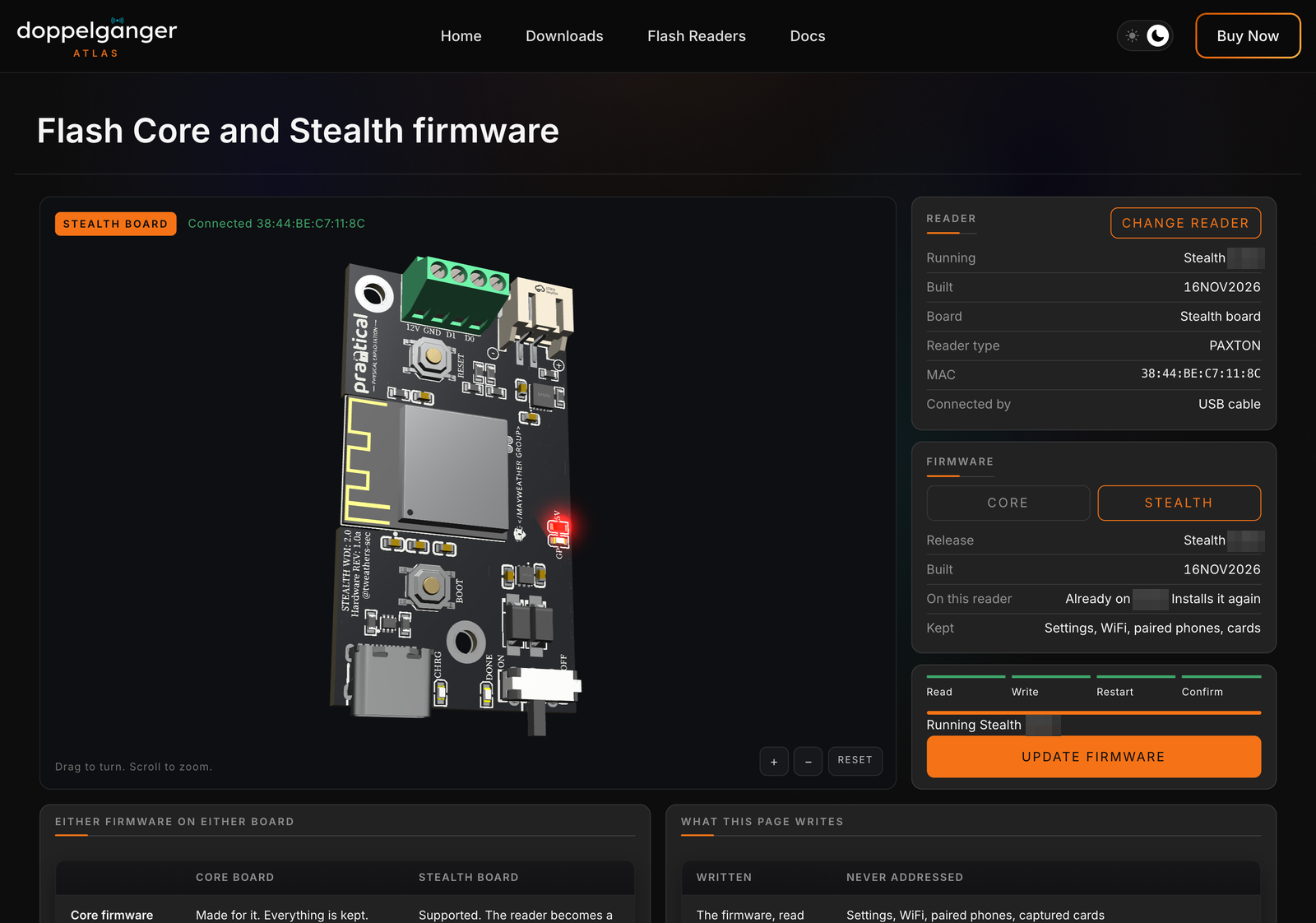
- Running, the firmware on the reader.
- MAC, which is how you tell two readers apart.
- On this reader, what installing would do.
- Read is done. Write is under way.
- Writing, with a percentage. Leave the cable alone.
- Board, Stealth board.
- Reader type, still PAXTON. The settings were kept.
- Read, Write, Restart and Confirm, all four green.
A reader acts on three cards you carry, one job each:
- The reset card is a full factory reset that keeps only the captured cards.
- The pairing card is a card you choose. The reader pairs a phone only when it is presented.
- The stealth card, on the Stealth, puts the reader in and out of stealth mode.
None of the three is written to the card log, so a capture list handed to a client holds the site’s credentials and not your own tooling. ATLAS raises a notification that names the reader and what the card did.
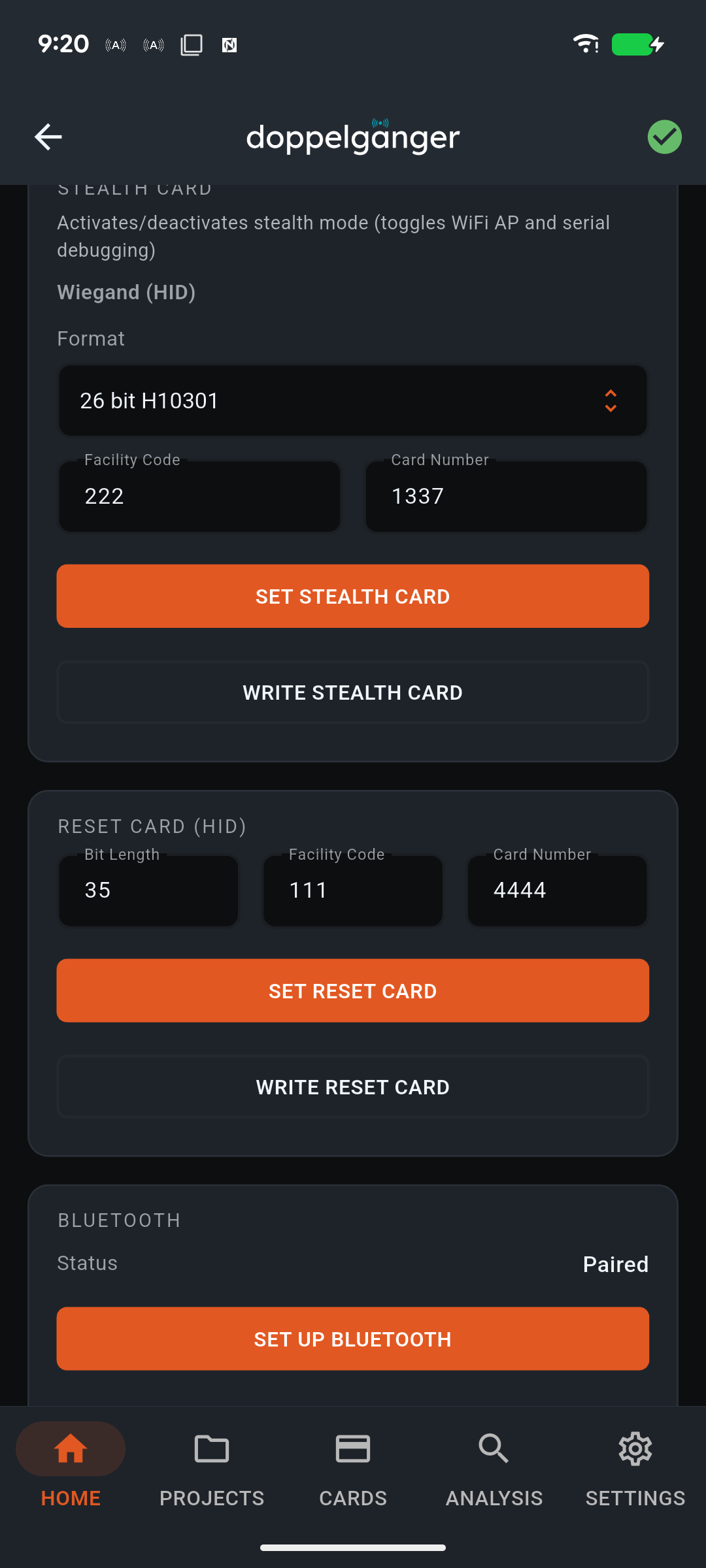
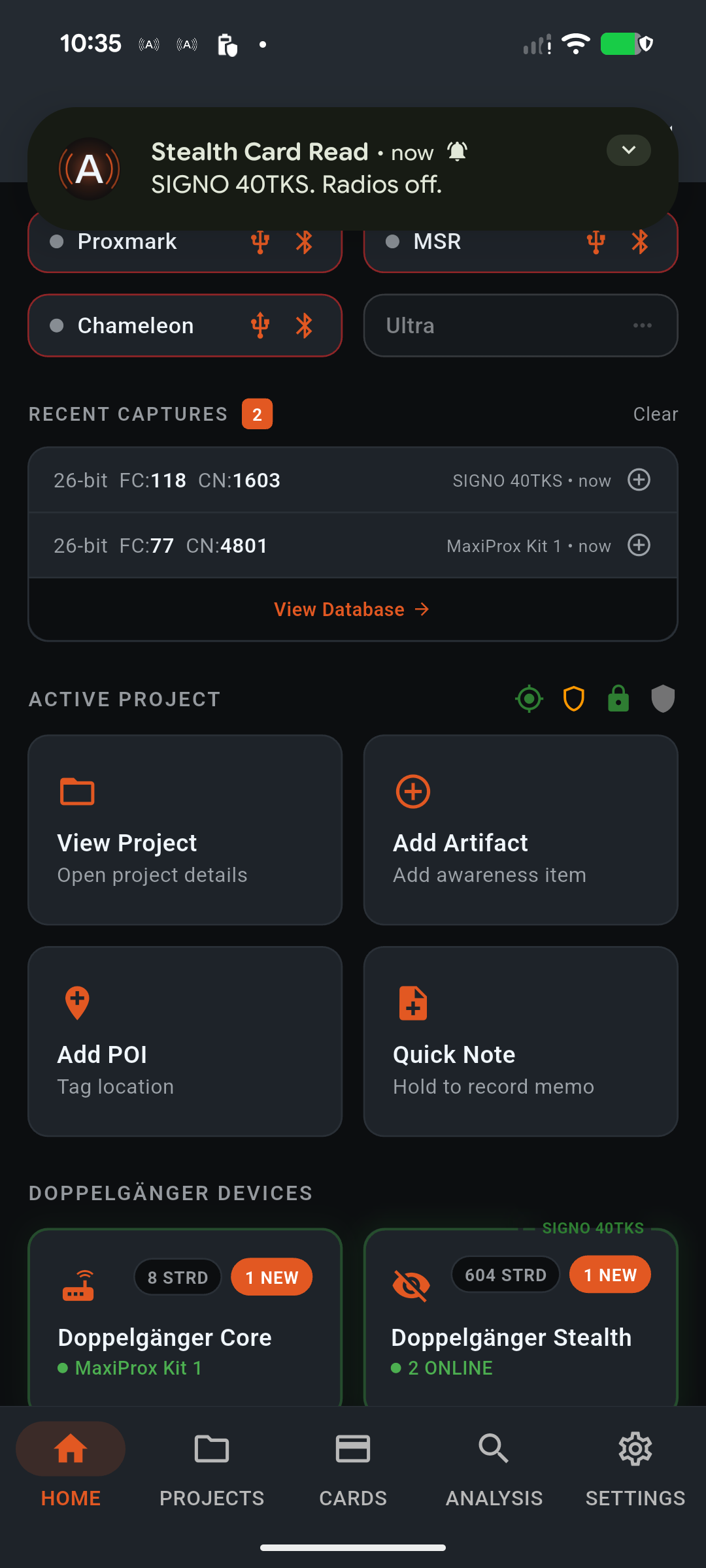
- STEALTH CARD, with its factory Facility Code and Card Number.
- RESET CARD, with its factory values.
- SET UP BLUETOOTH, where the pairing card is named.
- Stealth Card Read, with the reader's name and what the card did.
- RECENT CAPTURES holds 2. The stealth card is not a capture.
Setup takes less of the evening before, too. The reader type is Auto from the factory: the board reads as Wiegand and changes itself to clock and data when the reader on the front sends that. The reader also reports what its data lines show about its wiring, so swapped lines are found at the bench and not after a day of empty reads. Change the factory card values before a reader goes on site, because they are published.
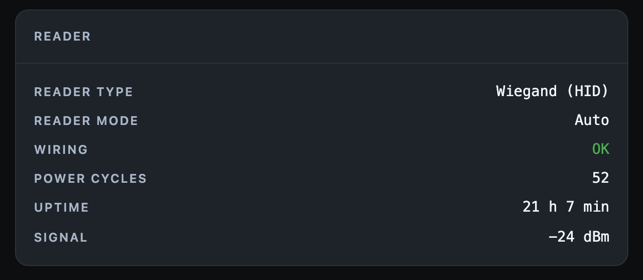
- Reader Mode, Auto.
- Wiring, reading OK.
That Dashboard is one of the reader’s own web pages. They ship inside the firmware, so an update brings them with it, and WEB APP opens them inside ATLAS. A Core also serves its own setup page for joining a network. Cards are read the whole time it is open, a wrong password is reported without losing the saved network, and the setup network reaches nothing but the setup page.
Use case: a release ships while the reader is on the wall. A decoy reader is mounted at the site on Monday, with the site owner’s authorization, and a firmware release ships on Wednesday. Taking the reader down means another trip to the door and a gap in the measurement. It stays where it is: pick it in Device, tap UPDATE FIRMWARE, and the update goes over the connection the reader is already on. The reader restarts, comes back with its settings and its captured cards, and the page reads COMPLETE. A reader holding over 100 cards is refused an update over Bluetooth, with the count, and is offered WiFi, the USB cable or the browser flasher.
The full write up is The Rebuilt Doppelgänger Core and Stealth Firmware.
Every format a card can be
A card does not say which format it is. A reader hands over bits, and several formats share a length. The same bits are a different facility code and card number in each format, and only one of them matches what the site’s access control system has on record. A finding that names the wrong one sends the client’s remediation to the wrong place.
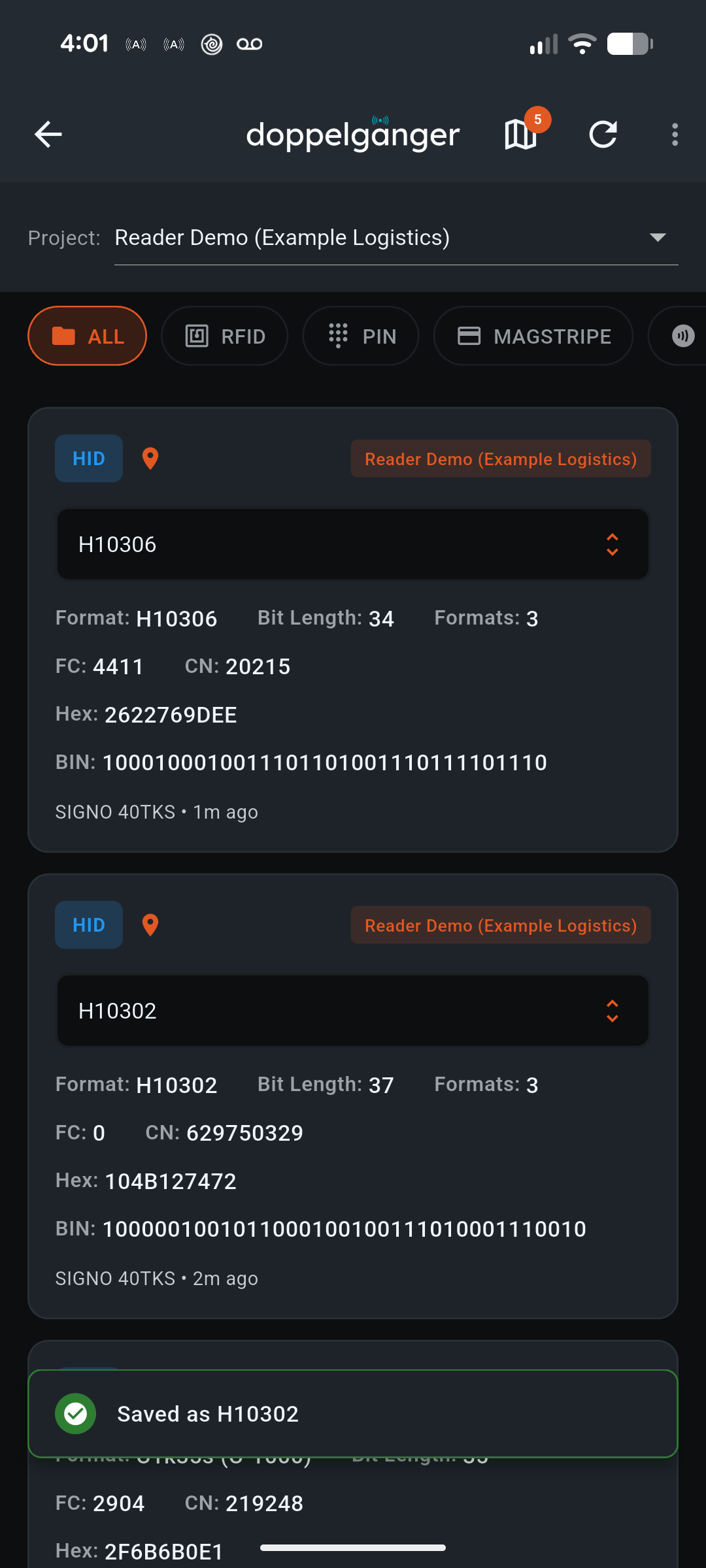
ATLAS shows every reading and lets you choose. A card captured by a Core or Stealth whose bits fit more than one format carries a dropdown of every valid reading, each with its own facility code and card number. Pick one to save the card as it. The reader’s own reading stays on the list, marked (Reader Suggested).
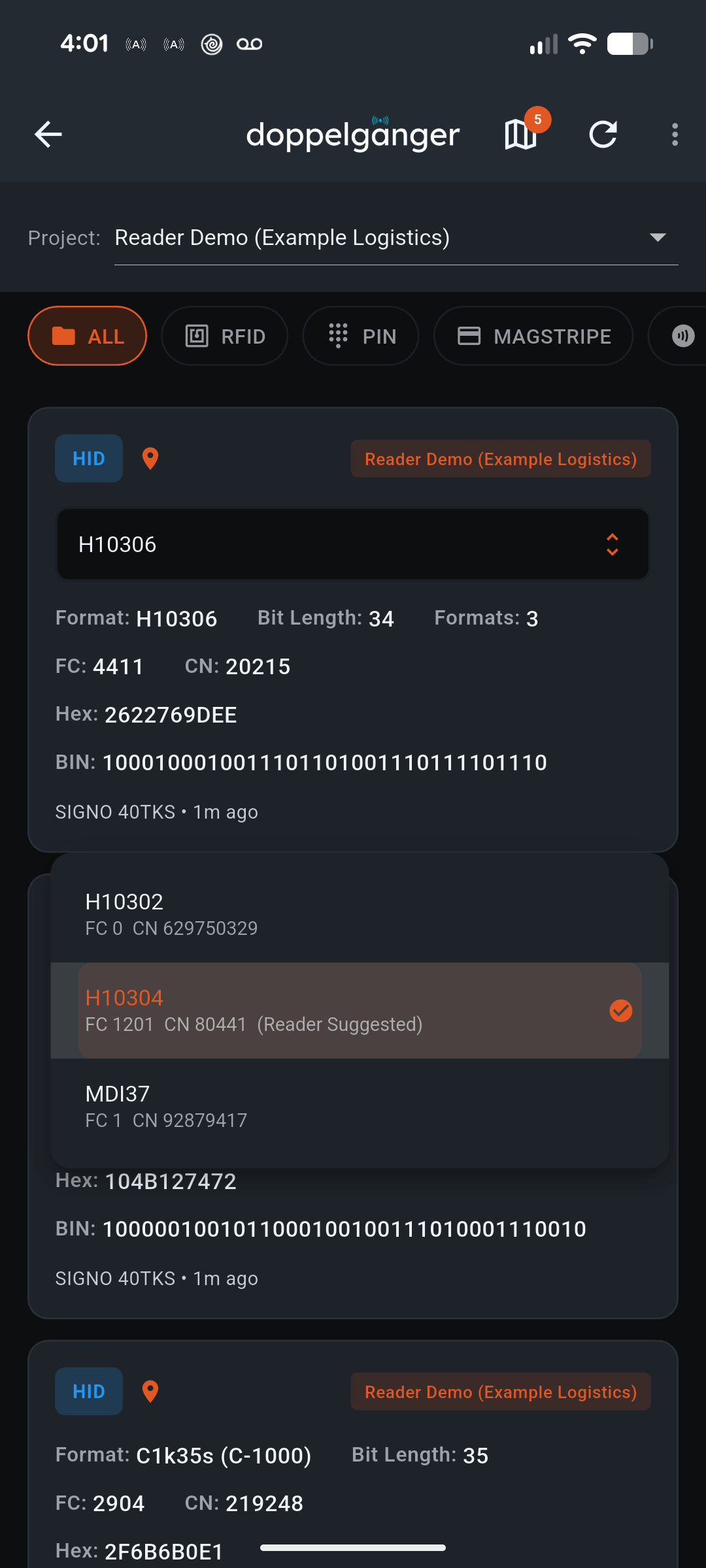
- H10302, the same bits read as one long card number.
- H10304, marked (Reader Suggested). This is what the reader reported.
- MDI37, a third valid reading.
- H10302 is now the record's format, with the numbers that reading gives under it.
- BIN, unchanged. The frame itself is never altered.
- Saved as H10302.
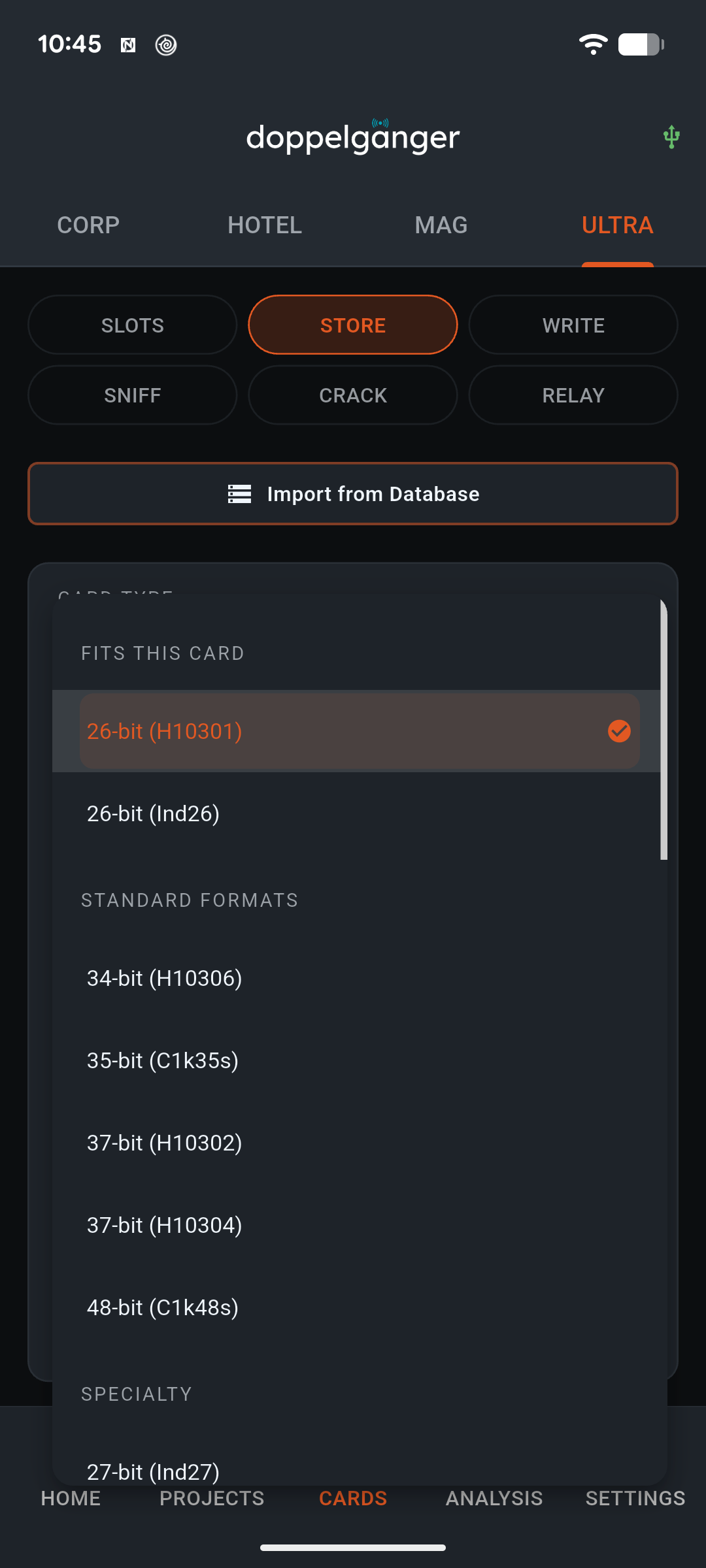
The ATLAS Chameleon Ultra does the same with a card in hand. On STORE, a read card whose bits fit more than one format reads DERIVED with the count beside BIT LENGTH, and those formats head the menu under FITS THIS CARD. Choosing one gives that format’s facility code and card number, and STORE and SAVE TO DATABASE use it. This covers iCLASS and HID Prox.
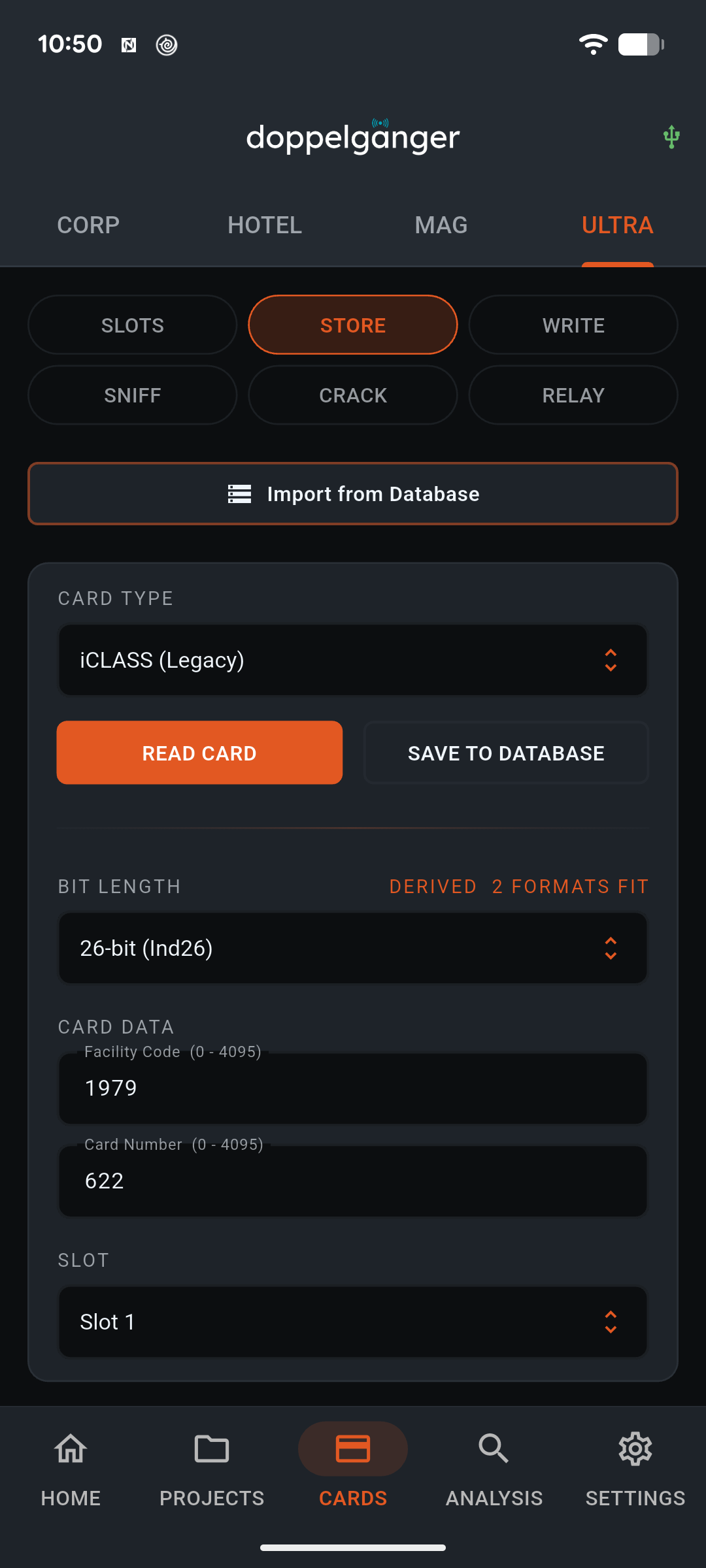
- DERIVED, 2 FORMATS FIT, beside BIT LENGTH.
- Facility Code 123, with Card Number 45678 under it.
- FITS THIS CARD, heading the menu.
- 26-bit (Ind26), the same bits read another way.
- 26-bit (Ind26), chosen from the menu.
- Facility Code 1979, with Card Number 622 under it.
A read lists first the format a Doppelgänger reader names for that bit length when the card is exactly that format: 37 bit reads as H10304, 32 bit as WIE32. A card read in hand and the same card captured at a reader come out under the same name.
Use case: the format that goes in the finding. A 37 bit card is captured at a lobby reader during an authorized assessment, and the reader logs it as H10304, facility code 1201, card number 80441. Read as H10302, the same bits are one long card number with no facility code. The site owner’s administrator confirms which format the access control system is configured for, the assessor saves the record as that format, and the report names the credential the way the system knows it. The bits themselves never change. Every length and format is on Card formats.
Cards and analysis
The Proxmark side of the card work grew as well. IO Prox is on CORP for Write and Simulate. The UID of a PIV card or a MIFARE Classic 1K, 4K or Mini is written to a magic card, and MIFARE Ultralight and DESFire UIDs are simulated.
On ANALYSIS, DETECT gives the full EM410x decode: the EM 410x ID, the data rate and the possible de-scramble patterns, Paxton among them. A result that is a whole credential carries ADD TO DATABASE. In the card database, Assign to Project and Move to Project put a card with the engagement it belongs to, and a photo of the credential can be attached to a captured card.
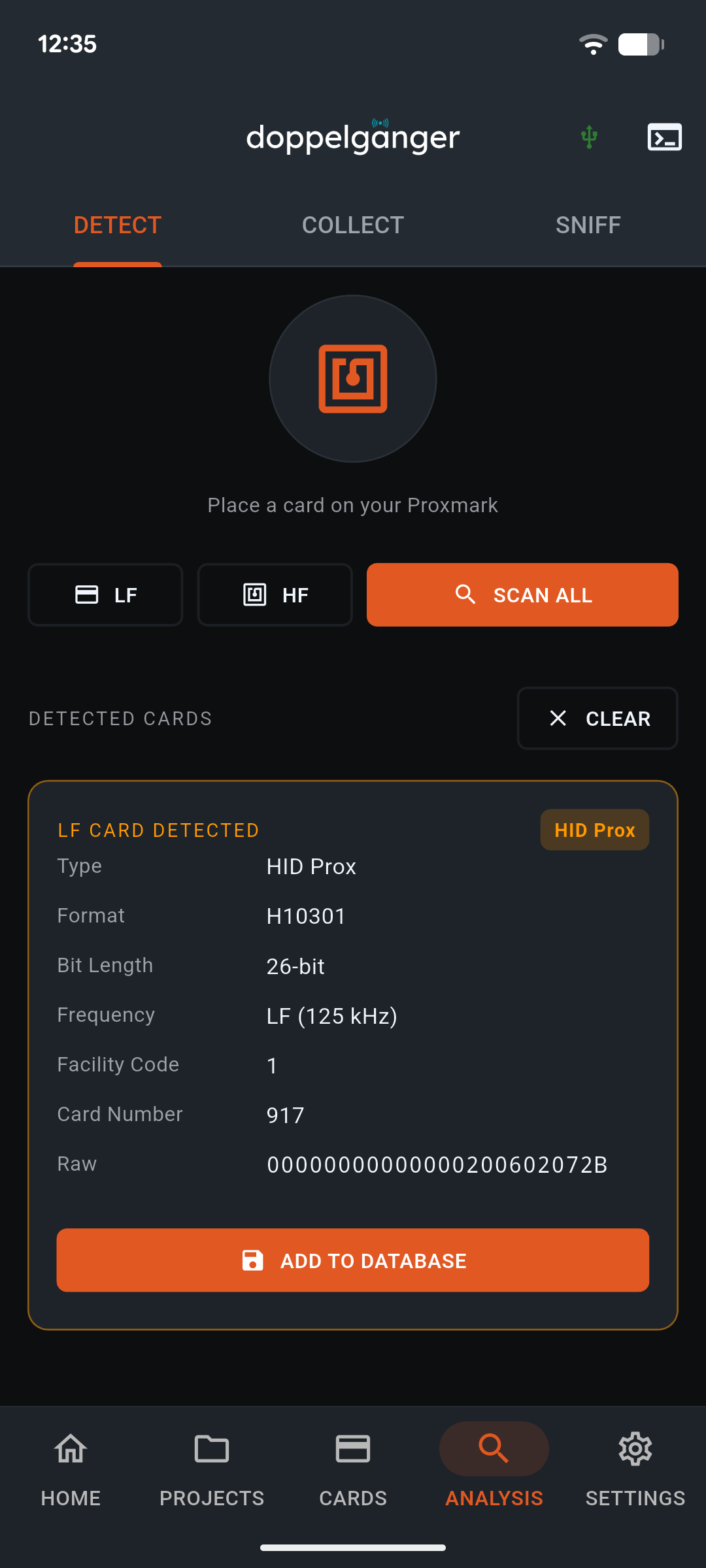
- LF CARD DETECTED, with the type beside it.
- Facility Code, with Card Number under it.
- ADD TO DATABASE.
A MapLibre operational map
The operational map and every location editor run on MapLibre. The basemaps are OpenStreetMap, USGS Imagery, Imagery and Contours, Topographic, and Esri World Imagery with your own key.
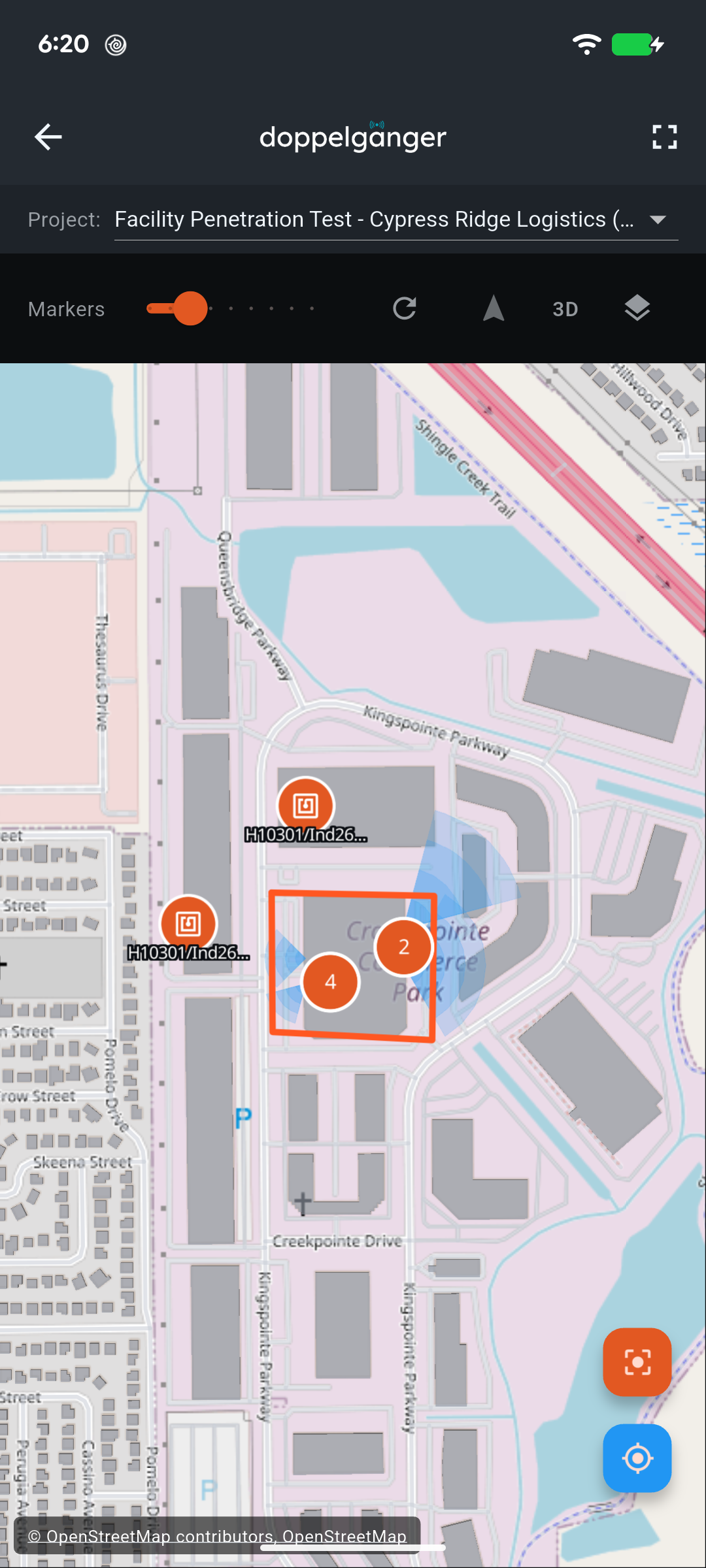
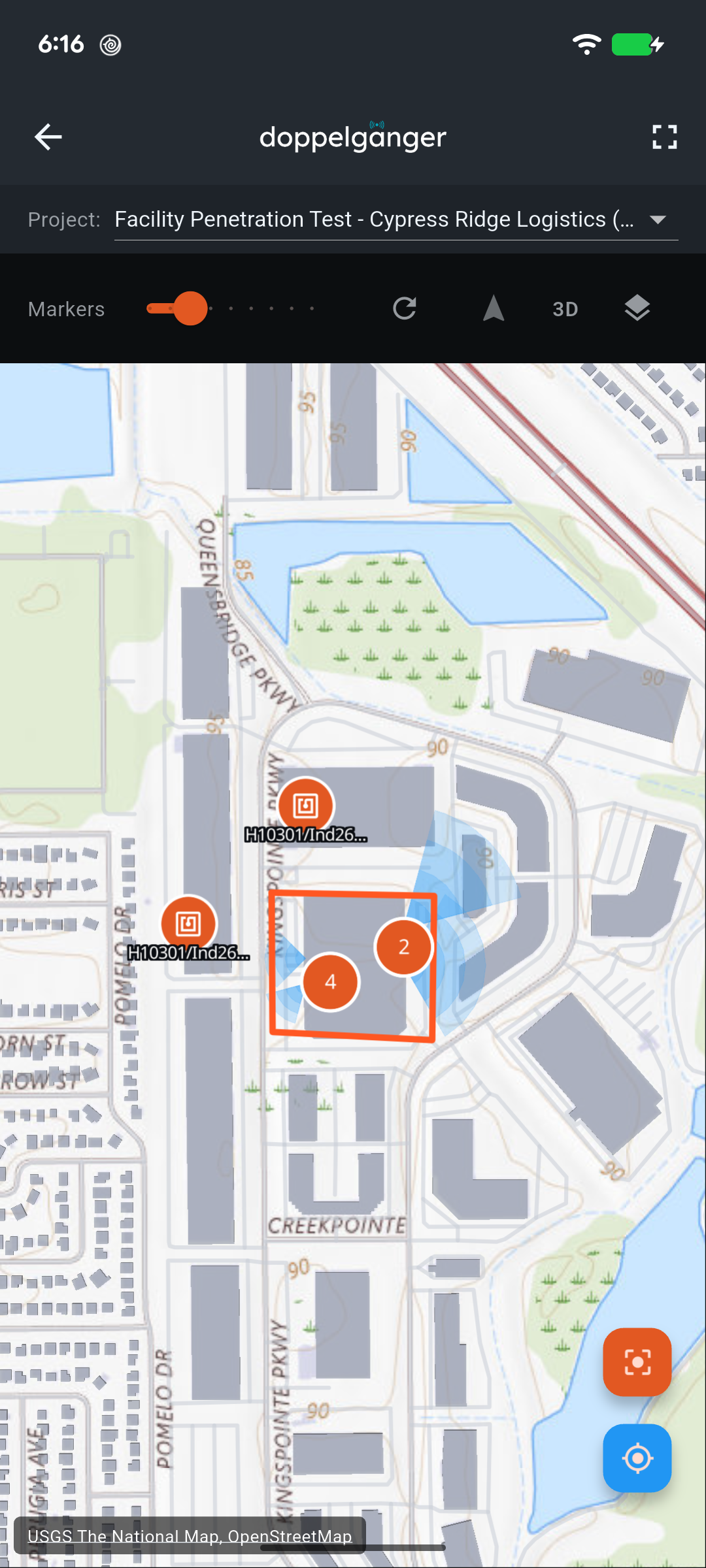
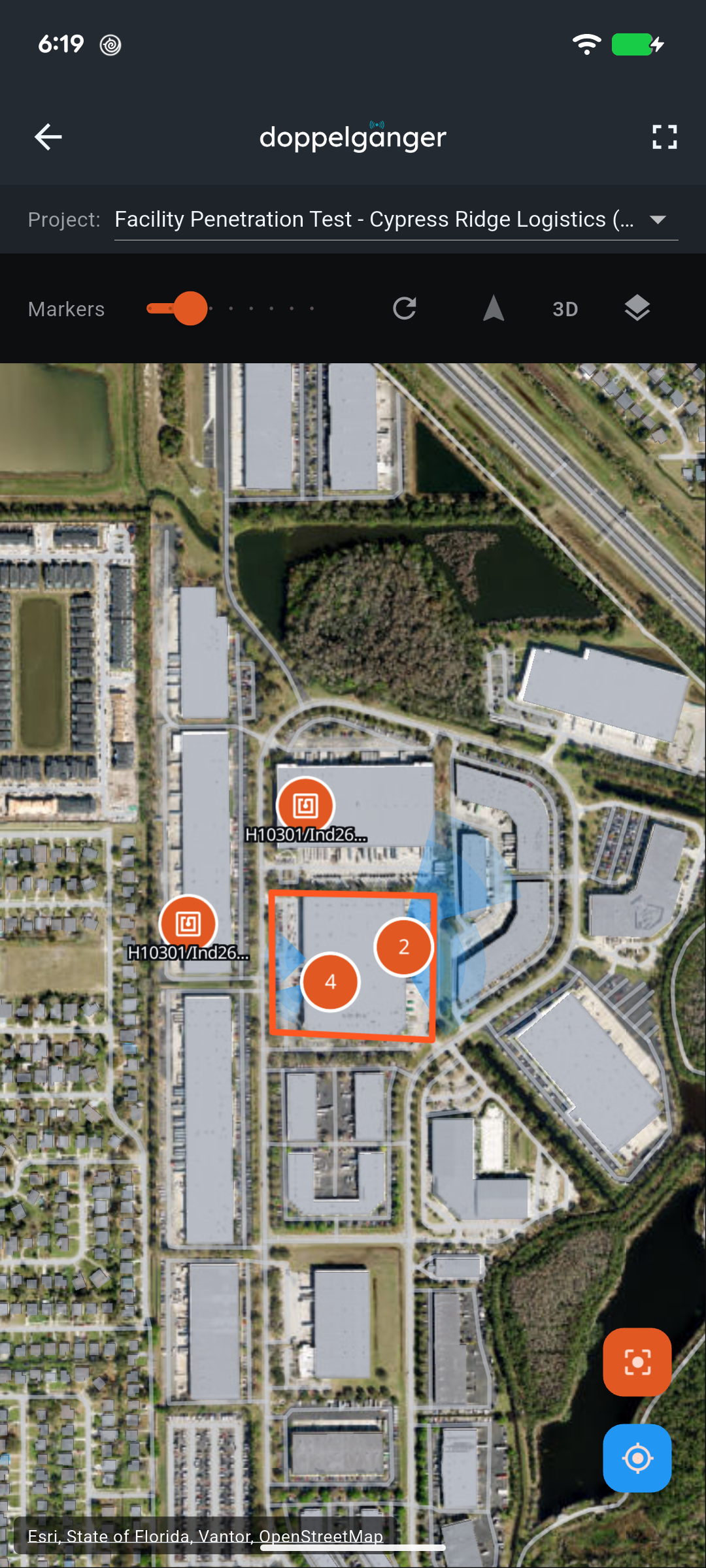
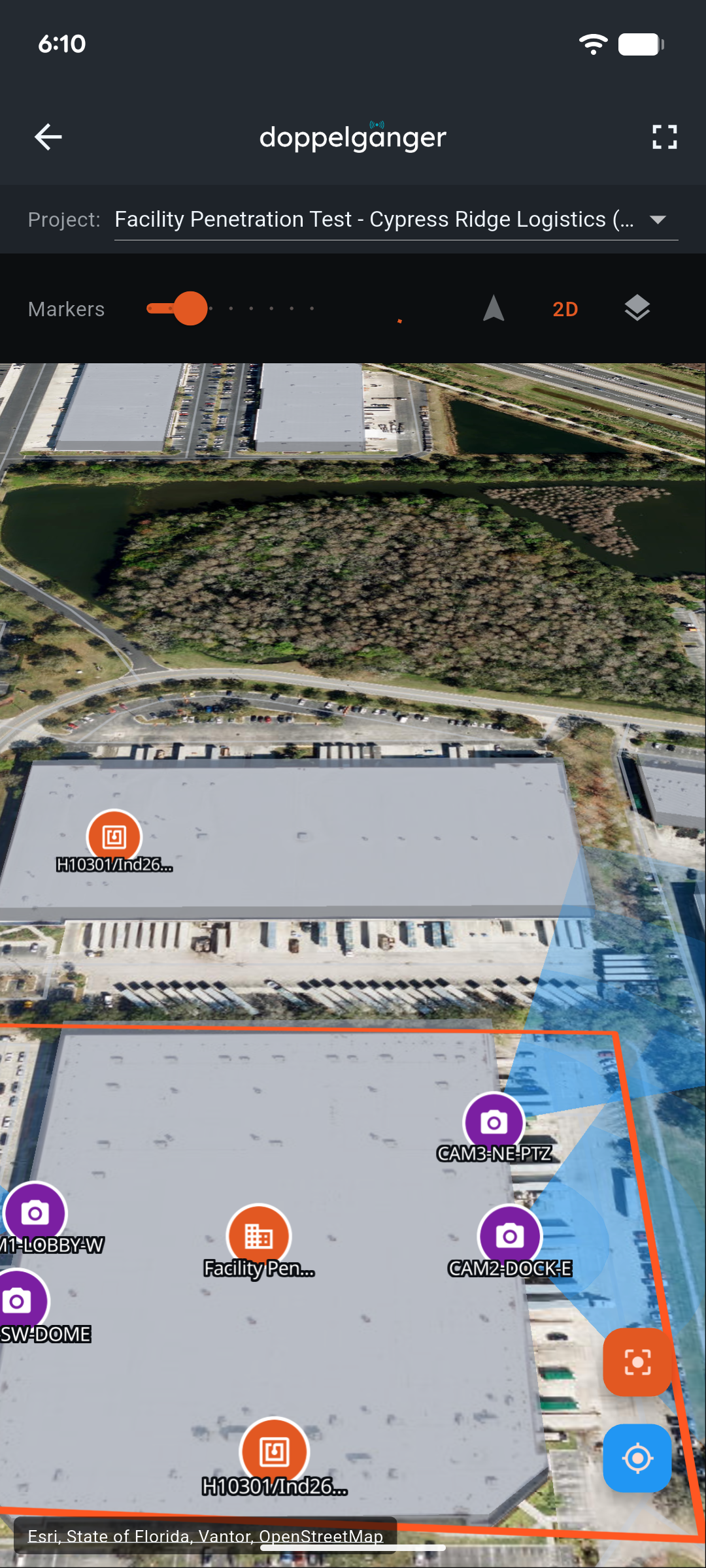
- The target facility, outlined, with grouped markers.
- The attribution line names the source.
- The toolbar, with the Markers slider, 3D and the layers control.
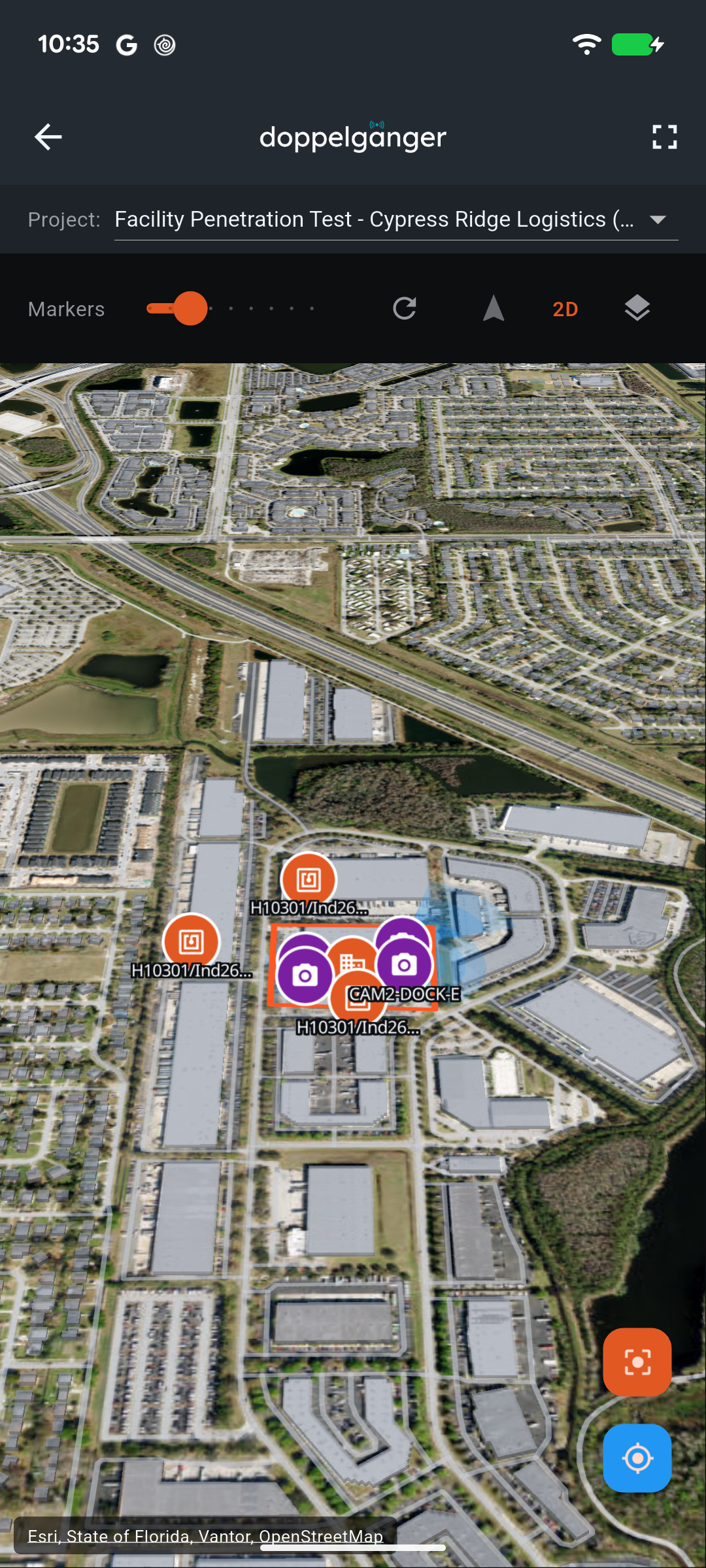
The Layers sheet groups everything the map can draw, the view switches between 2D and 3D, and awareness layers place police, fire stations, hospitals, airports and ALPR and surveillance cameras around the site.
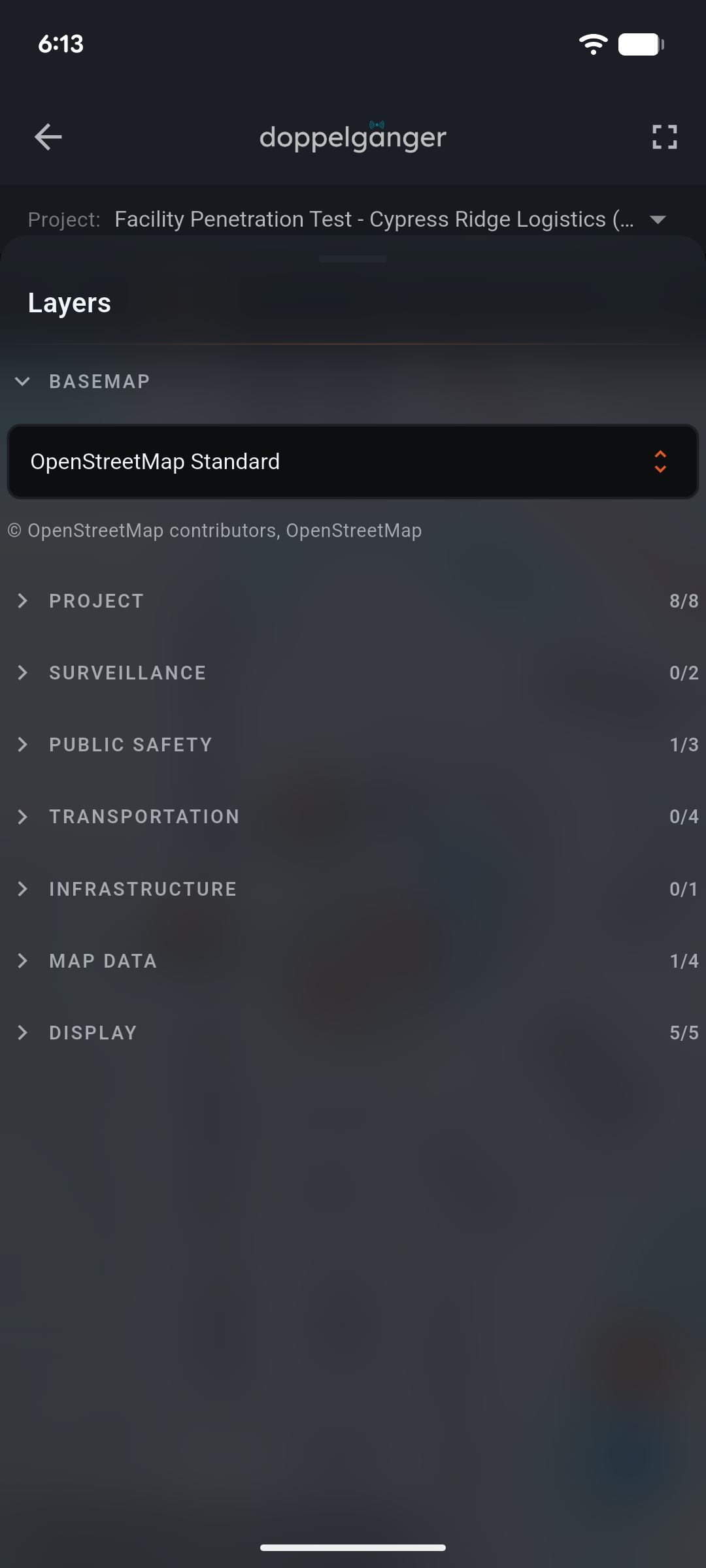
- BASEMAP, at the top.
- PUBLIC SAFETY, one layer of three on.
- The control reads 2D once the view is tilted.
- Cameras, named, on the building they belong to.
Use case: planning the approach, then showing it. Before the site visit, a lead compares two imagery basemaps of the same facility, because they were flown at different times and only one matches what is on the ground today. After the visit, every read, photo, recording and note is on that map at the place it was taken. Map Screenshot exports the view at 1080p, 1440p or 4K for the report, so the site owner sees where each finding sits. More in Map types.
The map does more than these figures show. An infrastructure overlay draws power, telecoms and pipelines, a tile meter counts the tiles used this month against a monthly allowance you set, and OSINT Data takes your own Overpass server. ALPR and surveillance cameras can be entered by hand, with photos, and the barrier editor has Lock the page, so dragging a point moves the point and not the page. The full treatment is in The Operational Map.
Around the app
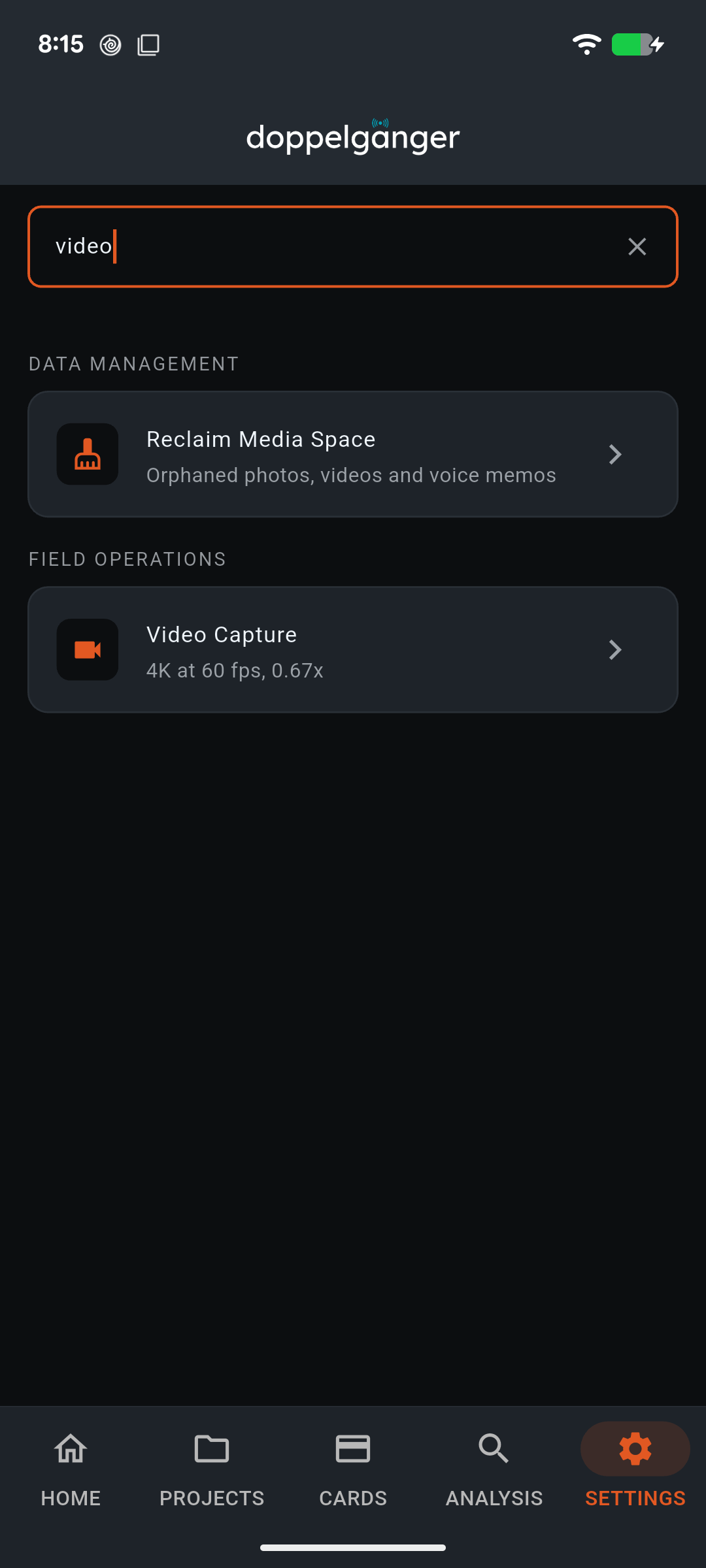
Settings and Home took their share of the release. Settings has a search field that filters every row. On Home, the fourth device cell is a shortcut that opens a destination you choose, and holding it changes the destination. The quick actions can be reordered, and the Home pickers save a device under a name.
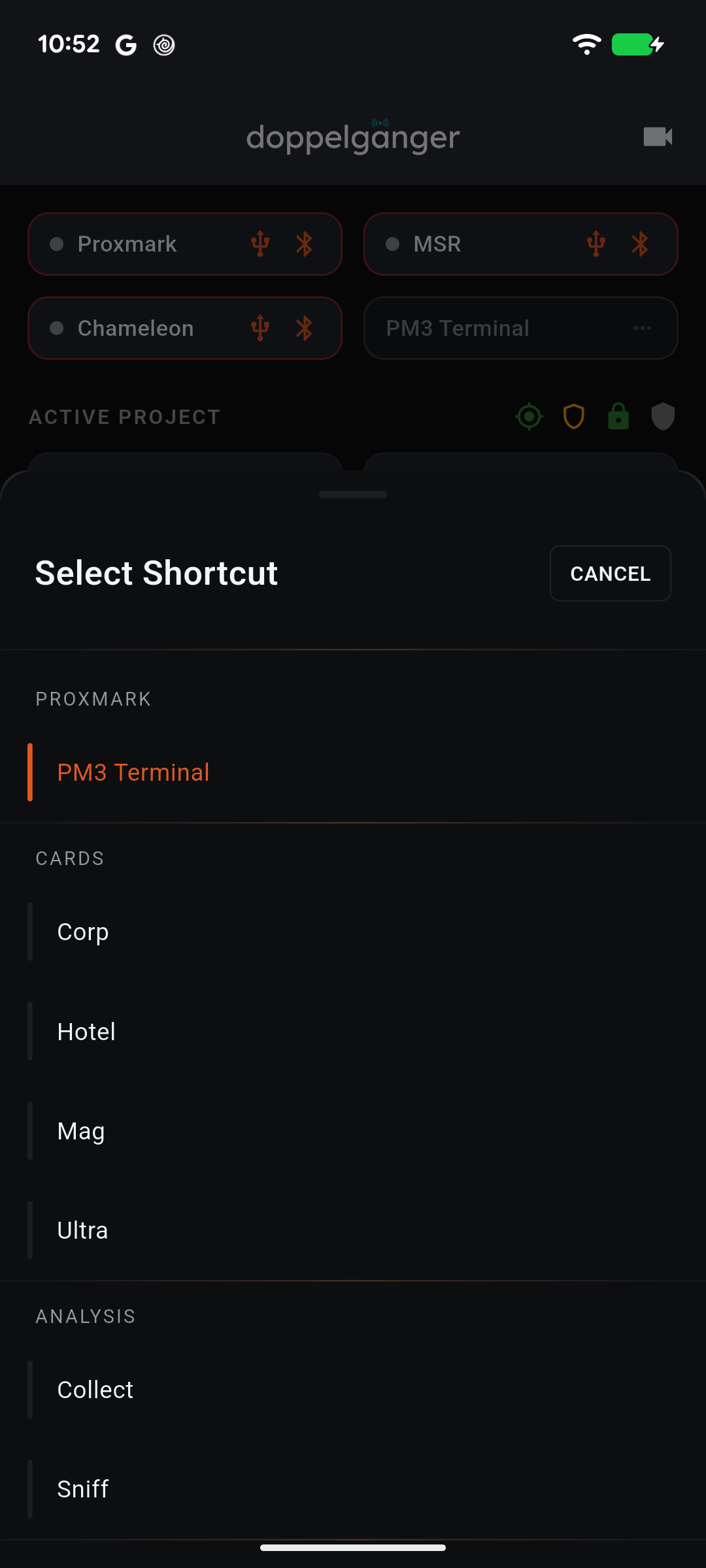
- The fourth cell, behind the sheet.
- Select Shortcut.
- The current destination, in orange.
- The search field.
- Reclaim Media Space.
- Video Capture.
Licensing is plainer about what it will do. When every place on a license is taken, LICENSE LIMIT REACHED names the device that would be removed before you activate, and License Details lists the devices in use under Devices Activated. Diagnostics is a self-check of storage and the phone’s NFC radio, worth one tap before leaving for a site, and Reclaim Media Space frees the storage held by removed media.
Get it
ATLAS 1.3.0 is on the downloads page, and a license is at the PPE Store. The store runs a sale November 27 through December 1, 2026, at store.physicalexploit.com.