A physical security report is full of sentences the site owner has to take on trust. “The dock door did not latch.” “Staff held the door for an unbadged visitor.” “The reader is mounted on the unsecured side of the frame.” Each one is true, and each one gets argued with in the debrief, because a sentence is easy to dispute and the person disputing it was not standing there.
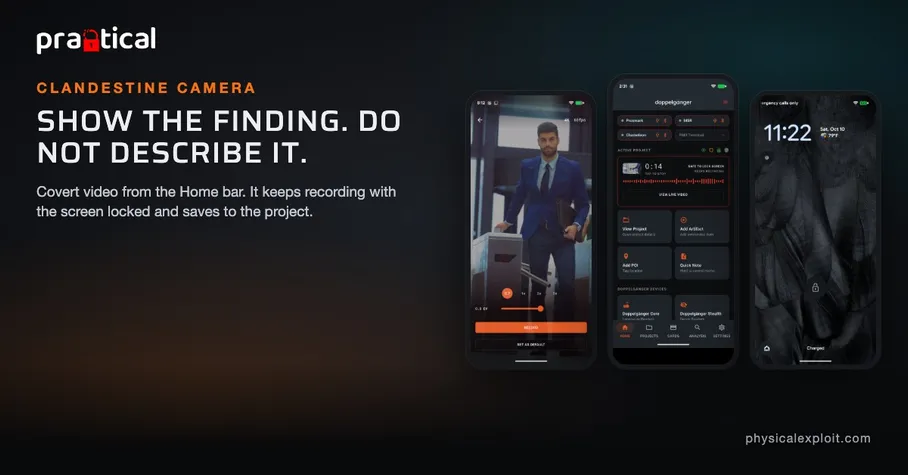
The clandestine camera in Doppelgänger ATLAS 1.3.0 exists to replace those sentences with footage. It records video while the phone is locked and in a pocket, files the recording to the active project with the time and the position it was taken at, and gives you the tools to pull one readable still or one short clip out of it afterward.
This post is about where that earns its place on an authorized assessment. The step by step is in the ATLAS documentation.
What it does, in one paragraph
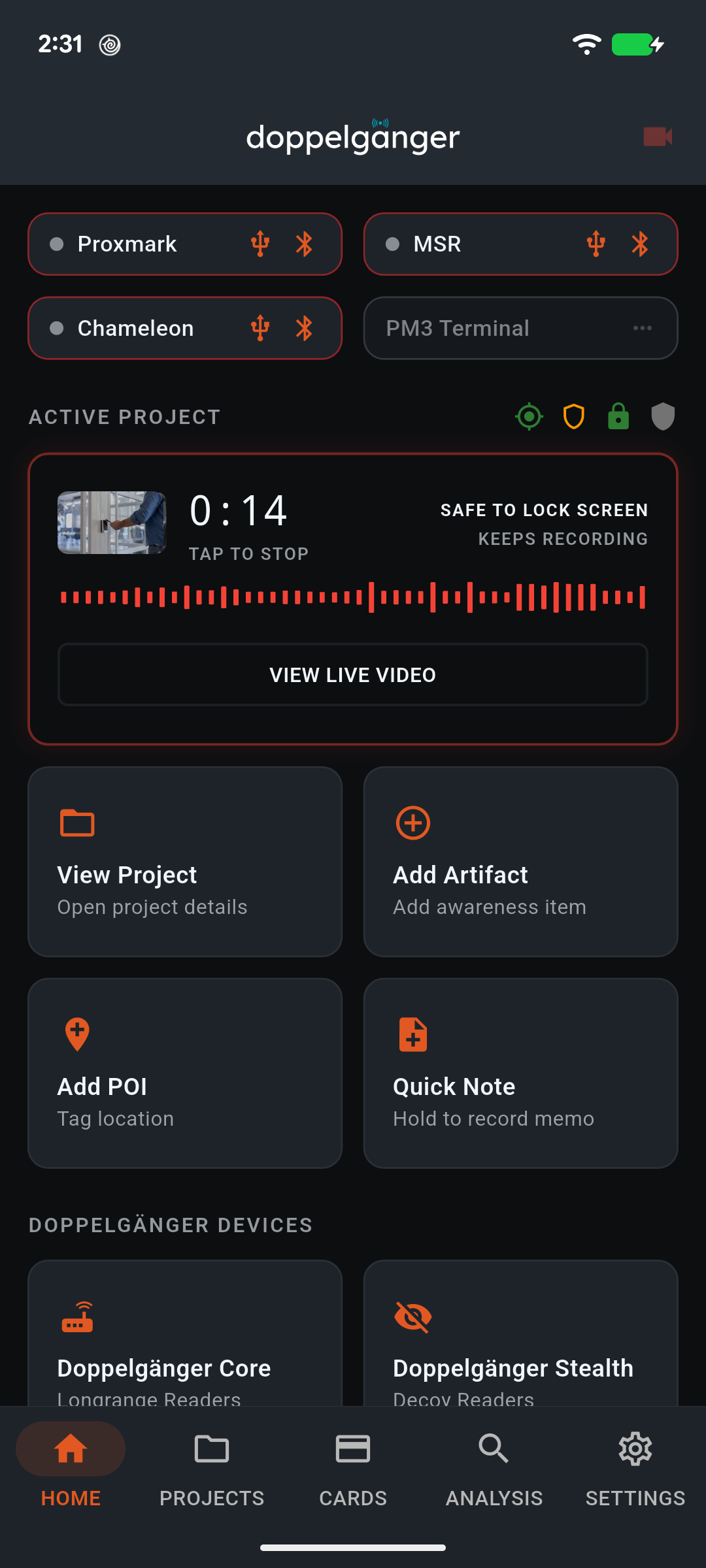
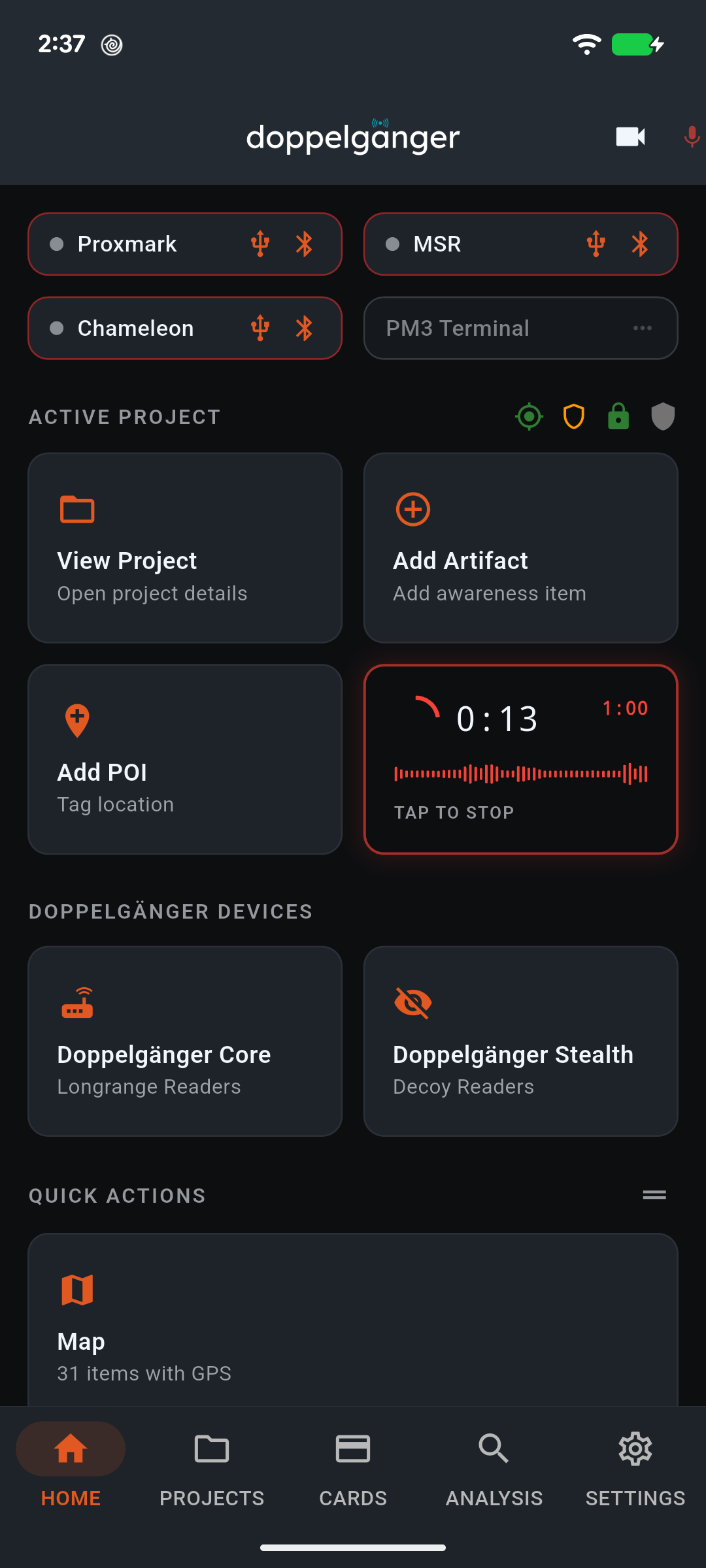
The camera glyph sits at the right of the Home bar. Tap it and a viewfinder opens, where you set zoom and exposure and press RECORD. Long press it and recording starts at once, at the framing you stored, with no viewfinder on screen. Either way the recording keeps running when the screen locks or you switch apps, and Home shows a card with a live thumbnail, the elapsed time, an audio level meter, TAP TO STOP and VIEW LIVE VIDEO. When you stop, the video is saved as a note on the active project with its length, its size and the coordinate you were standing at.
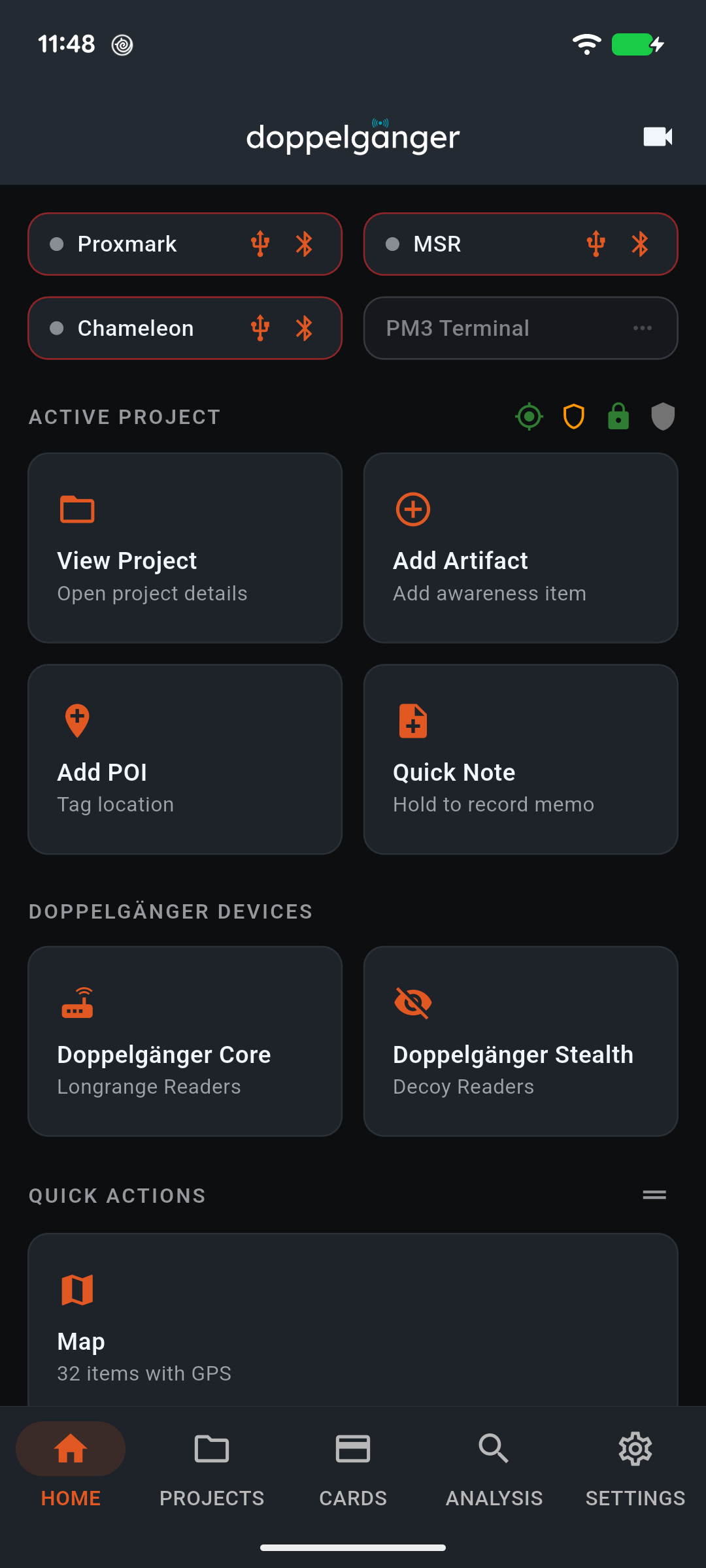
- The camera glyph. Tap for a viewfinder, long press to record at once.
- Quick Note, subtitled Hold to record memo, for an audio note.
- The glyph is red while a capture runs.
- A live thumbnail, the elapsed time and TAP TO STOP.
- The audio level meter, moving with what the microphone hears.
- VIEW LIVE VIDEO opens the viewfinder on the running capture.
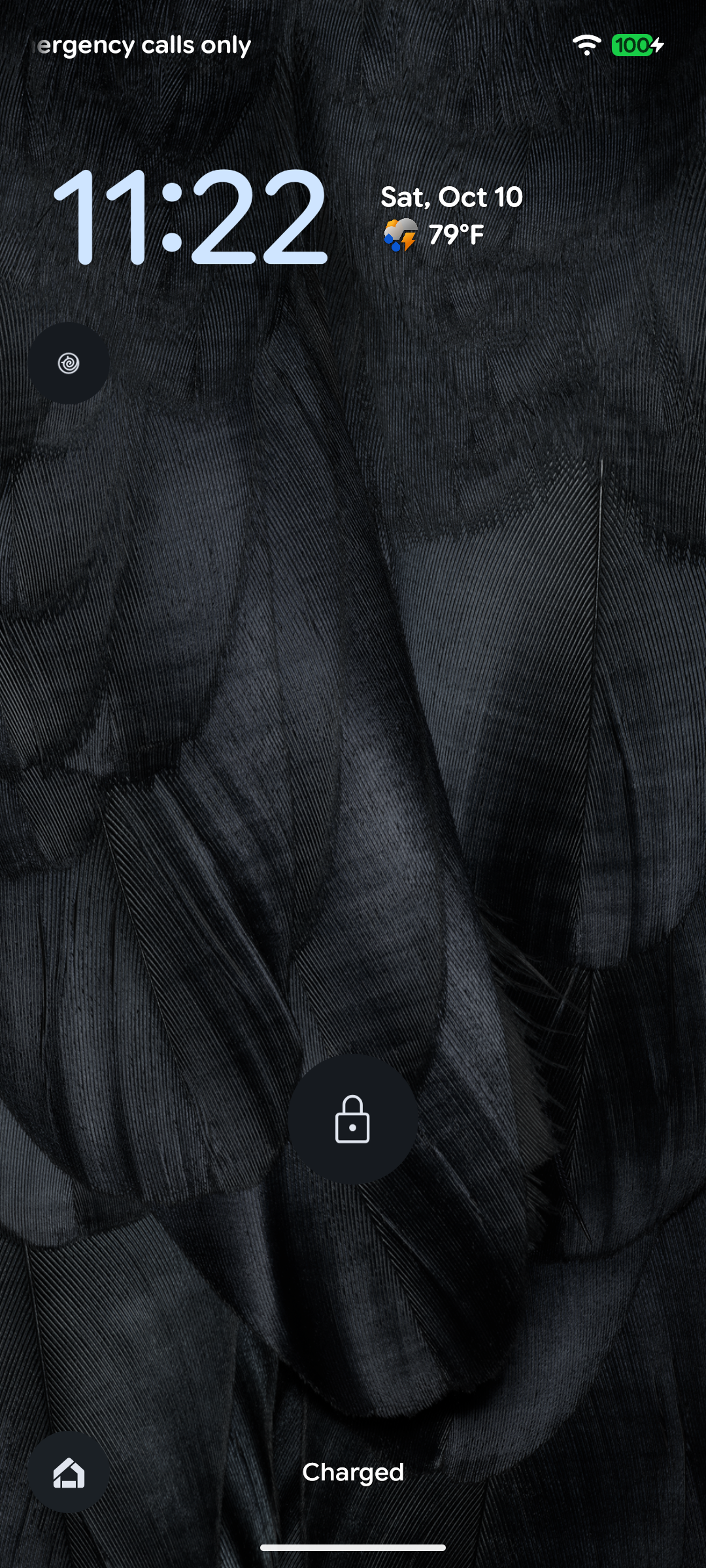
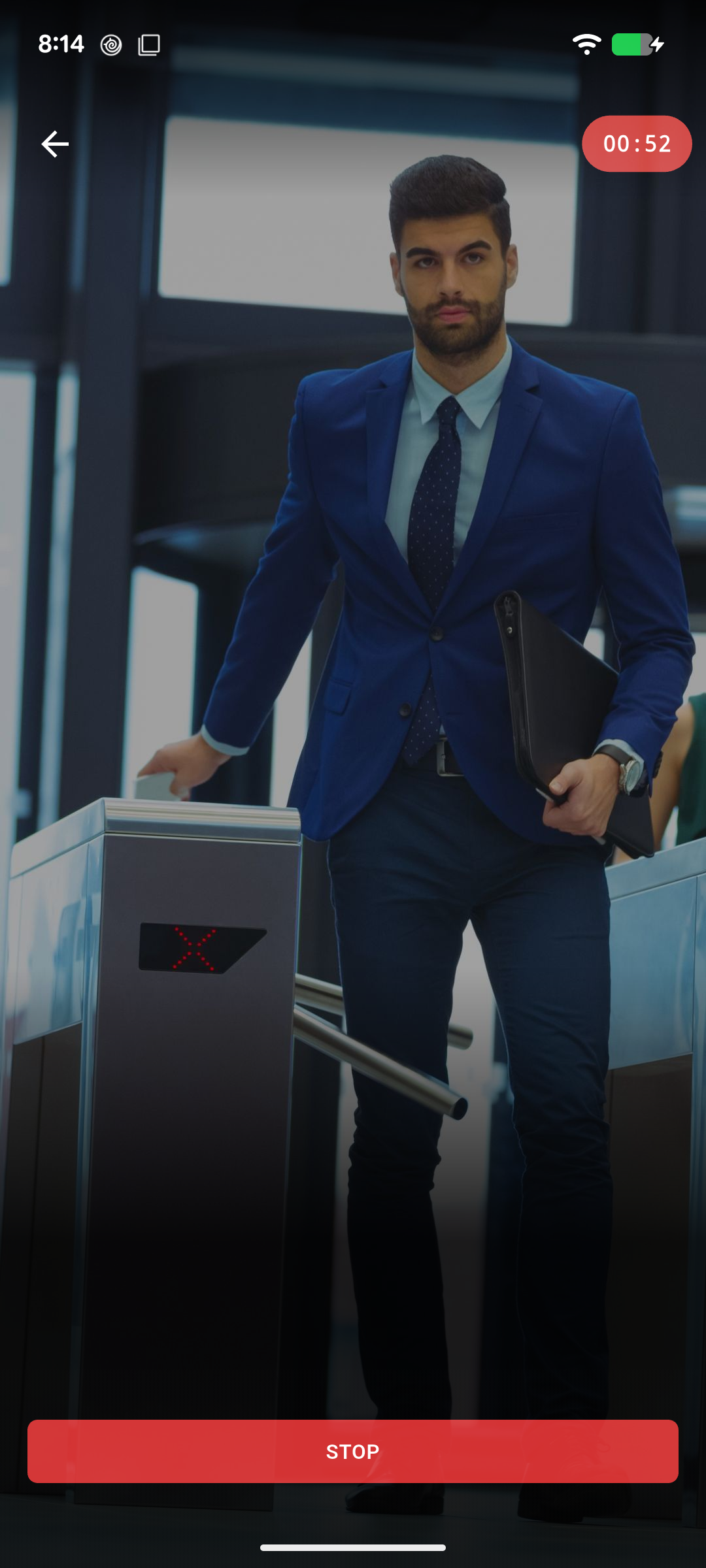
- The ATLAS notification, collapsed to its icon. Android requires it.
- 00:52 and counting.
- STOP ends the capture and files it.
Use case one: the tailgating pattern at the staff entrance
You are on a contracted assessment and the scope includes the employee entrance. For twenty minutes at shift change you watch people hold the gate for whoever is behind them. Written down, that is one line and an estimate. A guess at “about one in four” does not survive a security manager who believes the lobby officers stop it.
Long press the glyph on the way in, lock the phone and carry it the way you would carry any phone. The recording covers the approach, the badge presentation and what the gate did, while your eyes stay on the people in front of you. Held sideways, the viewfinder moves every control into a strip along the bottom, so a wide gate line fits in the frame.

In the report, the finding carries a clip. In ANALYZE FRAMES, IN and OUT key a range and CLIP cuts it out as its own video without re-encoding it, so the site owner gets the eight seconds that matter and not the twenty minutes around them.
Use case two: the installation flaw that goes on a remediation ticket
A stairwell door on the third floor closes but does not latch. Nothing is wrong with the lock or the reader on it. The manufacturers of access control hardware make very secure products when they are implemented properly, and this is a door closer that was never adjusted. It is an installation finding, and the person who will fix it is a facilities contractor who has never met you.
Record the door closing and rebounding. Attach the clip to that door’s Entry Point record through ATTACHED MEDIA, beside the OBSERVED WEAKNESSES you selected, and write the circumstance with ADD CAPTION. The ticket now shows the fault happening, with the time and the position stored on the attachment. Nobody has to send a technician to reproduce it first.
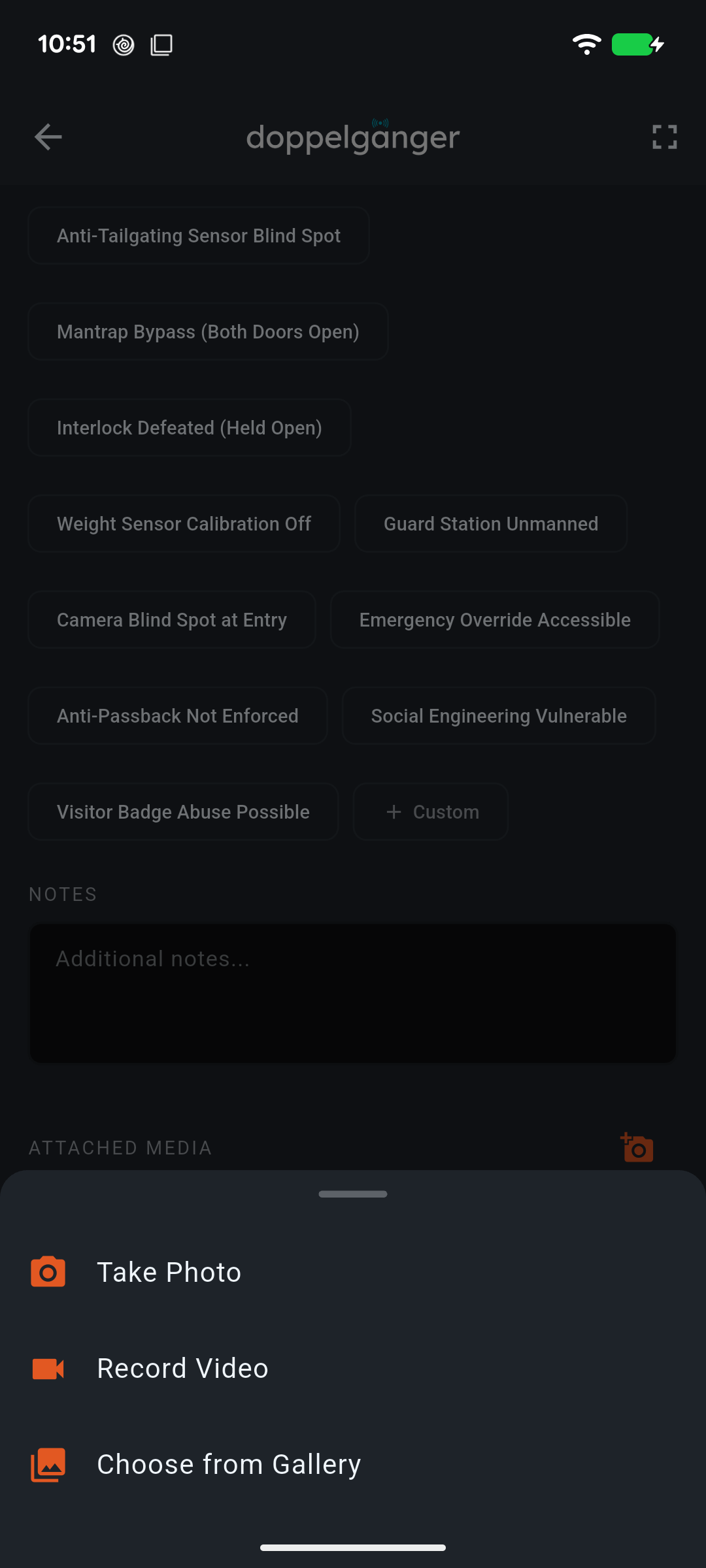
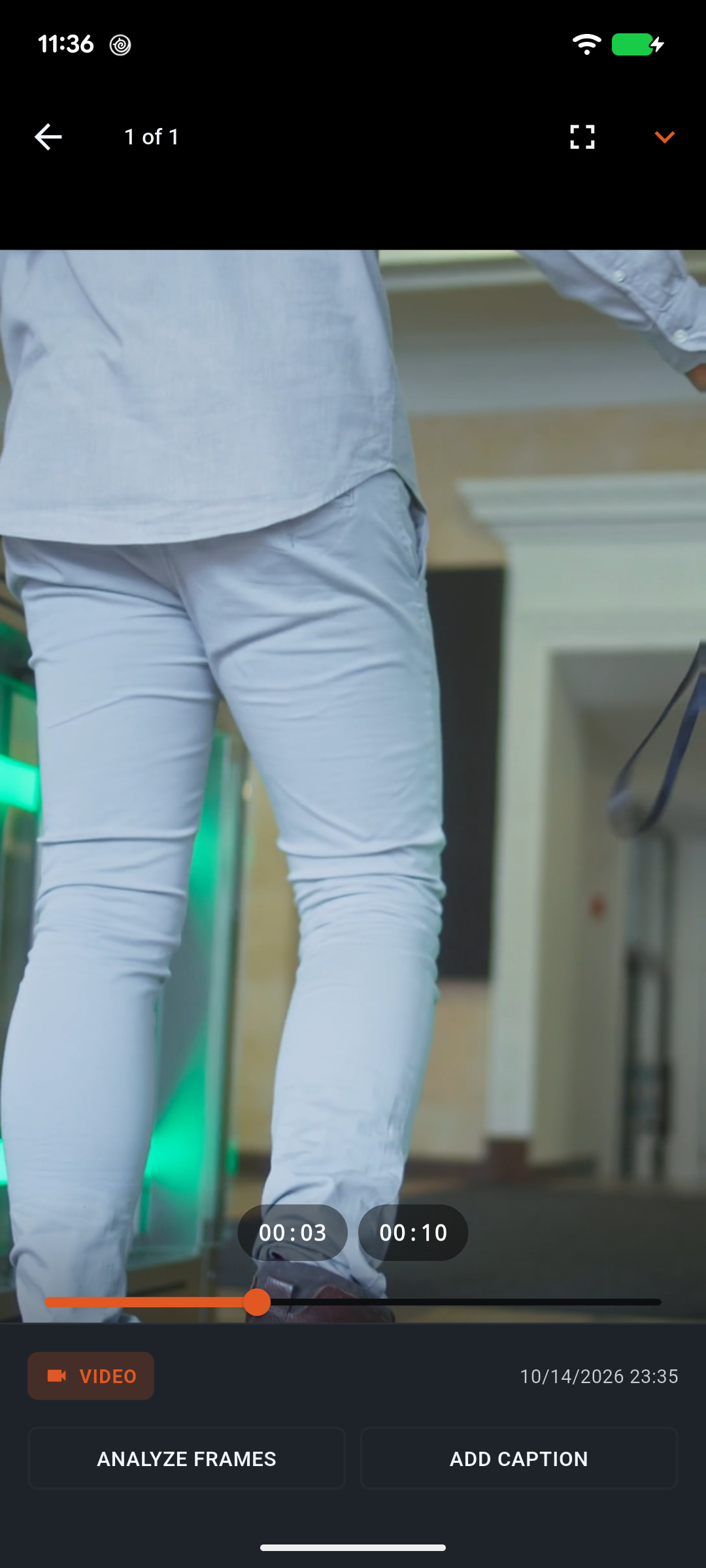
- ATTACHED MEDIA and its add control, the plus on the camera.
- Record Video, for a clip taken at the door.
- Choose from Gallery, for one taken before you opened the record.
- Position and length.
- The kind chip and when the recording was made.
- ANALYZE FRAMES and ADD CAPTION.
Use case three: reader placement and model, for the next day
Day one of a multi day assessment is a walk. You pass fourteen doors and need to leave knowing what is on each one: which reader, where it is mounted, whether it has a keypad, how far the approach is. That decides what comes out of the kit bag on day two, and which doors are worth fingerprinting.
Stopping to photograph every reader is slow and conspicuous. One recording of the walk is neither. That evening, open it in the in-app player and hand it to ANALYZE FRAMES.
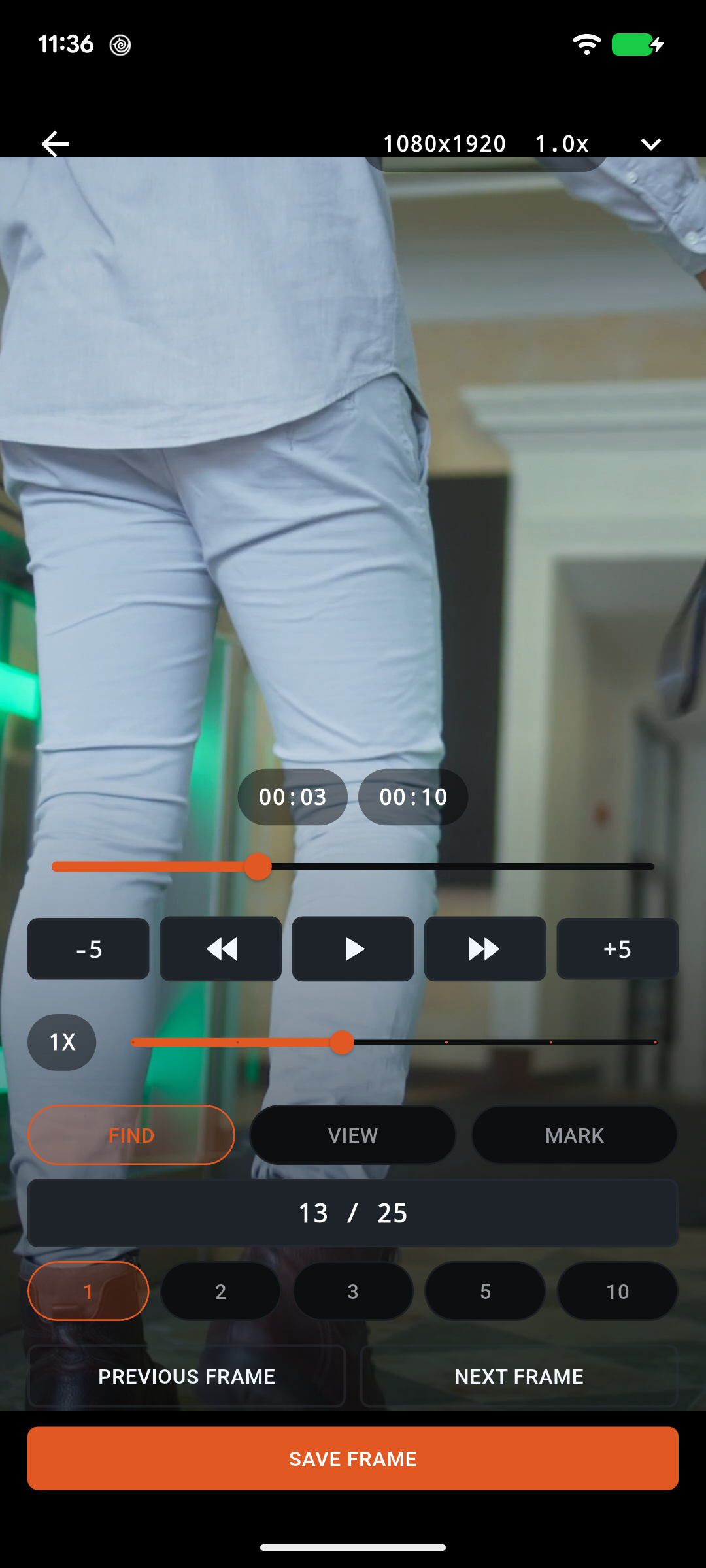
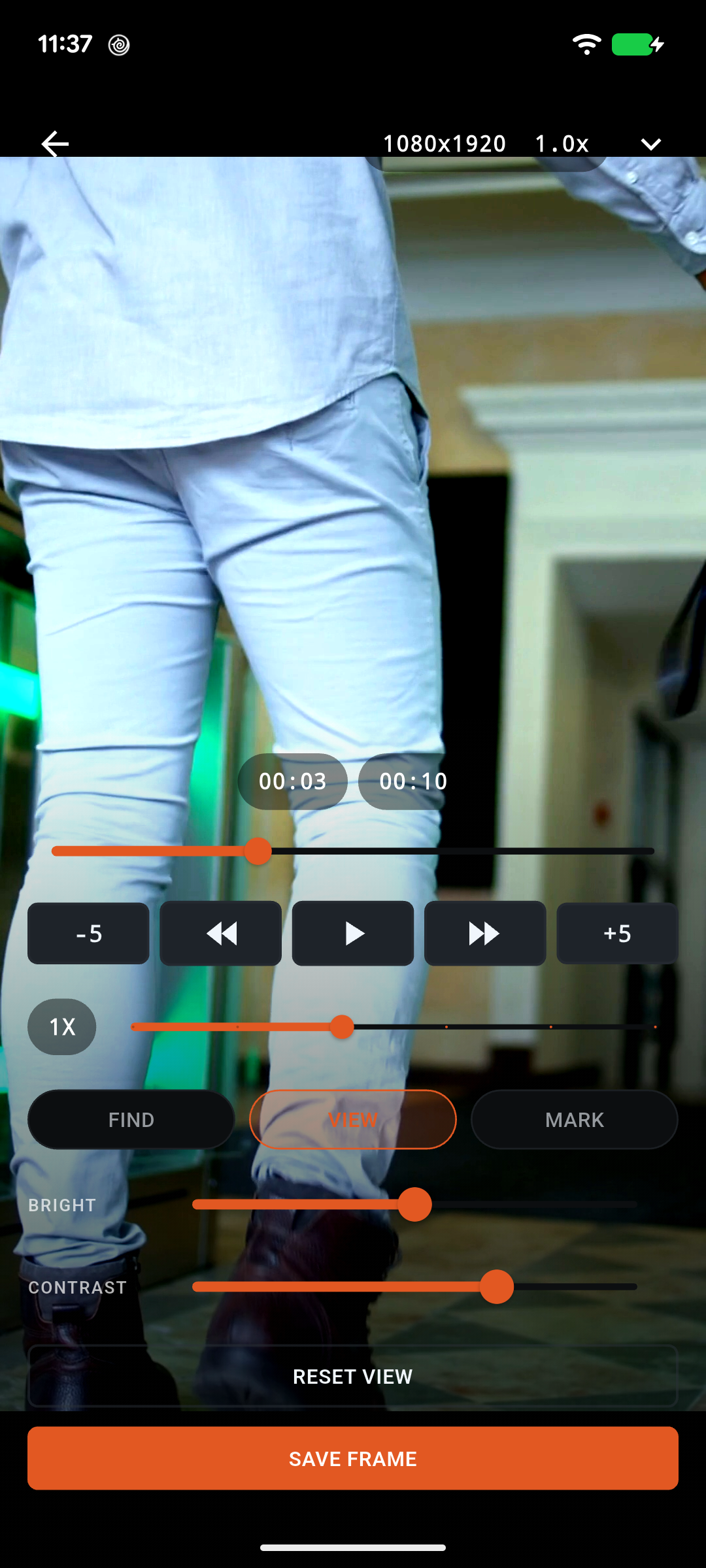
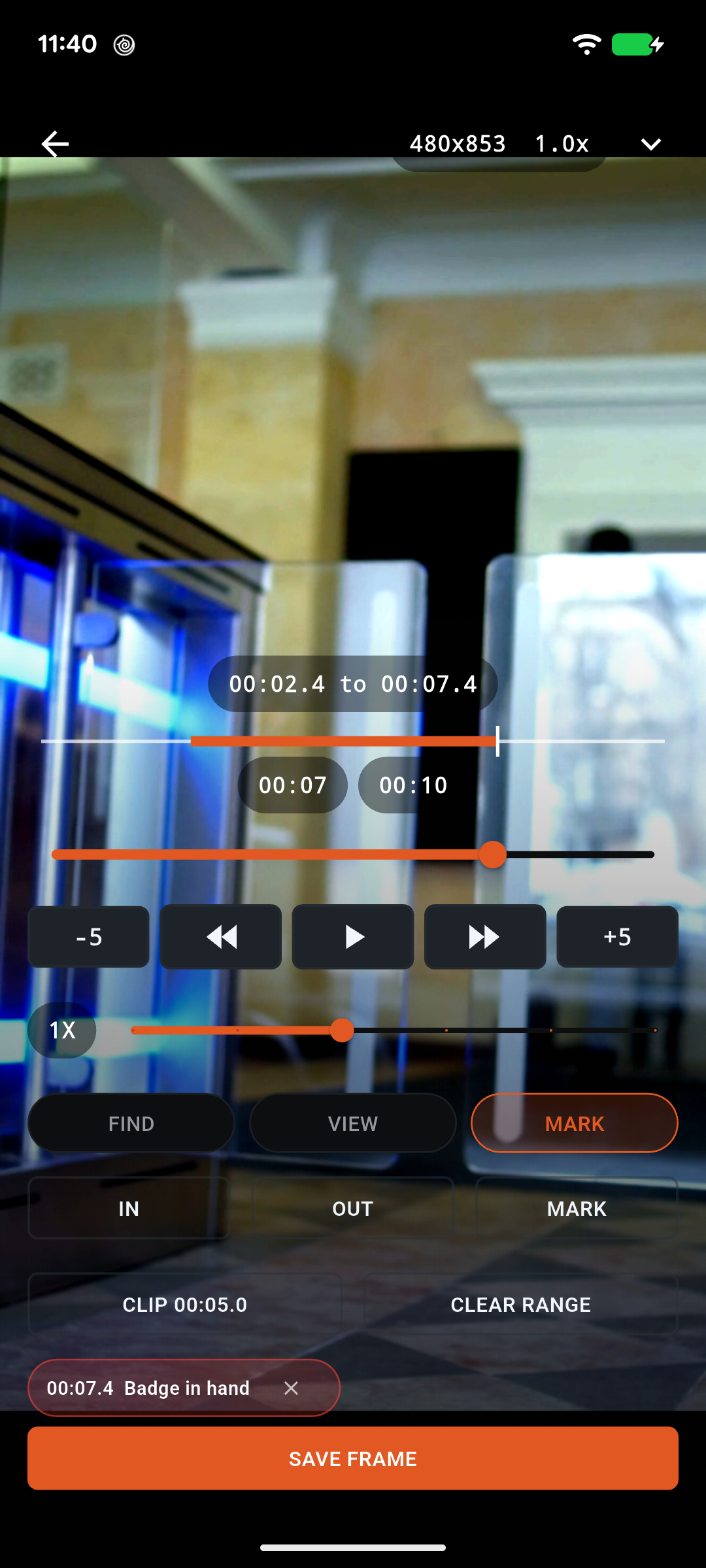
- The size of the stored frame, and the zoom.
- Frame 13 of the 25 in this second.
- PREVIOUS FRAME and NEXT FRAME step by the count chosen above.
- SAVE FRAME writes the still at the size in the header.
- BRIGHT, for a recording made somewhere dark.
- CONTRAST, raised here.
- RESET VIEW puts both back.
- The keyed range, in and out.
- IN and OUT key the range. MARK labels this instant.
- CLIP 00:05.0 cuts the range out as its own video.
- A marker with its time and its label.
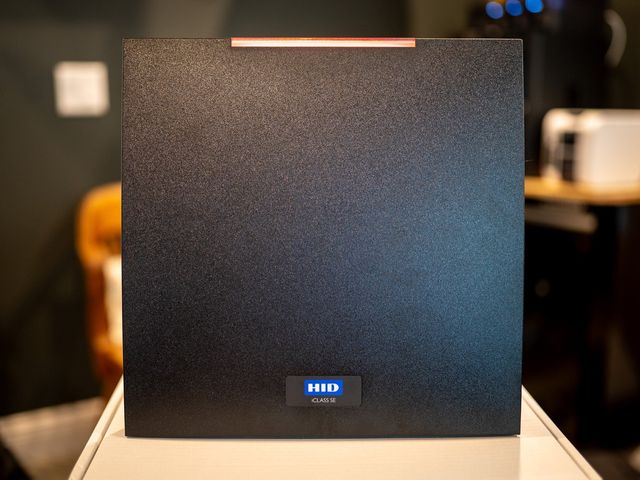
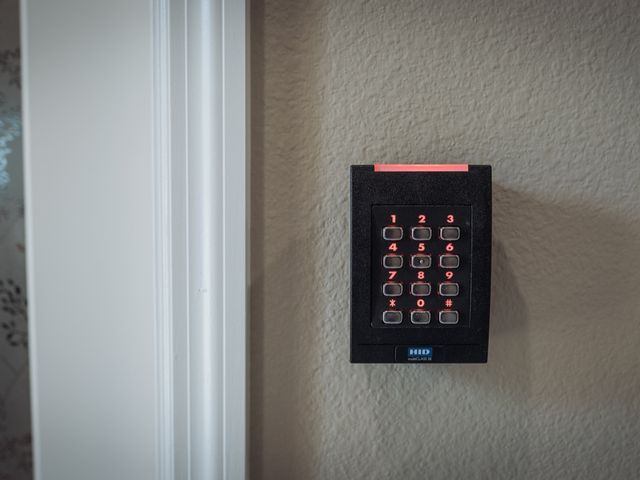
FIND steps one frame at a time to the instant the reader was square to the lens. VIEW lifts BRIGHT and CONTRAST on a dim corridor. Pinch in and SAVE FRAME becomes SAVE REGION, which writes only the part you are looking at, cut from the full resolution frame and not from the screen. The still lands as a photo on the same record as the recording, stamped with the moment in the clip it came from. The reader face is now legible enough to name the model and set RFID TECHNOLOGY and MANUFACTURER on the door’s record.
Use case four: a badge design, for later comparison
The engagement includes a test of whether staff challenge a badge that only looks right. To build a fair test you need the real design: orientation, color band, where the photo sits, how the lanyard attaches. You get a second or two of it at the coffee line.
Record through the wait. Afterward, step to the three frames where a badge faced the camera, raise the contrast, save the region, and attach it under REFERENCE BADGES on a Badge Intel record. Report the layout and the colors. The name printed on the badge is almost never part of the finding, so leave it out of the project.
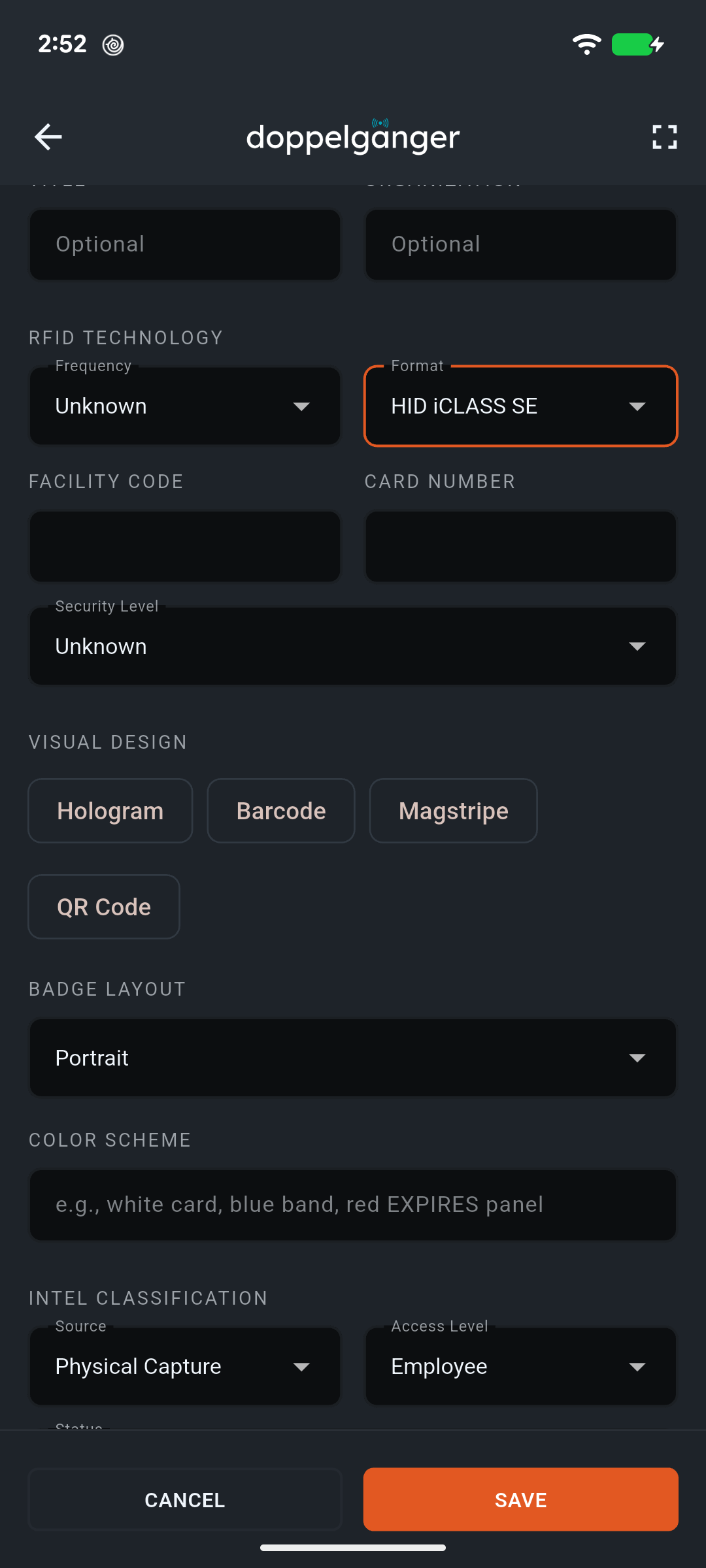
- VISUAL DESIGN, four features a person checks without a reader.
- BADGE LAYOUT, Portrait here.
- COLOR SCHEME, in your own words.
- SAVE. Nothing is written until then.
Use case five: notes while your hands are full
You are walking a perimeter fence with a clipboard and a hard hat. Every forty meters there is something to write down, and stopping to type is the most noticeable thing you can do.
Hold Quick Note on Home and speak. Tap to stop, review, and SAVE. The audio note is filed to the active project stamped with the time you started speaking and the coordinate you were standing at, so a remark about a gap under the fence sits on the map at the gap. Back at the vehicle the walk reads as a line of markers in the order you made them. Video notes do the same and draw with their own glyph under PROJECT, Notes on the operational map, and both travel in a project export.
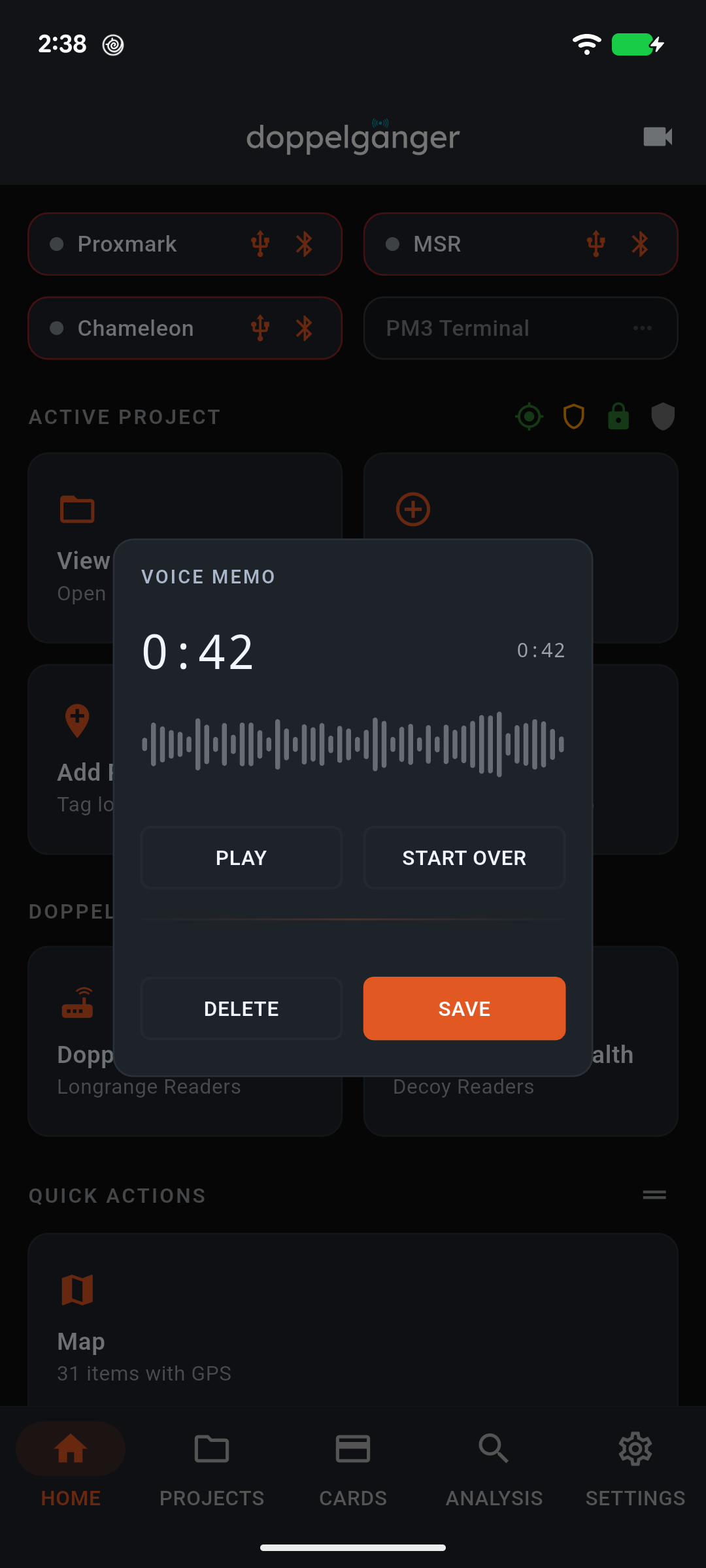
- Elapsed, and the cap it stops itself at, over a live level meter.
- TAP TO STOP.
- The finished length.
- PLAY to check it, START OVER to record again.
- DELETE or SAVE. Nothing is kept until you choose.
Recording people is your responsibility
All of the above is evidence gathering for a site owner who has authorized it, in writing, in the rules of engagement. The app does not decide what you may record. You do, under that agreement and under local law.
Recording sound is governed separately from recording images in most jurisdictions, the rules vary from place to place, and recording identifiable people adds another layer. Settle both before the first capture. Record Audio under Settings, Video Capture is the one toggle that decides whether a video carries sound, and it is on until you turn it off.
Know what the phone shows, too. Android posts a notification for a running capture and draws its own green indicator when the camera or microphone is live. No app can remove either. What ATLAS gives you is a capture that keeps running in a pocket. It does not give you an invisible one.
Three things to set before the first capture
- An active project. A video stopped with no active project reports Select an active project before recording and is not filed.
- Storage. On a Pixel 7 the shipped settings write roughly 515 MB a minute. Bit Rate at 24 Mbps is about a third of that, and Maximum Length caps a capture you might forget. Resolution, Frame Rate, Framing and Video Stabilization are on the same screen, described in the Video Capture settings page.
- Framing. Tap the glyph once, set the zoom, and press SET AS DEFAULT. That is the framing every long press uses.
Get it
ATLAS 1.3.0 is on the downloads page. The hardware it runs is at the PPE store, which runs a sale November 27 through December 1, 2026. The camera itself needs no hardware at all: a licensed handset and an active project are enough.