MSR X6BT Bluetooth Magnetic Stripe Reader/Writer
Product documentation menu
A pocket sized three track magstripe reader and writer that ATLAS drives from your phone over Bluetooth Low Energy or USB, with no laptop in the loop.
The MSRX6-BLE: reads, writes, clones and erases all three tracks of a magnetic stripe, driven from your phone by ATLAS.
| Tracks | 3, read and write on all of them |
| Coercivity | High (HiCo) and low (LoCo) |
| Links | USB and Bluetooth Low Energy |
| Works with | Doppelgänger ATLAS on Android, and Windows, macOS, Linux and iOS |
Magstripe is where a client’s forgotten credentials live. The parking garage card, the cafeteria badge, the visitor pass the receptionist hands you, the wing that never got re-badged. None of it is at the front door, and all of it still opens something.
It is also the one technology in the building that nobody is defending. A site that spent money on iCLASS SE at the lobby frequently still runs a stripe on the gate, the elevator override and the storage cage. A stripe has no key, no challenge and no counter. Reading one takes a swipe, and writing a working copy takes a blank and one swipe for each track.
The MSRX6-BLE does both, and it is small enough to do it standing in a parking garage. It is the magstripe reader ATLAS is written against, so the whole job runs from the phone in your hand.
What is in the box
| Item | Quantity |
|---|---|
| MSRX6-BLE Magnetic Stripe Reader/Writer | 1 |
| USB cable | 1 |
| Bluetooth dongle | 1 |
| Blank HiCo magstripe cards | 20 |
A swipe badge from read to blank
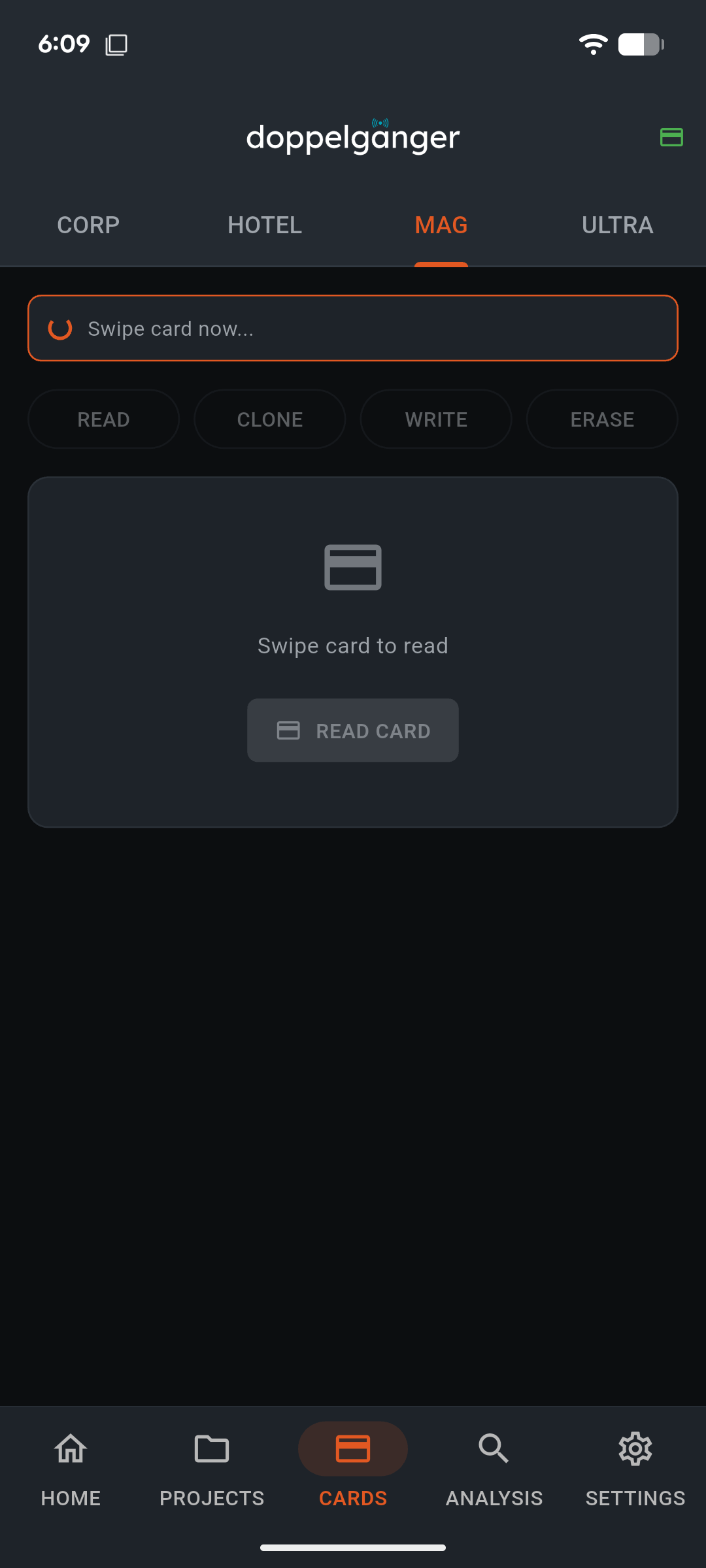
- Swipe card now, the banner that says the reader is waiting.
- READ, CLONE, WRITE and ERASE go inactive while it waits.
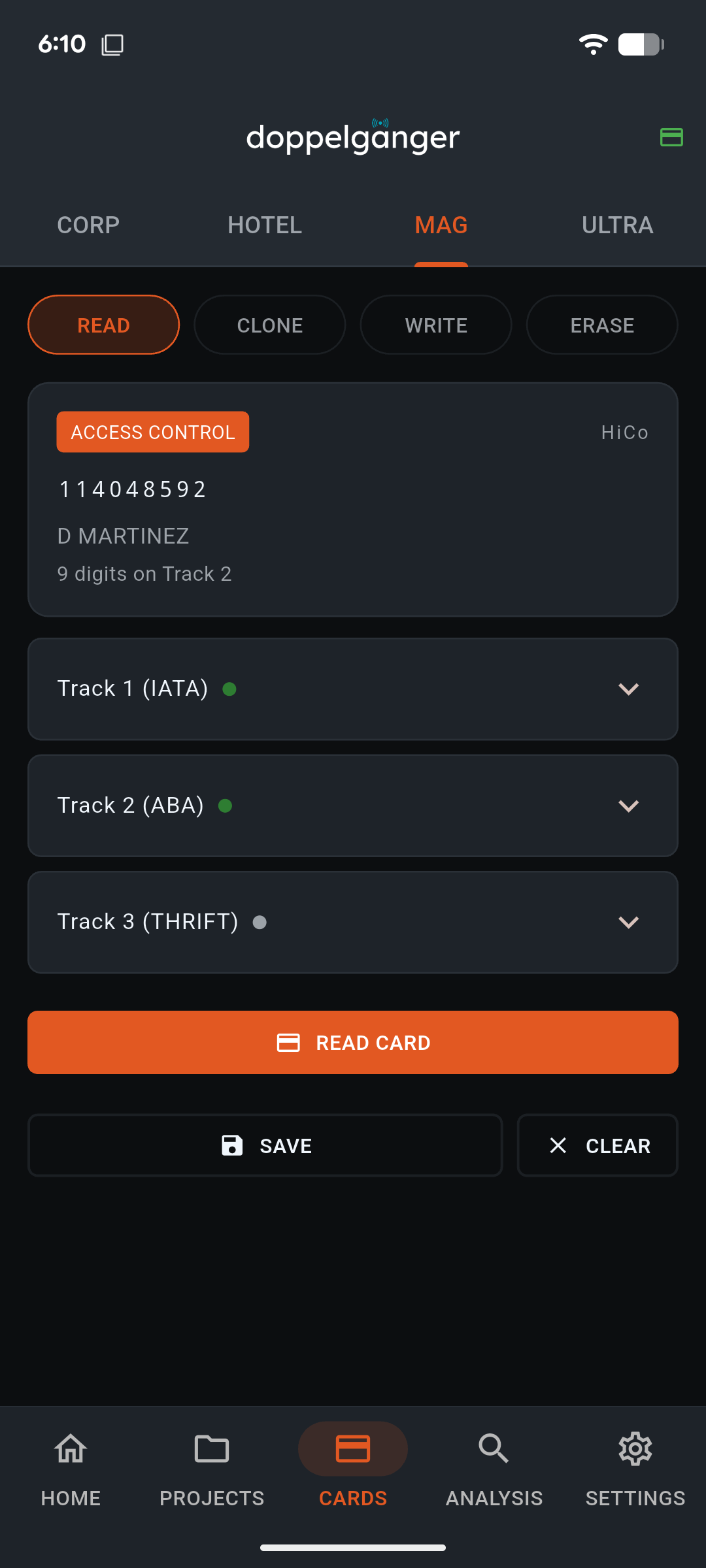
- ACCESS CONTROL, with HiCo, the stripe's coercivity, at the right.
- Track 1 (IATA), with a green dot because it holds data.
- Track 3 (THRIFT), with a gray dot because it is empty.
- SAVE files the read in the card database.
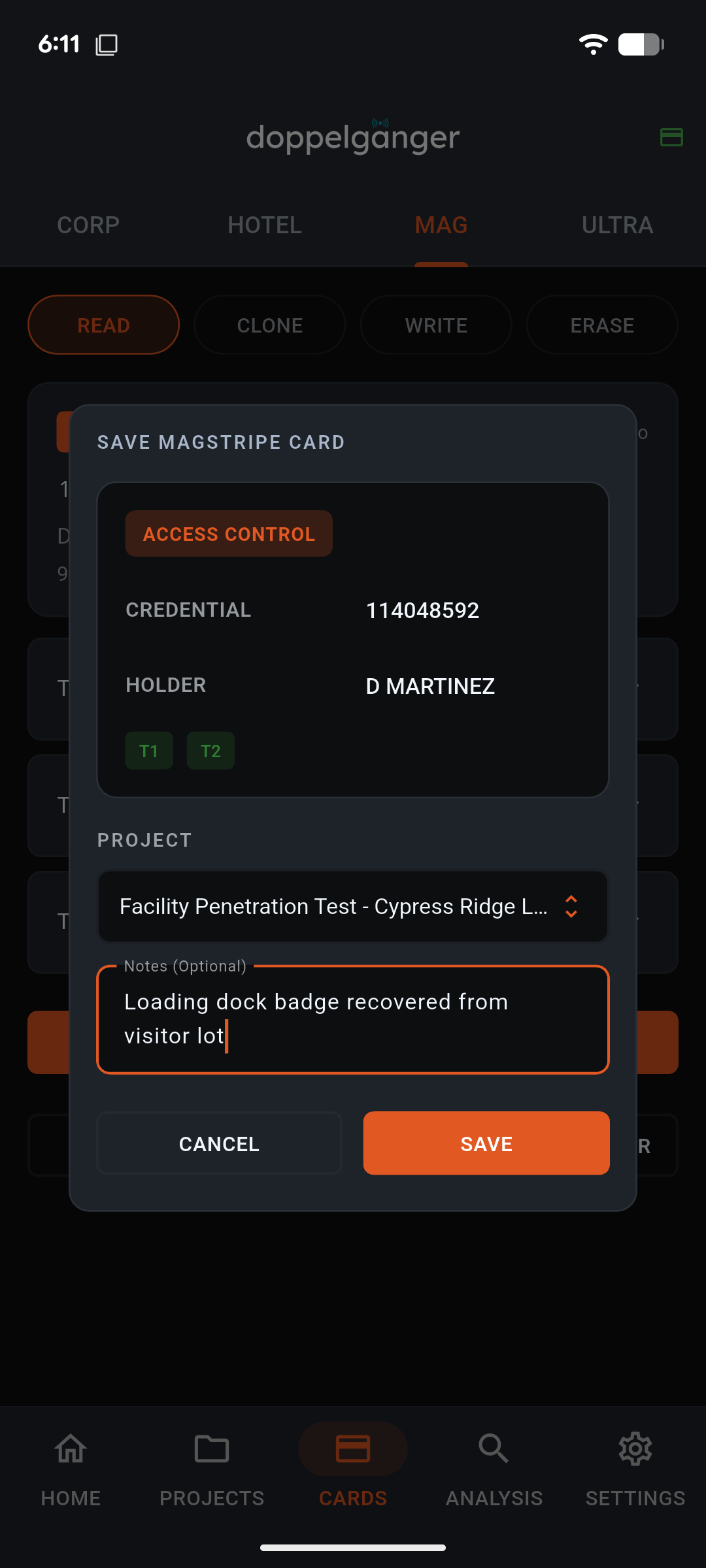
- CREDENTIAL, the badge number, unmasked.
- PROJECT, already set to the active project.
- Notes (Optional), where the circumstances of the capture are recorded.
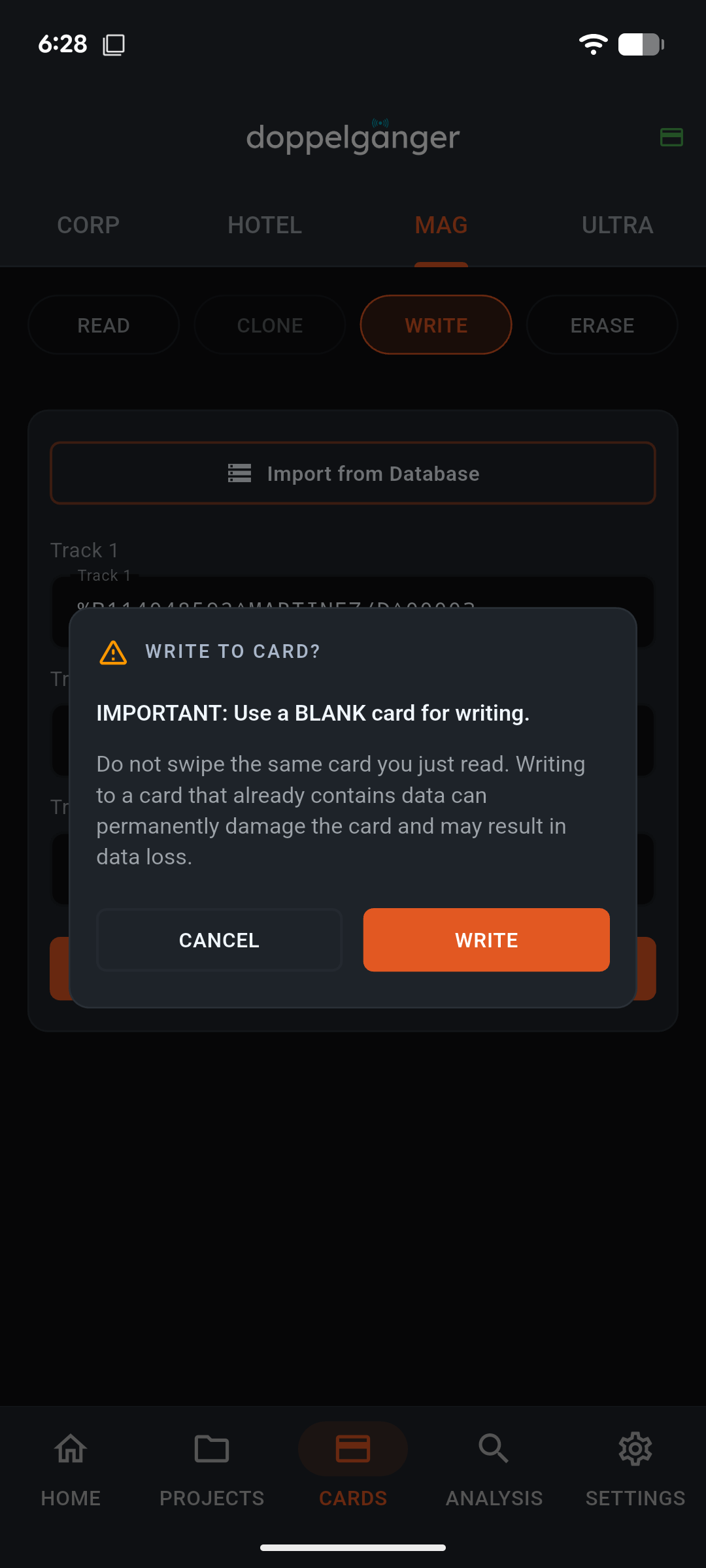
- IMPORTANT: Use a BLANK card for writing.
- WRITE arms the reader, and the swipes come after.
- Power the MSRX6-BLE on and wait for its LED.
- On Home in ATLAS, tap the MSR tile’s Bluetooth glyph, or plug the cable in.
- Pick the reader out of Select MSR Device.
- Go to Cards, then the MAG tab.
- Tap READ CARD, then swipe. The window is about ten seconds.
- Tap SAVE to file the read in the card database against the active project.
- Tap WRITE, then Import from Database, and pick the record. Tap WRITE TO CARD, confirm, and swipe a blank once for each track that holds data.
Each of those steps has its own page on the ATLAS site: setup and connection, Read, Write, Clone and Erase.
Bluetooth or the cable
Both links carry the same four operations. The difference is what each one costs you on site.
| Bluetooth Low Energy | USB | |
|---|---|---|
| Setup | None in Android’s settings. ATLAS discovers the reader and connects to it directly | A data cable, and Android’s two permission dialogs the first time |
| Power | The reader’s own battery | The phone feeds it |
| On the air | The phone is transmitting | Silent |
| Reach | About ten meters | The length of the cable |
| Fails when | The reader’s battery is flat | The phone has no USB OTG |
The cable is the one to reach for on a live engagement. Nothing is transmitting, and the reader cannot go flat halfway through a swipe because the phone is feeding it.
Over USB, Android shows the reader under a garbled name
The MSRX6-BLE reports a malformed product name over USB, and Android prints it as a run of CJK characters in its permission dialog. ATLAS then shows the same string where it showed MSRX6-BLE over Bluetooth. Tick the checkbox on both of Android’s dialogs and choose Always allow, and neither one returns.
In ATLAS the link is chosen under Settings, Connection Settings, the MSR chip, Transport.
| Transport | Pick it when |
|---|---|
| Auto (USB if attached, else Bluetooth) | The default, and right for almost everything |
| USB only | The engagement calls for RF silence, or you do not trust the reader’s battery |
| Bluetooth only | The cable is in the phone for something else |
The four operations
The MAG tab runs on four chips. The reader does nothing until a card moves through the slot.
| Chip | What it does | Swipes |
|---|---|---|
| READ | Reads all three tracks where they exist and marks each one present or empty | One |
| CLONE | Writes the Track 1, Track 2 and Track 3 fields as they stand after the read onto another card, so a track you corrected is what goes onto the blank. Gray until something has been read | One for each track the source carried |
| WRITE | Writes the Track 1, Track 2 and Track 3 fields, typed by hand or filled by Import from Database | One for each field that holds data |
| ERASE | Wipes all three tracks on the next card swiped, with no way to pick one | One |
Write and clone onto a blank, never onto the card you just read
Writing over a stripe that already carries data can permanently damage it, and the card you would reach for first is the client’s. Keep read stock and write stock apart in the bag. ATLAS stops for a confirmation before every write, clone and erase, but the dialog cannot tell which card is in your hand.
How many times to swipe
ATLAS sends one write command for each track that holds data, so each track costs its own pass through the slot. A toast names the count before the write starts.
| Tracks carrying data | The toast | Swipes |
|---|---|---|
| 1 | Swipe the card 1 time | 1 |
| 2 | Swipe the card 2 times | 2 |
| 3 | Swipe the card 3 times | 3 |
A write that succeeds says nothing. Read the card back to confirm it. A write that fails raises an error naming the track and the reason, for example Track 2 write error: Write error: Card not blank - erase first.
What a read tells you
ATLAS sorts a stripe into one of two kinds from the number itself.
| Stripe | What the summary shows |
|---|---|
| Access control | An ACCESS CONTROL tag, the credential number unmasked, the holder name if one is encoded, and a line giving the digit count on Track 2 |
| Payment | An issuer tag, the number masked to the last four, the holder name if one is encoded, and an Exp: line |
Either way ATLAS labels the stripe HiCo or LoCo, at the right of the tag. The label is inferred from the track data and is not a measurement of the stripe. A Track 1 that starts %S or %A is labeled LoCo, a payment stripe HiCo, and most access control stripes come out HiCo whatever they are. Tapping a track row opens it to the whole track as it was read, with the parsed fields under it.
HiCo, LoCo, and which blanks to buy
| LoCo | HiCo | |
|---|---|---|
| Coercivity | About 300 oersted | About 2750 oersted |
| Stripe color | Usually brown | Usually black |
| Typical use | Hotel keys, transit tickets, short lived passes | Employee badges, bank cards, anything carried daily |
| Durability | Erases easily near magnets and phone cases | Holds up to incidental fields |
The reader encodes both. The HiCo or LoCo on a read in ATLAS is inferred from the track data, so it does not tell you which kind of stripe the source card carries. ATLAS writes in HiCo, and the twenty blanks in the box are HiCo.
Charging and power
The MSRX6-BLE has a built-in rechargeable lithium polymer battery and charges over its USB port, from a computer or any standard USB power source. Its LED reports a low battery. Over the cable the phone powers it, which is the second reason to use the cable on anything that matters.
Specifications
| Tracks | 3, read and write on all tracks |
| Operations | Read, write, copy, erase and compare |
| Coercivity | High (HiCo) and low (LoCo) |
| Standard | ISO 7811-6 |
| Supported formats | ISO, AAMVA, CA DMV, Raw |
| Connectivity | USB and Bluetooth Low Energy (BLE) |
| Wireless range | About 10 meters |
| Battery | Rechargeable lithium polymer |
| Works with | Windows, macOS, Linux, iOS, Android |
| ATLAS | Supported over Bluetooth Low Energy and over USB |
Using it without ATLAS
The reader also works with desktop software on Windows, macOS and Linux, and free software utilities come with it for standalone use.
Intended use
PPE products are professional tools for security practitioners working under contract or in the course of their employment, with the authorization of the site's owner. They are used to perform security audits, to help integrators confirm that an installation is secure, and to audit the work integrators and installers have done, so that flaws are found and remediated before someone with bad intentions finds them. They are not research devices, they are not sold as research devices, and they are not for any illegal or unauthorized purpose.
The manufacturers whose readers and credentials these products are used with make very secure products when those products are implemented properly. An audit shows where an installation falls short of that, so it can be corrected.