ATLAS Chameleon Ultra
Product documentation menu
A Chameleon Ultra running ATLAS firmware and driven from a phone. It presents a credential at the door, writes it to a card, tells you what a reader accepts, recovers MIFARE Classic keys and contents, and relays the credentials that cannot be cloned.
The credential you captured in the parking lot yesterday has to reach a turnstile today, in a lobby, with a guard at the desk and a line behind you. What you hold up to that reader decides how the next ten seconds go. A bench instrument with an antenna and a cable reads as exactly what it is. A phone in a hand reads as a person checking a message.
The ATLAS Chameleon Ultra is built for that moment. It is a Chameleon Ultra running ATLAS firmware, the size of a car fob, and it travels flat against the back of the handset or in a pocket while the Doppelgänger ATLAS app drives it. It does the card work you would otherwise carry a Proxmark for. It tells you what a reader accepts before you present anything, reads and emulates iCLASS and prox credentials, writes them back to cards, clones MIFARE Classic, and relays the credentials that cannot be cloned.
What it costs is that it is a credential in your pocket, not a bench. It carries a client credential that answers the next reader it meets, it holds eight credentials and no more, and its two buttons change slots, show the battery and power it on and off. Everything else is done from ATLAS.
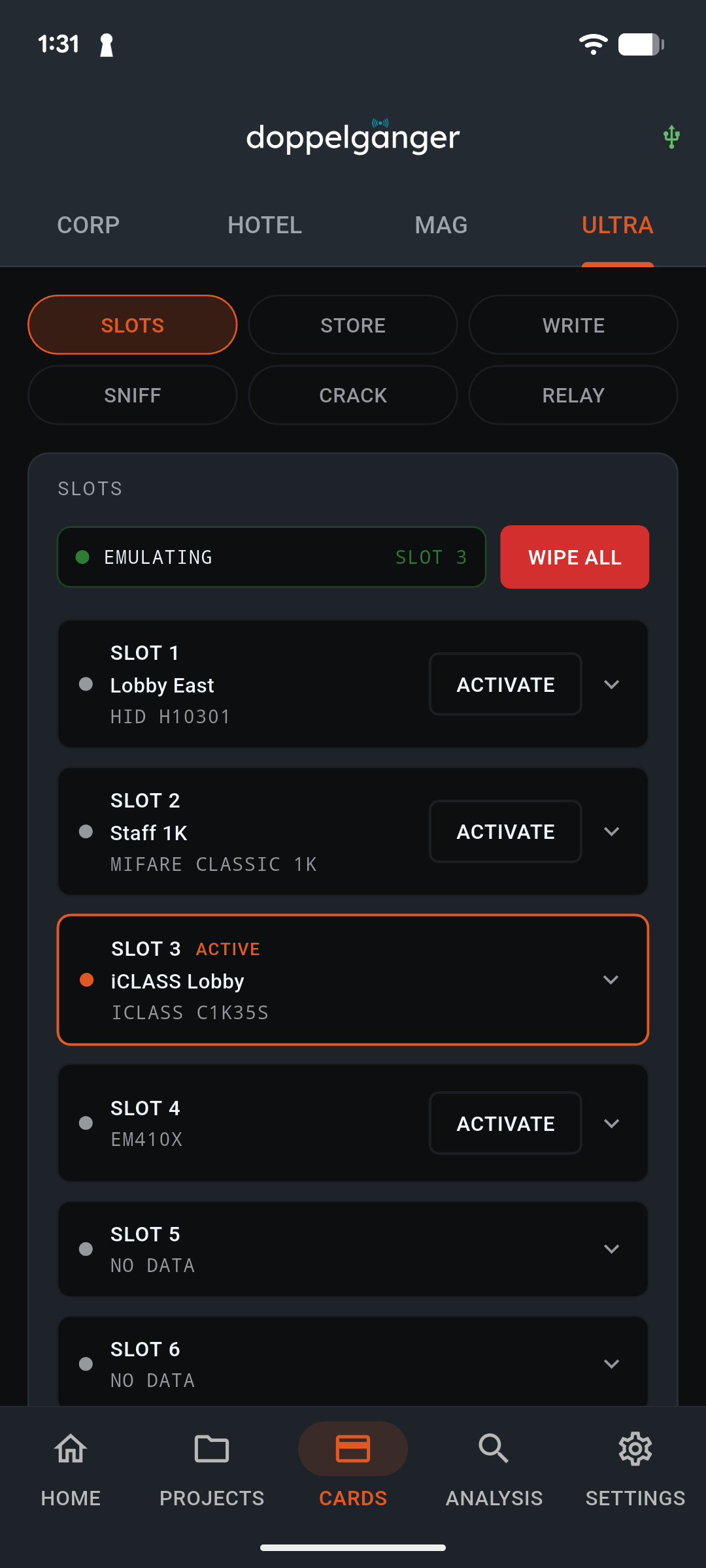
- SLOTS, STORE and WRITE, the first three of the six chips.
- SNIFF, CRACK and RELAY.
- EMULATING, SLOT 3, the slot the unit answers a reader with.
- SLOT 3, ACTIVE, an iCLASS credential named iCLASS Lobby.
Where it fits beside a Proxmark and a reader in a bag
Each tool in the kit does one job, and mixing them up is how an engagement goes wrong.
| Tool | What it is for | Where it is used |
|---|---|---|
| Long range reader | Capturing a credential at standoff distance. See Long Range Readers | On site, concealed |
| Decoy reader | Collecting credentials from staff who present to it. See the Stealth Decoy Reader (SDR) v2 | On site, left in place |
| Proxmark | Analysis of a card you already hold | Off site, at a desk |
| ATLAS Chameleon Ultra | Presenting a credential to a reader, writing it to a T5577 or iCLASS 2k card, fingerprinting the reader, and relaying a live credential | On site, in hand |
The Proxmark answers questions about a card you already hold. It is not what goes to the door. The ATLAS Chameleon Ultra is what goes to the door, because it is a credential and not a tool for reading one, and because it is small and quiet. Something the size of a car fob, in a pocket, driven from a phone, does not read as an assessment in progress.
What ATLAS firmware does that the stock firmware does not
The unit runs ATLAS CU firmware, a ground up rewrite that takes the Chameleon Ultra from a development device to a professional security tool. The firmware is proprietary and not open source. It is installed from ATLAS and from nowhere else, and the official firmware can be put back from the same page.
The official firmware supports MIFARE Classic, MIFARE Ultralight, NTAG, EM410x, HID Prox, IO Prox, PAC and Viking. It does not support iCLASS, Indala, AWID, Avigilon, Pyramid, Paradox or Securakey, and it cannot tell you what a reader accepts.
iCLASS
| Function | Official firmware | ATLAS CU firmware |
|---|---|---|
| Read the credential off an iCLASS Legacy card | No | Yes |
| Emulate an iCLASS Legacy credential from a slot | No | Yes |
| Rewrite an existing iCLASS 2k or iCLASS 2k SR card with an iCLASS Legacy credential | No | Yes |
| Put another vendor’s facility code and card number on an iCLASS card, for credential stuffing | No | Yes |
| Tell whether a reader still takes iCLASS Legacy, without completing a card read | No | Yes |
Reader assessment
| Function | Official firmware | ATLAS CU firmware |
|---|---|---|
| A reading on the handset of whether a reader field is present, for 13.56 MHz and 125 kHz separately | No | Yes, RFFD |
| Name the technologies a reader supports before any card is presented | No | Yes, FINGERPRINT READER |
| Fingerprint a reader without a beep | No | Yes, ICLASS CHECK |
| Separate corporate and hotel technology sets | No | Yes, CORPORATE, and HOTEL as an experimental scope |
Prox credentials, 125 kHz
| Function | Official firmware | ATLAS CU firmware |
|---|---|---|
| EM410x, HID Prox and IO Prox in a slot | Yes | Yes |
| Indala in a slot | No | Yes |
| AWID in a slot | No | Yes |
| Avigilon in a slot | No | Yes |
| Pyramid, Paradox and Securakey in a slot | No | Yes |
| Write those same families onto a T5577 | EM410x, HID Prox and IO Prox only | Yes, all of them |
High frequency, 13.56 MHz
| Function | Official firmware | ATLAS CU firmware |
|---|---|---|
| MIFARE Classic, MIFARE Ultralight and NTAG in a slot | Yes | Yes |
| MIFARE Classic key recovery | Yes | Yes, as one guided run on CRACK |
| Relay a live transaction between a reader here and a card somewhere else | No | Yes, RELAY |
On the handset
| Function | Official firmware | ATLAS CU firmware |
|---|---|---|
| Store a capture straight from the ATLAS card database into a slot | No | Yes |
| Separate sleep timers for waiting on a reader and for after a reader | No | Yes |
| One card per slot, so a reader is shown exactly the credential you chose | No, a slot carries an LF and an HF card together and a dual-band reader takes the HF one | Yes |
The ULTRA tab works only with ATLAS firmware on the unit
ATLAS firmware and the official firmware are not interchangeable, and a unit carries one or the other. On official firmware the six chips have nothing to talk to. Installing ATLAS firmware is one button and going back to the official firmware is the other. See Installing ATLAS firmware, and putting the stock firmware back.
Six chips on the ULTRA tab
In ATLAS, open Cards, then the ULTRA tab. Six chips sit over two rows, and the body under them is whichever one is lit.
| Chip | What it is | Reach for it when |
|---|---|---|
| SLOTS | The eight credential slots, what is in each and which one is on the air | You are about to walk to a door |
| STORE | Puts a credential into a slot, typed, read off a card or imported from the card database | The unit itself is going to answer the reader |
| WRITE | Writes a T5577 card, or rewrites an iCLASS 2k card, with the unit as the writer | The door wants a card in a hand |
| SNIFF | Checks for a reader field and fingerprints which technologies the reader accepts | You are at a reader you have never seen |
| CRACK | Recovers a MIFARE Classic card’s keys and reads it out, then stores the copy on a slot or saves it to the card database | A MIFARE Classic card is in your hand for as long as a crack takes, from seconds to several minutes |
| RELAY | The unit answering a reader with a card that is somewhere else | The credential cannot be cloned |
The tab draws one banner, directly under the header and above the chips. NO CHAMELEON ULTRA DEVICE CONNECTED means nothing below it will work. PHONE NFC IS ON - TAP TO TURN IT OFF appears on RELAY only, and is covered on the Relay page.
SLOTS: eight credentials, and which one is on the air
You walk up to a door with the unit in your hand and the handset in your pocket. Whatever the unit answers the reader with was decided before you got there, and the door gives you one clean presentation before somebody behind you wonders why your badge needs a second try. SLOTS is where you settle that on the walk over.
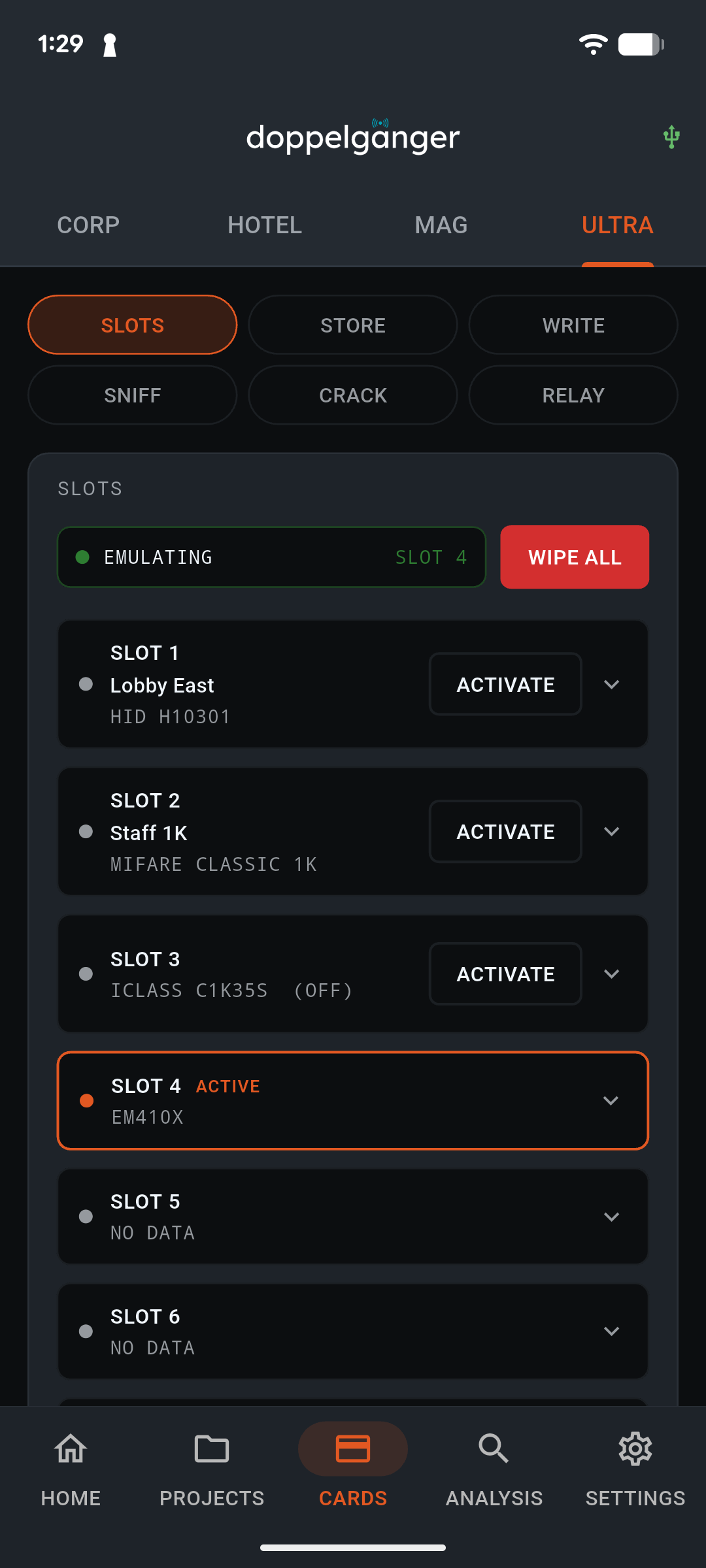
- EMULATING, SLOT 4.
- SLOT 1, Lobby East, with ACTIVATE.
- SLOT 3, an iCLASS card, (OFF).
- SLOT 4, ACTIVE.
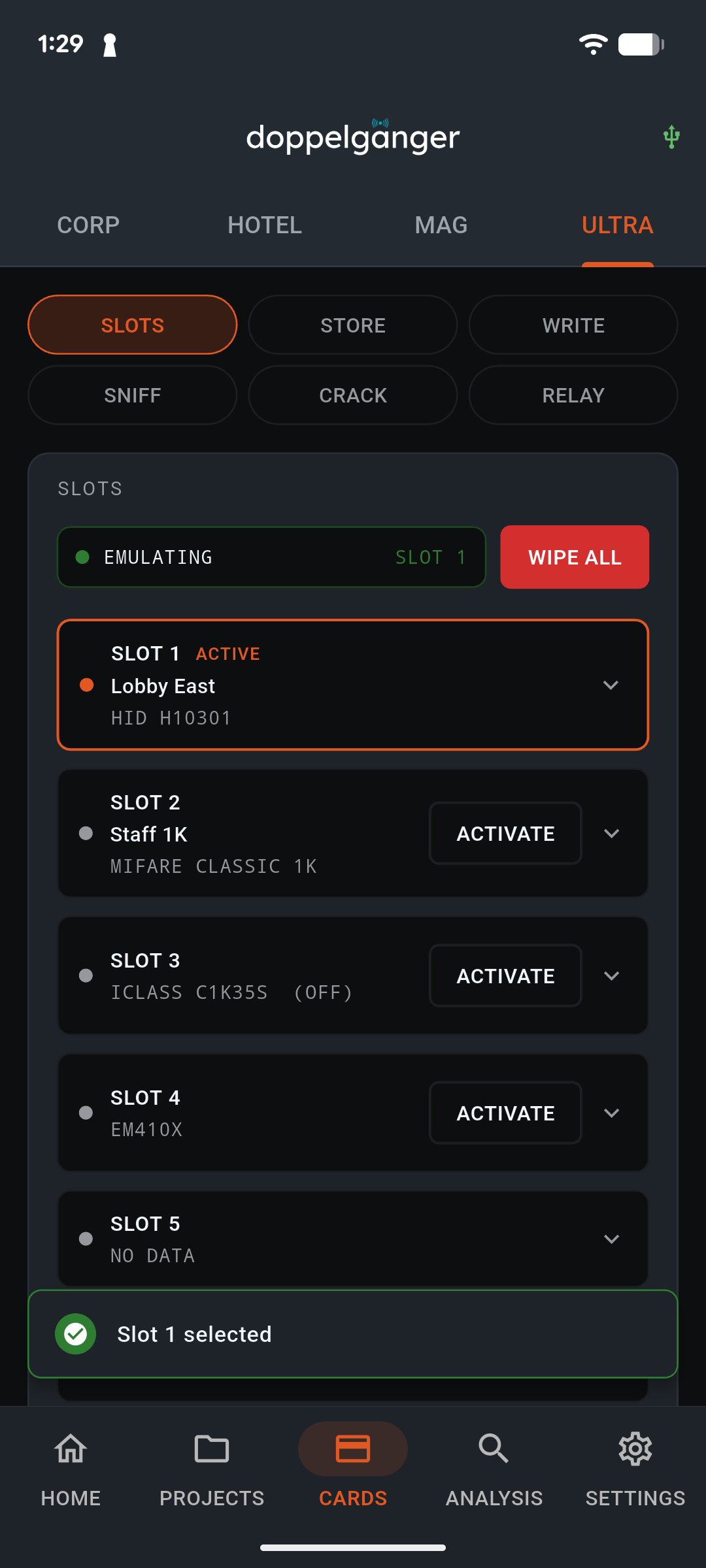
- EMULATING now reads SLOT 1.
- SLOT 1, ACTIVE.
- Slot 1 selected.
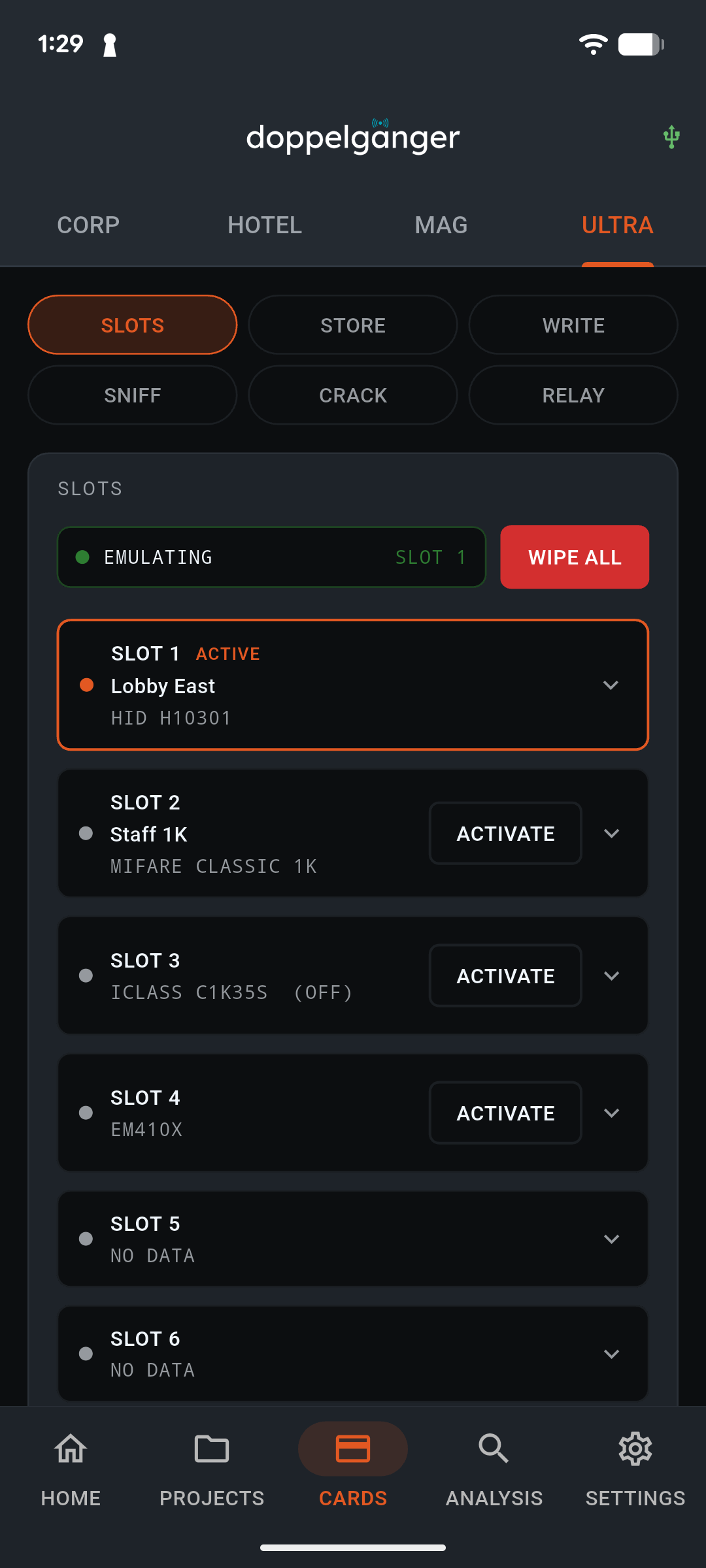
- EMULATING, SLOT 1, in green.
- SLOT 1, ACTIVE, Lobby East.
- SLOT 3 still holds its card, silent.
- Find the slot by its name and card line.
- Tap ACTIVATE on the row.
- Watch EMULATING change to that slot.
- Present the unit to the reader.
The first row of the card is a reading, EMULATING, with WIPE ALL beside it. It answers the question that matters, which is whether the unit is answering a reader with anything right now.
| EMULATING reads | Dot | What the unit is doing |
|---|---|---|
| SLOT 1 to SLOT 8 | Green | Answering a reader from that slot |
| NOTHING | Red | Answering no reader, whatever the slots hold |
NOTHING is the reading to check for before you leave the car. When ATLAS takes the link on the cable it parks the unit on SLOT 8 with that slot’s 13.56 MHz side silenced, so the unit stops answering every reader it is near while you work. The park is saved on the unit, and the unit runs on its own battery, so pulling the cable does not undo it. The one exception is an active iCLASS slot holding a card, which the connect leaves as it is.
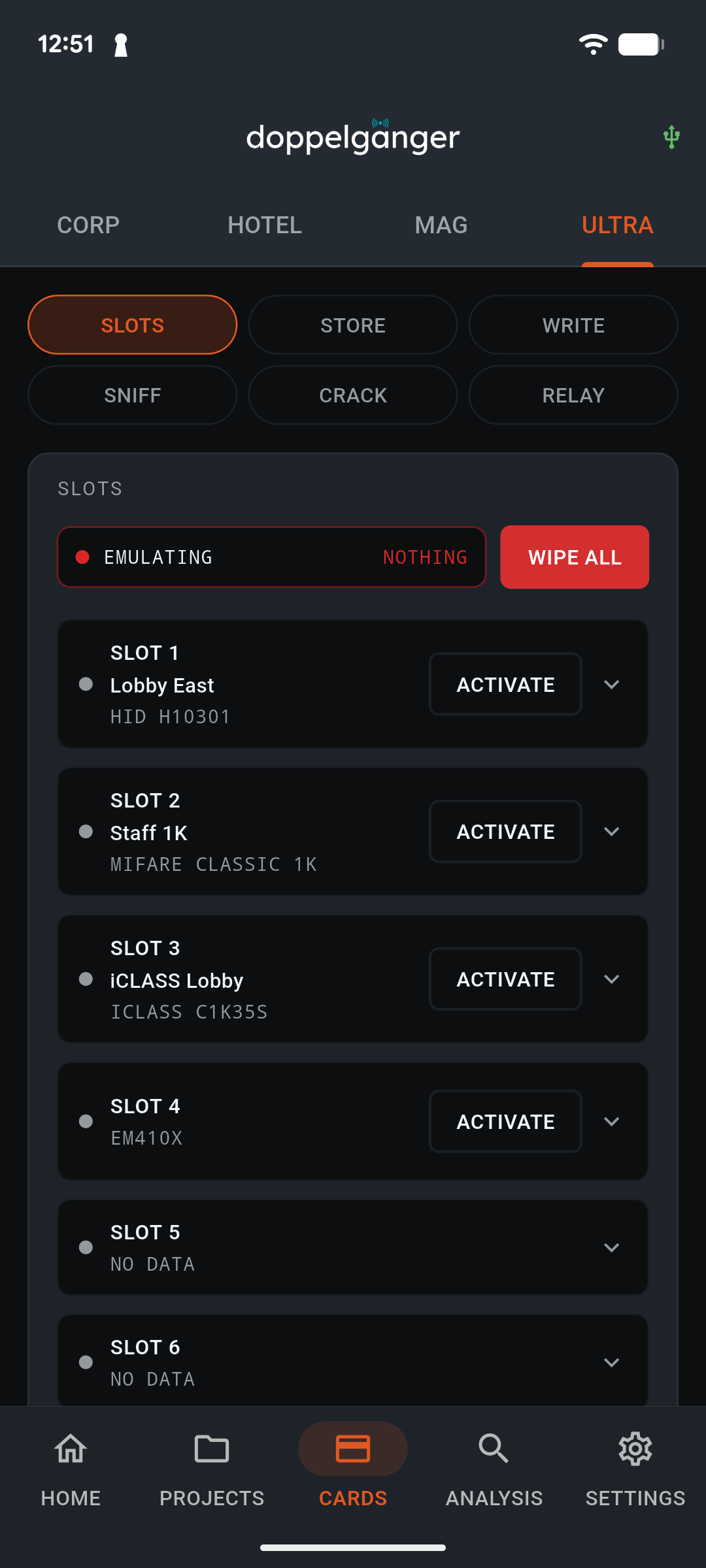
- EMULATING, NOTHING, in red.
- SLOT 1 holds a card, and is silent.
- SLOT 3, the iCLASS card, silent too.
- SLOT 5, NO DATA.
ACTIVE is not EMULATING
A row marked ACTIVE is the slot the unit has selected. It says nothing about whether that slot answers. An iCLASS slot can be active and parked silent, and an LF or HF slot can be active with its band switched off, which the row shows as (OFF). Read EMULATING, not the ACTIVE mark.
What each row shows:
| Part | Reads | Meaning |
|---|---|---|
| SLOT 1 to SLOT 8 | The slot number | Fixed, one row per slot |
| ACTIVE | Shown or absent | The slot the unit has selected |
| Name | Your text | Shown only when the slot has been named |
| Card line | A format in capitals, for example HID H10301 | A card is stored and its band is on |
| Card line | The same, ending (OFF) | A card is stored and it answers nothing. On an LF or HF slot the band is switched off. On an iCLASS slot the card is not presenting |
| Card line | ICLASS H10301, or ICLASS LEGACY with its bit length when that is known | An iCLASS card, named for its format when the unit or the app knows it |
| Card line | NO DATA | Nothing is stored on the slot |
| ACTIVATE | Shown or absent | Puts this slot on the air in one tap |
A slot holds one credential. It is LF, or HF, or iCLASS, never two of them. A reader that supports both bands and is shown both takes the high frequency card first and ignores the low frequency one, so a two card slot cannot be trusted to present the credential you meant.
An LF or HF slot goes on the air at once and the message reads Slot 3 selected. An iCLASS slot reads ACTIVATING for some seconds and ends Slot 3 presenting, or Slot 3 did not come back presenting when the unit returned without the card on the air. While it activates, the link to the handset can drop for some seconds and come back. Do not tap again and do not reconnect by hand. A slot change the unit refuses reads Activate failed, followed by the reason.
Tap a row to open it. It shows NAME, reading (unnamed) until the slot is named, with SET NAME or EDIT NAME, then one section headed LF, HF or ICLASS with the card’s readings and the wipe for that band. On a slot that is not on the air, a full-width ACTIVATE closes the open row.
| Control | Asks first | Erases |
|---|---|---|
| SET NAME, EDIT NAME | The SLOT NAME dialog | Nothing. A name is up to 32 characters, is kept on the unit, and a blank field clears it |
| WIPE LF | No | The slot’s LF card, and the slot’s name when that was its only card |
| WIPE HF | No | The slot’s HF card, and the slot’s name when that was its only card |
| WIPE ICLASS | Yes, WIPE SLOT 3 | The slot’s iCLASS card |
| WIPE ALL | Yes, WIPE ALL SLOTS | Every card and every slot name on the unit |
WIPE LF and WIPE HF erase on the tap
There is no dialog and no undo, and the message that follows, Slot 3 LF wiped or Slot 3 HF wiped, is the first sign it happened. A card that came from the database can be stored again from STORE. A card that existed only on the unit is gone.
Use WIPE ALL when the engagement is over, so the unit goes back in the kit with no client credential on it. Because the cable park and the relay both use SLOT 8, keep the credential you intend to present at a door in SLOT 1 to SLOT 7. The full page is Slots in the ATLAS documentation.
STORE: put a credential into a slot
A long range reader in a bag caught a 26 bit badge in the parking lot. The old way to use it is a Proxmark, a card to write and a desk, followed by a white card with no print on it held up in front of a guard. STORE is the short way. The credential goes into a slot, the unit sits behind the handset or in a palm, and what the reader sees is a card.
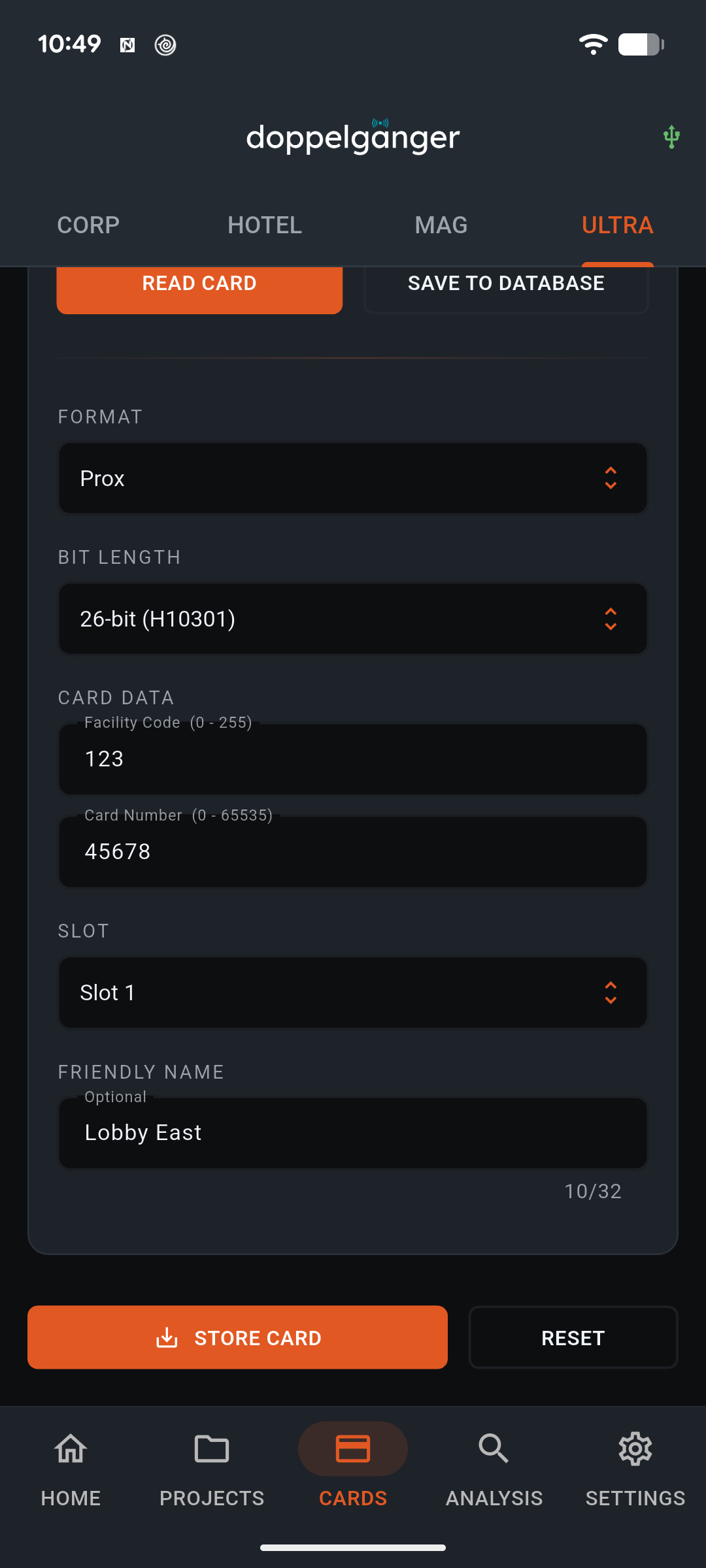
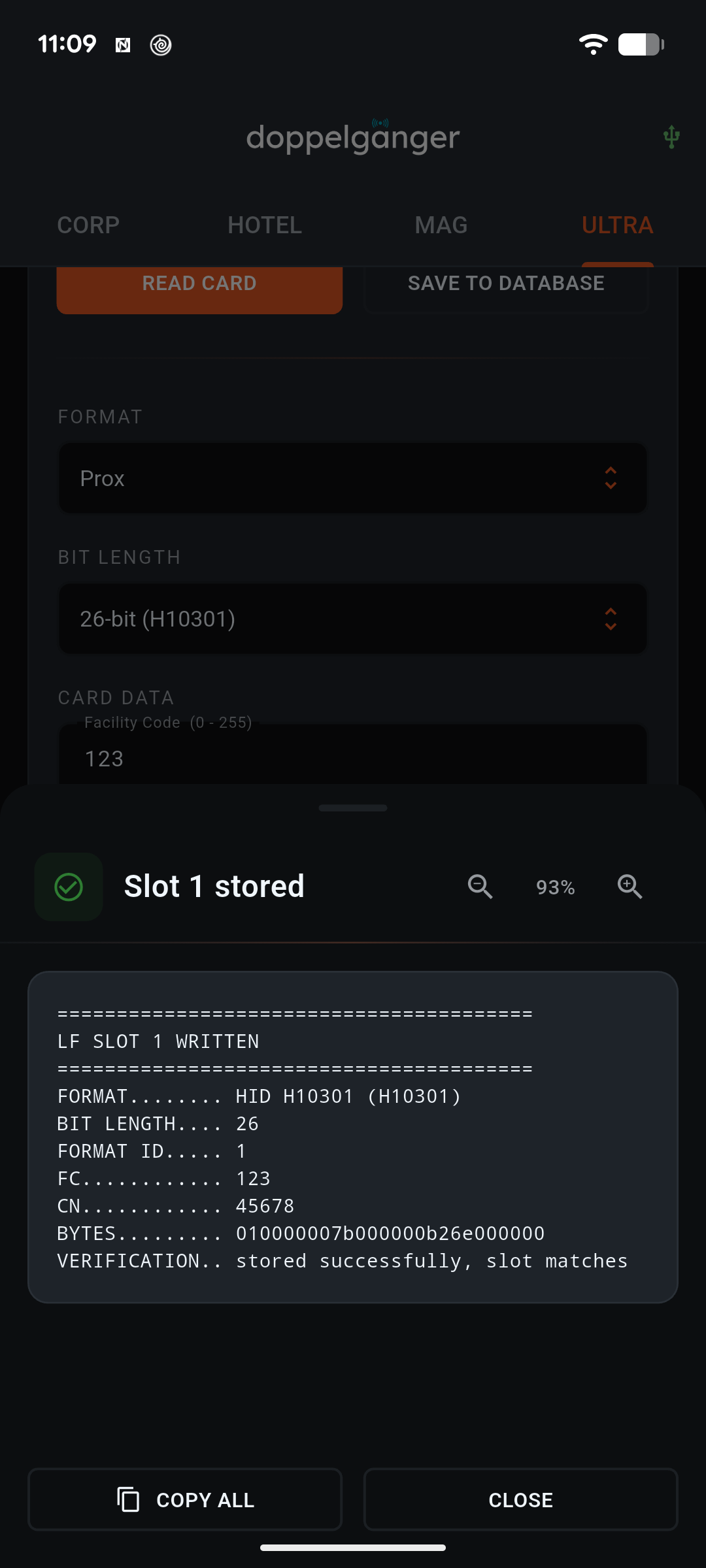
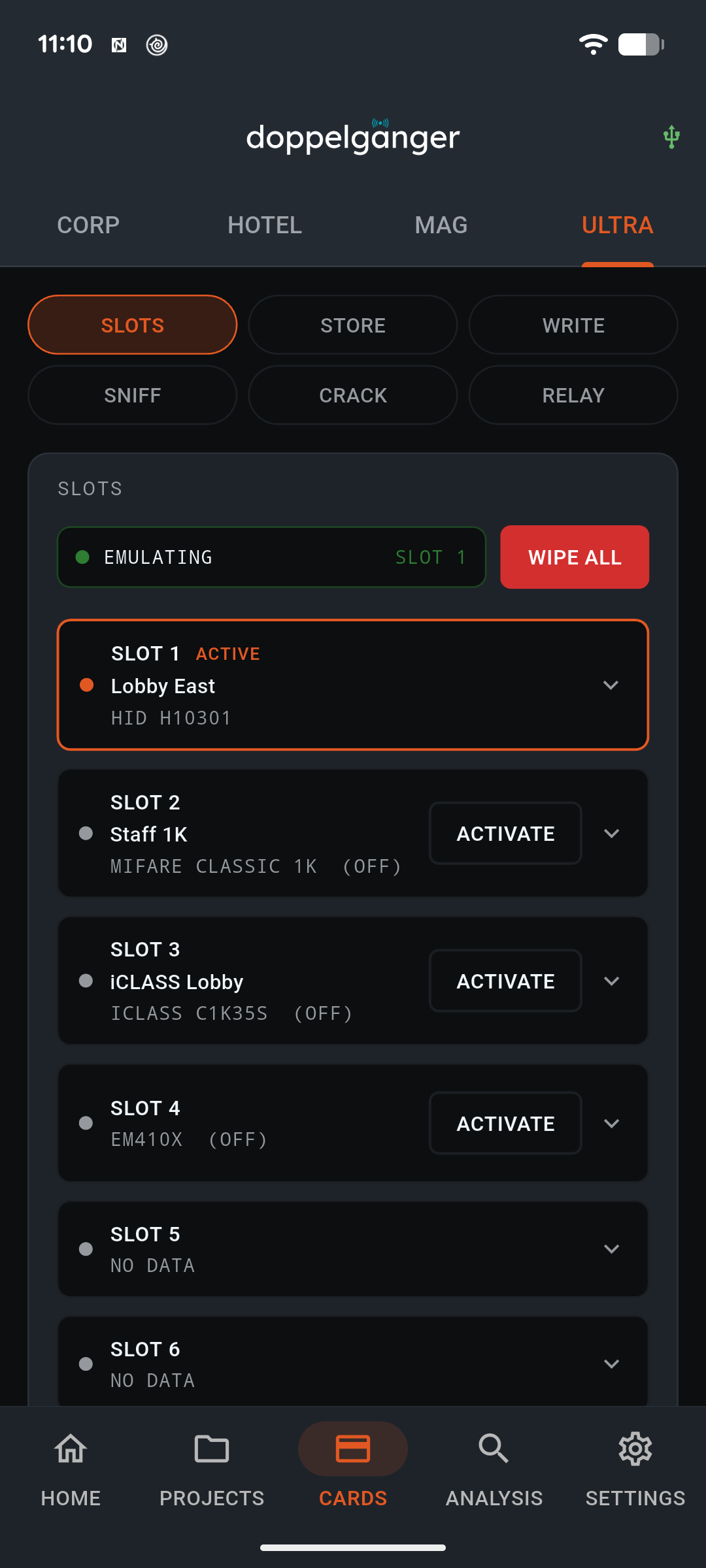
- FORMAT, the card family, with BIT LENGTH under it.
- Facility Code, with its range in the label.
- FRIENDLY NAME, written to the unit with the card.
- STORE CARD commits it.
- Slot 1 stored.
- FORMAT, the format written.
- FC and CN, as typed.
- VERIFICATION, read back off the slot.
- EMULATING, SLOT 1, answering readers with it.
- SLOT 1, ACTIVE, under its name.
Everything on STORE ends at the same control, STORE CARD, and the same checks run whichever way the form was filled.
| You have | Use | What it fills |
|---|---|---|
| The numbers, from a photo of a badge or a report | Type them in | Whatever you type |
| The card, in your hand | READ CARD | The format and card data, read off the card by the unit |
| A capture already in ATLAS | Import from Database | The format, card data and a name, from the record |
CARD TYPE at the top of the card decides which form is drawn under it.
| CARD TYPE | For | The form asks for |
|---|---|---|
| LF (125 kHz) | Prox credentials | FORMAT, BIT LENGTH, CARD DATA, SLOT, FRIENDLY NAME |
| HF (13.56 MHz) | An identity by UID, or a full MIFARE Classic dump | TAG TYPE, UID, SLOT, FRIENDLY NAME, and IMPORT DUMP |
| iCLASS (Legacy) | A Wiegand credential carried on an iCLASS Legacy card | BIT LENGTH, CARD DATA, SLOT |
- Pick CARD TYPE, then the format.
- Fill CARD DATA. Each label carries the range the chosen format accepts.
- Pick the SLOT, Slot 1 to Slot 8. On the LF and HF forms, give it a FRIENDLY NAME if you want one. The iCLASS (Legacy) form has no FRIENDLY NAME.
- Tap STORE CARD. It reads STORING while it works.
- If the slot already holds something, the dialog OVERWRITE SLOT 3 offers CANCEL and OVERWRITE.
- Read the sheet that opens, headed Slot 1 stored, or Stored to Slot 1 for an iCLASS credential.
VERIFICATION on that sheet is a real check. After the write, ATLAS reads the slot’s contents back off the unit and compares them byte for byte with what it sent. A mismatch stops the store and reports Encode failed, so a truncated credential is caught here and not at a reader.
Zero is a legal facility code on several formats, so an empty box is never taken as zero. An empty Facility Code or Card Number on a format that uses it is refused with a Validation Error sheet, for example FC is required for HID H10301. If you mean zero, type 0.
READ CARD and SAVE TO DATABASE sit at the top of the LF (125 kHz) and iCLASS (Legacy) forms, and both run the same read. READ CARD fills the form for you to review and store. SAVE TO DATABASE opens the SAVE CARD TO DATABASE dialog and files the card under the active project with no slot touched. The read keeps going until a card answers and gives up after 2 minutes.
IMPORT DUMP, under the HF form, loads a complete MIFARE Classic dump in PM3 .json, .bin or .eml form. The dump’s UID, ATQA, SAK, keys and every block are written, and the tag type is taken from the dump’s size.
| Dump size | Stored as |
|---|---|
| 64 blocks | Mifare Classic 1K |
| 128 blocks | Mifare Classic 2K |
| 256 blocks | Mifare Classic 4K |
| Anything else | Refused, Unsupported dump size with the block count |
IMPORT DUMP writes to the selected slot as soon as the file is picked and does not ask before it overwrites, so look at SLOT before you tap it.
What is live when a store finishes decides whether you store in the car or at a desk.
| You stored | When the sheet opens, the slot is | To present it |
|---|---|---|
| An LF credential | The active slot, switched on, and answering readers | Nothing more |
| An HF identity or dump | The active slot, switched on, and answering readers | Nothing more |
| An iCLASS Legacy credential | Holding the card, silent | ACTIVATE it on SLOTS |
An LF or HF store is on the air the moment it finishes
The unit answers the next reader it meets with that credential. Store away from the door, and check EMULATING on SLOTS before you walk.
Every format STORE offers is listed under Every card and format it stores, emulates and writes. The full page, with every refusal and the words it uses, is Store in the ATLAS documentation.
WRITE: a T5577 or an iCLASS 2k card, with no Proxmark
Some doors want a card in a hand. The guard at the desk takes the badge and looks at it. The turnstile swallows a visitor card and gives it back on the way out. A teammate needs a working credential of their own and you have one unit between you. In each of those the unit in a slot is the wrong object, and what you need is plastic.
WRITE makes the plastic with the kit already in your pocket. The unit becomes the writer, the handset drives it, and a card is written in the car.
| Card | Carries |
|---|---|
| A T5577 | Every low frequency format STORE offers, plus 64-bit (Indala64) under Indala |
| An existing iCLASS 2k card | An iCLASS Legacy credential, in the standard and specialty formats |
| An existing iCLASS 2k SR card | An iCLASS Legacy credential, in the same formats |
Either card can already hold a credential, and the write replaces it.
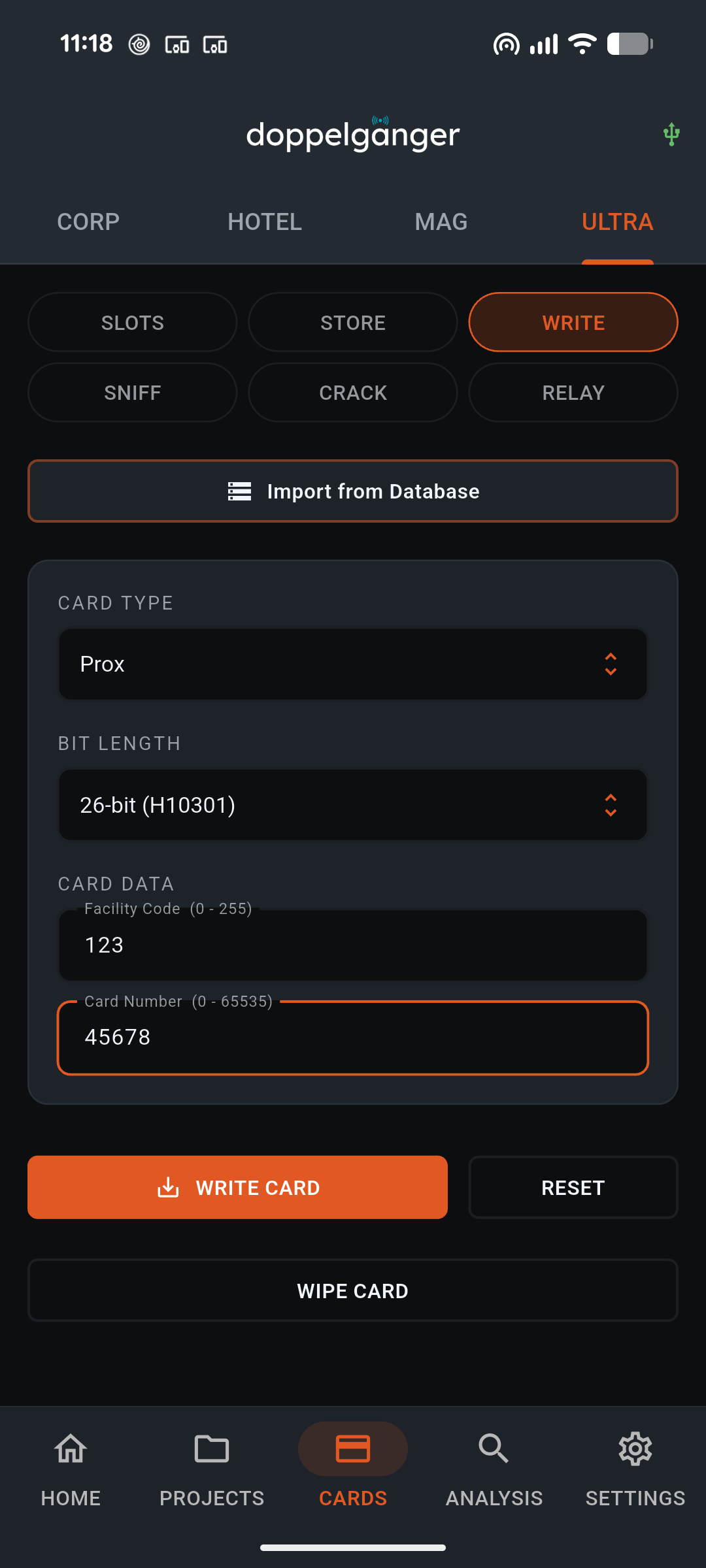
- CARD TYPE, Prox.
- BIT LENGTH, 26-bit (H10301).
- Facility Code 123, with Card Number 45678 under it.
- WRITE CARD.
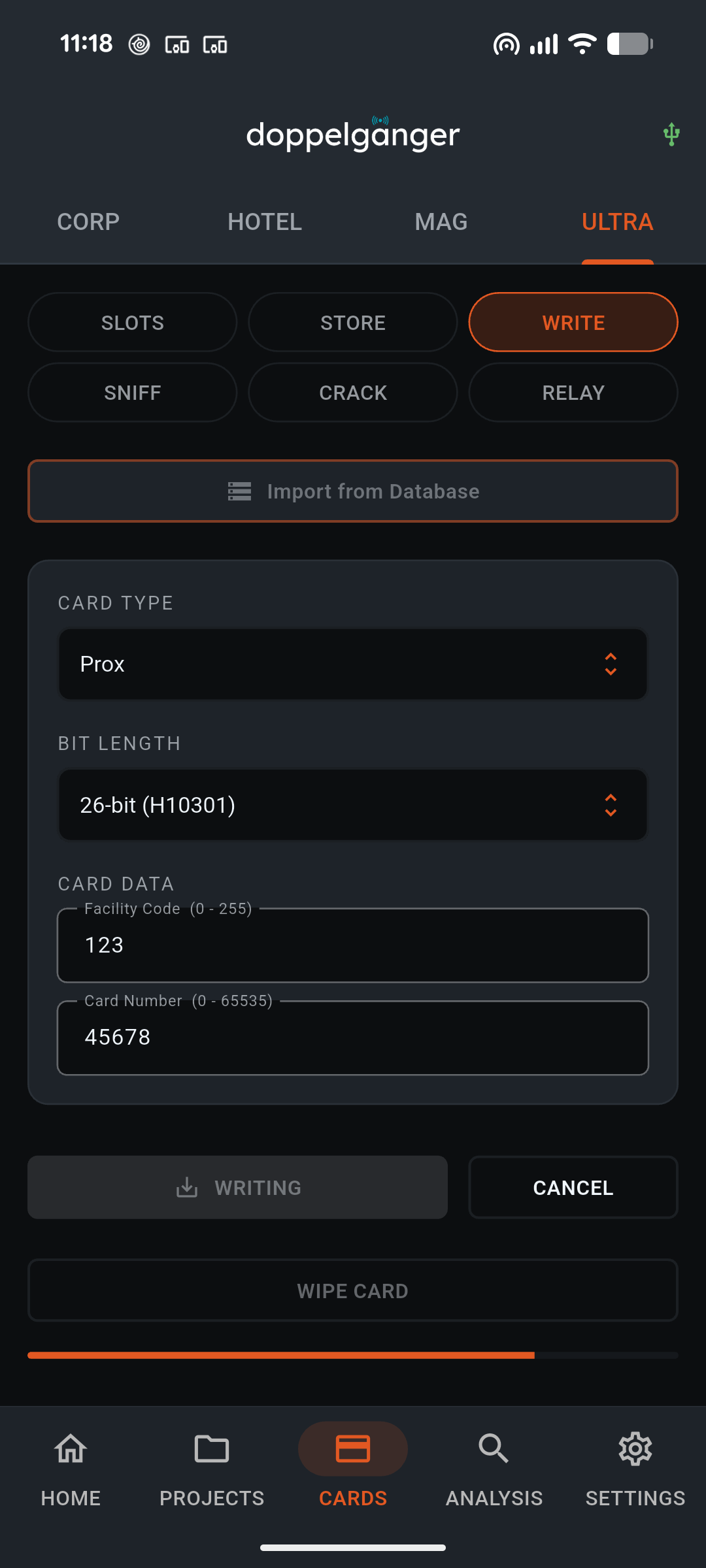
- WRITING, with CANCEL beside it.
- The WRITING bar, filling for the write.
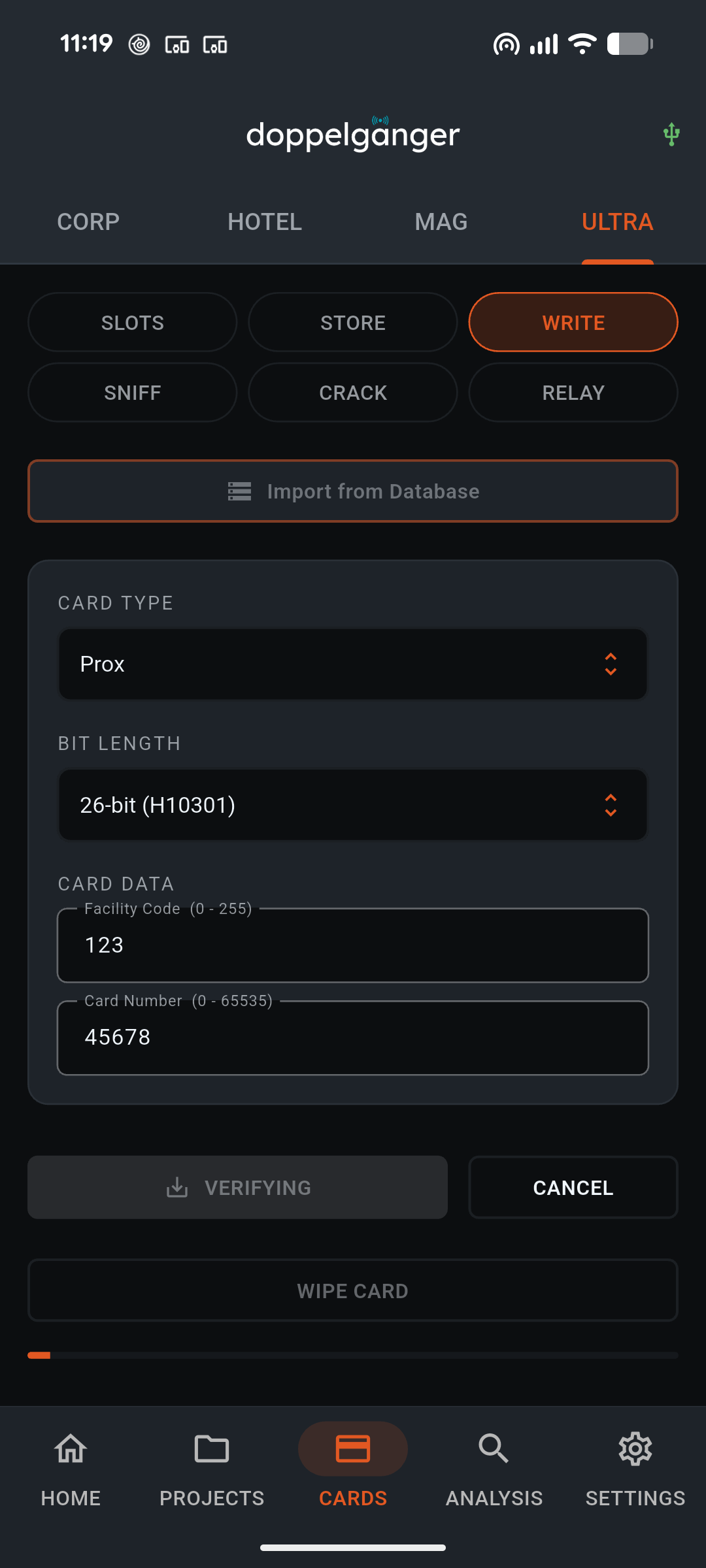
- VERIFYING, while the unit reads the card back.
- The VERIFYING bar, its own bar, starting from empty.
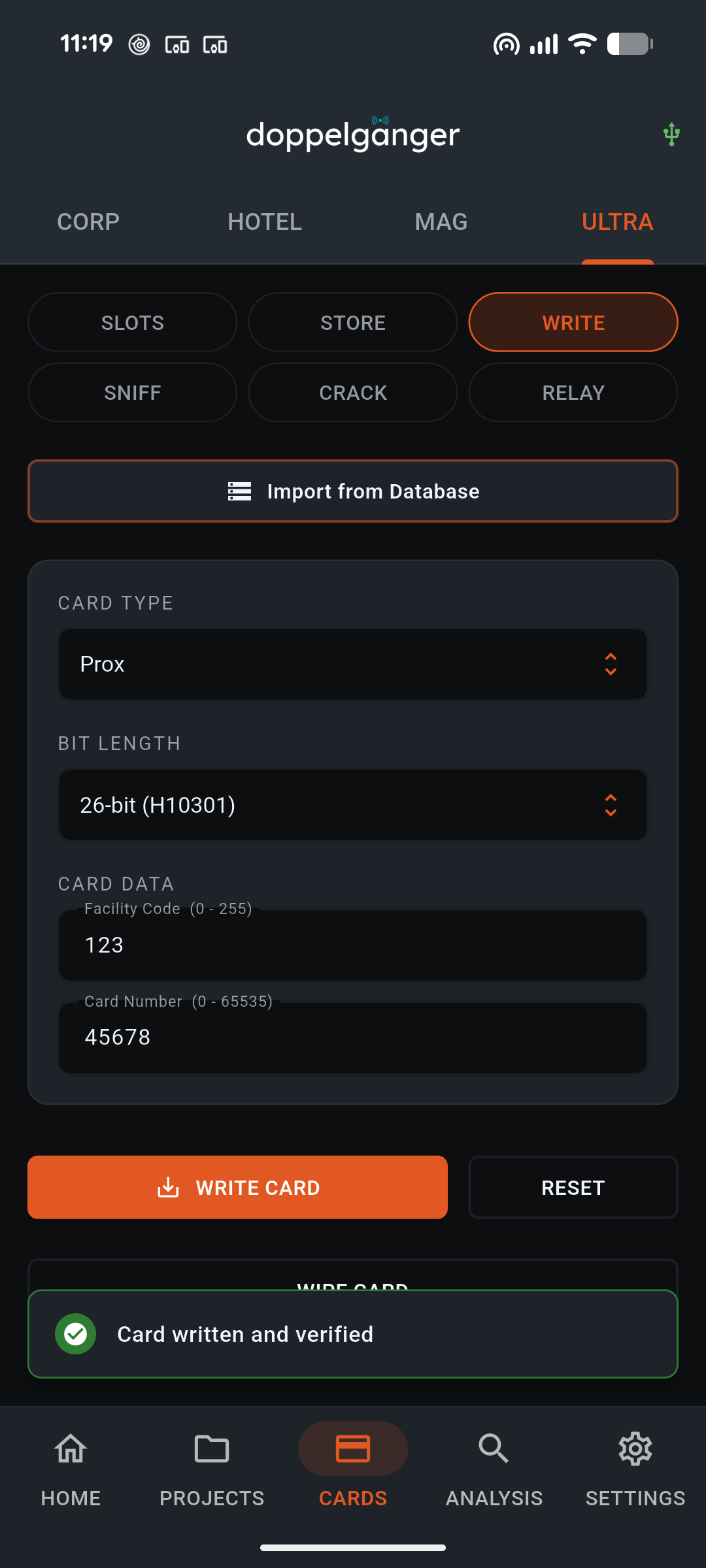
- WRITE CARD, ready for the next card.
- Card written and verified.
- Connect the unit. WRITE CARD stays gray without one.
- Pick CARD TYPE. If the type has more than one format, BIT LENGTH appears under it. Pick that too.
- Fill the card data, or tap Import from Database and pick a captured card.
- Lay the card flat on the unit and hold both still.
- Tap WRITE CARD.
- Keep holding until the message arrives. The control reads WRITING, then VERIFYING, and each stage fills its own progress bar.
- Read the message. Card written and verified, or Card repaired, written and verified after a repair, are the only ones that mean the card in your hand carries what you typed.
A T5577 gives no acknowledgment when it is written. So the write is not reported as done until the unit has read the card back and the read matches. Lifting the card when the button changes to VERIFYING is how a good write ends up reported as unverified.
| Message | What happened | Do this |
|---|---|---|
| Card written and verified | Written, read back, and the read is what was written | Done |
| Card written, not verified | The write ran to its end and no card answered the read back | This is not a failed write. Check the card on a reader, or write again holding still through VERIFYING |
| Card Needs Repair, a dialog | A card answered the read back and did not take the write | REPAIR to wipe it and write again. CANCEL leaves it and reports Write not confirmed |
| Write not confirmed, the card reads differently | The read back found something other than what was written, on a T5577 or an iCLASS card | Write again |
| Write not confirmed, try again | An iCLASS card was found and the write did not complete | Hold still and write again |
| No iCLASS card found | Nothing answered | Reseat the card on the unit |
| Not an iCLASS 2k card, nothing written | The card is not a secured 2k layout | Use an iCLASS 2k or 2k SR card |
| Card is not on the standard key, nothing written | The card is not on the standard key | It cannot be written here |
| Write refused | The unit would not start the write | Check the link and try again |
| Write canceled | You tapped CANCEL | Treat the card as written and unverified |
| Write failed | The command did not complete | Check the link |
On a T5577 write, an empty Facility Code, Card Number or Version is taken as 0 and written, and the card verifies because it does hold zero. Fill every box and read them back before you tap WRITE CARD. The iCLASS 2k form refuses an empty box.
WIPE CARD, and a card that needs repair
WIPE CARD, under WRITE CARD and RESET, restores a T5577 to a blank factory card. It has brought back a card an earlier write had left locked. A card whose master key turns test mode off has not been tested. Use it on a card that came back from another cloner, or on a card that will not take a write. No write sends a password to the card.
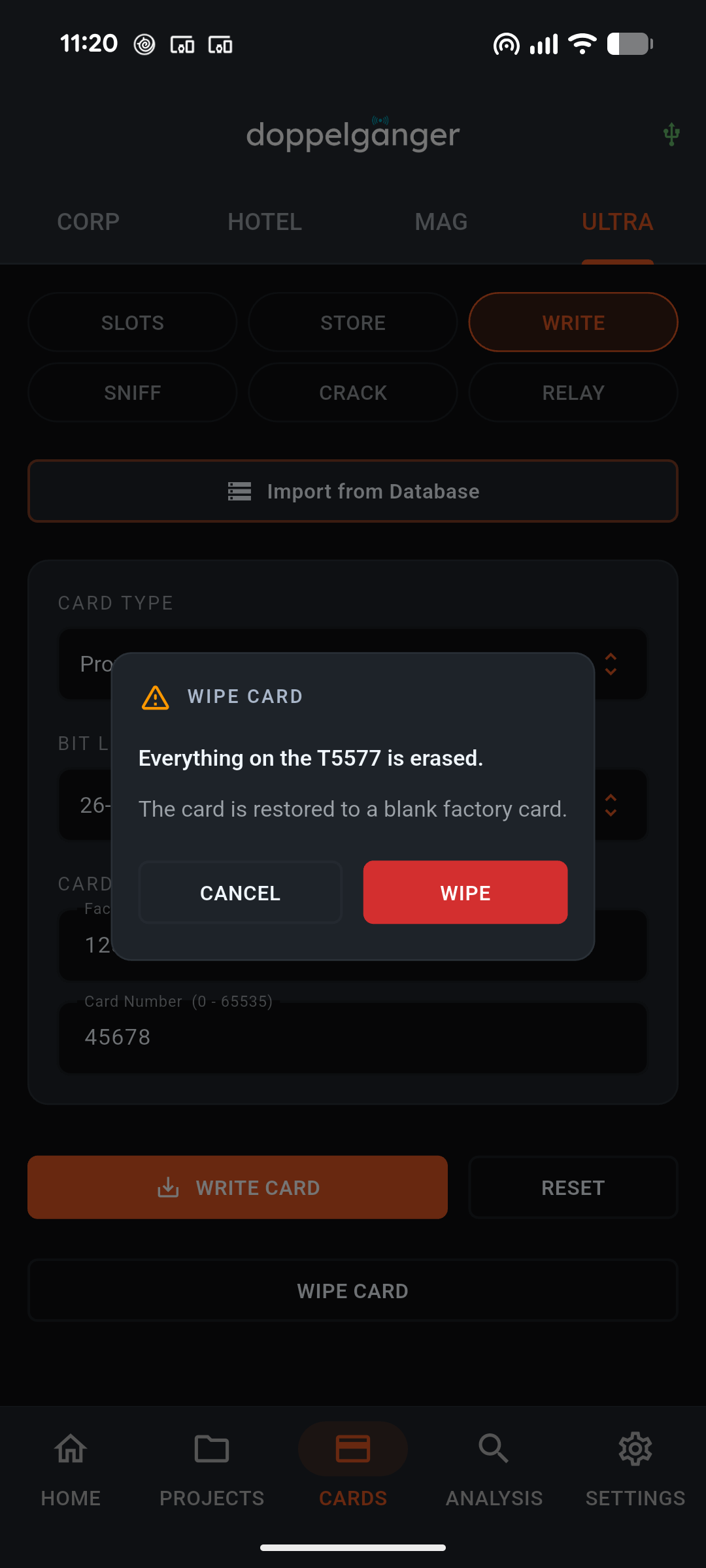
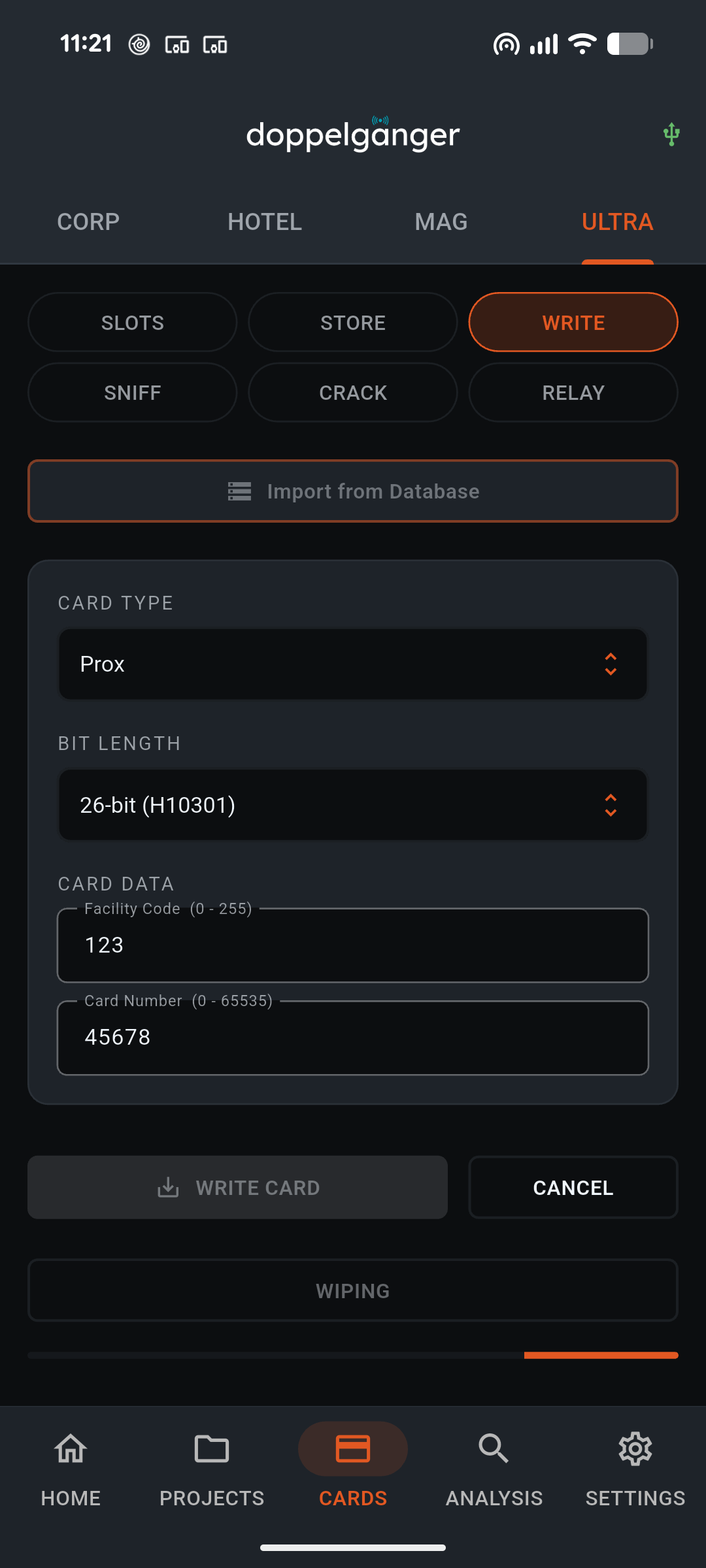
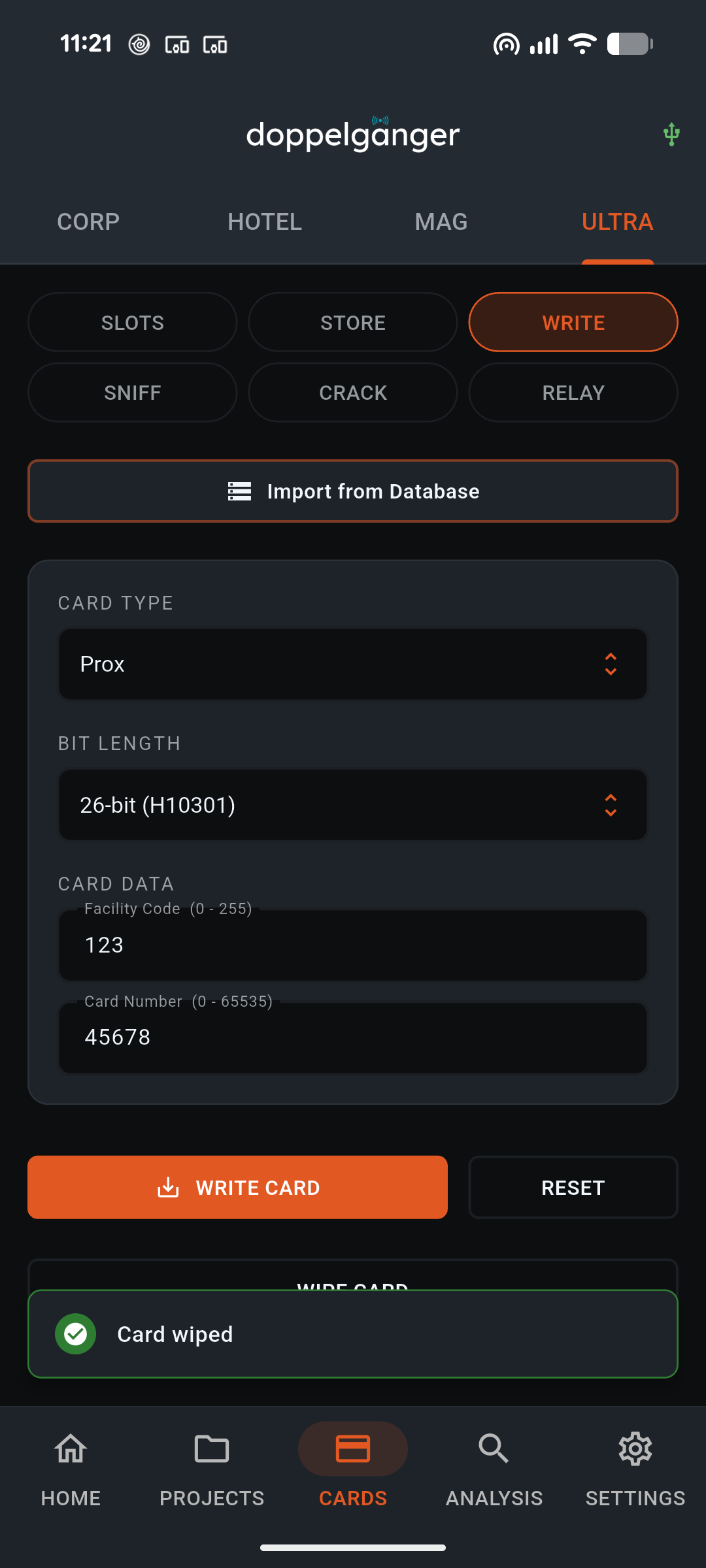
- WIPE CARD.
- Everything on the T5577 is erased.
- CANCEL, or WIPE in red.
- CANCEL, while the wipe runs.
- WIPING.
- WRITE CARD, ready for a credential.
- Card wiped.
| After WIPE | What happened |
|---|---|
| Card wiped | The card reads back as a blank factory card |
| Card not wiped, it still reads | The card still carries a credential after the wipe |
| No card answering | Nothing answered on the ATLAS Chameleon Ultra |
| Wipe refused | The device would not run the wipe |
| Wipe failed | The command did not complete |
A write offers the same thing by itself when the card did not take it. If the read back finds a different credential on the card, or a card that answers and holds nothing readable, Card Needs Repair opens and says which. REPAIR wipes the card and writes the credential again in one pass. It ends Card repaired, written and verified, or No card answering, Repair refused or Card could not be repaired. CANCEL leaves the card and reports Write not confirmed.
| Write | Time on the progress bar |
|---|---|
| T5577, EM410x, Indala 64-bit, IO Prox | About 1.0 second |
| T5577, Pyramid | About 1.4 seconds |
| T5577, HID frames of 44 bits and up, 46-bit (H800002), 48-bit (C1k48s), 56-bit (avig56) | About 1.7 seconds |
| T5577, every other format | About 1.2 seconds |
| T5577 read back | Runs until the card answers, up to about 20 seconds |
WRITE does not read or change a slot. The full page is Write in the ATLAS documentation, and the blanks have their own pages here: T5577 and iCLASS 2k.
SNIFF: is there a field, and what does this reader accept
You are standing at a reader you have never seen. It has no label you trust, the client’s badge is a blank white card, and the next decision is which credential technology to spend the rest of the engagement on. Guess wrong and a prox clone goes to a door that only reads 13.56 MHz.
SNIFF is how you stop guessing, from the same posture as checking a phone near a door. It asks two questions in the order they need answering, one card each.
| Card | The question | What it costs at the door |
|---|---|---|
| RFFD | Is a reader radiating here at all, and on which band | Nothing. The unit transmits on neither band |
| FINGERPRINT READER | Which credential technologies does this reader accept | No completed read for ICLASS CHECK, up to the reader being tied up while PROBE READER runs |
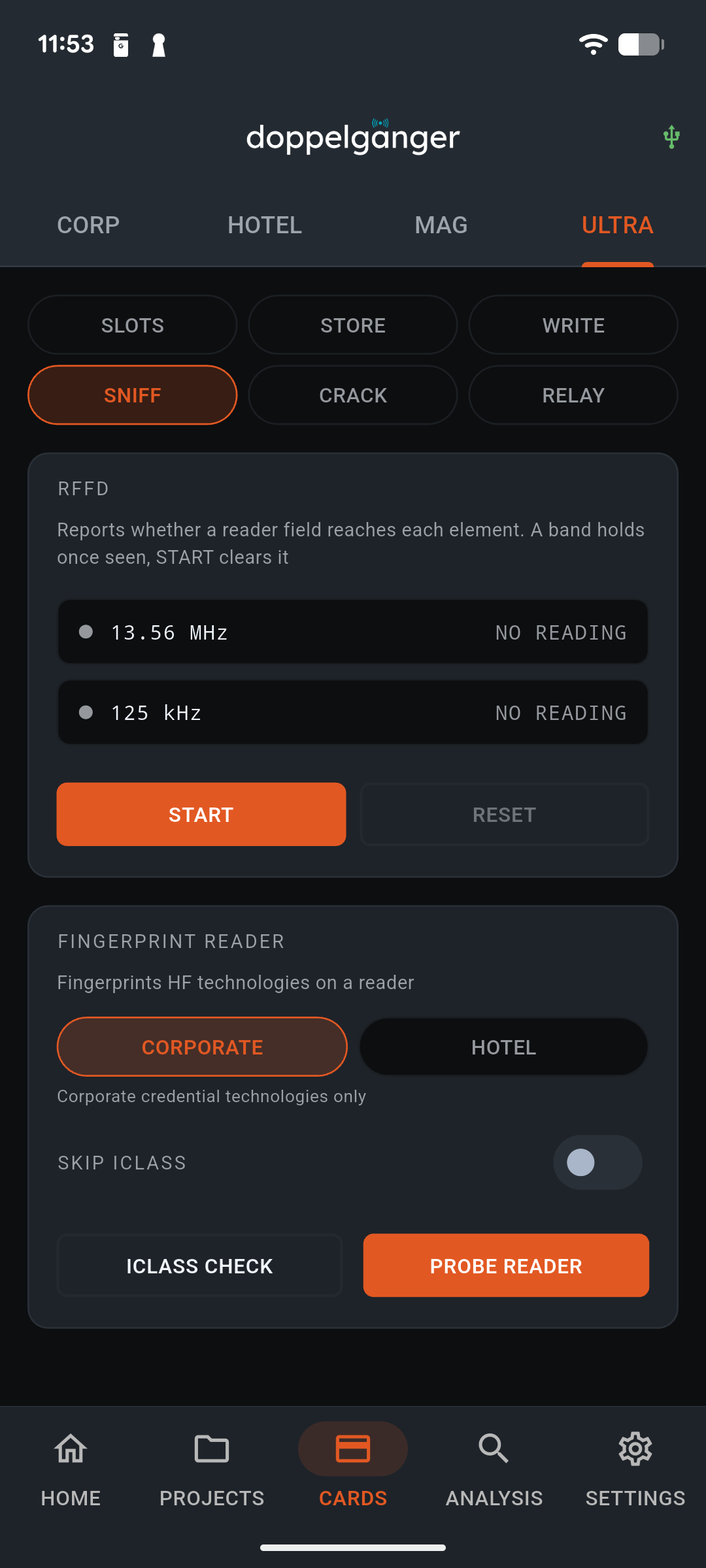
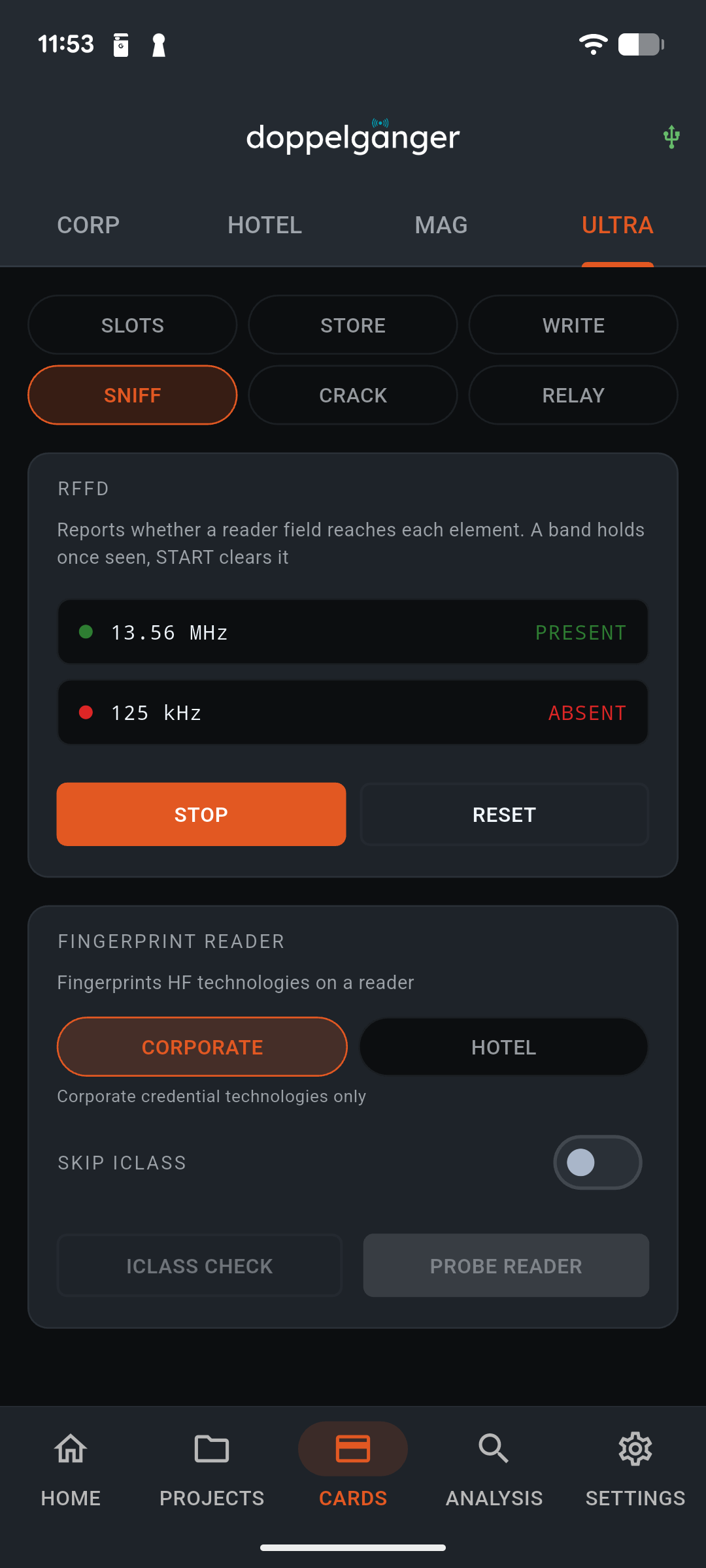
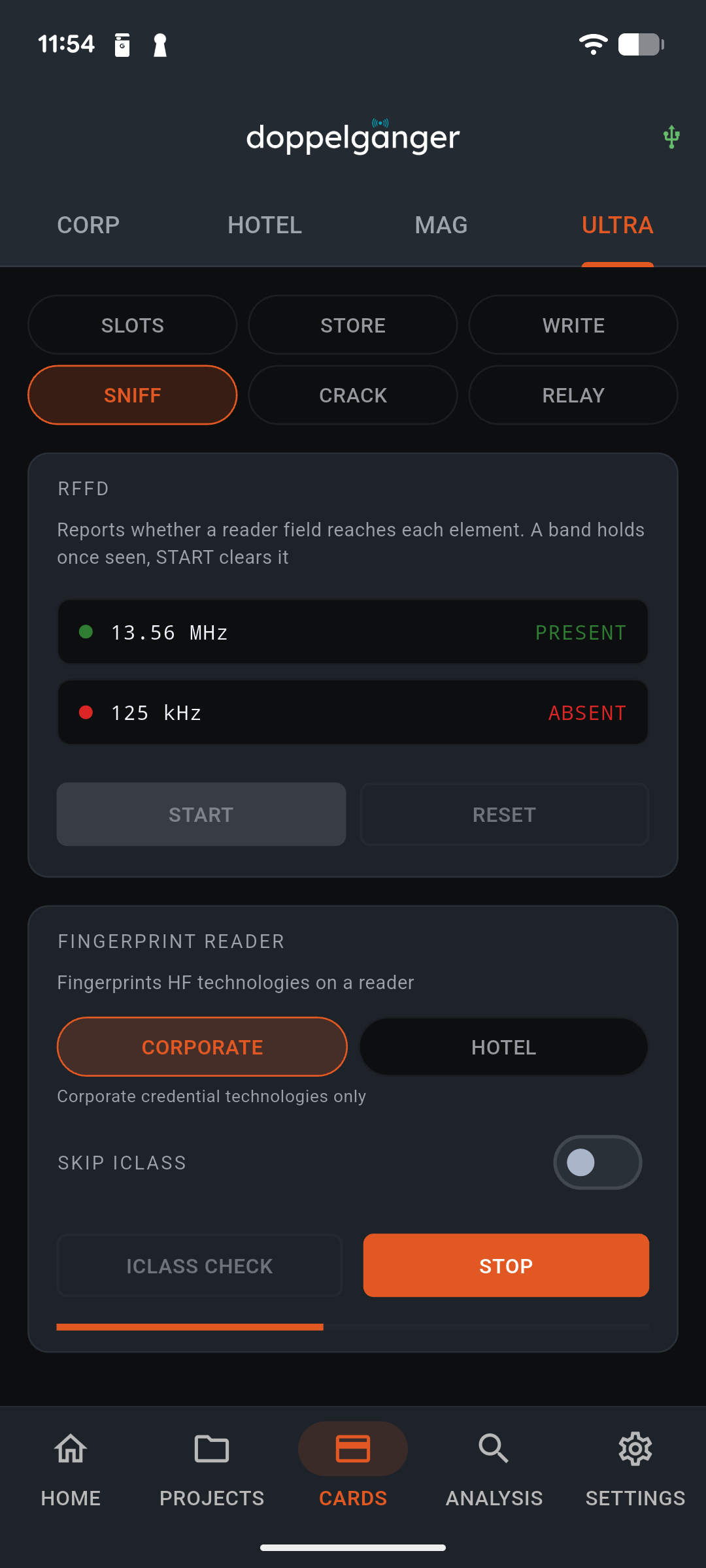
- RFFD, the first card on SNIFF.
- 13.56 MHz, NO READING.
- 125 kHz, NO READING.
- START.
- 13.56 MHz, PRESENT, so the reader's field reaches the unit.
- 125 kHz, ABSENT, checked with no field on this band.
- STOP, while the run goes.
- CORPORATE, the scope.
- SKIP ICLASS, off.
- STOP, the only live control.
- How far the run has gone.
RFFD comes first, because a fingerprint run against a reader that is not energizing has nothing to answer it.
- Tap START. Both bands clear, and the control reads STOP.
- Bring the unit toward the face of the reader and move it slowly across. 125 kHz shows from a couple of inches out, so it does not have to touch.
- Watch each band. A band flips to PRESENT the first time the field reaches it and stays there.
- When both bands read PRESENT the run ends by itself. Otherwise tap STOP when you have covered the reader.
| A band reads | Dot | Meaning |
|---|---|---|
| NO READING | Gray | No run has checked it yet, or the unit gave no answer |
| PRESENT | Green | A reader field has been seen on that band during this run |
| ABSENT | Red | Checked, and no field seen so far |
| NOT READY | The warning color, on 13.56 MHz only | The band is not being read yet. Tap START |
RESET clears both bands and nothing else. The readings hold on purpose: the field is not steady while a unit moves across a reader, and a band that has been seen once is the fact you came for.
| What you see | What it tells you |
|---|---|
| 13.56 MHz PRESENT, 125 kHz ABSENT | An HF reader. Go on to FINGERPRINT READER |
| 13.56 MHz ABSENT, 125 kHz PRESENT | A prox reader. The fingerprint covers 13.56 MHz only, so go to STORE with an LF credential |
| Both PRESENT | A multi technology reader. Fingerprint it, and keep prox in mind |
| Both ABSENT after a slow pass | No field reached the unit. Reposition before concluding the reader is dead |
FINGERPRINT READER covers 13.56 MHz and reports one line per technology. Pick the scope first, CORPORATE or HOTEL, because the scope decides which technologies are tried and listed.
| Scope | The line under the chips reads | Pick it at |
|---|---|---|
| CORPORATE | Corporate credential technologies only | An office, plant or campus access reader |
| HOTEL | EXPERIMENTAL. Hotel and lock technologies only. Skips the corporate stack | A guest room lock or a hospitality reader. Treat a result as a lead to confirm, not as a finding |
Then pick how to ask.
| Control | What the unit does | The reader experiences | Use it when |
|---|---|---|---|
| ICLASS CHECK | The iCLASS steps alone, without completing a card read | No completed read | The only open question is whether this reader still takes iCLASS Legacy |
| PROBE READER | Presents itself as one credential type after another and records what the reader asks each. On CORPORATE it then runs the iCLASS steps, unless SKIP ICLASS is on | A run of cards it cannot place, and it serves nobody else while that lasts | You need the full matrix and the door is yours for the duration |
SKIP ICLASS, on CORPORATE only, leaves the iCLASS steps out of PROBE READER. The run is much shorter, and the result lists no iCLASS rows.
PROBE READER takes the reader away from everyone else while it runs
An active probe holds the reader’s attention for the whole run. People with real badges cannot get through that door until it ends, and the system behind the reader may record each presentation it could not place. Do not run it on a door that is in use, and confirm that the rules of engagement cover an action that interrupts a reader.
If a result ends with the red line Reader still answering, the reader did not go back to idle when the probe let go. Take the unit out of the field.
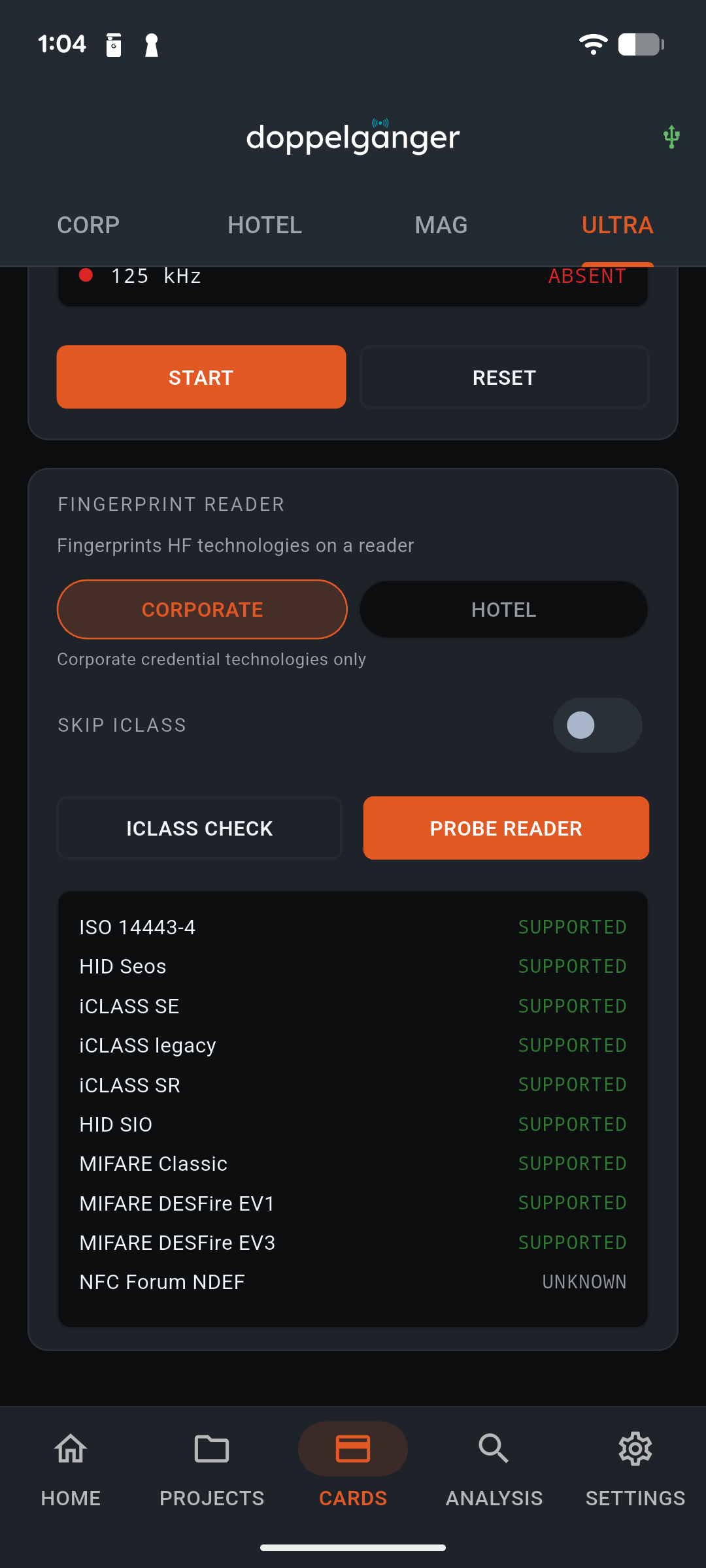
- PROBE READER, back at rest when the run ends.
- ISO 14443-4, SUPPORTED, so the reader engaged with it.
- MIFARE Classic, SUPPORTED.
- NFC Forum NDEF, UNKNOWN, which is not established and never absent.
| Verdict | Color | Meaning | In a report |
|---|---|---|---|
| SUPPORTED | Green | The reader engaged with it | A finding |
| NOT SUPPORTED | Red | The reader was offered it and refused | A finding |
| POSSIBLE | Warning color | The reader polls the family, and the variant cannot be told apart on the air | Not a finding. Name the family |
| UNKNOWN | Muted | Not established. Either the reader would not take it, or the step never ran | Never write it up as absent |
Two more lines can follow a PROBE READER result. ALSO SEEN, OUTSIDE THE SELECTED READER, then a list, means the reader engaged with a technology the chosen scope does not list, so run it again under the other scope. Reader still answering is covered in the notice above.
Both cards drive the same radio in the unit, so only one runs at a time. During some runs the link to the unit drops for some seconds and returns. Do not reconnect by hand in the middle of a run. The full page is Sniff and reader fingerprint in the ATLAS documentation.
CRACK: recover a MIFARE Classic card’s keys and read it out
A room key from the front desk, a gym fob, a staff card left on a lanyard for the length of a coffee. MIFARE Classic is deprecated and still in service, mostly in hospitality, gyms and transit and on corporate sites that never replaced their card stock. When one of those cards is in your hand for a short while, the question the client is paying to have answered is whether those minutes are enough to copy it.
CRACK answers that with the unit alone. The card lies on the unit, the unit acts as the reader, and the app works through every way it has of getting the keys from the card itself before reading it out. What it costs is time with the card, from seconds to several minutes depending on how the card is keyed.
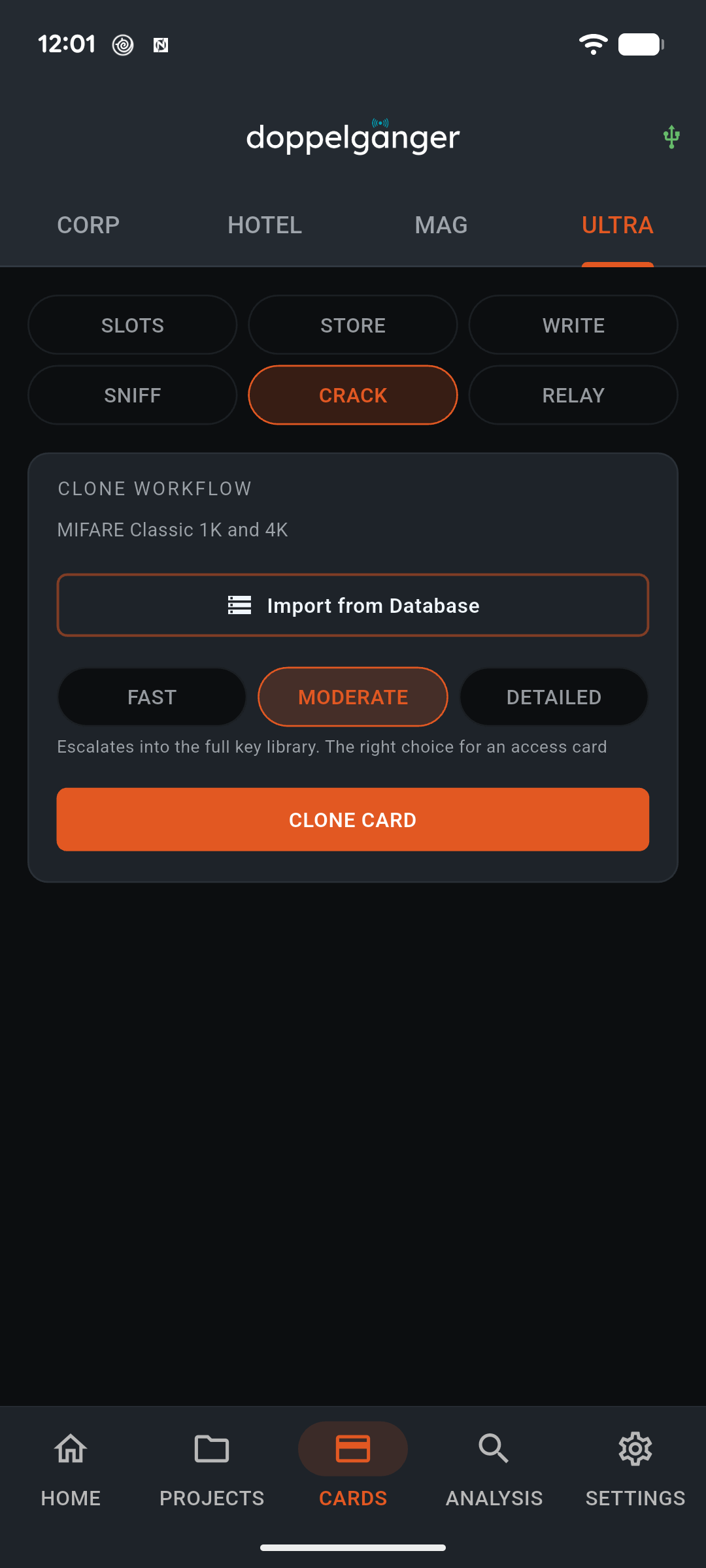
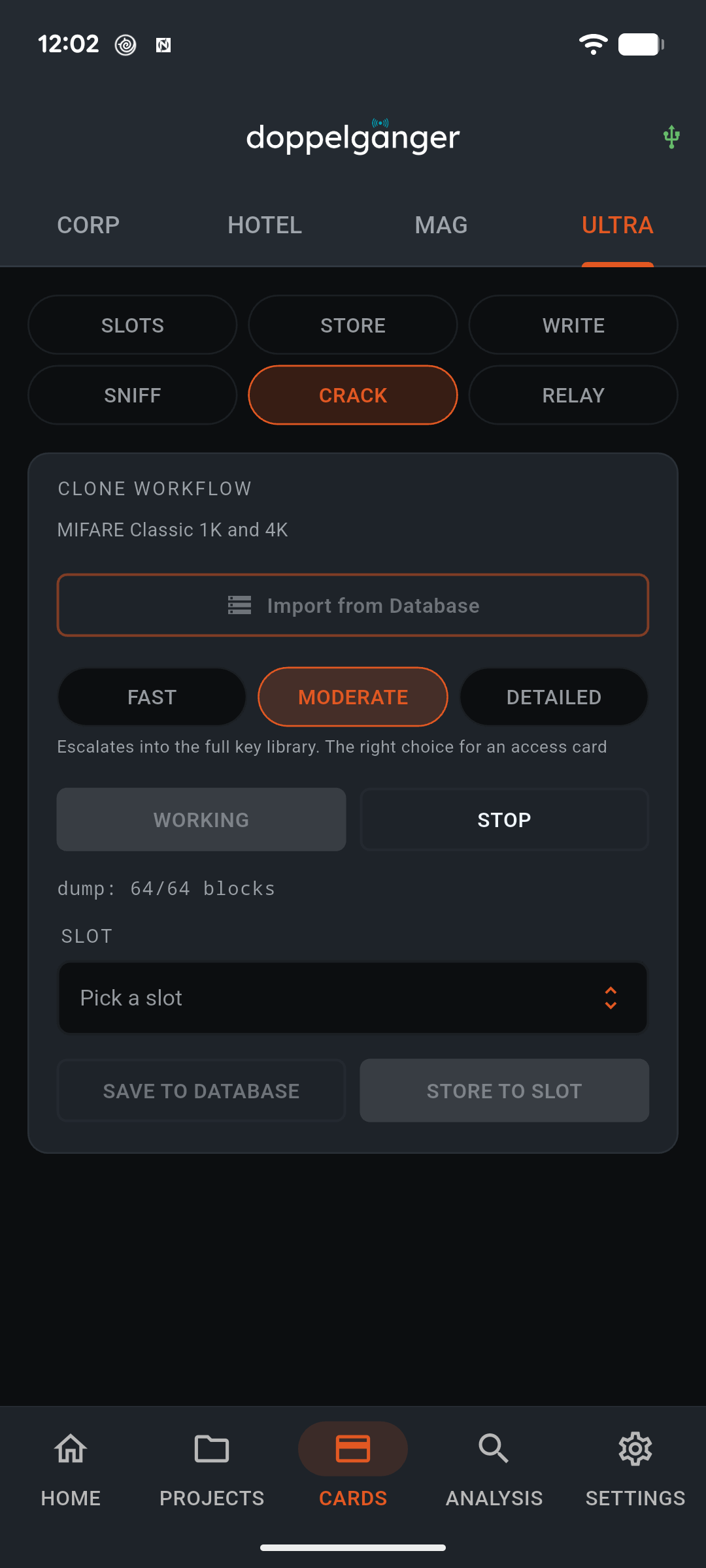
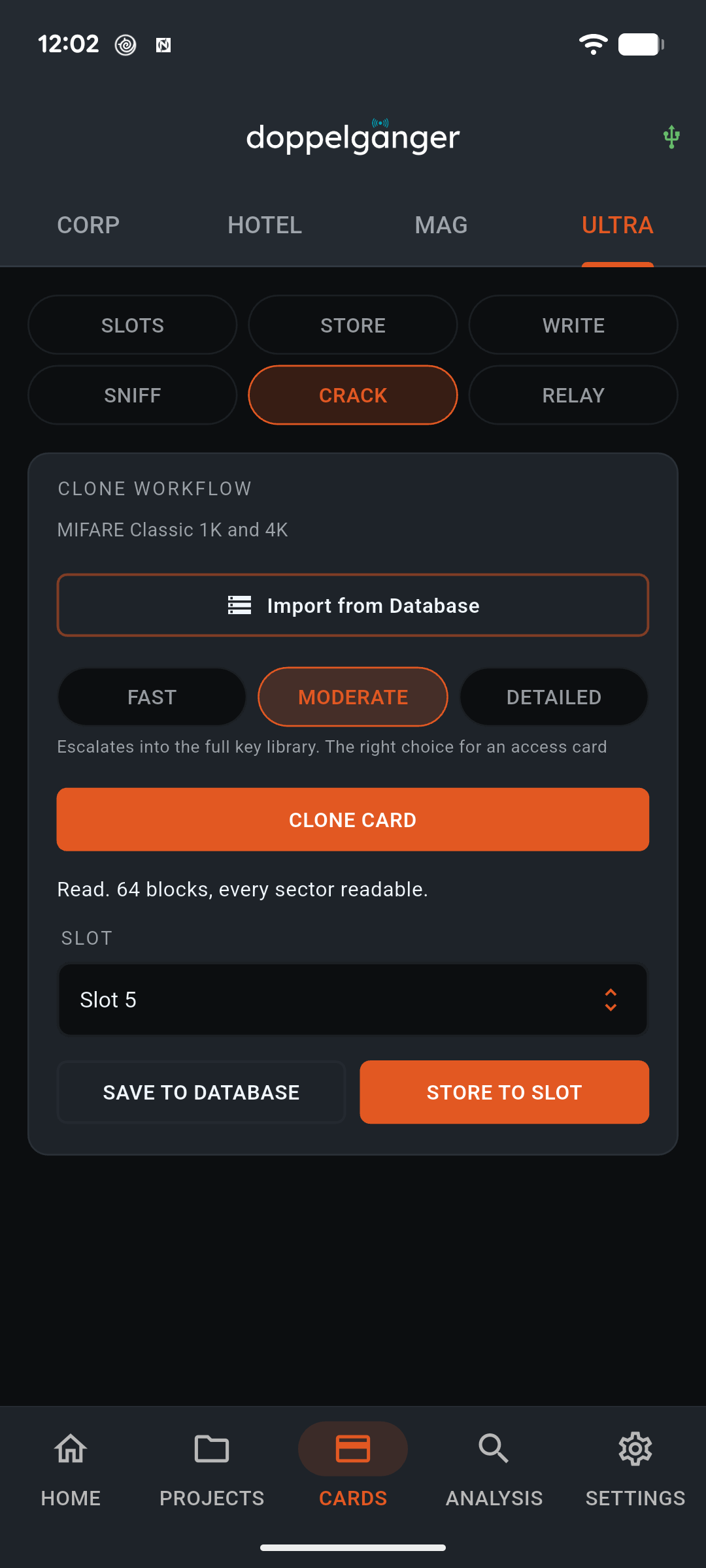
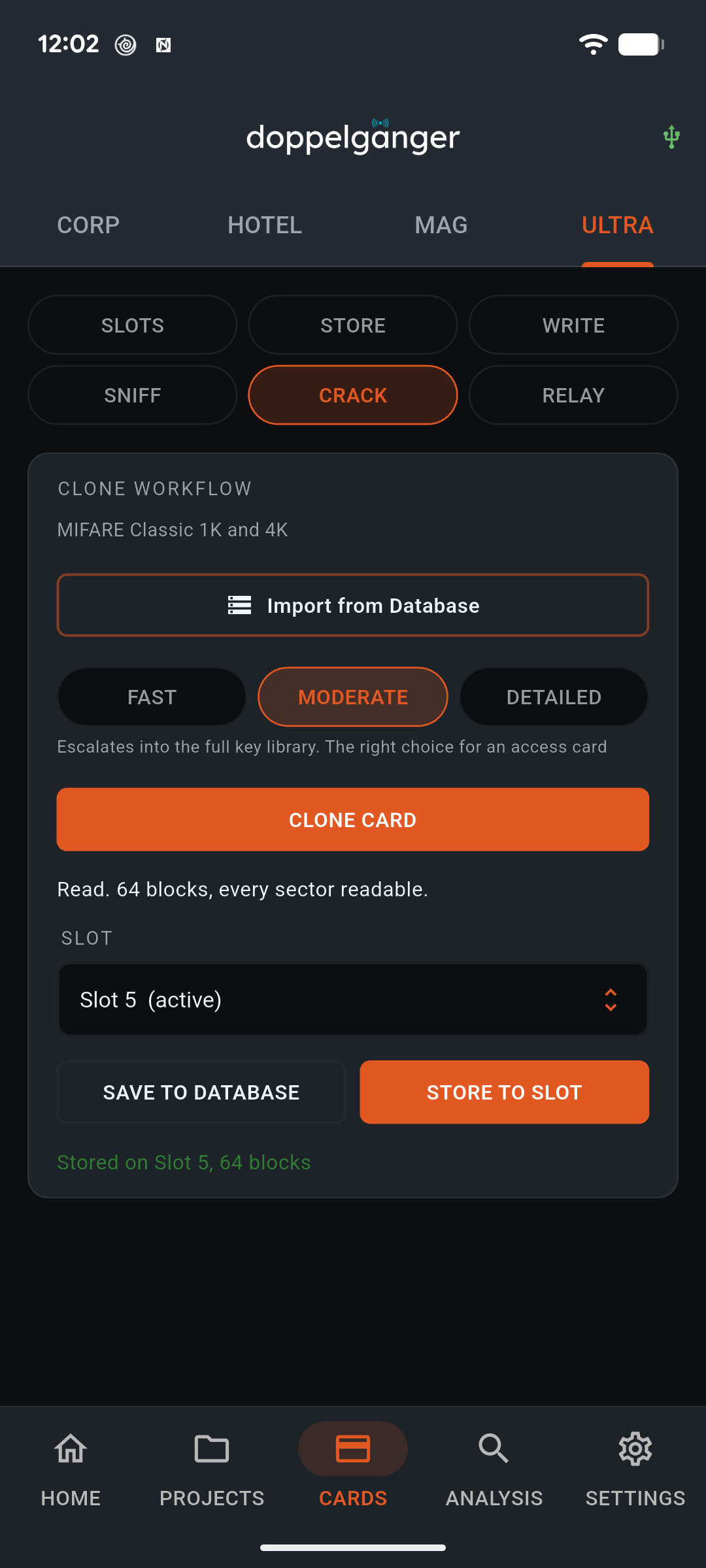
- MIFARE Classic 1K and 4K.
- MODERATE, the depth the page opens on.
- CLONE CARD, the one tap run.
- WORKING, with STOP beside it.
- The stage line, here the dump.
- SLOT appears once the dump is in.
- SAVE TO DATABASE and STORE TO SLOT, gray until the run ends.
- Read. 64 blocks, every sector readable.
- SLOT, Slot 5 picked.
- STORE TO SLOT, live once a slot is picked.
- Slot 5, now the active slot.
- Stored on Slot 5, 64 blocks.
- Lay the card flat on the unit.
- Pick how hard to look, FAST, MODERATE or DETAILED.
- Tap CLONE CARD. It reads WORKING, and STOP appears beside it.
- Leave the card where it is. A line under the controls reports each stage. Once the dump is in, SLOT, SAVE TO DATABASE and STORE TO SLOT appear under it, gray until the run ends.
- Read the summary that replaces the stage line when it ends.
- Pick a slot in SLOT and tap STORE TO SLOT, or tap SAVE TO DATABASE, or do both.
CLONE CARD files nothing and stores nothing on its own. The copy stays on the page until you send it to a slot or to the card database.
| Depth | Keys tried | Pick it when |
|---|---|---|
| FAST | The first 200 | You have seconds, or you only want to know whether the card is on factory defaults |
| MODERATE | The first 2518 | Right for almost every card you are handed |
| DETAILED | The whole list, including generated patterns | MODERATE left sectors unread and you have minutes with the card |
What happens behind the tap, in order:
| Order | Step | Why it is in this position |
|---|---|---|
| 1 | Asks the card what kind of card it is | Whether a missing key is worth a second try depends on it |
| 2 | Tries a manufacturer backdoor | One command can return every block with no key at all. If it answers, the run keeps what it read and stops there |
| 3 | Tries the key dictionary, to the chosen depth | Most cards are on published keys |
| 4 | Derives keys from the card’s UID, when the dictionary found Key A for fewer than 16 sectors | Some deployments compute each card’s keys from its UID |
| 5 | Reads every block with the keys in hand and writes the recovered keys into the copy | This is the copy |
Step 5 runs only when step 3 or step 4 left keys in hand. When a UID algorithm fits, its keys take the place of the dictionary’s. When none fits, the dump runs with the keys the dictionary found, and the sectors none of them opened are reported as unreadable.
| The summary reads | Meaning | Next |
|---|---|---|
| Read. a block count, every sector readable. | A complete copy with its keys | Store it in a slot, save it to the database, or both |
| Read. a block count, read without keys. The keys the reader asks for are still needed. | The backdoor returned the contents. The keys the reader will ask for are still unknown | Running CLONE CARD again on this card ends the same way |
| Read. a block count, a count unreadable. Those sectors will not match the original. | A partial copy | The last sentence says whether more work pays: recoverable for a fixed or weak nonce card, a retry will not help for a hardened card |
| No data recovered. The card gave up no block to the keys this depth tries. | No dump was taken, and there is nothing to save or store | On FAST or MODERATE, run again on DETAILED |
| No card detected. | The card moved off the unit | Reseat it and run again |
Where the copy goes
| Button | What it does | Pick it when |
|---|---|---|
| STORE TO SLOT | Writes every block, with the recovered keys, to the slot picked in SLOT, and makes that slot the active one | You want the unit to answer a reader as this card |
| SAVE TO DATABASE | Opens SELECT PROJECT and files the copy, with the recovered keys, into the project you choose | You want the card in the client’s record and in the project export, or kept for later |
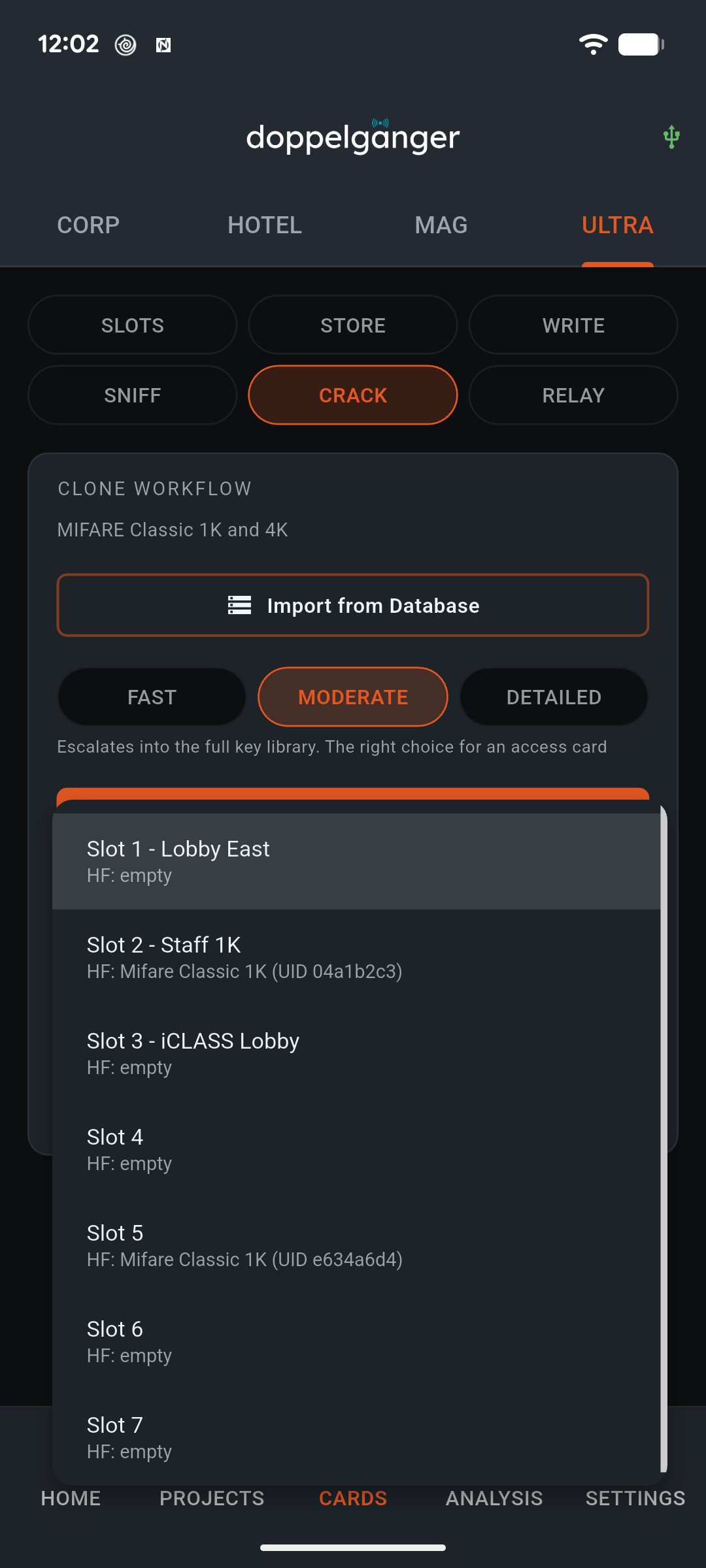
- Slot 1, with the name it was given.
- What the HF side holds, with its UID.
- Slot 5, holding a MIFARE Classic 1K.
- Slot 7, the last. Slot 8 is not offered.
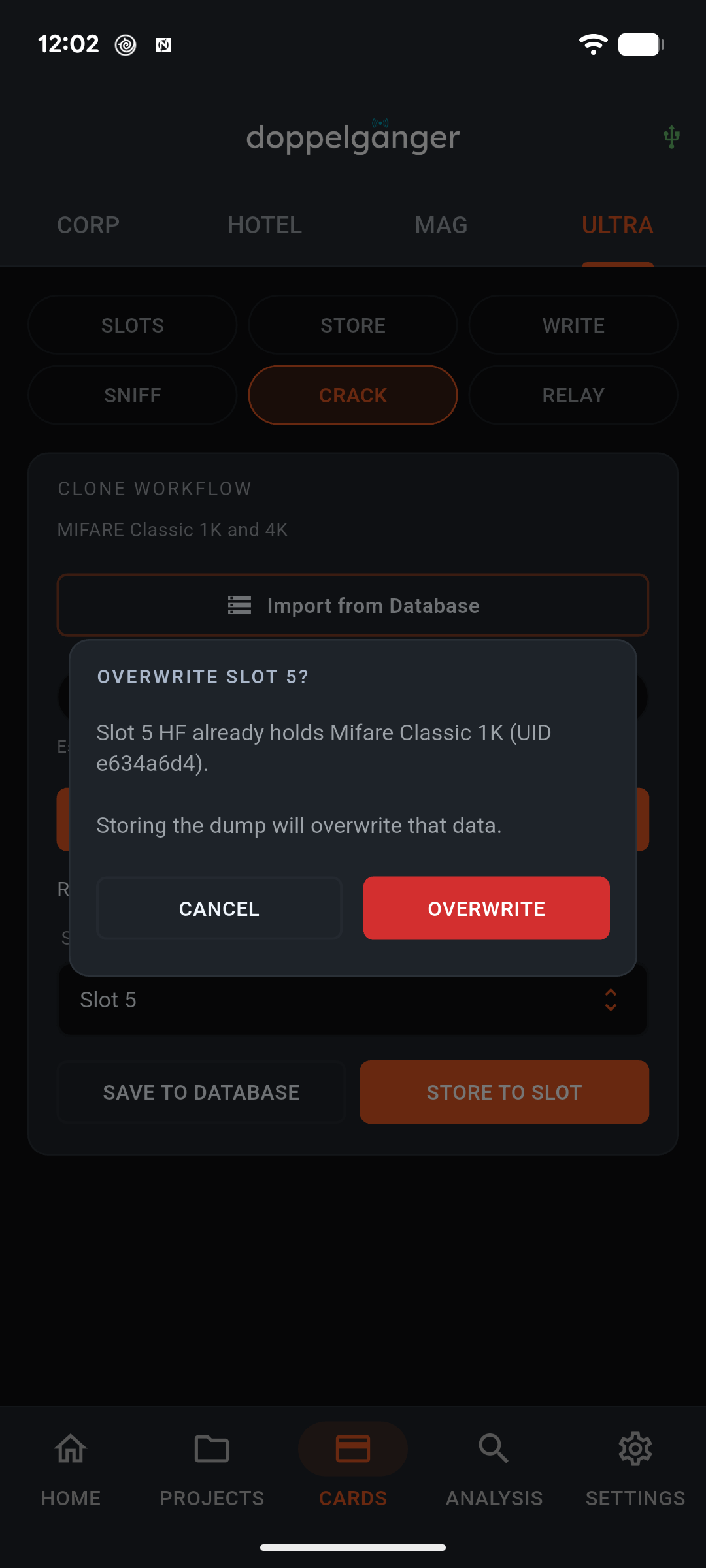
- OVERWRITE SLOT 5?
- What the slot holds, by type and UID.
- CANCEL keeps it, OVERWRITE replaces it.
SLOT reads Pick a slot until you choose, and STORE TO SLOT stays gray until then. Slots 1 to 7 are listed, each with its name and what its HF side holds. Slot 8 is reserved and is not offered. When the slot already holds an HF card, OVERWRITE SLOT and the slot number name it first, and CANCEL stores nothing. When the store finishes, the slot is the active one and Stored on Slot with the slot number and the block count appears under the buttons, so the copy is on the air at once.
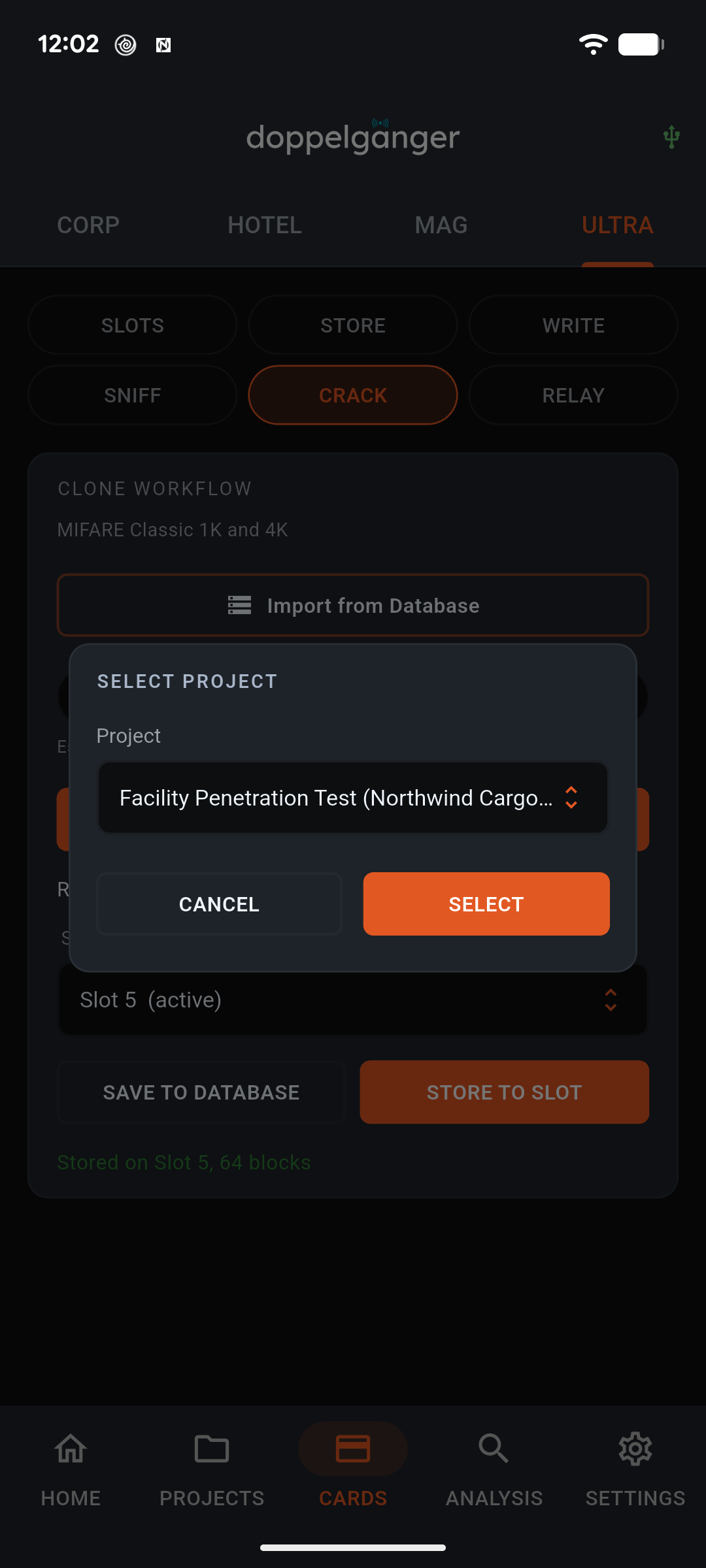
- SELECT PROJECT.
- Project, the active one picked for you.
- CANCEL files nothing, SELECT files it.
SAVE TO DATABASE opens SELECT PROJECT, the same picker a reader import uses, with the active project chosen under Project. Keep it, pick another project, or pick No project, then tap SELECT to file the copy or CANCEL to file nothing. A card filed with No project is left out of every project export.
Import from Database on CRACK makes a record from the card database the page’s current card and names what it took, a MIFARE Classic or Ultralight dump or a UID alone. A record taken in brings up SLOT, SAVE TO DATABASE and STORE TO SLOT, as a run does. The full page, with every summary and message and what each means, is Crack in the ATLAS documentation.
RELAY: answer a reader with a card that is somewhere else
A site that has moved to DESFire EV3 or Seos has a credential that cannot be copied, and a report that stops there tells the client nothing about the door. A relay puts one handset beside the card and one at the reader, each with its own ATLAS Chameleon Ultra, and carries the conversation between them. Whether the door opens is the finding.
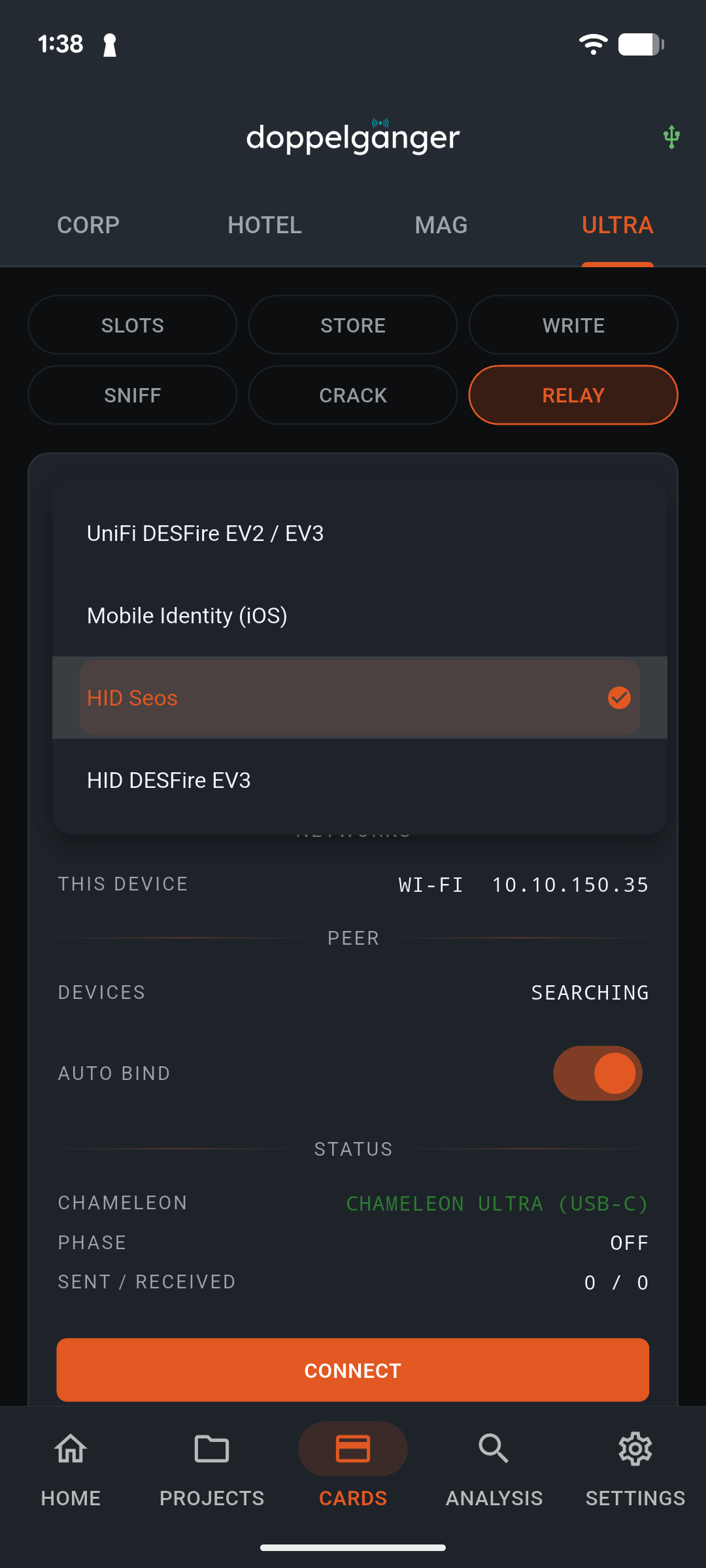
- UniFi DESFire EV2 / EV3.
- Mobile Identity (iOS).
- HID Seos.
- HID DESFire EV3.
It takes two handsets and two ATLAS Chameleon Ultras, each unit on its handset’s USB cable. What a relay settles, what you need, the procedure and every reading are on the Relay page.
Every card and format it stores, emulates and writes
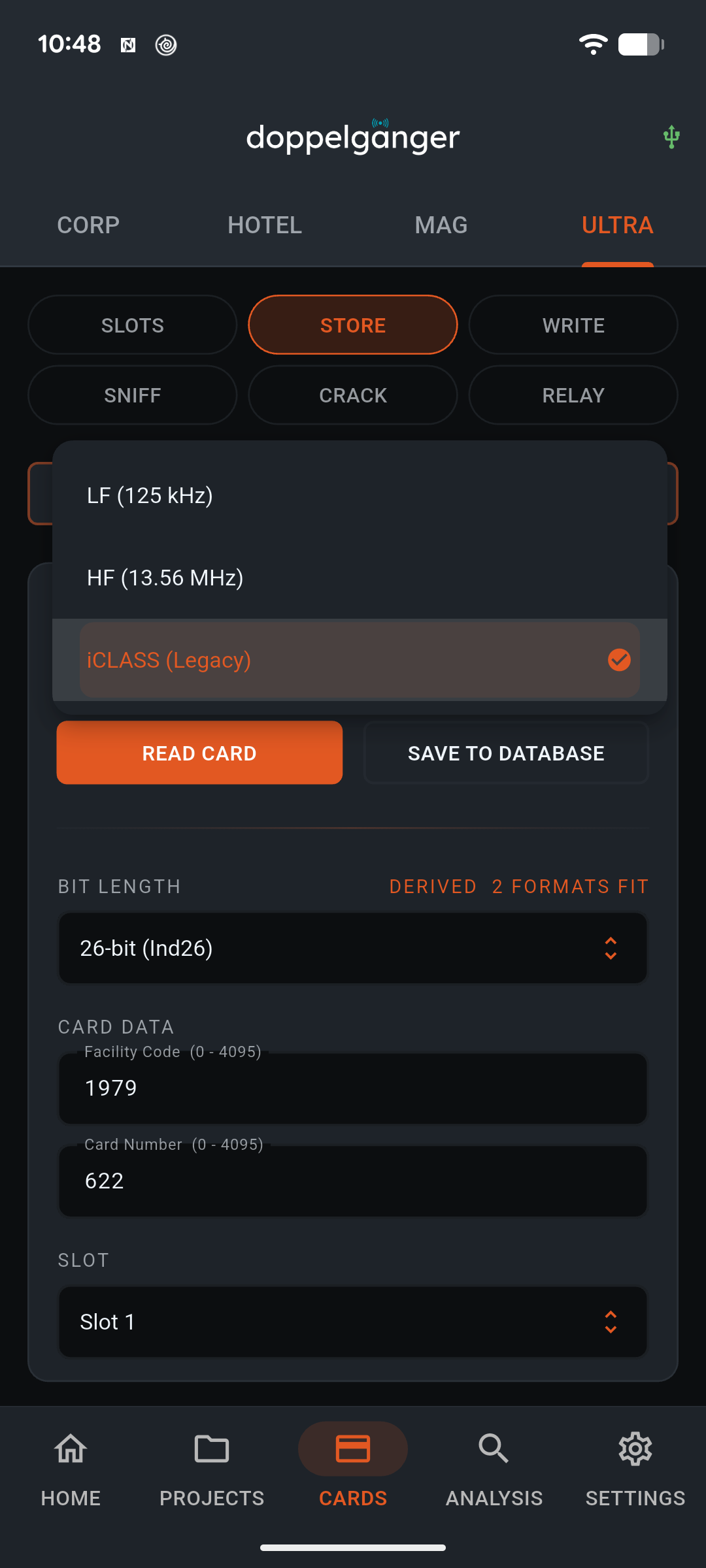
- LF (125 kHz), prox credentials.
- HF (13.56 MHz), an identity by UID or a MIFARE Classic dump.
- iCLASS (Legacy), ticked.
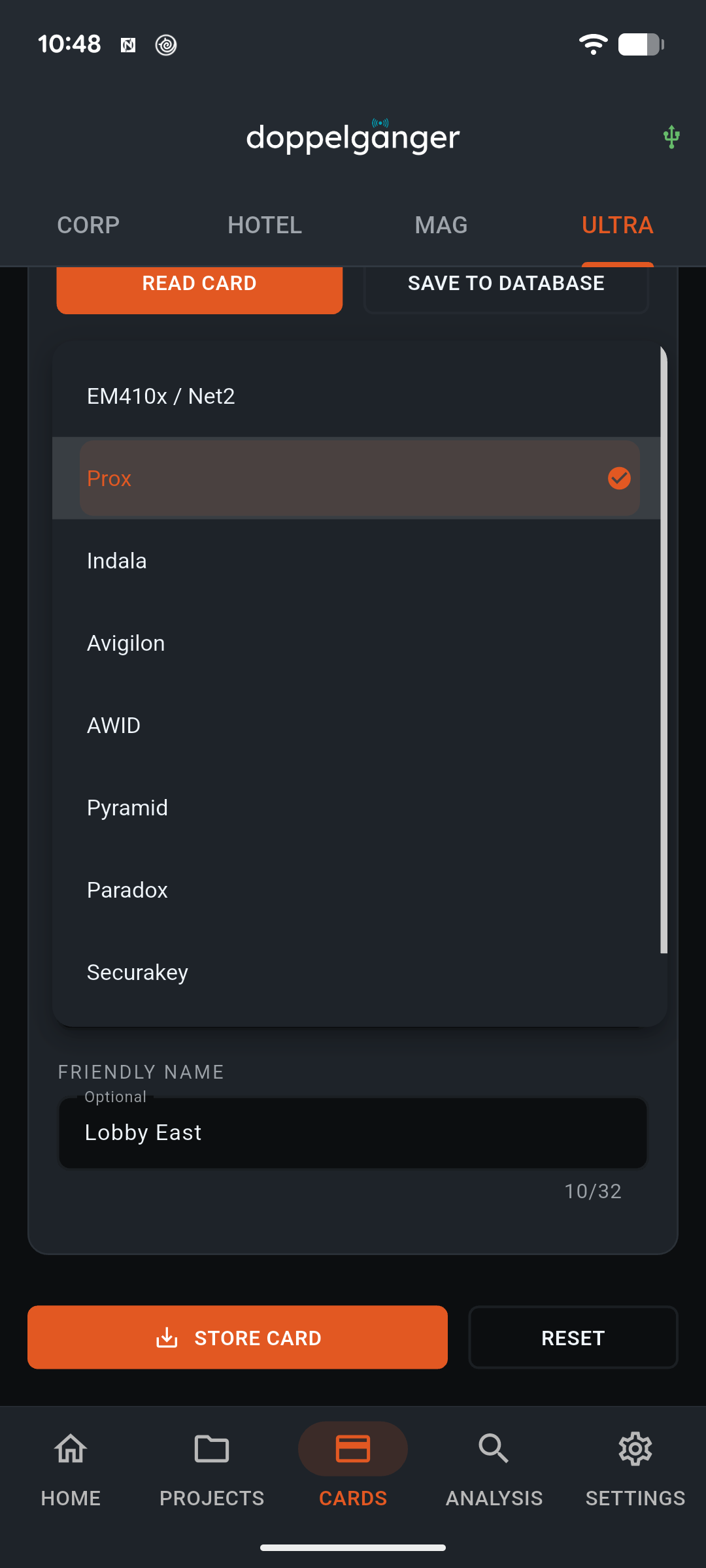
- EM410x / Net2, first.
- Prox, the family the form opens on.
- Securakey, with IO Prox below it as the menu scrolls.
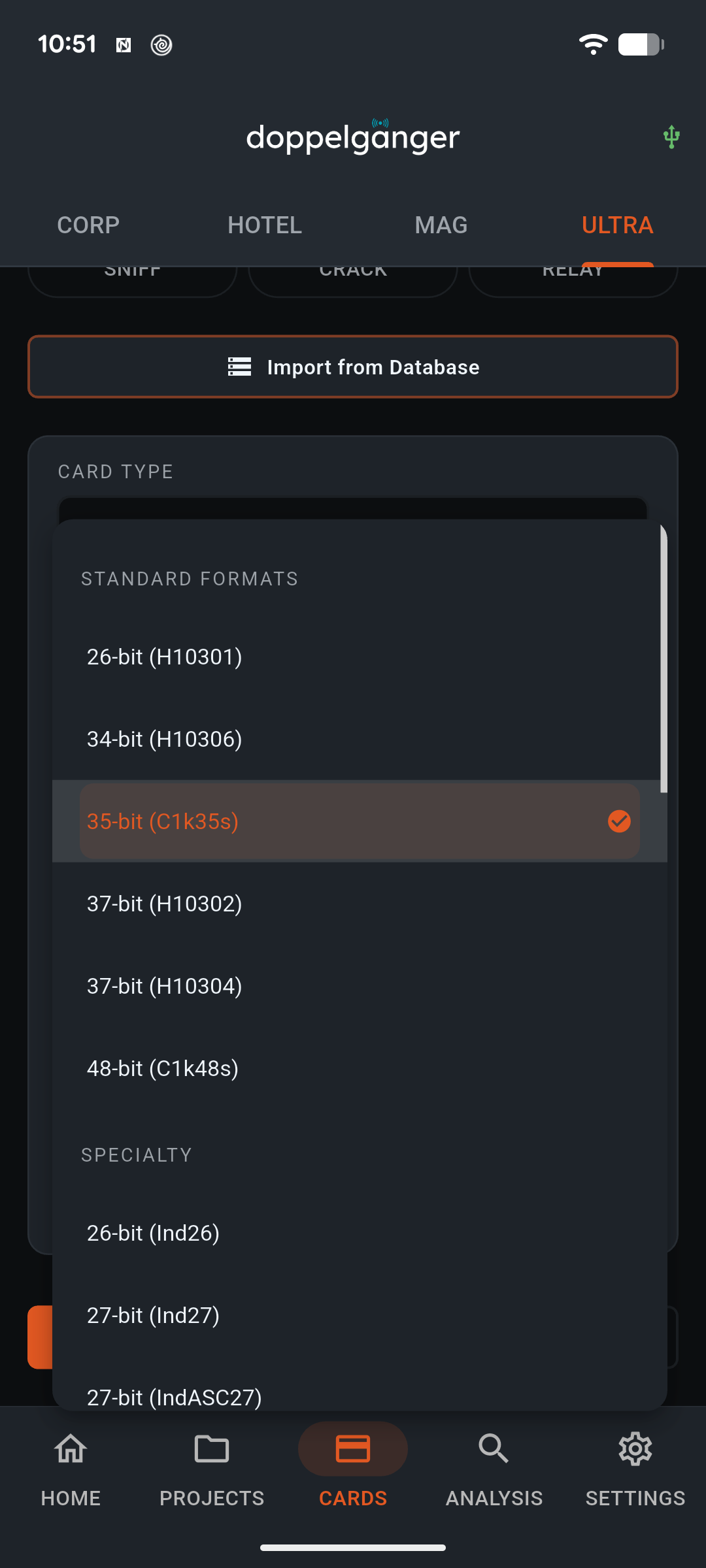
- STANDARD FORMATS, the formats HID issues iCLASS in.
- 35-bit (C1k35s), HID Corporate 1000.
- SPECIALTY, every other format, for credential stuffing.
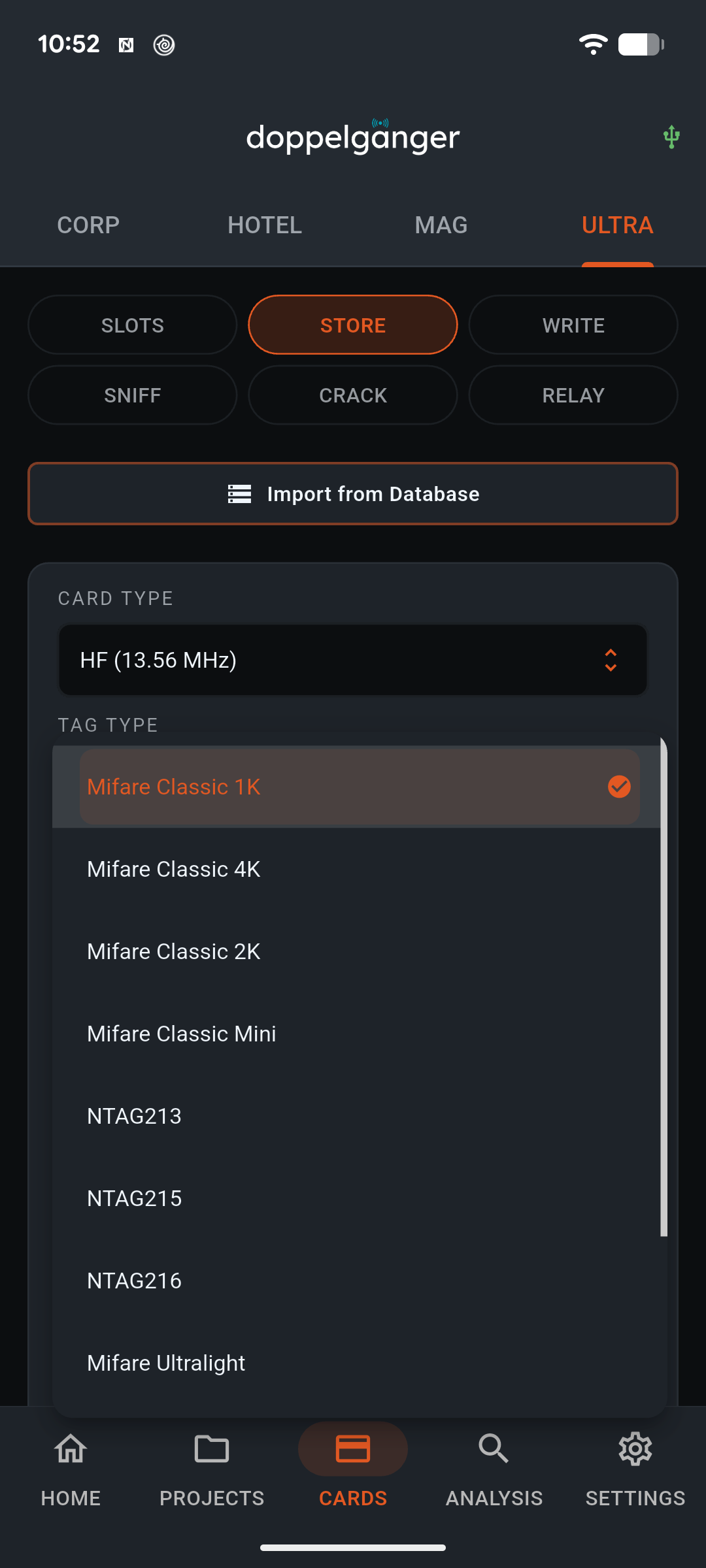
- Mifare Classic 1K, the type the form opens on.
- NTAG213, the first of the NTAG group.
- Mifare Ultralight, with the rest below it as the menu scrolls.
Prox, 125 kHz
Every low frequency format, in the order the FORMAT and BIT LENGTH menus show them, with the range each accepts. Every row is emulated from a slot and written to a T5577, except 64-bit (Indala64), which is written to a T5577 only.
| FORMAT | BIT LENGTH | Full name | Facility Code | Card Number | In a slot | On a T5577 |
|---|---|---|---|---|---|---|
| EM410x / Net2 | 40-bit (EM410x) | EM410x / Net2 (5-byte raw hex) | Raw hex, 5 bytes, 10 characters | Yes | Yes | |
| Prox | 26-bit (H10301) | HID H10301 | 0 - 255 | 0 - 65535 | Yes | Yes |
| Prox | 28-bit (2804W) | 2804W | 0 - 255 | 0 - 32767 | Yes | Yes |
| Prox | 30-bit (ATSW30) | ATS-W | 0 - 4095 | 0 - 65535 | Yes | Yes |
| Prox | 31-bit (ADT31) | ADT 31-bit | 0 - 15 | 0 - 8388607 | Yes | Yes |
| Prox | 32-bit (HCP32) | HCP 32-bit | Not used | 0 - 16383 | Yes | Yes |
| Prox | 32-bit (HPP32) | HPP 32-bit | 0 - 4095 | 0 - 524287 | Yes | Yes |
| Prox | 32-bit (Kastle) | Kastle 32-bit | 0 - 255 | 0 - 65535 | Yes | Yes |
| Prox | 32-bit (Kantech) | Kantech 32-bit | 0 - 255 | 0 - 65535 | Yes | Yes |
| Prox | 32-bit (Wie32) | Wiegand 32-bit | 0 - 4095 | 0 - 65535 | Yes | Yes |
| Prox | 33-bit (D10202) | D10202 | 0 - 127 | 0 - 16777215 | Yes | Yes |
| Prox | 34-bit (H10306) | HID H10306 | 0 - 65535 | 0 - 65535 | Yes | Yes |
| Prox | 34-bit (N10002) | N10002 | 0 - 65535 | 0 - 65535 | Yes | Yes |
| Prox | 34-bit (Optus) | Optus 34-bit | 0 - 2047 | 0 - 65535 | Yes | Yes |
| Prox | 34-bit (SMP) | SMP 34-bit | 0 - 8191 | 0 - 65535 | Yes | Yes |
| Prox | 34-bit (BQT) | BQT 34-bit | 0 - 255 | 0 - 16777215 | Yes | Yes |
| Prox | 35-bit (C1k35s) | HID Corporate 1000 (35-bit) | 0 - 4095 | 0 - 1048575 | Yes | Yes |
| Prox | 36-bit (C15001) | C15001 | 0 - 255 | 0 - 65535 | Yes | Yes |
| Prox | 36-bit (S12906) | S12906 | 0 - 255 | 0 - 16777215 | Yes | Yes |
| Prox | 36-bit (Sie36) | Siemens 36-bit | 0 - 262143 | 0 - 65535 | Yes | Yes |
| Prox | 37-bit (H10320) | HID H10320 (BCD) | Not used | 0 - 99999999 | Yes | Yes |
| Prox | 37-bit (H10302) | HID H10302 (no FC) | Not used | 0 - 34359738367 | Yes | Yes |
| Prox | 37-bit (H10304) | HID H10304 | 0 - 65535 | 0 - 524287 | Yes | Yes |
| Prox | 37-bit (P10004) | P10004 | 0 - 8191 | 0 - 262143 | Yes | Yes |
| Prox | 37-bit (HGen37) | HID 37-bit Generic | Not used | 0 - 4294967295 | Yes | Yes |
| Prox | 37-bit (MDI37) | MDI 37-bit | 0 - 15 | 0 - 536870911 | Yes | Yes |
| Prox | 46-bit (H800002) | HID 800002 | 0 - 16383 | 0 - 1073741823 | Yes | Yes |
| Prox | 48-bit (C1k48s) | HID Corporate 1000 (48-bit) | 0 - 4194303 | 0 - 8388607 | Yes | Yes |
| Indala | 26-bit (Ind26) | Indala Wiegand 26-bit | 0 - 4095 | 0 - 4095 | Yes | Yes |
| Indala | 27-bit (Ind27) | Indala 27-bit | 0 - 8191 | 0 - 16383 | Yes | Yes |
| Indala | 27-bit (IndASC27) | Indala ASC 27-bit | 0 - 8191 | 0 - 16383 | Yes | Yes |
| Indala | 27-bit (Tecom27) | Tecom 27-bit | 0 - 2047 | 0 - 65535 | Yes | Yes |
| Indala | 29-bit (Ind29) | Indala 29-bit | 0 - 8191 | 0 - 65535 | Yes | Yes |
| Indala | 64-bit (Indala64) | Indala 64-bit (PSK) | 0 - 255 | 0 - 65535 | No | Yes |
| Avigilon | 56-bit (avig56) | Avigilon 56-bit (20+34) | 0 - 1048575 | 0 - 17179869183 | Yes | Yes |
| AWID | 26-bit (AWID26) | AWID 26-bit | 0 - 255 | 0 - 65535 | Yes | Yes |
| AWID | 34-bit (AWID34) | AWID 34-bit | 0 - 255 | 0 - 16777215 | Yes | Yes |
| AWID | 37-bit (AWID37) | AWID 37-bit | 0 - 8191 | 0 - 262143 | Yes | Yes |
| AWID | 50-bit (AWID50) | AWID 50-bit | 0 - 65535 | 0 - 4294967295 | Yes | Yes |
| Pyramid | 26-bit (Pyr26) | Pyramid Farpointe 26-bit | 0 - 255 | 0 - 65535 | Yes | Yes |
| Paradox | 26-bit (Para26) | Paradox FSK 26-bit | 0 - 255 | 0 - 65535 | Yes | Yes |
| Securakey | 96-bit (SecKey) | Securakey (12-byte raw hex) | Raw hex, 12 bytes, 24 characters | Yes | Yes | |
| IO Prox | 64-bit (XSF) | IO Prox XSF 64-bit | 0 - 255 | 0 - 65535, and Version 0 - 255 | Yes | Yes |
iCLASS Legacy
An iCLASS credential carries a facility code and a card number in a Wiegand format, the same as a prox card. The unit reads an iCLASS Legacy card, emulates the credential from a slot, and writes it by rewriting an existing iCLASS 2k or iCLASS 2k SR card. The issue level and OEM code are not asked for and are written as zero.
| Card | Read | In a slot | Written to a card |
|---|---|---|---|
| iCLASS Legacy | Yes | Yes | Yes, by rewriting an existing iCLASS 2k or iCLASS 2k SR card |
| iCLASS SR | Identified | Not offered | Not offered |
| iCLASS SE | Identified, and filed to the database | Not offered | Not offered |
STORE and WRITE list the formats under two headings, STANDARD FORMATS and SPECIALTY. On STORE, after a read that more than one format fits, a third group, FITS THIS CARD, comes first and lists those formats. STANDARD FORMATS are the formats HID issues iCLASS credentials in.
| BIT LENGTH | Full name | Facility Code | Card Number |
|---|---|---|---|
| 26-bit (H10301) | HID H10301 | 0 - 255 | 0 - 65535 |
| 34-bit (H10306) | HID H10306 | 0 - 65535 | 0 - 65535 |
| 35-bit (C1k35s) | HID Corporate 1000 (35-bit) | 0 - 4095 | 0 - 1048575 |
| 37-bit (H10302) | HID H10302 (no FC) | Not used | 0 - 34359738367 |
| 37-bit (H10304) | HID H10304 | 0 - 65535 | 0 - 524287 |
| 48-bit (C1k48s) | HID Corporate 1000 (48-bit) | 0 - 4194303 | 0 - 8388607 |
SPECIALTY holds every other Wiegand format, in order of bit length. These are for credential stuffing, where another vendor’s facility code and card number ride on an iCLASS card.
| BIT LENGTH | Full name | Facility Code | Card Number |
|---|---|---|---|
| 26-bit (Ind26) | Indala Wiegand 26-bit | 0 - 4095 | 0 - 4095 |
| 27-bit (Ind27) | Indala 27-bit | 0 - 8191 | 0 - 16383 |
| 27-bit (IndASC27) | Indala ASC 27-bit | 0 - 8191 | 0 - 16383 |
| 27-bit (Tecom27) | Tecom 27-bit | 0 - 2047 | 0 - 65535 |
| 28-bit (2804W) | 2804W | 0 - 255 | 0 - 32767 |
| 29-bit (Ind29) | Indala 29-bit | 0 - 8191 | 0 - 65535 |
| 30-bit (ATSW30) | ATS-W | 0 - 4095 | 0 - 65535 |
| 31-bit (ADT31) | ADT 31-bit | 0 - 15 | 0 - 8388607 |
| 32-bit (HCP32) | HCP 32-bit | Not used | 0 - 16383 |
| 32-bit (HPP32) | HPP 32-bit | 0 - 4095 | 0 - 524287 |
| 32-bit (Kastle) | Kastle 32-bit | 0 - 255 | 0 - 65535 |
| 32-bit (Kantech) | Kantech 32-bit | 0 - 255 | 0 - 65535 |
| 32-bit (Wie32) | Wiegand 32-bit | 0 - 4095 | 0 - 65535 |
| 33-bit (D10202) | D10202 | 0 - 127 | 0 - 16777215 |
| 34-bit (N10002) | N10002 | 0 - 65535 | 0 - 65535 |
| 34-bit (Optus) | Optus 34-bit | 0 - 2047 | 0 - 65535 |
| 34-bit (SMP) | SMP 34-bit | 0 - 8191 | 0 - 65535 |
| 34-bit (BQT) | BQT 34-bit | 0 - 255 | 0 - 16777215 |
| 36-bit (C15001) | C15001 | 0 - 255 | 0 - 65535 |
| 36-bit (S12906) | S12906 | 0 - 255 | 0 - 16777215 |
| 36-bit (Sie36) | Siemens 36-bit | 0 - 262143 | 0 - 65535 |
| 37-bit (H10320) | HID H10320 (BCD) | Not used | 0 - 99999999 |
| 37-bit (P10004) | P10004 | 0 - 8191 | 0 - 262143 |
| 37-bit (HGen37) | HID 37-bit Generic | Not used | 0 - 4294967295 |
| 37-bit (MDI37) | MDI 37-bit | 0 - 15 | 0 - 536870911 |
| 46-bit (H800002) | HID 800002 | 0 - 16383 | 0 - 1073741823 |
| 56-bit (avig56) | Avigilon 56-bit (20+34) | 0 - 1048575 | 0 - 17179869183 |
An iCLASS Legacy credential is only worth a slot or a card if the reader in front of you accepts Legacy. ICLASS CHECK on SNIFF answers that at the reader without completing a read.
High frequency, 13.56 MHz
| Card | What the unit does with it |
|---|---|
| MIFARE Classic 1K, 4K | Holds it in a slot by UID or as a full dump, and CRACK recovers its keys, dumps it, and stores the copy on a slot or saves it to the card database |
| MIFARE Classic 2K | Holds it in a slot by UID or as a full dump |
| MIFARE Classic Mini | Holds it in a slot by UID. IMPORT DUMP refuses a Mini dump |
| NTAG213, NTAG215, NTAG216 | Holds it in a slot |
| MIFARE Ultralight, Ultralight C, Ultralight EV1 | Holds it in a slot |
| ISO 14443-4 cards, DESFire, Seos and EMV | Holds the identity in a slot, with no application behind it |
The TAG TYPE menu on the HF form is what the unit tells the reader it is, so a 4K stored as a 1K is a 1K to the reader. The UID is 4, 7 or 10 hex bytes.
| TAG TYPE | Pick it for |
|---|---|
| Mifare Classic 1K | The common case, and what the form opens on |
| Mifare Classic 4K | A 4K card |
| Mifare Classic 2K | A 2K card |
| Mifare Classic Mini | A Mini |
| NTAG213 | An NTAG213 |
| NTAG215 | An NTAG215 |
| NTAG216 | An NTAG216 |
| Mifare Ultralight | A plain Ultralight |
| Mifare Ultralight C (UL11) | The unit’s UL11 type |
| Mifare Ultralight EV1 (UL21) | The unit’s UL21 type |
| ISO 14443-4 Generic (DESFire/SEOS/EMV) | An ISO 14443-4 identity with no application behind it |
What it reads and does not store
Indala 64-bit (PSK) and the four Casi-Rusco formats, 26, 32, 36 and 40 bit, are absent from the STORE menus on purpose. The unit cannot emit either in a form a reader accepts, and a format that will not open a door wastes a visit. They still appear when a card is read, in the slot list and in the card database. An Indala 64-bit credential can be put on a physical T5577 from WRITE. The four Casi-Rusco formats are not on WRITE.
What the reader fingerprint names
FINGERPRINT READER reports on the reader, not on a card, and neither scope lists a 125 kHz technology. That question belongs to RFFD.
| CORPORATE reports | HOTEL reports |
|---|---|
| ISO 14443-4 | ISO 14443-4 |
| HID Seos | MIFARE Classic |
| iCLASS SE | MIFARE Plus |
| iCLASS legacy | MIFARE Ultralight |
| iCLASS SR | MIFARE Ultralight C |
| HID SIO | MIFARE Ultralight AES |
| MIFARE Classic | MIFARE DESFire EV1 |
| MIFARE DESFire EV1 | MIFARE DESFire EV3 |
| MIFARE DESFire EV3 | LEGIC Advant |
| NFC Forum NDEF |
What can be relayed
| CREDENTIAL TYPE |
|---|
| UniFi DESFire EV2 / EV3 |
| Mobile Identity (iOS) |
| HID Seos |
| HID DESFire EV3 |
A mobile credential in an Android wallet is not on the list.
How ATLAS connects to it: the USB cable or Bluetooth
ATLAS drives the unit over the USB cable or over Bluetooth Low Energy, with no Android pairing in either case.
| USB cable | Bluetooth Low Energy | |
|---|---|---|
| Pairing | None | None |
| Power | The handset feeds the unit | The unit’s own battery |
| Range | The cable | Roughly ten meters |
| Firmware install | Yes, the only way | No |
| Relay | Yes, the only way | No |
| Use it for | A desk, and anything long | The door, with the unit out of sight |
Because ATLAS connects to the unit over Bluetooth, the thing presenting the credential can be in a pocket while the thing driving it is a phone in your hand, which is the same posture as a person checking a message. Use the cable at a desk, where it is faster and cannot go flat, and use the radio in the field.
On a live engagement the unit can also travel flat against the back of the handset, inside the case, where a hand covers it. A short dual USB-C adapter joins the two, so the unit is not hanging off a cable and the whole stack stays within the thickness of a phone case.
The cable connects by itself
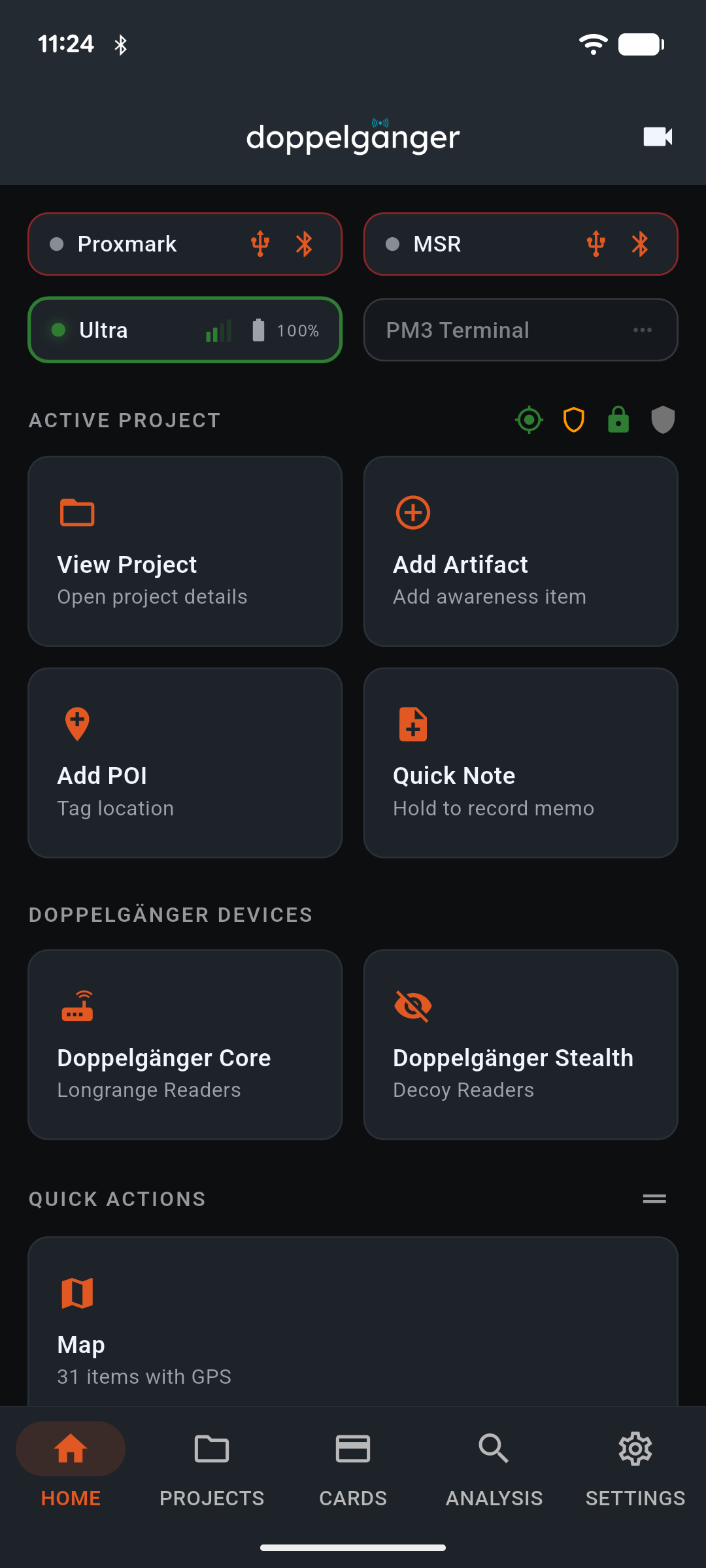
Plug the unit into the handset and ATLAS takes the link without being asked. There is no drawer and no tap. The tile on Home goes green, reading Ultra with the USB glyph and the battery.
Bluetooth: find it once, then it is one tap
The first Bluetooth connection is a scan. Every connection after that does not have to be.
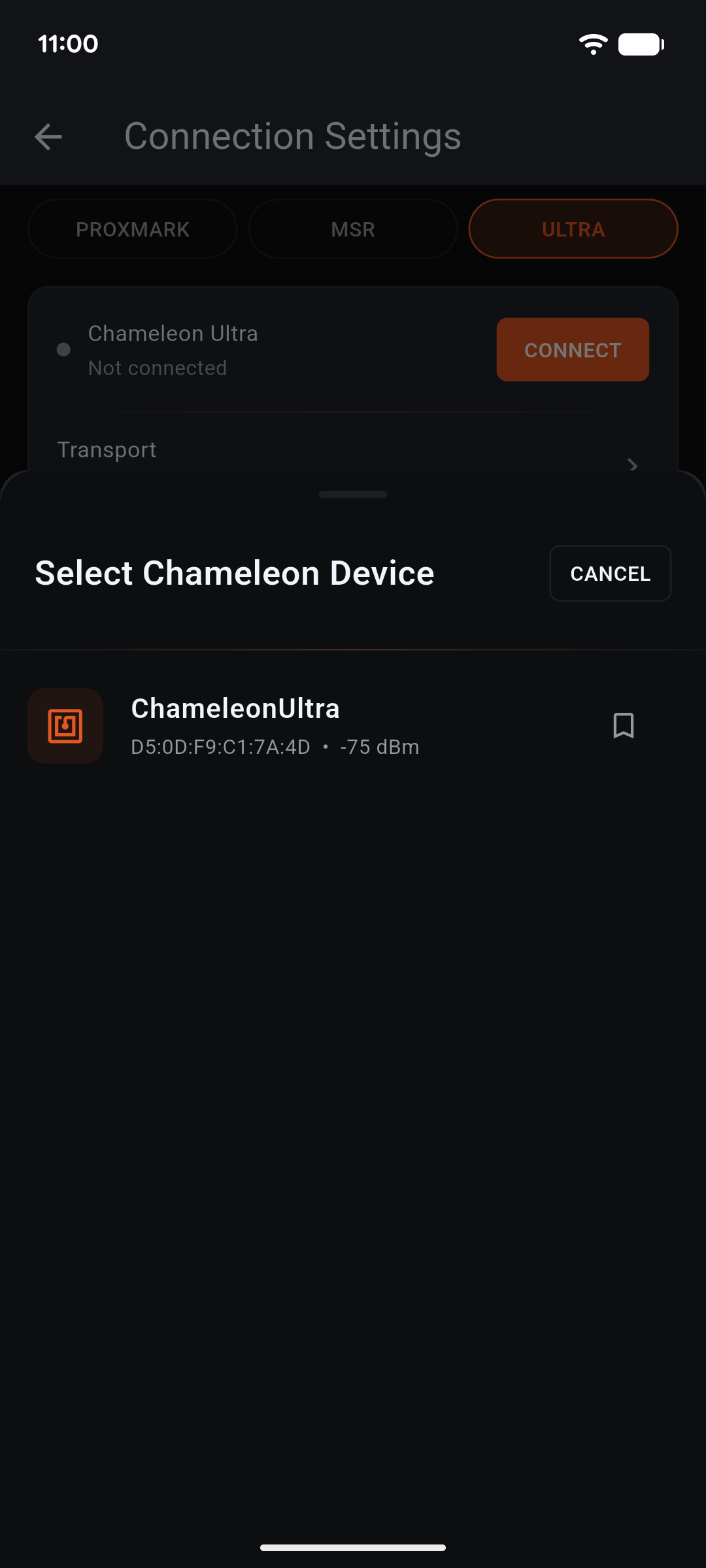
- Select Chameleon Device, the drawer that scans when it opens.
- The unit, with its address, its signal strength and the save glyph at the right of the row.
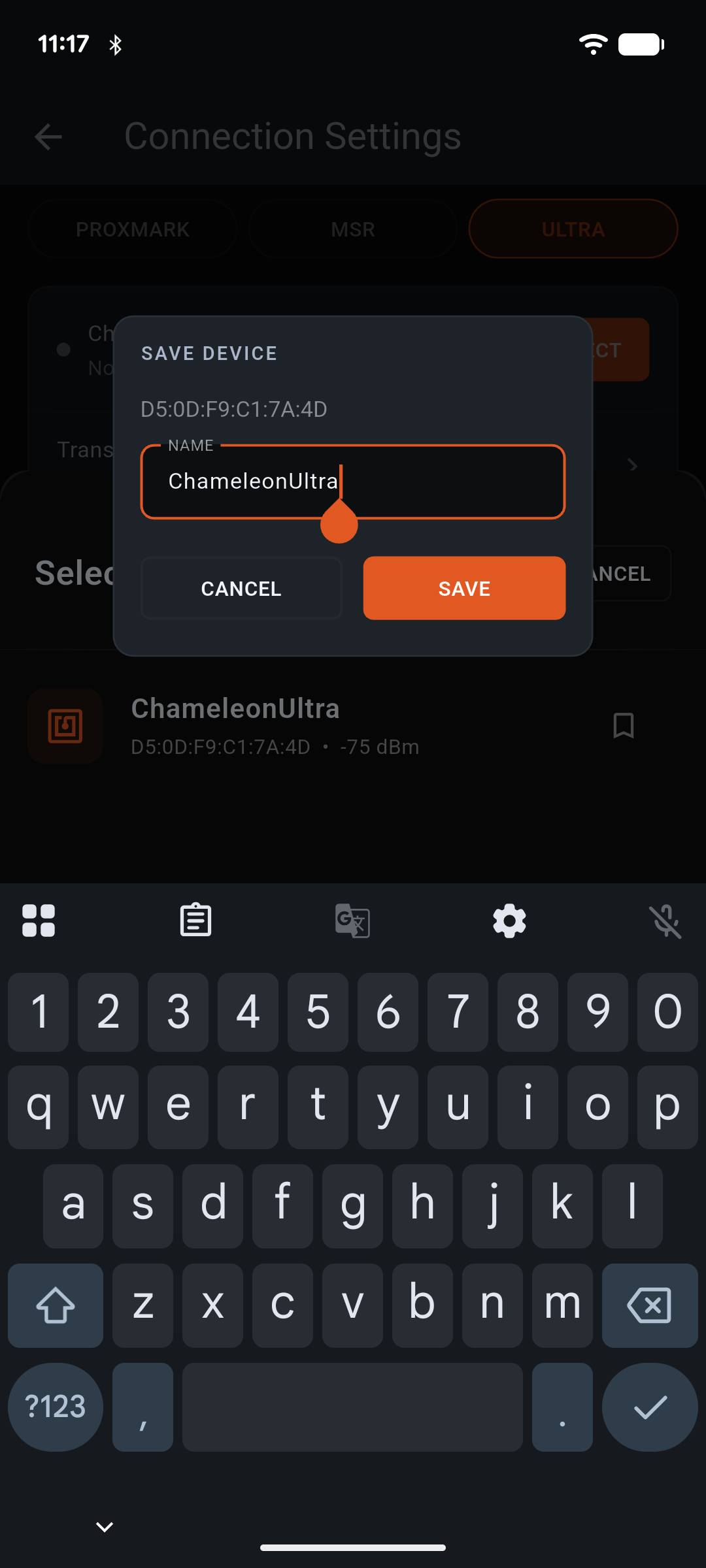
- SAVE DEVICE, over the address it is about to remember.
- NAME, filled with what the unit advertises until you replace it.
- SAVE commits it to the list.
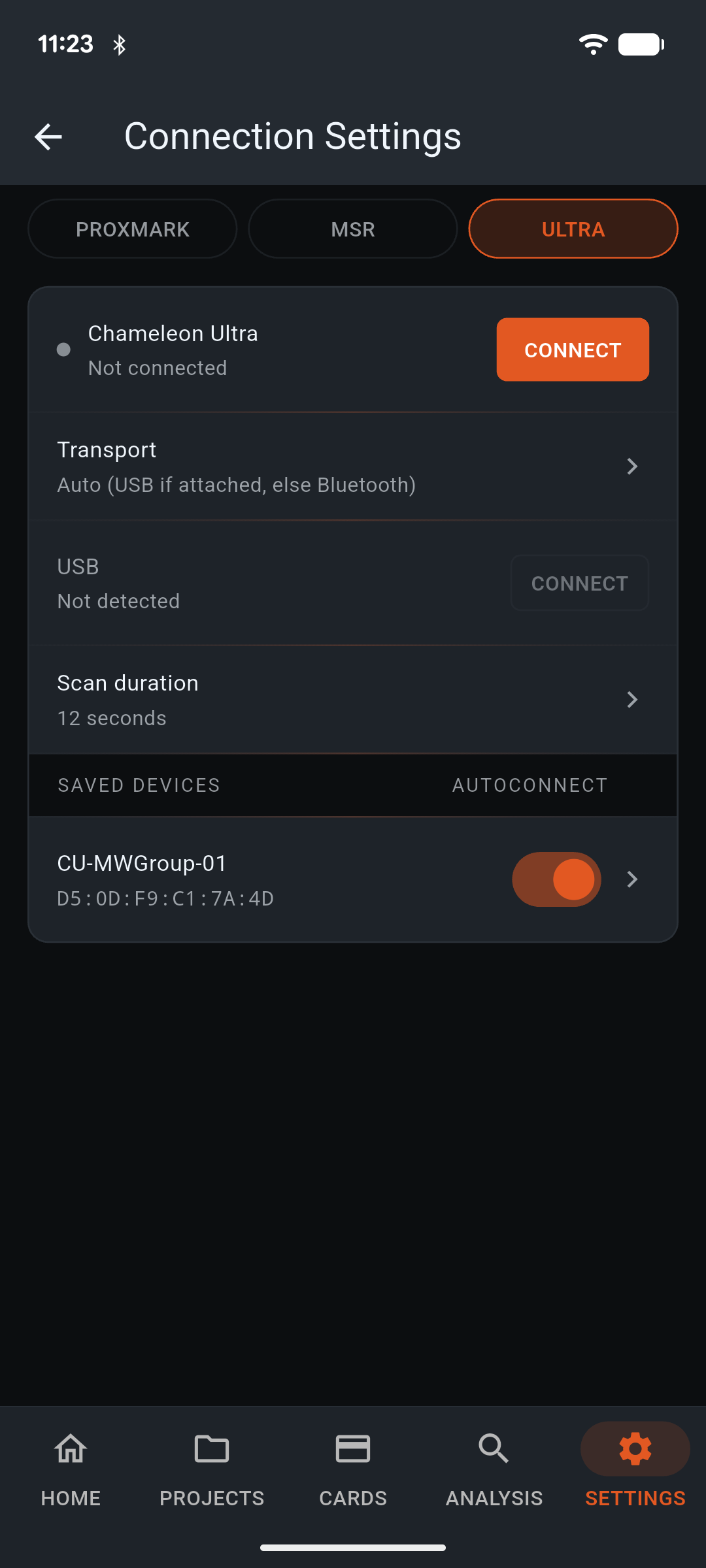
- SAVED DEVICES, with an AUTOCONNECT column.
- CU-MWGroup-01 over its address, with AUTOCONNECT switched on.
- Proxmark and MSR stay dim until their own device is connected.
- The tile reads Ultra once the unit is up, with its signal and battery.
- Power the unit on with either button.
- In ATLAS, open Settings, Connection Settings, the ULTRA chip, and tap CONNECT. The Select Chameleon Device drawer scans and lists what answers.
- Tap the save glyph on the unit’s row. Picking a row connects to it and nothing is remembered. The save glyph is what commits it.
- Replace the prefilled NAME with one that identifies the unit, and tap SAVE. Every unit advertises as
ChameleonUltra, which is fine with one and useless with two. - Switch AUTOCONNECT on. ATLAS then takes the link itself when the unit is in range.
Leave AUTOCONNECT off when a handset meets more than one unit and you need to choose deliberately. Tapping a saved row offers CONNECT, RENAME and FORGET.
Open the drawer with the cable attached and the same unit is listed twice, because ATLAS lists links and not devices. One row is the radio, with its address and signal strength. The other is the cable, with the USB identifiers 6868:8686, which every Chameleon Ultra reports. Name the cable entry after the unit it belongs to.
Connection Settings
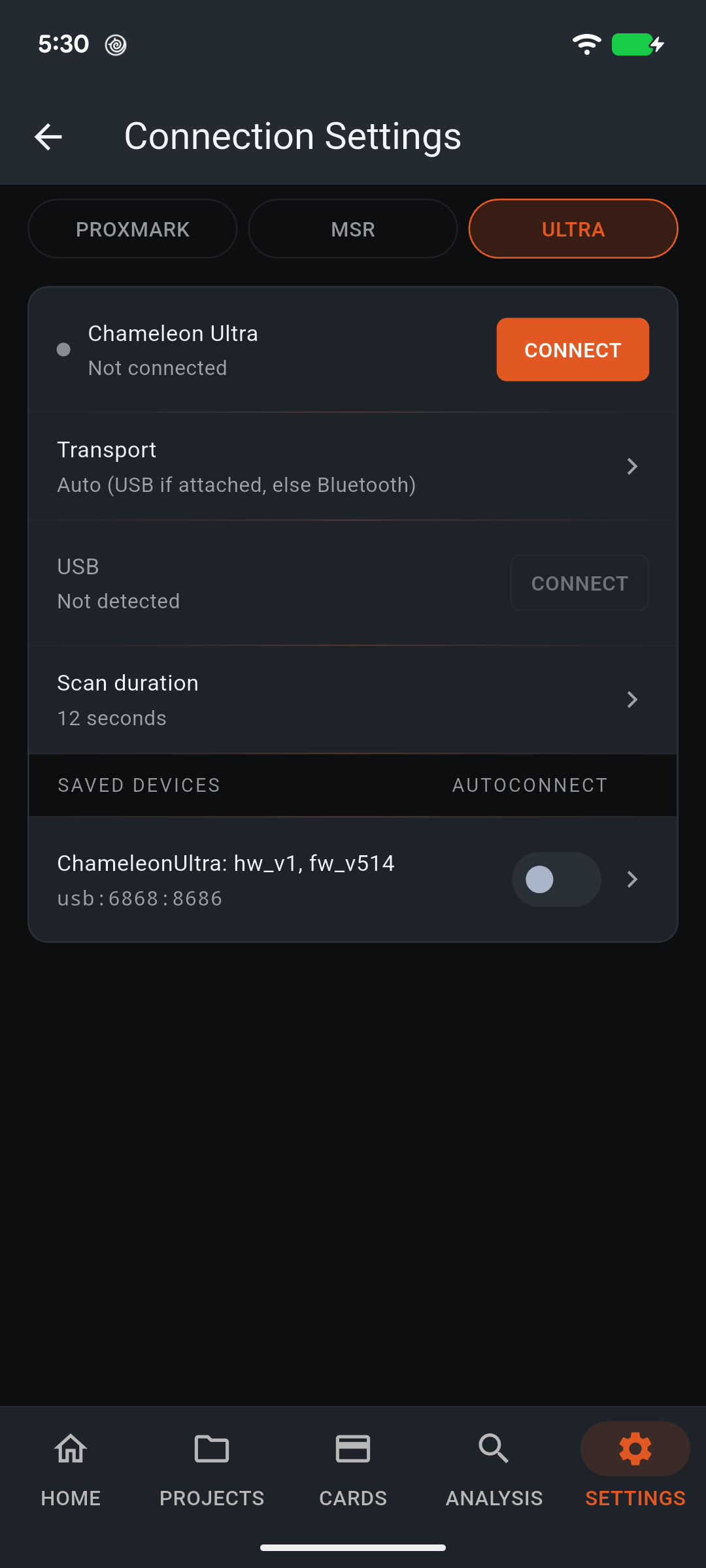
- The device row, with the link state and its own CONNECT.
- Transport, one of three values.
- Scan duration, how long the drawer looks.
- A saved device, with its AUTOCONNECT switch.
| Transport | When |
|---|---|
| Auto (USB if attached, else Bluetooth) | The default. The cable wins when it is there |
| USB only | A desk session, or an engagement where the handset must not advertise |
| Bluetooth only | The cable is in the phone for something else |
Scan duration, 12 seconds by default, is how long the Bluetooth drawer looks before it gives up. The full page is ATLAS Chameleon Ultra in the ATLAS documentation.
Installing ATLAS firmware, and putting the stock firmware back
The firmware is installed from ATLAS, over the USB cable, and in no other way. There is no Bluetooth install, no file to pick and nothing to download by hand. The firmware is proprietary and not open source.
Both directions are one button on one page, Settings, Firmware, the CHAMELEON chip. A unit can go back to the official firmware for other work and come back, and stored cards are not affected either way.
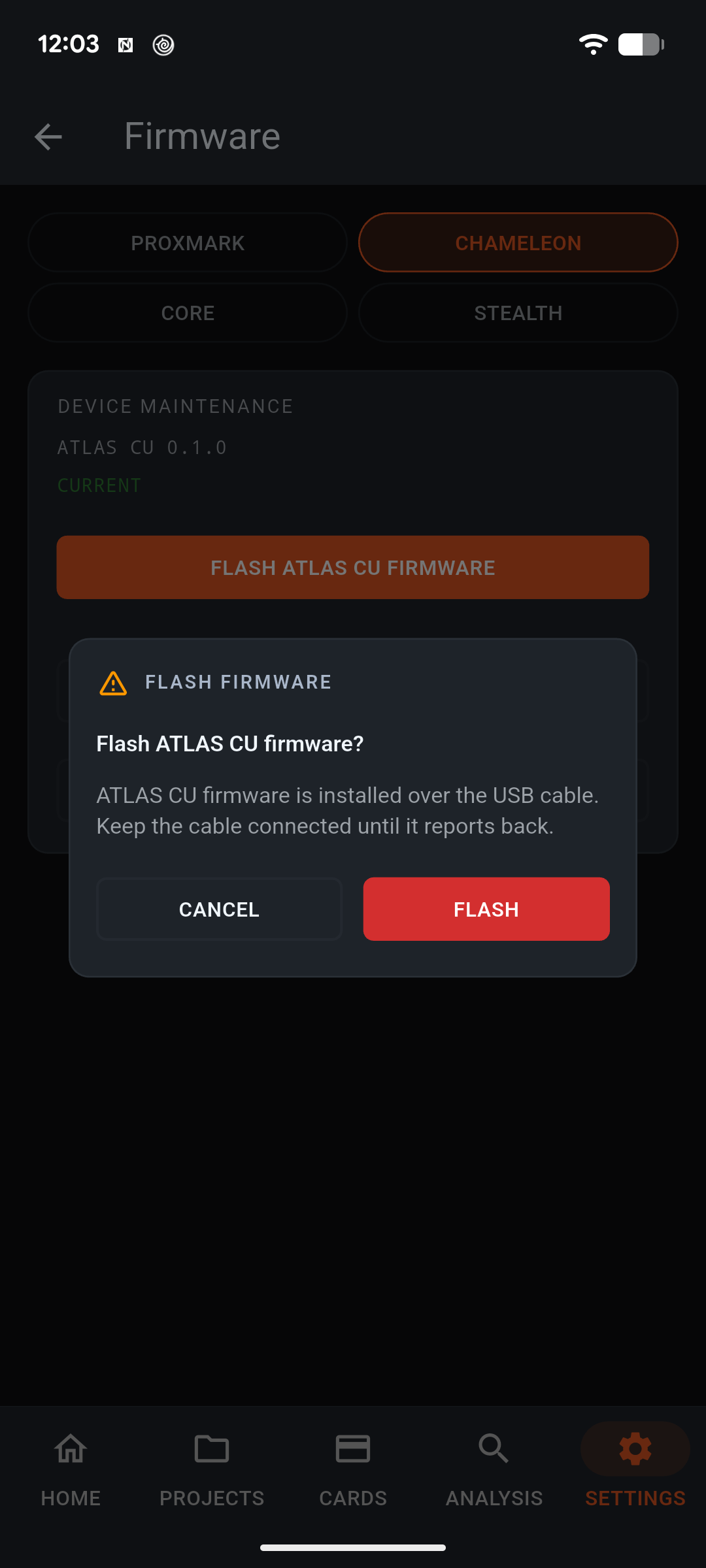
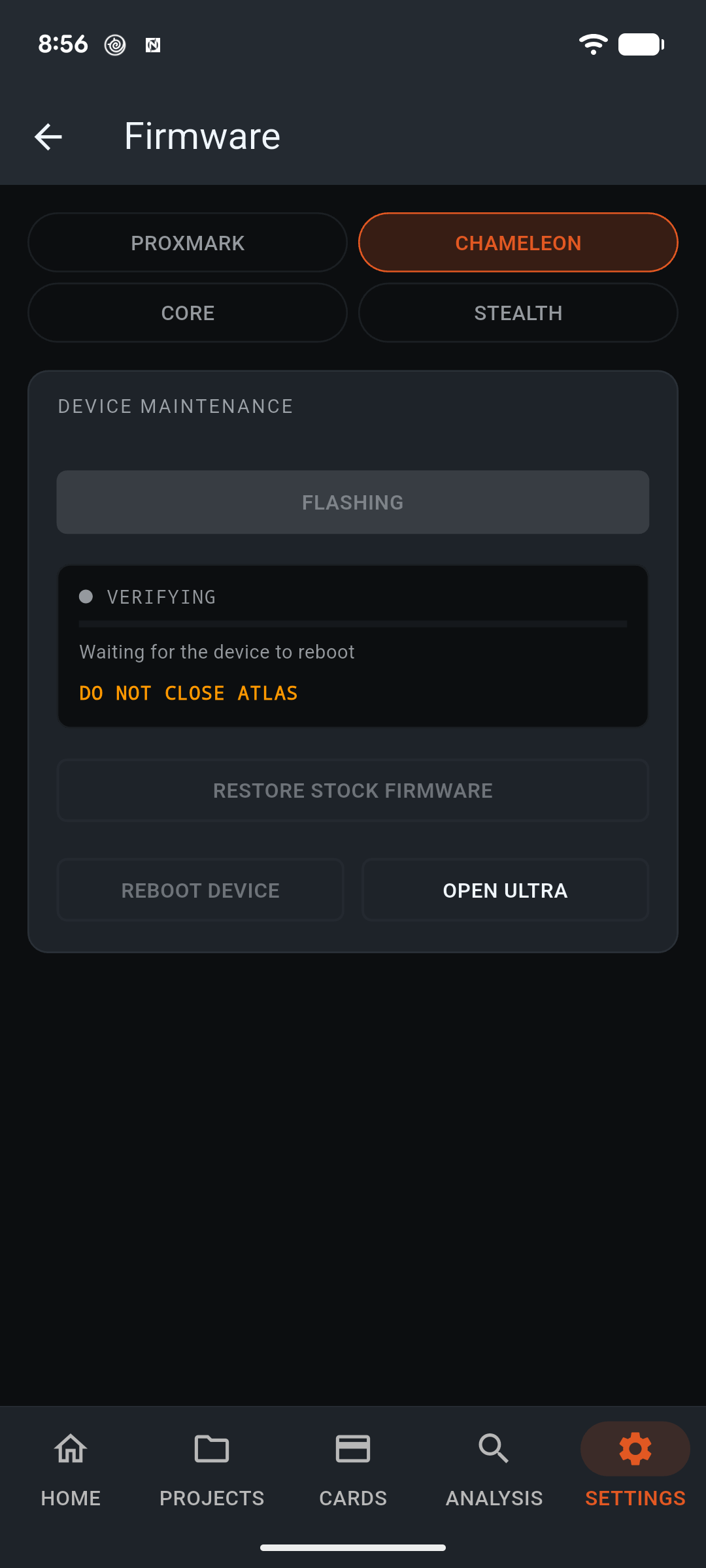
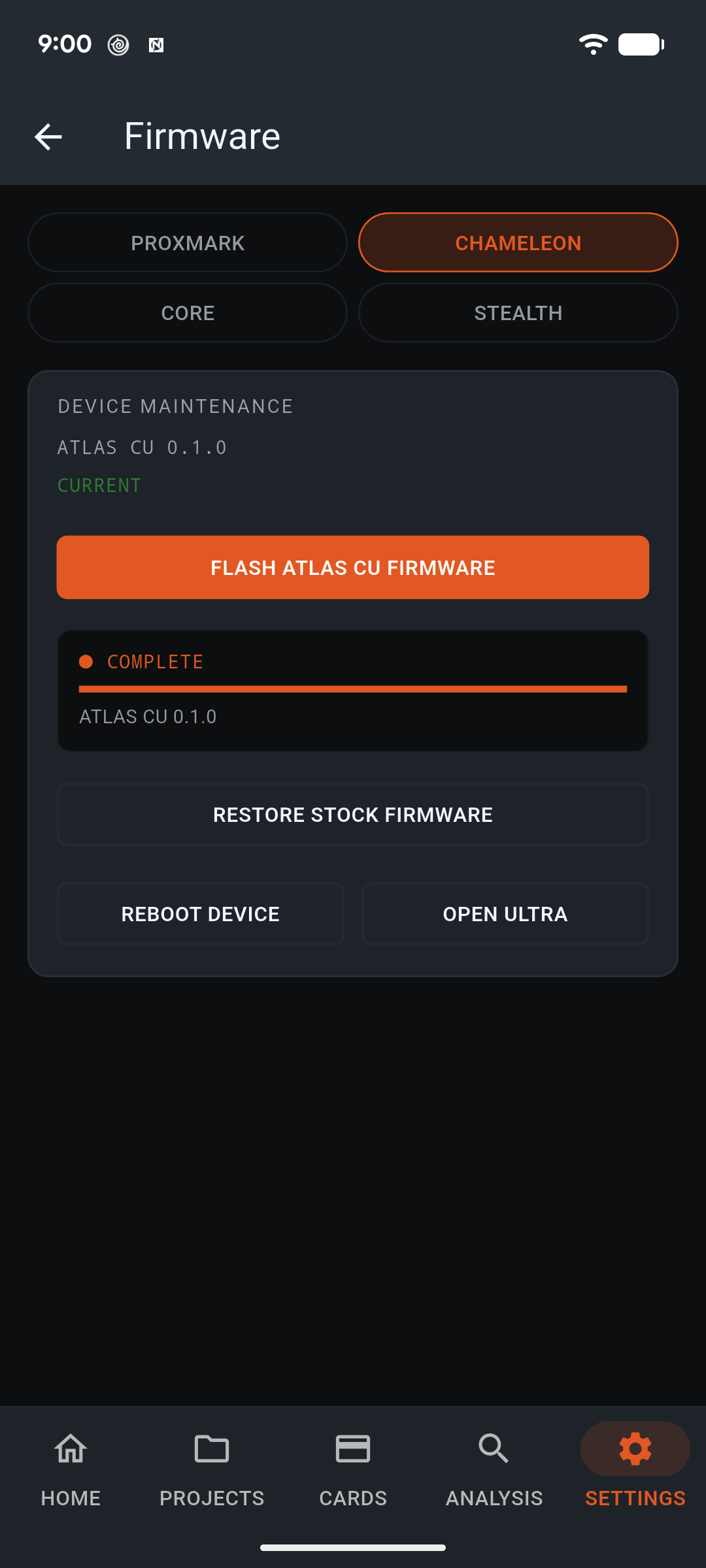
- FLASH FIRMWARE.
- Keep the cable connected until it reports back.
- CANCEL, or FLASH.
- FLASHING, while the run goes.
- The stage, VERIFYING here.
- DO NOT CLOSE ATLAS.
- CURRENT, read off the unit after the reboot.
- COMPLETE, over the image the unit now reports.
- REBOOT DEVICE.
- Plug the unit into the handset by USB cable, with no other Chameleon on the cable. ATLAS connects it by itself.
- Connect the handset to a network. A unit that arrives on official firmware may need the official release fetched first.
- Open Settings, Firmware, then the CHAMELEON chip.
- Tap FLASH ATLAS CU FIRMWARE, then FLASH on the confirmation.
- Allow USB access each time the phone asks. The unit comes back under a new USB name after each reboot of a flash, so the phone asks again.
- Leave it alone until it reports COMPLETE. ATLAS reconnects the unit on the cable by itself.
Do not close ATLAS while a flash is running
Leaving the page during a flash is safe, and the page shows the same run when you come back to it. Closing ATLAS is not safe, and the progress panel reads DO NOT CLOSE ATLAS for as long as the run is going. Keep the cable in until it reports back.
What the page tells you before you touch anything
DEVICE MAINTENANCE names the image on the connected unit and whether it matches the one inside your copy of ATLAS.
| Reading | Meaning |
|---|---|
| CURRENT, in green | The unit carries the image this copy of ATLAS carries, or a newer ATLAS image |
| UPDATE AVAILABLE, in orange | ATLAS carries a newer image than the unit |
| UNSUPPORTED, in red | The unit is on official firmware, which ATLAS does not support. A new unit reads this |
| UNKNOWN, in orange | ATLAS could not read enough to compare |
ATLAS also raises it for you. Connect a unit that is not on the image ATLAS carries and a prompt offers the Firmware page at once, with LATER and OPEN. It reads CHAMELEON ULTRA FIRMWARE IS OUT OF DATE or CHAMELEON ULTRA IS NOT ON ATLAS FIRMWARE. With the unit on Bluetooth alone, both flash buttons are gray and the page reads Connect the Chameleon by USB cable to flash.
While it writes
Progress reports a stage, a percentage while an image is moving, and one line saying what is happening.
| Stage | When it appears |
|---|---|
| UPDATING STOCK FIRMWARE | Only on a unit whose official firmware is behind the official release ATLAS names. That release is downloaded at flash time, so this step needs a network connection, and the unit reboots once more |
| UPDATING BOOTLOADER | Once, on a unit still on its original bootloader, with a reboot of its own, before the upload |
| LOADING IMAGE | Every flash |
| ENTERING DFU | Every flash, and again after each reboot |
| FINDING DEVICE | Every flash, and again after each reboot |
| UPLOADING | Every flash |
| VERIFYING | Every flash |
COMPLETE means more than a finished upload. After the reboot ATLAS reconnects the same unit on the cable and reads the image it now runs. COMPLETE appears only when that is exactly the image ATLAS carries. Anything else ends FAILED, with the reason.
| The line under FAILED | What happened | Do this |
|---|---|---|
| Device reports, a version, then expected, and the version it should be | The unit came back on a different image | Flash again |
| Device still reports, a version, then expected | The unit came back on the image it had before | Flash again |
| Not verified. The device did not come back. | Nothing answered on the cable in the time allowed | Check the cable, then flash again |
| The device is still in DFU mode with no application. | The unit is waiting for an image | Flash again |
| Flashed, but the device never answered a command. | The unit came back and did not answer | REBOOT DEVICE, then check it reads CURRENT |
| USB access to the bootloader was not allowed in time. Nothing was sent. | The phone asked for USB access and no one answered inside about 25 seconds | Flash again and allow access |
| Connect the Chameleon by USB cable to flash. | The unit is not on the cable | Plug it in, then flash again |
| A different Chameleon came back on the cable. The image was not sent. | Another unit answered after a reboot | Flash with one Chameleon on the cable |
| The stock firmware update did not land. | The unit did not come back on the official release | Nothing further was sent. Flash again |
| This unit’s bootloader is not a proven one. Nothing was sent. | ATLAS does not recognize the unit’s bootloader, and writes nothing to it | Do not flash this unit from ATLAS |
REBOOT DEVICE is there whether or not a flash ran, and stays usable on a unit that has stopped answering. Its dialog reads The Chameleon Ultra restarts. It disconnects and reconnects on its own. Slots and stored cards are not affected. Use this when the device has stopped responding., with CANCEL and REBOOT. OPEN ULTRA, beside it, leaves for the ULTRA tab of Cards, and stays usable while a flash runs.
Going back to the official firmware
RESTORE STOCK FIRMWARE downloads the official Chameleon release ATLAS names at flash time, and refuses it unless it is byte for byte that release. Nothing official is carried in the app, so this needs a network connection.
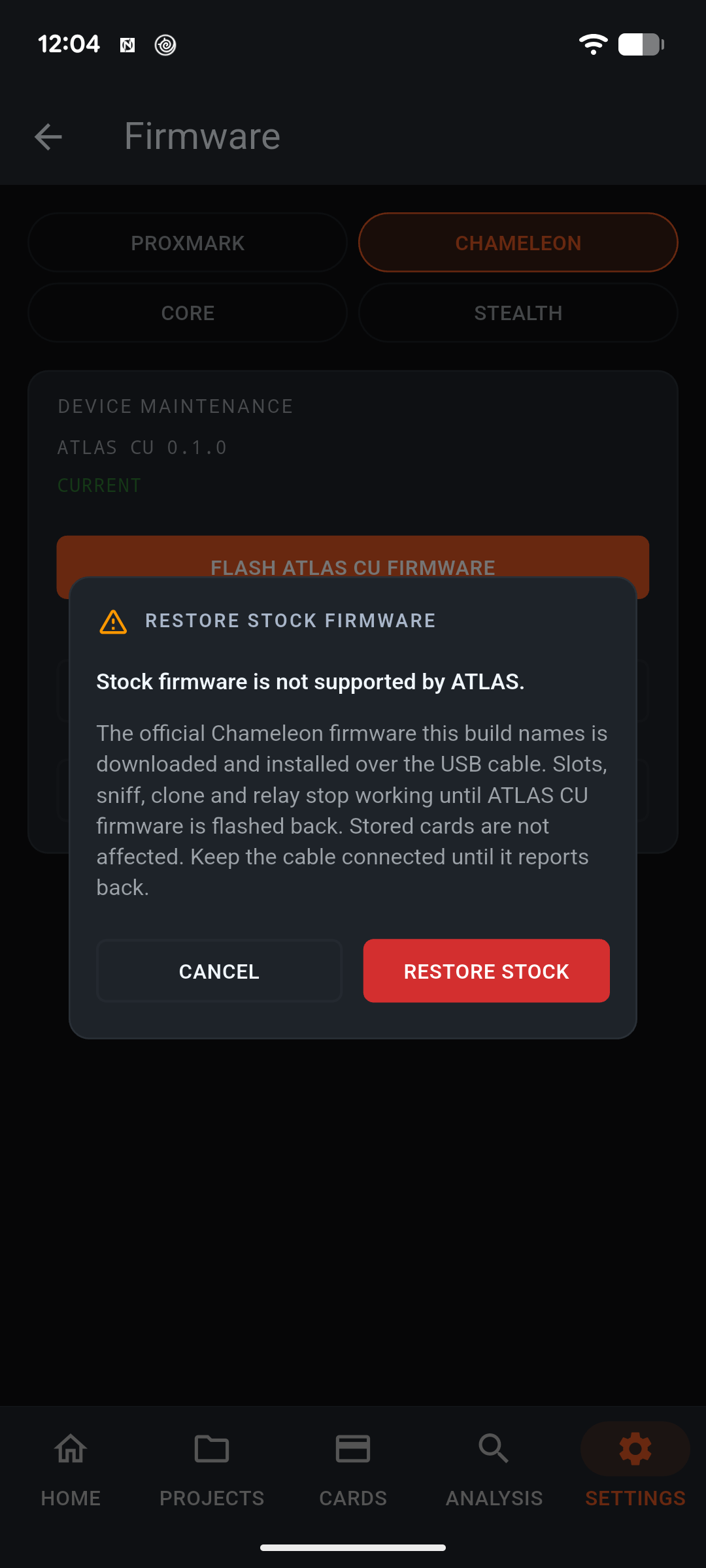
- RESTORE STOCK FIRMWARE, over the line Stock firmware is not supported by ATLAS.
- Downloaded, then installed over the cable, and the ULTRA tab stops working until ATLAS firmware is back.
- CANCEL, or RESTORE STOCK.
What you lose while the unit is on the official firmware is every chip on the ULTRA tab. What you keep is the cards. Flashing back is the same page and the other button. The full procedure is ATLAS Chameleon Ultra firmware in the ATLAS documentation.
Lights, and the two buttons
The unit has two buttons, eight slot lights and one small field light. A is the button nearer the USB port. B is the one farther from it. Light 1 is nearest the USB port and light 8 is farthest from it. The gestures are fixed and cannot be remapped.
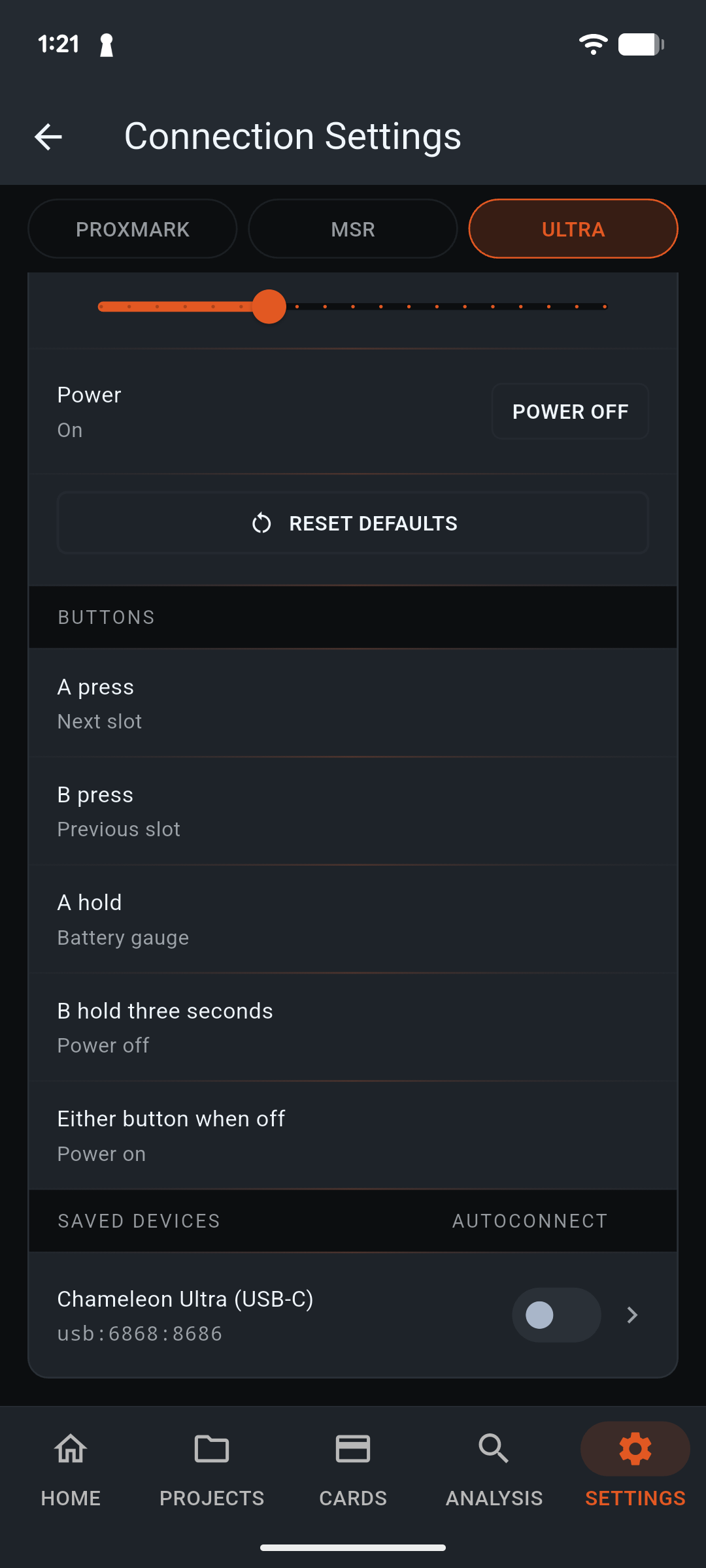
- A press, Next slot.
- B press, Previous slot.
- A hold, Battery gauge.
- B hold three seconds, Power off.
| Gesture | How long | What the unit does |
|---|---|---|
| A press, Next slot | Under one second | Selects the next occupied slot and puts it on the air |
| B press, Previous slot | Under one second | Selects the previous occupied slot and puts it on the air |
| A hold, Battery gauge | One second | While you are still holding, the slot lights show the charge for two seconds |
| B hold three seconds, Power off | Three seconds | Powers off while you are still holding. Let go once the red fade has run |
| Either button when off, Power on | A press | Powers on. On a cable, only A does |
One of the eight slot lights goes solid on the selected slot, and its color says what kind of card it holds. A slot light is lit only while that slot is answering readers.
| Light color | Card in the slot |
|---|---|
| Green | MIFARE Classic |
| Cyan | MIFARE Ultralight, NTAG |
| White | ISO 14443-4 identities, DESFire, Seos and EMV |
| Yellow | iCLASS |
| Blue | HID Prox, ioProx, AWID, EM410x, Indala |
| Magenta | Pyramid, Paradox, PAC, Securakey, Casi-Rusco, Viking |
Red is never a card.
| You see | It means |
|---|---|
| One light solid | That slot is selected and on the air, and its color is the kind of card |
| No light | Nothing is selected, the selected slot is empty, or the selected slot is not on the air, which is how a unit ATLAS parked on SLOT 8 looks |
| All eight fade in green | Powering on from a press |
| All eight fade out red | Powering off |
| One brief flash on boot | A reset, or a cable plugged in |
| Three red flashes | Refused: the radio switch is off, a slot change during a relay, nowhere to move, or a reading not ready |
| One green flash | Done |
| Some lights green, yellow or red for two seconds | The battery gauge. The count is the charge in eighths, and eight lights is full. Green at 50 percent and above, yellow from 20 to 49, red under 20 |
| Light 1 red | A relay is running and this unit is at the card |
| Light 8 green | A relay is running and this unit is at the door |
| The small single light on | A reader’s field is present, or an iCLASS slot is answering a reader |
Moving onto an iCLASS slot, and powering off from one, each pass through a short dark gap. A wake on an iCLASS slot fades in green, goes dark for the gap, and comes back solid yellow, on the air. Below 3 percent battery on two readings in a row, the unit powers itself off with three red flashes.
Settings ATLAS keeps on the unit
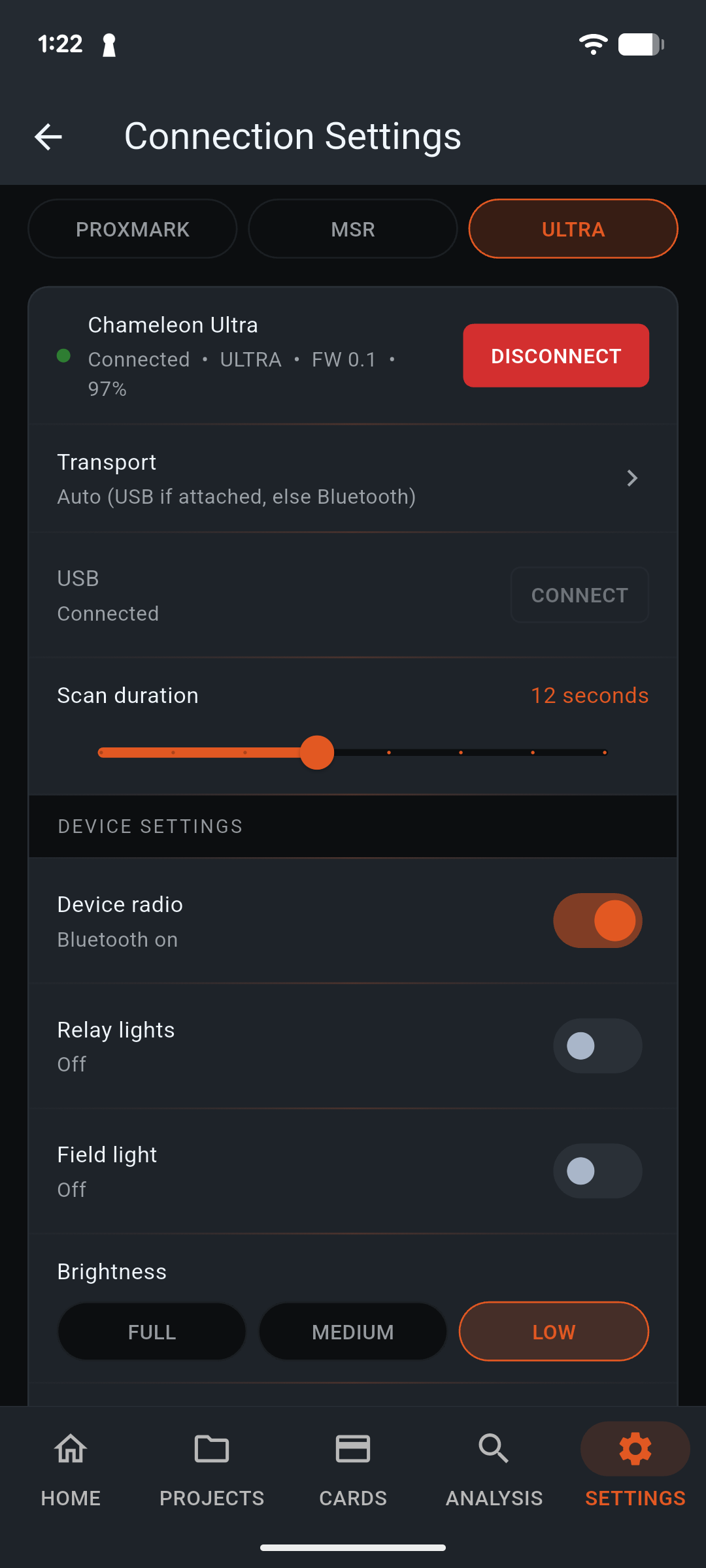
The unit spends most of an engagement out of sight, and it is on its own battery. Three things decide whether it helps or gives you away: whether it lights up, whether it is still awake when you reach the door, and whether its radio is on for ATLAS to connect to. Those are set in ATLAS under Settings, Connection Settings, the ULTRA chip, DEVICE SETTINGS. Each one is saved on the unit, so it travels with the unit to any handset.
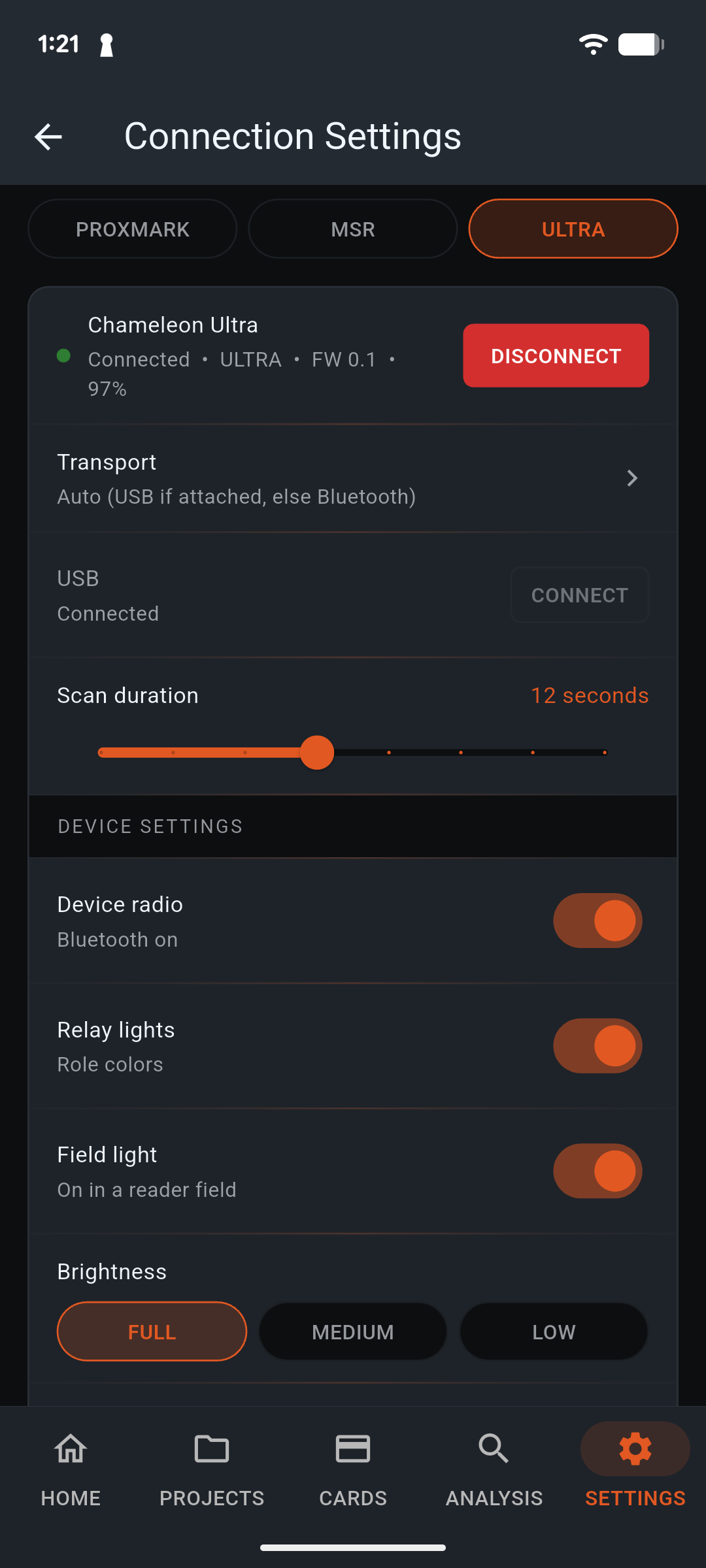
- Device radio, Bluetooth on.
- Relay lights, Role colors.
- Field light, On in a reader field.
- Brightness, on FULL.
- Relay lights, Off, so no role color shows during a relay.
- Field light, Off, so nothing lights when a reader energizes the unit.
- Brightness on LOW, for the slot light that remains.
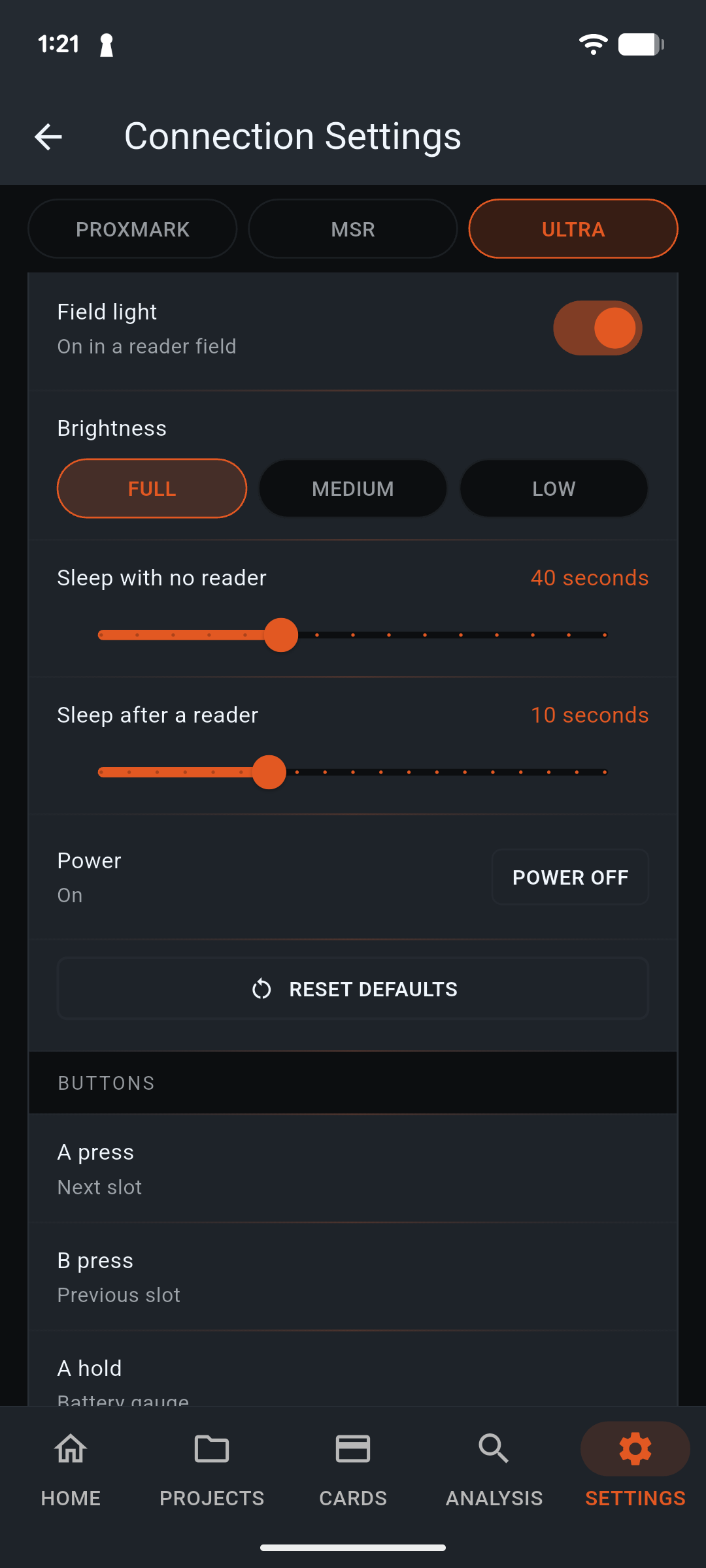
- Sleep with no reader, how long a selected slot waits for a reader.
- Sleep after a reader, how soon it sleeps once the reader is gone.
- Power, with POWER OFF.
- RESET DEFAULTS puts every row back.
| Row | Control | Reads | Default | Change it when |
|---|---|---|---|---|
| Device radio | Switch | Bluetooth on or Bluetooth off | On | Off when the unit rides on the handset’s cable for the whole job, so ATLAS connects over the cable only and the unit’s radio is silent. Switching it off from a Bluetooth link first asks DEVICE RADIO, Bluetooth goes off and this link drops. USB turns it on., with CANCEL and TURN OFF |
| Relay lights | Switch | Role colors or Off | Role colors | Off when the unit is in view during a relay. Off also keeps the field light dark during a relay |
| Field light | Switch | On in a reader field or Off | On | Off when the unit must stay dark at a door |
| Brightness | FULL, MEDIUM, LOW | The lit chip | FULL | LOW for a unit carried in the open. It covers the eight slot lights and the field light |
| Sleep with no reader | Slider | Seconds | 40 seconds | See the timers below |
| Sleep after a reader | Slider | Seconds | 10 seconds | See the timers below |
| Power | POWER OFF | On | Before the unit goes back in the kit, so a slot is not left answering readers on the way out of the building. It asks first, POWER OFF, The device goes off. Either button turns it on., with CANCEL and POWER OFF. Over Bluetooth the line reads The device goes off and this link drops. Either button turns it on. | |
| RESET DEFAULTS | Asks first, RESET DEFAULTS, Every setting on this card returns to its default., with CANCEL and RESET. Returns every row to its default, which turns the radio and the lights back on, and also returns Transport and Scan duration, which are kept on the handset, to theirs |
With no unit connected, every row on the card reads Connect to change.
Once Device radio is off, only the cable turns it back on
There is no control on the unit for this. If you switch Device radio off and leave the cable in the car, the unit cannot be reached from the handset until you have a cable again.
On the cable the unit never sleeps. On battery it does, and the two sliders decide when.
| Slider | Counts from | Range | Stops |
|---|---|---|---|
| Sleep with no reader | Powering on, a press of either button, ATLAS’s Bluetooth link dropping, a cable pull, or a relay ending | 10 to 600 seconds | 10, 15, 20, 25, 30, 40, 50, 60, 90, 120, 180, 240, 300, 450, 600 |
| Sleep after a reader | A reader’s field waking the unit, or a reader’s field leaving | 2 to 600 seconds | 2, 3, 4, 5, 6, 8, 10, 15, 20, 30, 45, 60, 90, 120, 180, 240, 300, 450, 600 |
Sleep with no reader does two jobs. It is how long a selected slot waits for a reader, and it is how long a unit woken from its buttons stays on the air for ATLAS to connect to over Bluetooth when Device radio is on.
| Set it | When |
|---|---|
| Sleep with no reader short, 10 to 30 | The unit is always on the handset’s cable, where the timer does not apply, and you want a stray battery wake to end quickly |
| Sleep with no reader at 40 | You wake it at the door and present within half a minute |
| Sleep with no reader long, 120 and up | You wake it in the car and walk in, or you need time for ATLAS to connect over Bluetooth after waking it. It costs battery, and the unit’s radio stays on for longer |
| Sleep after a reader short, 2 to 6 | One door, one presentation, and the unit should go quiet behind you |
| Sleep after a reader at 10 | A second try at the same reader is likely |
| Sleep after a reader long, 30 and up | A run of doors in a row, where a unit that sleeps between them costs a wake each time |
The unit does not sleep while a relay is running, while ATLAS is connected over Bluetooth, while a slot is answering a reader, while a sniff is armed, while a button is held, or while a command from the handset arrived in the last ten seconds. A unit left sitting on a reader wakes to answer it, stays for Sleep after a reader, sleeps, and wakes again on the next field. An iCLASS slot follows the same two timers on battery, and also comes off the air after ten minutes of continuous reader traffic.
The full page is ATLAS Chameleon Ultra Settings in the ATLAS documentation.
Where to go next
| You want | Page |
|---|---|
| To relay a credential that cannot be cloned | Relay |
| The blank a prox credential is written to | 125kHz T5577 Rewritable Card Pack |
| The blank an iCLASS Legacy credential is written to | HID 2K iCLASS Card |
| The app that drives the unit, and how to get it | Doppelgänger ATLAS |
| Every chip on the ULTRA tab, control by control | ATLAS Chameleon Ultra in the ATLAS documentation |
Intended use
PPE products are professional tools for security practitioners working under contract or in the course of their employment, with the authorization of the site's owner. They are used to perform security audits, to help integrators confirm that an installation is secure, and to audit the work integrators and installers have done, so that flaws are found and remediated before someone with bad intentions finds them. They are not research devices, they are not sold as research devices, and they are not for any illegal or unauthorized purpose.
The manufacturers whose readers and credentials these products are used with make very secure products when those products are implemented properly. An audit shows where an installation falls short of that, so it can be corrected.